Frontier Arris NVG 589 User Manual
Model: NVG589
การแนะนำ
The Arris NVG589 is a versatile DSL Modem and Wireless Router designed to provide high-speed internet access and home networking capabilities. This device integrates modem, router, and voice capabilities into a single unit, supporting DSL connections, wireless networking (802.11a/b/g/n), and multiple Ethernet ports. It is equipped to handle various home networking needs, including data over coaxial (HPNA) and Voice over IP (VoIP) lines.
This manual provides detailed instructions for setting up, operating, and maintaining your NVG589 device, along with troubleshooting tips for common issues.
ข้อมูลด้านความปลอดภัย
Please read all safety instructions before using this product. Failure to follow these instructions could result in injury or damage to the device.
- อย่าให้เครื่องโดนน้ำหรือความชื้น
- อย่าวางอุปกรณ์ไว้ใกล้แหล่งความร้อน เช่น เครื่องทำความร้อน เครื่องทำความร้อน เตา หรืออุปกรณ์อื่นๆ (รวมทั้ง ampเครื่องให้ความร้อน) ที่ผลิตความร้อน
- ใช้เฉพาะอะแดปเตอร์แปลงไฟที่ให้มากับเครื่องเท่านั้น
- ตรวจสอบให้แน่ใจว่ามีการระบายอากาศที่เหมาะสม อย่าปิดกั้นช่องระบายอากาศใดๆ
- This device may include a backup battery slot (battery not included). Maintaining the battery is the customer's responsibility. Failure to replace a worn-out battery may lead to a loss of voice service during power outages and may damage the device. For replacement battery specifications and disposal information, contact ARRIS support.
- ผลิตภัณฑ์นี้มีวัตถุประสงค์สำหรับใช้ภายในอาคารเท่านั้น
Legal Disclaimer: This device is in good working condition but may require specific configuration or compatibility adjustments for certain telecommunication systems. The seller cannot guarantee universal compatibility with all telco systems.
เนื้อหาแพ็คเกจ
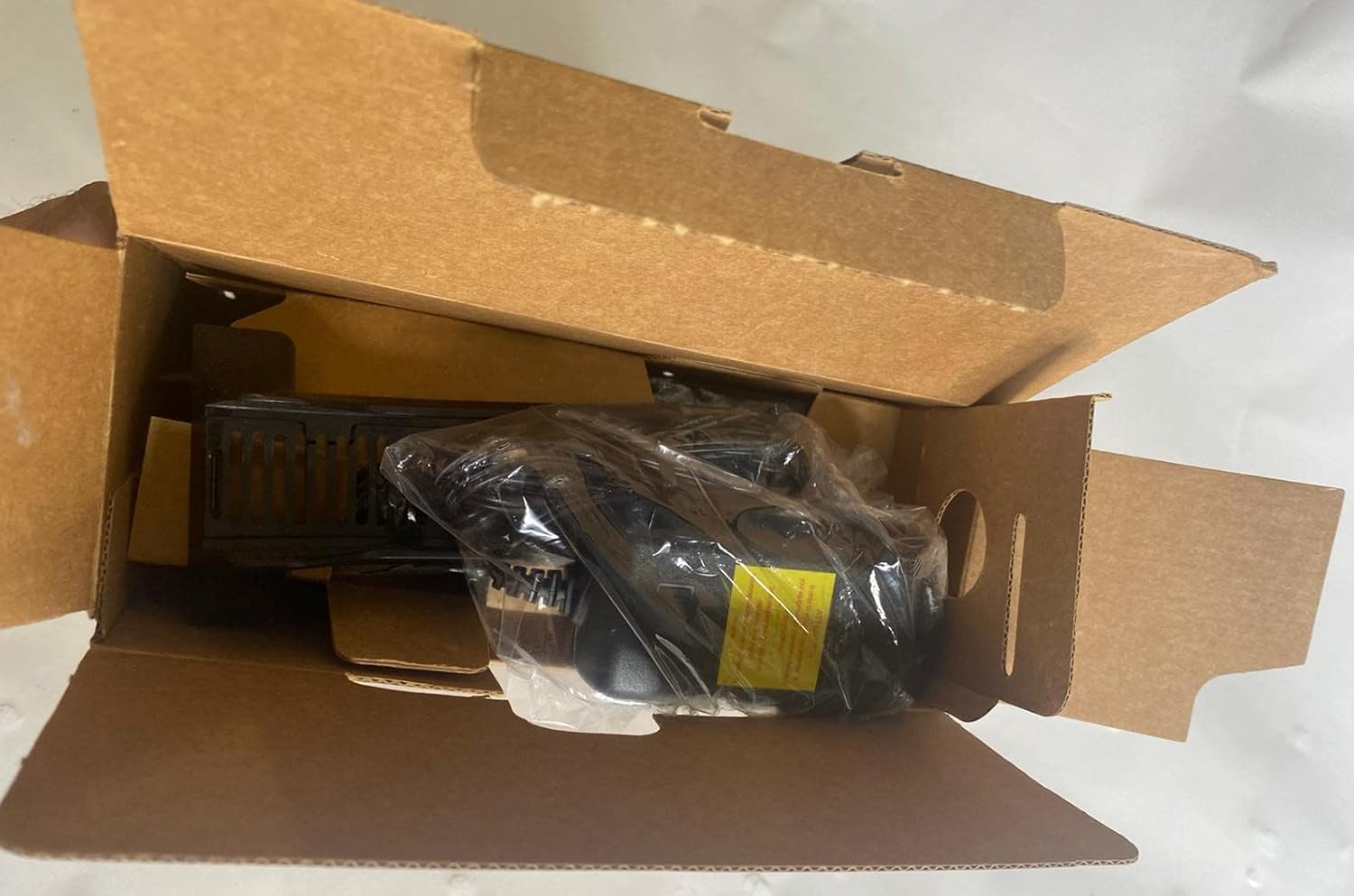
ตรวจสอบว่ามีรายการทั้งหมดรวมอยู่ในแพ็คเกจของคุณ:
- Arris NVG589 DSL Modem/Wireless Router
- อะแดปเตอร์แปลงไฟ
- สายเคเบิลอีเทอร์เน็ต
- RJ11 Cable (for DSL connection)
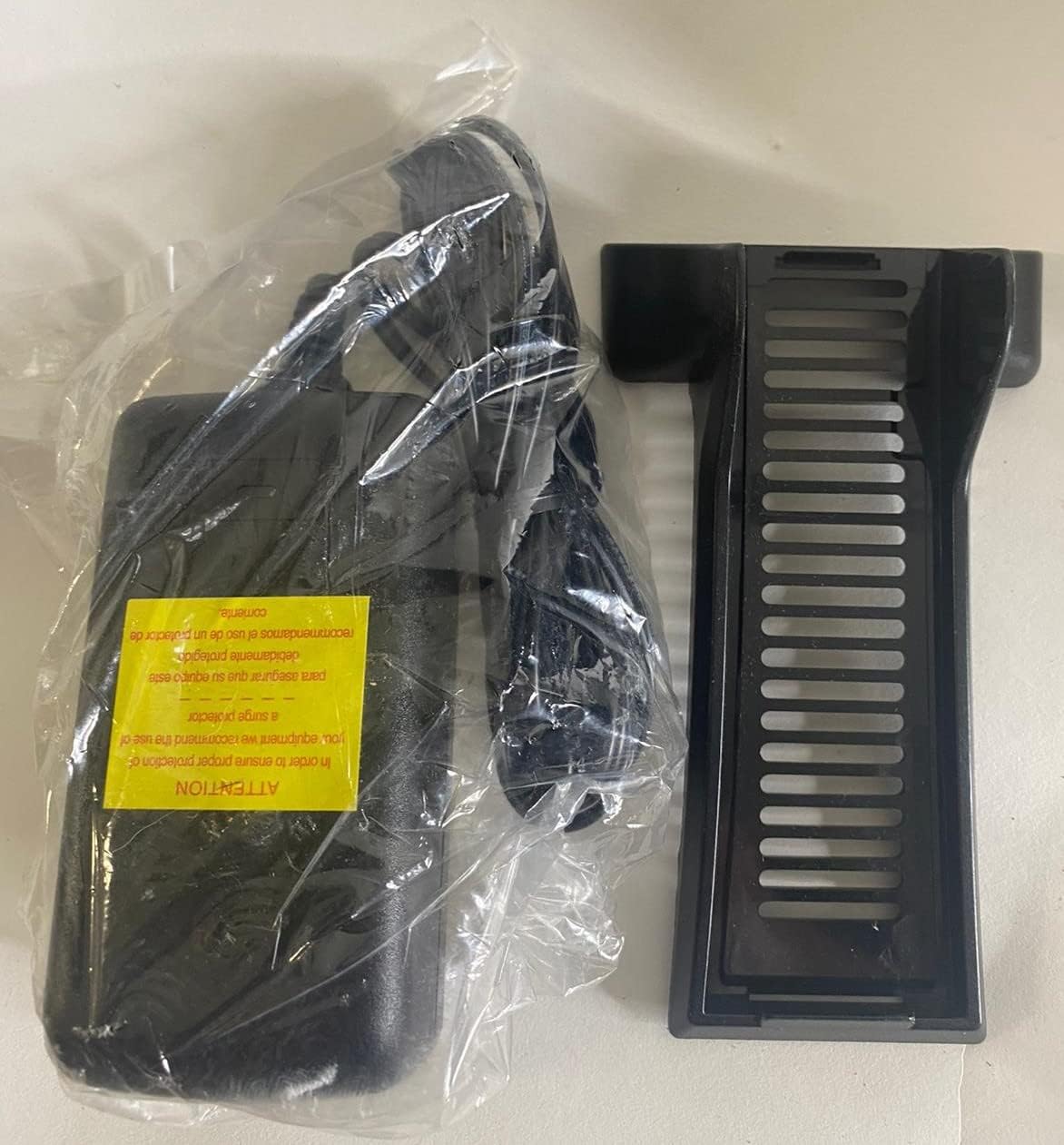
- Vertical Stand (optional, for upright placement)

Image: Contents of the Arris NVG589 package, showing the modem, power adapter, and included cables.

Image: The power adapter and the optional vertical stand for the Arris NVG589.
สินค้าเกินview
Familiarize yourself with the various components and indicators of your Arris NVG589.
ไฟแสดงสถานะแผงด้านหน้า
ภาพ: ด้านข้าง view of the Arris NVG589, highlighting the status indicator lights.
- พลัง: ระบุสถานะพลังงานของอุปกรณ์
- แบตเตอรี่: (If battery installed) Indicates battery status (charging, low, etc.).
- อีเธอร์เน็ต: แสดงกิจกรรมบนพอร์ต Ethernet LAN
- ไร้สาย: ระบุสถานะของเครือข่าย Wi-Fi
- HomePNA: Indicates activity on the HomePNA (coaxial) port.
- Broadband 1 & 2: Indicate the status of the DSL broadband connection(s).
- บริการ: Indicates the status of the internet service connection.
- Phone 1 & 2: Indicate the status of the VoIP phone lines.
- ยูเอสบี: แสดงสถานะการทำงานบนพอร์ต USB
พอร์ตแผงด้านหลัง
ภาพ: ด้านหลัง view of the Arris NVG589, displaying all connectivity ports.
- พลัง: เชื่อมต่อกับอะแดปเตอร์ไฟ
- รีเซ็ต: Small button to reset the device (use a paperclip).
- Phone Lines (1 & 2): RJ-11 ports for connecting analog telephones for VoIP service.
- สายเคเบิ้ล: F-connector for HomePNA (coaxial) data devices.
- อีเธอร์เน็ต (1-4): RJ-45 ports for connecting wired devices (computers, gaming consoles, etc.).
- เดเอสแอล: RJ-11 port for connecting to the DSL line from your wall jack.
- ยูเอสบี: USB port for future use or connecting compatible devices.
- ONT: Optical Network Terminal port (typically for fiber connections, may not be used for DSL).
แผงด้านล่าง

ภาพ: ด้านล่าง view of the Arris NVG589, displaying product information and warnings.
The bottom panel contains important information such as the default Wi-Fi Network Name (SSID), Wi-Fi Password, and Device Access Code. It also includes a warning regarding the optional backup battery.
คู่มือการติดตั้ง
Follow these steps to set up your Arris NVG589 modem/router:
- วางตำแหน่งอุปกรณ์: Place the NVG589 in a central location in your home, away from obstructions and heat sources, to ensure optimal Wi-Fi coverage.
- เชื่อมต่อสาย DSL: Connect one end of the RJ11 cable (phone cable) to the DSL port on the rear of the NVG589 and the other end to your wall's DSL jack.
- เชื่อมต่อพลังงาน: Plug the power adapter into the Power port on the rear of the NVG589, then plug the other end into an electrical outlet. The Power indicator on the front panel should light up.
- รอการเริ่มต้น: Allow several minutes for the device to power on and establish a connection. The Broadband 1, Broadband 2, and Service indicators should eventually turn solid green, indicating a successful internet connection.
- เชื่อมต่ออุปกรณ์แบบใช้สาย (ไม่บังคับ): For wired connections, connect an Ethernet cable from one of the yellow Ethernet ports (1-4) on the rear of the NVG589 to the Ethernet port on your computer or other network device.
- เชื่อมต่ออุปกรณ์ไร้สาย: On your wireless device (smartphone, laptop, tablet), search for available Wi-Fi networks. Select the network name (SSID) found on the bottom label of your NVG589. Enter the Wi-Fi Password (also on the bottom label) when prompted.
- Connect Phone Lines (Optional): If you have VoIP service, connect your analog telephone(s) to the Phone Lines 1 & 2 ports using standard phone cables.
การดำเนินการ
Once your Arris NVG589 is set up, it will automatically manage your internet connection and local network. Here are some basic operational aspects:
- การเข้าถึงอินเทอร์เน็ต: The device provides internet access to all connected wired and wireless devices.
- เครือข่าย Wi-Fi: The NVG589 broadcasts a Wi-Fi network. You can find the default network name (SSID) and password on the label on the bottom of the device. For security, it is recommended to change the default Wi-Fi password via the device's web อินเทอร์เฟซ
- VoIP Service: If configured, the device supports two VoIP lines for phone service.
- Web อินเทอร์เฟซ: You can access the modem's configuration settings by typing its IP address (usually 192.168.1.254) into a web browser. You will need the Device Access Code from the bottom label to log in.
การซ่อมบำรุง
Regular maintenance helps ensure the longevity and optimal performance of your NVG589.
- การทำความสะอาด: Dust the device regularly with a soft, dry cloth. Do not use liquid cleaners or aerosols.
- การระบายอากาศ : Ensure the ventilation holes are not blocked. Proper airflow prevents overheating.
- อัพเดตเฟิร์มแวร์: ตรวจสอบผู้ผลิตเป็นระยะ website for firmware updates. Firmware updates can improve performance, add features, and fix bugs.
- การเริ่มต้นใหม่: If you experience slow performance or connectivity issues, try restarting the device by unplugging the power cord for 10 seconds and then plugging it back in.
การแก้ไขปัญหา
ต่อไปนี้เป็นวิธีแก้ไขปัญหาทั่วไปที่คุณอาจพบเจอ:
| ปัญหา | สาเหตุที่เป็นไปได้ | สารละลาย |
|---|---|---|
| ไม่มีไฟแสดงสถานะพลังงาน | ไม่ได้เชื่อมต่ออะแดปเตอร์ไฟหรือเต้ารับไฟฟ้าชำรุด | ตรวจสอบให้แน่ใจว่าเสียบอะแดปเตอร์แปลงไฟเข้ากับอุปกรณ์และเต้ารับไฟฟ้าที่ใช้งานได้สนิทแล้ว ลองเสียบกับเต้ารับอื่นดู |
| Broadband/Service Lights Not Solid Green | DSL line not connected, service issue, or modem not synced. | Check RJ11 cable connection to DSL port and wall jack. Restart the modem. If issue persists, contact your internet service provider. |
| ไม่มีการเชื่อมต่ออินเทอร์เน็ต (แบบใช้สาย) | Ethernet cable loose, network adapter issue, or modem not providing internet. | Ensure Ethernet cable is securely connected to both the modem and your device. Check modem's internet status lights. Restart both modem and computer. |
| No Internet Access (Wireless) | Incorrect Wi-Fi password, Wi-Fi disabled, or signal interference. | Verify Wi-Fi password. Check if Wireless indicator is on. Move closer to the modem. Restart the modem. |
| Phone Service Not Working | Phone cable loose, VoIP service not active, or modem issue. | Ensure phone cables are securely connected to the Phone Lines ports. Check Phone 1/2 indicators. Restart the modem. Contact your service provider if VoIP service is not active. |
| ความเร็วอินเตอร์เน็ตช้า | Network congestion, Wi-Fi interference, or service plan limitations. | Reduce number of active devices. Optimize Wi-Fi channel. Consider upgrading your internet plan. Restart the modem. |
ข้อมูลจำเพาะทางเทคนิค
| คุณสมบัติ | ข้อมูลจำเพาะ |
|---|---|
| ชื่อรุ่น | Arris NVG589 |
| ประเภทไร้สาย | 802.11a/b/g/n |
| ระดับย่านความถี่ | แบนด์เดียว |
| เทคโนโลยีการเชื่อมต่อ | Ethernet, USB, HPNA, WiFi, Optical Network Port |
| น้ำหนักสินค้า | 1.8 ปอนด์ |
| ขนาดสินค้า (กxยxส) | 10.2 x 7.7 x 3.5 นิ้ว |
| สี | สีดำ |
| เล่มที่tage | 12 โวลต์ |
| ระบบปฏิบัติการ | Arris proprietary firmware |
| ส่วนประกอบที่รวมอยู่ | Ethernet cable, RJ11 cable, power cord |
การรับประกันและการสนับสนุน
This Arris NVG589 device typically comes with a limited manufacturer's warranty. Please refer to the original purchase documentation or contact your service provider for specific warranty terms and conditions.
For technical support, troubleshooting assistance beyond this manual, or warranty claims, please contact your internet service provider or visit the official ARRIS support website. You can often find additional resources, FAQs, and contact information on their support pages.
ARRIS Support: www.arris.com/consumer


