สินค้าเกินview
The Rii K12+ Mini Wireless Keyboard with Touchpad Mouse is an ultra-slim, portable input device designed for convenience and versatility. Featuring a durable stainless steel back cover and 2.4 GHz wireless technology, it provides a seamless experience for controlling various devices.
คุณสมบัติหลัก:
- Ultra-slim design with stainless steel construction.
- Portable and elegant form factor.
- แบตเตอรี่ลิเธียมไอออนแบบชาร์จไฟได้ในตัว
- Integrated touchpad with multi-finger functions: single-finger click for left mouse function, two-finger click for right mouse function.
- Automatic sleep mode for enhanced battery life.
- Conveniently stored USB receiver in the keyboard's back cover.
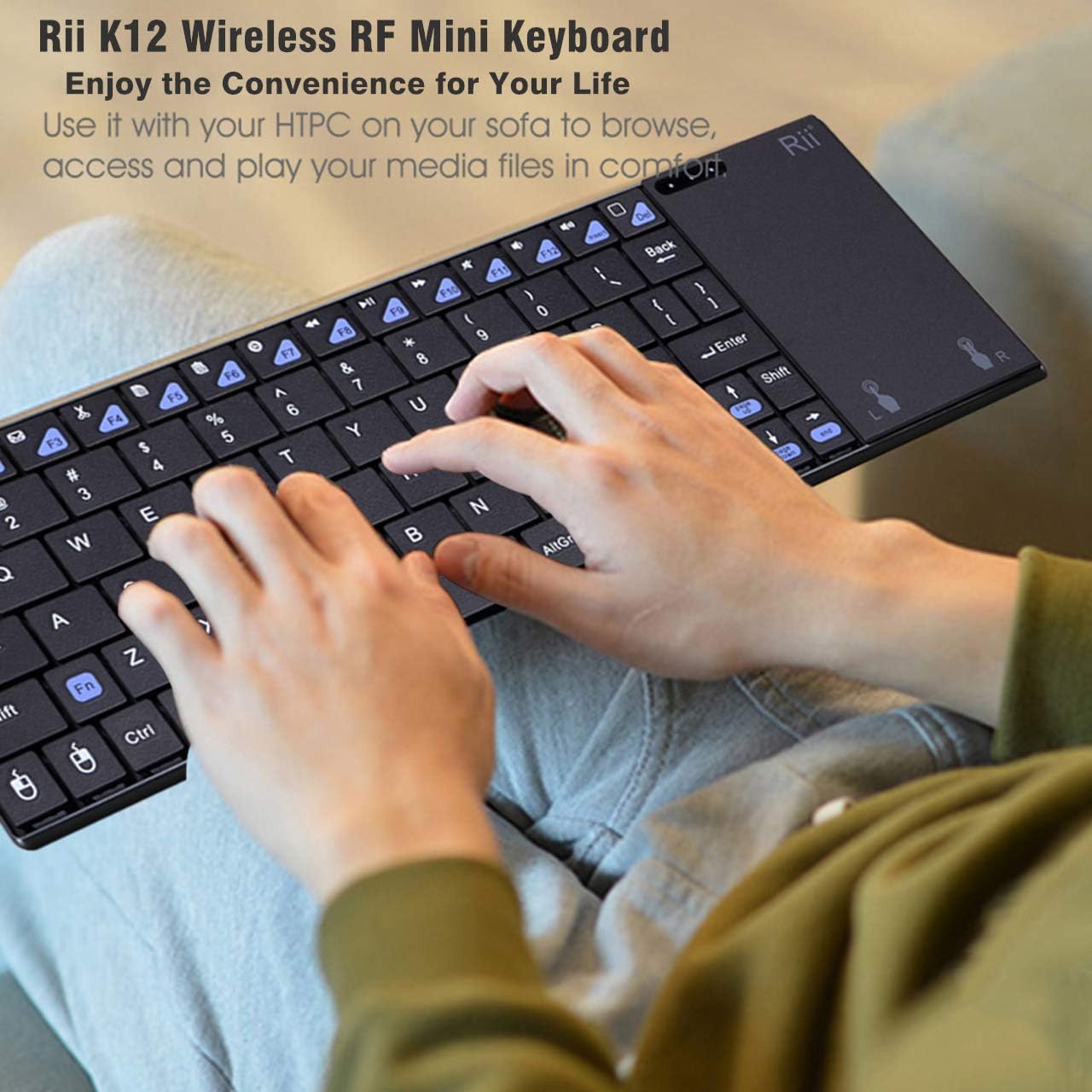
Image: The Rii K12+ Mini Wireless Keyboard being used, demonstrating its compact and portable nature.
คำแนะนำการตั้งค่า
Follow these steps to set up your Rii K12+ Mini Wireless Keyboard:
- แกะเนื้อหาออก: Ensure you have the mini wireless keyboard, 2.4G receiver adapter, charging data cable, and user manual.
- ชาร์จคีย์บอร์ด: Connect the provided USB charging cable to the keyboard and a power source (e.g., computer USB port, USB wall adapter). The red indicator light will illuminate during charging and turn off when fully charged. A full charge typically takes about 3 hours.
- ค้นหาตัวรับ USB: The wireless USB receiver is stored in a compartment on the back of the keyboard for safekeeping. Gently slide open the compartment to retrieve it.
- เชื่อมต่อตัวรับสัญญาณ USB: Insert the 2.4G USB receiver adapter into an available USB 2.0 port or above on your device (PC, laptop, Smart TV, etc.).
- เปิดเครื่อง: Locate the power switch on the keyboard (usually on the top or side) and slide it to the 'ON' position. The keyboard will automatically connect to the receiver.

ภาพ: รายละเอียด view of the keyboard's side and back, indicating the USB charging port, power switch, and the storage location for the USB receiver.
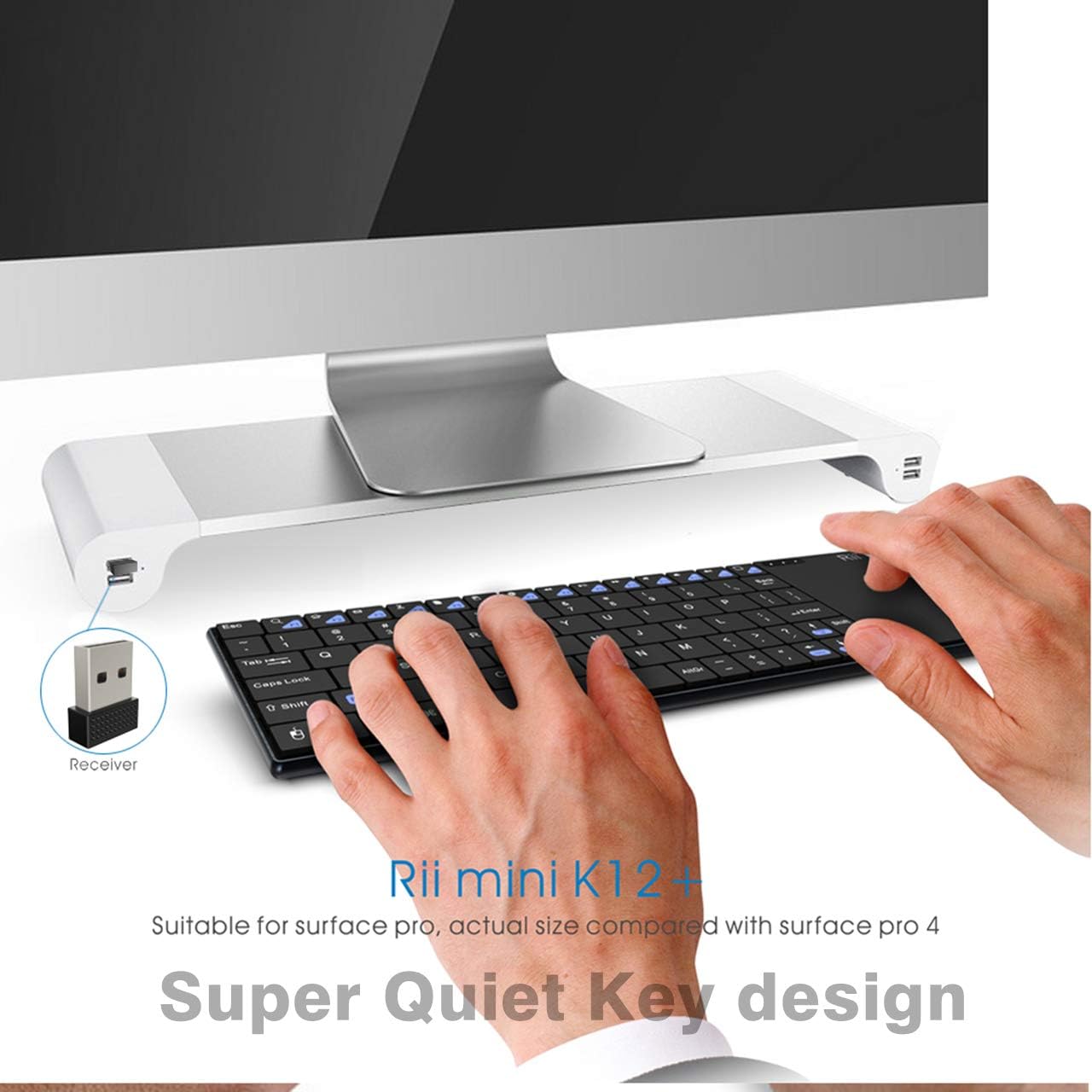
Image: The keyboard in use with a desktop computer, showing the USB receiver plugged into a port.
คำแนะนำการใช้งาน
Your Rii K12+ keyboard is ready for use after successful setup. Here's how to operate its key features:
ฟังก์ชั่นคีย์บอร์ด
- การพิมพ์: ใช้แป้นพิมพ์แบบ QWERTY สำหรับการป้อนข้อความมาตรฐาน
- ปุ่มฟังก์ชัน (Fn): Press the 'Fn' key in combination with other keys (e.g., F1-F12, multimedia keys) to access secondary functions.
- แสงไฟด้านหลัง: The keyboard features a backlight for improved visibility in low-light conditions. Refer to the specific key combinations in your quick guide for backlight control (e.g., changing colors or turning on/off).
ฟังก์ชั่นทัชแพด
The integrated touchpad supports multi-finger gestures:
- คลิกซ้าย: Single-finger tap on the touchpad or press the dedicated left mouse button.
- คลิกขวา: Two-finger tap on the touchpad or press the dedicated right mouse button.
- การเลื่อน: Slide one finger along the right edge of the touchpad to scroll vertically.

ภาพ: รายละเอียด view of the keyboard's layout, including LED indicators for charging, Caps Lock, and RF signal, along with visual guides for touchpad gestures.
การซ่อมบำรุง
To ensure the longevity and optimal performance of your Rii K12+ Mini Wireless Keyboard, follow these maintenance guidelines:
- การชาร์จ: Charge the keyboard for approximately 3 hours to achieve a full battery. Avoid overcharging for extended periods.
- การเก็บรักษาแบตเตอรี่: The keyboard features an auto-sleep function to conserve battery power. To reactivate, simply click any key.
- การทำความสะอาด: Use a soft, dry cloth to clean the keyboard surface. Avoid using harsh chemicals or abrasive materials.
- พื้นที่จัดเก็บ: When not in use, store the USB receiver in its designated compartment on the back of the keyboard to prevent loss. Store the keyboard in a cool, dry place.
การแก้ไขปัญหา
If you encounter issues with your Rii K12+ Mini Wireless Keyboard, refer to the following common problems and solutions:
- Q1: Keyboard and touchpad do not respond, and indicators are not illuminated.
A: Check whether the switch is in the 'ON' position. If it is in the 'ON' position, please charge the battery with the USB charging cable located in the bottom. - Q2: How long is required to charge the battery?
A: The red indicator will be lighted during charging and off when it is fully charged. It requires about 3 hours to charge the battery fully. - Q3: The USB cable in the bottom can be used for data transmission?
A: No. It is only used to charge the battery. - Q4: The keyboard works but the touchpad does not respond.
A: กด F5 - Q5: The blue indicator (the fourth one) keeps blinking.
A: It is to indicate that the battery power is low. You need to charge the battery.
ข้อมูลจำเพาะ
| ยี่ห้อ | Rii |
| ชุด | เค 12+ |
| หมายเลขรุ่น | เค12 |
| แพลตฟอร์มฮาร์ดแวร์ | PC |
| ความเข้ากันได้ของระบบปฏิบัติการ | Android, Linux, Mac OS, Vista, Windows 2000, Windows XP, Windows CE, Windows 7, Windows 8, Windows 10 |
| น้ำหนักสินค้า | 10.5 ออนซ์ |
| ขนาดสินค้า (กxยxส) | 9 x 3 x 0.8 นิ้ว |
| แหล่งพลังงาน | ใช้พลังงานจากแบตเตอรี่ (รวมแบตเตอรี่ลิเธียมโพลิเมอร์ 1 ก้อน) |
| เทคโนโลยีการเชื่อมต่อ | RF (2.4 GHz GFSK) |
| ระยะการส่งข้อมูล | สูงสุด 10 เมตร |
| คำอธิบายแป้นพิมพ์ | คีย์บอร์ด QWERTY |
| คุณสมบัติพิเศษ | ชาร์จไฟได้ |
| วัสดุ | อลูมิเนียม, สแตนเลส |

Image: Visual representation of the Rii K12+ keyboard's broad compatibility with different devices and operating systems.
การรับประกันและการสนับสนุน
Rii provides a รับประกันซ่อม 12 เดือน for this product, ensuring quality and reliability. For any inquiries, technical assistance, or warranty claims, please contact customer support:
อีเมล: service_support@riitek.com
โปรดเก็บหลักฐานการซื้อไว้เพื่อใช้ยืนยันการรับประกัน


