การแนะนำ
The Veepeak Mini WiFi OBD II Scanner is a compact diagnostic tool designed to connect your vehicle's On-Board Diagnostics (OBD-II) system to your iOS or Android smartphone or tablet via WiFi. This device allows you to read diagnostic trouble codes (DTCs), view real-time sensor data, and perform various diagnostic tests, helping you understand and address vehicle issues. It is compatible with most cars and light trucks manufactured since 1996 in the United States and 1998 in Canada that support generic OBD II functions.

ภาพ: ด้านหน้า view of the Veepeak Mini WiFi OBD II Scanner, a compact black device with the Veepeak logo.
การตั้งค่า
1. การติดตั้งทางกายภาพ
Locate your vehicle's OBD-II port. This port is typically found under the dashboard on the driver's side, often near the steering column or under the glove compartment. Once located, firmly plug the Veepeak Mini WiFi OBD II Scanner into the port. The device is designed to be compact and should not obstruct driving.

Image: The Veepeak scanner discreetly plugged into the OBD-II port located under the vehicle's dashboard.
2. การติดตั้งแอปและการเชื่อมต่อ WiFi
The Veepeak scanner requires a third-party application to function. Several compatible apps are available for both iOS and Android. Please note that the device creates a WiFi network for your phone/tablet to connect to, and this network does not provide internet access. You must remain connected to this network while using the device.
สำหรับอุปกรณ์ iOS:
- Install a compatible app (e.g., Car Scanner ELM OBD2, OBD Fusion) from the App Store.
- Go to your device's WiFi settings and connect to the network named "WiFi_OBDII". You may receive a pop-up message about no internet access; select "Join Anyway" or "Keep Wi-Fi Connection".
- Start the app and follow its connection settings. Select WiFi as the connection type. Choose the appropriate connection profile for your car (e.g., OBD-II / EOBD).
- Return to the main app page and connect.

Image: A step-by-step visual guide demonstrating the setup process for iOS devices, including app installation and WiFi connection.
สำหรับอุปกรณ์ Android:
- Install a compatible app (e.g., Car Scanner ELM OBD2, Torque Lite/Pro, Infocar) from the Google Play Store.
- Turn on your device's WiFi and connect to the "WiFi_OBDII" network. If prompted about no internet access, confirm to stay connected.
- Start the app, go to settings, and select WiFi as the connection type. Do not change the default IP address or port value.
- Select the correct connection profile for your car (e.g., OBD-II / EOBD).
- Return to the main app page and connect. Grant any necessary permissions for nearby devices.
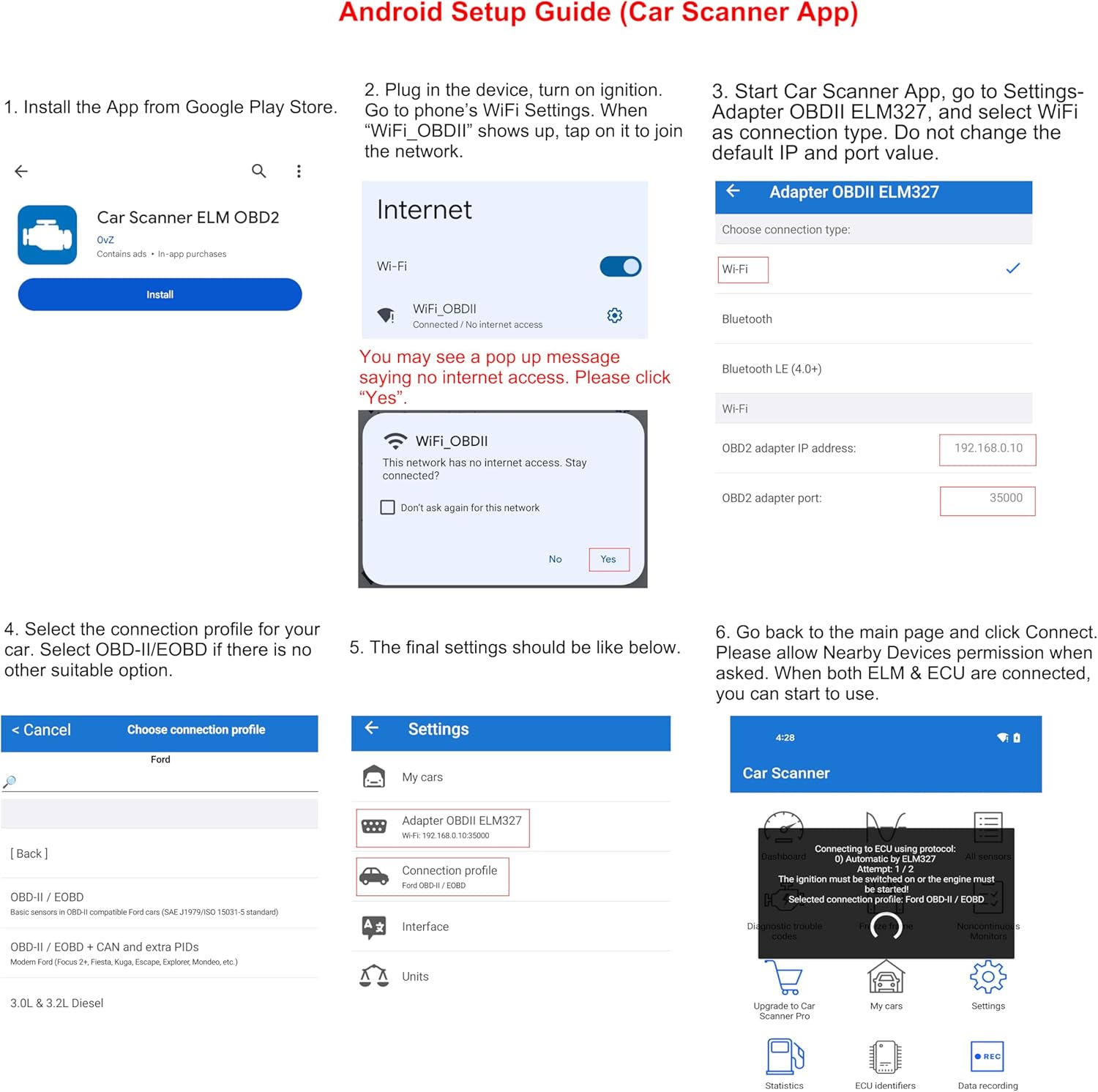
Image: A visual guide detailing the setup process for Android devices, showing app installation and WiFi network connection steps.
3. Recommended Third-Party Apps
The Veepeak scanner is designed to work with a variety of third-party applications. Here are some commonly used and recommended apps:

Image: A table listing various third-party applications compatible with the Veepeak scanner, including their developer, compatible platforms (iOS/Android), and notes on features or pricing.
- Car Scanner ELM OBD2: Available for both iOS & Android. Offers comprehensive diagnostics, real-time data, and customizable dashboards.
- ฟิวชั่น OBD: Primarily for iOS. Provides advanced diagnostics and sensor data.
- Torque Lite/Pro: Popular for Android. Features include reading/clearing fault codes, customizable dashboards, and support for plugins.
- สี่จังหวะ: For iOS. Offers limited features with the free version.
- อินโฟคาร์: Available for both iOS & Android. A smart vehicle management app for diagnosis and driving information.
Note: This is a generic OBD2 adapter and is not compatible with manufacturer-specific coding apps like BimmerCode, BimmerLink, MHD, or BimmerGeeks ProTool.
การใช้งานเครื่องสแกนเนอร์
Once connected to your vehicle via the app, the Veepeak scanner provides access to various diagnostic functions.
1. Engine Diagnostics & Real-time Data
The primary function is to read diagnostic trouble codes (DTCs) when your vehicle's Check Engine Light is illuminated. You can also view real-time sensor data, which is crucial for monitoring vehicle performance and identifying potential issues. This data may include:
- รอบเครื่องยนต์
- ความเร็วของรถ
- อุณหภูมิน้ำหล่อเย็นเครื่องยนต์
- Oxygen (O2) Sensor Readings
- Mass Air Flow (MAF)
- ตำแหน่งคันเร่ง
- แผ่นปิดเชื้อเพลิง
- Monitor Fuel Economy
- Hybrid/EV Battery System data (depending on vehicle support and app)

Image: A graphic illustrating the various diagnostic capabilities of the scanner, such as reading DTCs, resetting check engine light, and viewing ข้อมูลเซ็นเซอร์
2. Clearing Diagnostic Trouble Codes
After diagnosing and resolving a vehicle issue, you can use the app to clear the stored diagnostic trouble codes and turn off the Check Engine Light. Always ensure the underlying problem is fixed before clearing codes to prevent recurrence.
3. App Interface Exampเลส
Different apps offer various interfaces and features for displaying data and managing diagnostics:
Torque App (Paid Version)

Screenshot of the Torque app interface on a tablet, displaying customizable gauges for RPM, speed, coolant temperature, and other engine parameters.
- Read & Erase Fault Codes
- Read Transmission Temp (selected vehicles)
- รองรับ Plugins
- แดชบอร์ดที่ปรับแต่งได้
แอพสแกนรถยนต์

Screenshot of the Car Scanner app interface on a smartphone, showing options for dashboard, live data, diagnostic trouble codes, and settings.
- อ่านและลบ DTC
- ปรับแต่งแดชบอร์ด
- เพิ่ม PID แบบขยาย
- ข้อมูลเซ็นเซอร์สด
- Pro ยานพาหนะต่างๆfiles
OBD Fusion (iOS Version)
Screenshot of the OBD Fusion app interface, displaying real-time gauges for RPM, MAF, fuel rate, and battery voltage, alongside a screen for diagnostic trouble codes.
- Read & Clear Trouble Codes
- View ข้อมูลแบบฟรีซเฟรม
- Access PID Values
- สร้างรายงาน
4. วิดีโอผลิตภัณฑ์อย่างเป็นทางการ
Video: An official product video from Veepeak demonstrating the features and usage of the Mini WiFi OBD II Scanner for both iOS and Android devices, highlighting its diagnostic capabilities and ease of use.
การซ่อมบำรุง
To ensure the longevity and proper functioning of your Veepeak Mini WiFi OBD II Scanner, it is recommended to unplug the device from your vehicle's OBD-II port when it is not in use. This prevents any potential battery drain and prolongs the device's lifespan.
การแก้ไขปัญหา
- ปัญหาการเชื่อมต่อ: Ensure your phone/tablet is connected to the "WiFi_OBDII" network created by the device. Confirm that your vehicle's ignition is on (engine can be off for some functions).
- ความเข้ากันได้ของแอพ: Verify that you are using a compatible third-party app. Some apps may require in-app purchases for full functionality or specific vehicle models.
- Invisible Power Indicator Light: The device's power indicator light is designed to be invisible. To confirm it's working, check your device's WiFi list for the "WiFi_OBDII" network. If the network appears, the device is powered on and functioning.
- ABS, SRS, or Manufacturer-Specific PIDs: Note that this generic OBD2 adapter may not support ABS, SRS, or certain manufacturer-specific PIDs (Parameter IDs) such as transmission temperature.
- PHEV and EV Support: Not all PHEV (Plug-in Hybrid Electric Vehicle) and EV (Electric Vehicle) models are supported. Check if there is a suitable connection profile in your chosen app (e.g., Car Scanner ELM OBD2) for these vehicle types.
ข้อมูลจำเพาะ
| ผู้ผลิต | วีพีค |
| หมายเลขรุ่น | OBDCheck VP01 |
| น้ำหนักสินค้า | 0.32 ออนซ์ |
| ขนาดสินค้า | 1.89 x 0.98 x 1.26 นิ้ว |
| แหล่งพลังงาน | พอร์ต OBD II |
| ความเข้ากันได้ของระบบปฏิบัติการ | ไอโอเอส, แอนดรอยด์ |

ภาพ: ด้านหลัง view of the Veepeak Mini WiFi OBD II Scanner, displaying the model number 'OBDCheck VP01' and various certifications.
การรับประกันและการสนับสนุน
The Veepeak Mini WiFi OBD II Scanner comes with a one-year replacement warranty. For any support inquiries, technical assistance, or warranty claims, please refer to the contact information provided in the product packaging or on the official Veepeak webเว็บไซต์.


