การแนะนำ
This manual provides comprehensive instructions for the installation, operation, maintenance, and troubleshooting of your Intel DC S3710 800 GB 2.5" Internal Solid State Drive. Please read this manual thoroughly before using the product to ensure optimal performance and longevity.
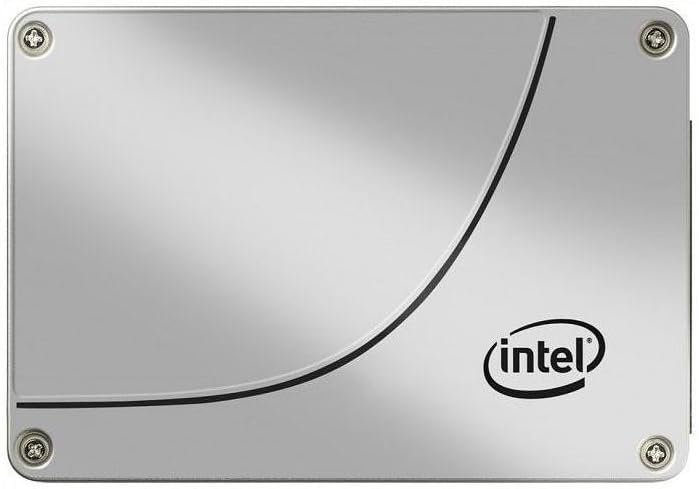
รูปที่ 1 : ด้านหน้า view of the Intel DC S3710 800 GB 2.5" Internal Solid State Drive, showcasing its metallic silver casing with the Intel logo and a distinctive curved line design.
การติดตั้งและการตั้งค่า
The Intel DC S3710 SSD is designed for internal installation in desktop computers. Ensure your system is powered off and disconnected from the power source before proceeding.
ความต้องการ:
- คอมพิวเตอร์ตั้งโต๊ะที่มีช่องใส่ไดรฟ์ขนาด 2.5 นิ้วว่างอยู่
- สายเคเบิลข้อมูล SATA
- SATA power cable from your power supply unit (PSU).
- Screwdriver (Phillips head recommended).
ขั้นตอนการติดตั้ง:
- เตรียมคอมพิวเตอร์ของคุณให้พร้อม: Power down your desktop computer and unplug all cables. Open the computer case.
- ค้นหาช่องสำหรับติดตั้งฮาร์ดไดรฟ์: Identify an available 2.5-inch drive bay. Some cases may require a 3.5-inch to 2.5-inch adapter bracket (not included).
- ติดตั้ง SSD: Secure the SSD into the drive bay using screws. Ensure it is firmly seated to prevent movement.
- Connect data cable: Connect one end of the SATA data cable to the SSD's SATA data port and the other end to an available SATA port on your motherboard.
- ต่อสายไฟ: Connect a SATA power cable from your PSU to the SSD's SATA power port.
- ปิดเคส: Once all connections are secure, close your computer case and reconnect all cables.
- เปิดเครื่อง: Power on your computer. The system should detect the new SSD.
คำแนะนำการใช้งาน
After physical installation, the SSD needs to be initialized and formatted before use. If you plan to install an operating system, refer to your operating system's installation guide.
Initializing and Formatting (Windows 10 Exampเลอ):
- เปิดการจัดการดิสก์: คลิกขวาที่ปุ่มเริ่มและเลือก "การจัดการดิสก์"
- เริ่มต้นดิสก์: A pop-up window may appear prompting you to initialize the new disk. Select MBR (Master Boot Record) or GPT (GUID Partition Table) based on your system's requirements (GPT is recommended for modern systems and drives larger than 2TB, though this drive is 800GB). Click OK.
- สร้างวอลุ่มใหม่แบบง่าย: Locate the unallocated space on your new SSD. Right-click it and select "New Simple Volume...".
- ติดตามตัวช่วย: Follow the New Simple Volume Wizard to specify the volume size, assign a drive letter, and format the partition (NTFS file system is standard for Windows).
- สมบูรณ์: Once the wizard completes, your SSD will be ready for use.
การถ่ายโอนข้อมูล:
คุณสามารถโอนได้ files to and from the SSD like any other storage drive. For optimal performance, ensure your motherboard's SATA ports are configured for AHCI mode in the BIOS/UEFI settings.
การซ่อมบำรุง
Solid State Drives generally require less maintenance than traditional Hard Disk Drives. However, following these practices can help maintain performance and extend lifespan:
- เปิดใช้งาน TRIM: Ensure TRIM is enabled in your operating system. TRIM helps the SSD manage data more efficiently, preventing performance degradation over time. Most modern operating systems (Windows 7+, macOS, Linux) enable TRIM by default.
- หลีกเลี่ยงการจัดเรียงข้อมูลใหม่: อย่าทำการจัดเรียงข้อมูล (Defragment) บน SSD การจัดเรียงข้อมูลถูกออกแบบมาสำหรับ HDD และอาจลดอายุการใช้งานของ SSD โดยทำให้เกิดการเขียนข้อมูลซ้ำซ้อนโดยไม่จำเป็น
- รักษาพื้นที่ว่างให้เพียงพอ: พยายามเว้นพื้นที่ว่างใน SSD อย่างน้อย 10-15% เพื่อให้ระบบปรับสมดุลการสึกหรอของ SSD ทำงานได้อย่างเหมาะสม
- อัพเดตเฟิร์มแวร์: Periodically check Intel's official website for firmware updates for your SSD model. Firmware updates can improve performance, stability, and address known issues.
- Proper Shutdowns: Always shut down your computer properly. Abrupt power loss can potentially lead to data corruption or drive issues.
การแก้ไขปัญหา
If you encounter issues with your Intel DC S3710 SSD, refer to the following common problems and solutions:
| ปัญหา | สาเหตุที่เป็นไปได้ | สารละลาย |
|---|---|---|
| SSD not detected by BIOS/OS. | Loose cables, incorrect BIOS settings, faulty port. |
|
| ประสิทธิภาพการทำงานช้า | TRIM not enabled, nearly full drive, outdated firmware. |
|
| Operating system not booting from SSD. | ลำดับการบูตไม่ถูกต้อง การติดตั้งระบบปฏิบัติการเสียหาย |
|
ข้อมูลจำเพาะ
| คุณสมบัติ | รายละเอียด |
|---|---|
| ยี่ห้อ | อินเทล |
| ซีรี่ส์ซีรี่ย์ | SSDSC2BA800G4 |
| ความจุในการเก็บข้อมูล | 800GB |
| ฟอร์มแฟกเตอร์ | 2.5 นิ้ว |
| อินเทอร์เฟซ | SATA 6 กิกะบิต/วินาที |
| ประเภทการติดตั้ง | ฮาร์ดไดรฟ์ภายใน |
| อุปกรณ์ที่รองรับ | เดสก์ท็อป |
| น้ำหนักสินค้า | 2.53 ออนซ์ |
| ขนาดสินค้า (กxยxส) | 4.1 x 2.7 x 0.3 นิ้ว |
| ผู้ผลิต | บริษัท อินเทล คอร์ปอเรชั่น |
| วันที่พร้อมใช้งานครั้งแรก | 16 กุมภาพันธ์ 2015 |
การรับประกันและการสนับสนุน
สำหรับข้อมูลการรับประกันและการสนับสนุนทางเทคนิค โปรดดูที่เว็บไซต์อย่างเป็นทางการของ Intel webหรือติดต่อฝ่ายบริการลูกค้า เก็บใบเสร็จรับเงินไว้เป็นหลักฐานการซื้อสำหรับการเรียกร้องการรับประกัน
Intel may offer various support resources including:
- ฐานข้อมูลความรู้และคำถามที่พบบ่อยทางออนไลน์
- ดาวน์โหลดไดรเวอร์และเฟิร์มแวร์
- Community forums.
- Direct customer support via phone or email.
พิจารณาซื้อasing additional data recovery plans for enhanced protection of your valuable data. Options such as 2-Year or 3-Year Data Recovery Plans may be available from various retailers.


