การแนะนำ
The Elmo TT-12ID is an advanced interactive document camera designed for educational and professional environments. It features a powerful 96x zoom (12x optical, 8x digital), a 3.4-megapixel CMOS image sensor, and versatile connectivity options including HDMI input and output, and USB. This device is engineered to enhance presentations and learning experiences by providing smooth, high-quality images at 30 frames per second.
ข้อมูลด้านความปลอดภัย
To ensure safe and proper operation of your Elmo TT-12ID, please observe the following safety guidelines:
- Do not expose the device to water or excessive moisture. Operate in a dry environment.
- Avoid placing the device in direct sunlight, near heat sources, or in areas with extreme temperatures.
- Use only the provided AC adapter and power cord. Using unauthorized accessories may cause damage or malfunction.
- Do not attempt to disassemble, modify, or repair the device yourself. Refer all servicing to qualified service personnel.
- Keep the device and its accessories out of reach of small children to prevent accidents.
- Ensure proper ventilation around the unit during operation. Do not block ventilation openings.
เนื้อหาแพ็คเกจ
Upon unpacking your Elmo TT-12ID, please verify that all the following items are included:
- Elmo TT-12ID Document Camera Unit
- อะแดปเตอร์ AC
- สายไฟ AC
- สายเคเบิล RGB
- USB Cable (for connecting to PC)
- Remote Control (RC-VHZ)
- แบตเตอรี่ AAA (สำหรับรีโมทคอนโทรล)
- Image Mate CD-ROM
- Image Mate Installation Manual
- Instruction Manual (on CD-ROM)
- Basic Startup Guide
สินค้าเกินview
Familiarize yourself with the components and features of your Elmo TT-12ID Interactive Document Camera.
Elmo TT-12ID Document Camera

This image displays the complete Elmo TT-12ID Interactive Document Camera, showcasing its adjustable arm, camera head, and control base. The device is white with gray accents, designed for stability and flexibility.
Camera Head and Lens

รายละเอียด view of the camera head, highlighting the high-quality lens and the integrated power switch for convenient operation.
Zoom and Auto-Focus Controls

This image shows the zoom in/out buttons and the auto-focus (AF) button located on the camera arm, allowing for quick and precise image adjustments.
การเชื่อมต่อแผงด้านหลัง

The rear panel of the document camera, featuring various input and output ports including DC IN 12V, HDMI IN/OUT, RGB IN/OUT, and a USB port for versatile connection options.
Control Base and Remote Storage

แบบบน-ล่าง view of the control base, showing the integrated buttons for direct control and a convenient slot for storing the remote control when not in use.
Remote Control (RC-VHZ)
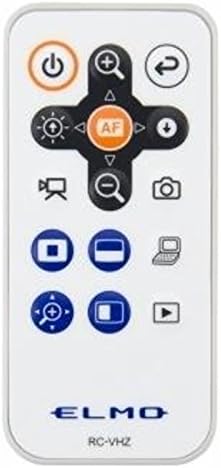
A close-up of the RC-VHZ remote control, detailing its various buttons for power, zoom, focus, image mode selection, and other functions, providing full control from a distance.
การตั้งค่า
การจัดวางเริ่มต้น
Place the Elmo TT-12ID on a stable, flat surface. Ensure adequate space around the unit for ventilation and easy access to cable connections. The adjustable arm allows for flexible positioning of the camera head over your subject.
การเชื่อมต่อพลังงาน
- Connect the provided AC adapter to the "DC IN 12V" port on the rear panel of the document camera.
- Plug the AC cord into a standard electrical outlet.
- The power indicator light on the unit should illuminate, indicating that power is supplied.
Connecting to a Display/Computer
The TT-12ID offers multiple connectivity options to suit various setups:
การเชื่อมต่อ HDMI
- Connect an HDMI cable from the "HDMI OUT" port on the document camera to the HDMI input on your display device (e.g., projector, monitor, TV).
- Select the corresponding HDMI input source on your display device.
RGB (VGA) Connection
- Connect an RGB cable from the "RGB OUT" port on the document camera to the VGA input on your display device.
- Select the corresponding VGA input source on your display device.
USB Connection (for PC)
- Connect the USB cable from the "USB" port on the document camera to a USB port on your computer.
- Install the "Image Mate" software from the provided CD-ROM on your computer to utilize the camera's full features, control it via PC, and access recording/saving functions.
คำแนะนำการใช้งาน
การเปิด/ปิดเครื่อง
To power on the device, slide the "ON/OFF" switch located on the camera head to the "ON" position. To power off, slide it to "OFF".
Adjusting the Camera Head and Arm
The camera head and arm are designed for flexibility. Gently pivot and extend the arm and head to position the lens over your desired subject, whether it's a document, object, or even a distant point in the room.
ฟังก์ชั่นซูม
The TT-12ID features a powerful 96x total zoom capability:
- ซูมออปติคอล: Provides 12x optical zoom for clear, high-quality magnification without loss of detail.
- ซูมดิจิตอล: Offers up to 8x digital zoom for further enlargement.
Use the zoom dial on the control base or the zoom buttons (+ และ - with magnifying glass icons) on the remote control or camera arm to adjust the magnification.
Auto-Focus (AF)
Press the "AF" button on the camera arm or remote control to automatically focus on the subject. The device also supports manual focus adjustment for precise control.
โหมดภาพ
The TT-12ID features various image modes to optimize display for different content types:
- Text1/Text2/Text3: Optimized for displaying text documents, enhancing clarity and readability.
- Graphics1/Graphics2: Optimized for displaying images, photos, and graphics, ensuring accurate color reproduction and detail.
Select the desired image mode using the corresponding buttons on the control base or remote control.
อินพุตและเอาต์พุตเสียง
The device supports audio input and output, allowing for integration with external audio systems for enhanced presentations or recording audio alongside video.
Saving and Recording
The document camera allows saving classroom presentations to external memory (e.g., USB drive) and recording lessons. Refer to the Image Mate software manual (provided on CD-ROM) for detailed instructions on utilizing these features.
การซ่อมบำรุง
การทำความสะอาด
To maintain the appearance and functionality of your Elmo TT-12ID:
- Gently wipe the exterior surfaces with a soft, dry cloth. For stubborn marks, slightly dampen the cloth with water. Do not use abrasive cleaners, solvents, or strong chemicals, as these may damage the finish.
- For the camera lens, use a lens cleaning cloth and solution specifically designed for optical lenses to avoid scratching or damaging the lens coating.
พื้นที่จัดเก็บ
When not in use for extended periods, fold the camera arm and head into the compact storage position. Store the device in a cool, dry place away from direct sunlight, extreme temperatures, and excessive dust or humidity.
การแก้ไขปัญหา
This section provides solutions to common issues you might encounter with your Elmo TT-12ID.
ไม่มีไฟฟ้า
- Ensure the AC adapter is securely connected to the "DC IN 12V" port on the unit and the power outlet.
- Verify the power switch on the camera head is in the "ON" position.
- ตรวจสอบว่าเต้ารับไฟฟ้าใช้งานได้หรือไม่โดยเสียบอุปกรณ์อื่นเข้าไป
No Image on Display
- Confirm the HDMI or RGB cable is securely connected to both the document camera's output port and the display device's input port.
- Ensure the correct input source (e.g., HDMI 1, VGA) is selected on your display device.
- Check the power status of the document camera; it must be powered on.
ภาพเบลอ
- Press the "AF" (Auto-Focus) button on the camera arm or remote control to initiate auto-focus.
- If auto-focus does not resolve the issue, try adjusting the focus manually using the controls.
- Ensure the subject is within the camera's optimal focal range and that the lens is clean.
รีโมทคอนโทรลไม่ตอบสนอง
- Check and replace the AAA batteries in the remote control if they are depleted.
- Ensure there are no obstructions between the remote control and the document camera's IR receiver.
- Point the remote control directly at the front of the document camera.
ข้อมูลจำเพาะ
Detailed technical specifications for the Elmo TT-12ID Interactive Document Camera:
| คุณสมบัติ | รายละเอียด |
|---|---|
| อุปกรณ์รับภาพ | 1/2.8" CMOS sensor, 3,400,000 pixels |
| จำนวนพิกเซลทั้งหมด | 2,144 (H) x 1,588 (V) |
| พิกเซลที่มีประสิทธิภาพ | 1,920 (H) x 1,536 (V) |
| อัตราเฟรม | 30 เฟรมต่อวินาที |
| ปณิธาน | Analog RGB: 800 (H) x 800 (V) TV lines or more |
| ซูม | Powered, 12x optical, 8x digital (96x total) |
| เลนส์ | F3.2-3.6, f=4.0 mm-48.0 mm |
| จุดสนใจ | Auto/Manual/Zoom Sync |
| สมดุลแสงขาว | Auto/One-Push/Manual |
| โหมดภาพ | Text1/Text2/Text3/Graphics1/Graphics2 |
| State Presetting | Up to 3 user settings |
| แหล่งพลังงาน | 12V DC (AC adapter AC 100 - 240V) |
| การใช้พลังงาน | 16.2 วัตต์ |
| ขนาด (กxลxส) | Setup: 14" x 14 11/16" x 16 3/16"; Folded: 7 11/16" x 11 9/16" x 18 7/16" |
| น้ำหนัก | Approx. 7.1 lbs (main unit only) |
| สี | สีขาว |
| ความละเอียดในการจับภาพวิดีโอ | 1080p |
| ประเภทสื่อ | สาย USB |
| น้ำหนักสินค้า | 11.1 pounds (shipping weight) |
| หมายเลขรุ่นสินค้า | CA-1034099816 |
| แบตเตอรี่ | ต้องใช้แบตเตอรี่ AAA จำนวน 1 ก้อน (สำหรับรีโมท) |
| ผู้ผลิต | เอลโม่ |
| วันที่พร้อมใช้งานครั้งแรก | วันที่ 9 ธันวาคม 2014 |
ข้อมูลการรับประกัน
This Elmo TT-12ID Interactive Document Camera is covered by a manufacturer's warranty. The specific terms, conditions, and duration of the warranty may vary. Please refer to the warranty card or documentation included in your product package for complete details. It is recommended to retain your proof of purchase (receipt or invoice) as it will be required for any warranty claims.
สนับสนุน
For technical assistance, troubleshooting beyond this manual, or service inquiries regarding your Elmo TT-12ID, please contact Elmo customer support:
- การสนับสนุนทางออนไลน์: Visit the official Elmo website for frequently asked questions (FAQs), driver downloads, software updates, and additional resources.
- ข้อมูลติดต่อ: Refer to the contact details provided in your product documentation or on the Elmo website for phone numbers and email addresses for direct support.


