สินค้าเกินview
This manual provides essential information for the proper installation, operation, and maintenance of the Sharp MX-SCX1 Staple Cartridge. This OEM (Original Equipment Manufacturer) staple cartridge is designed for use with Sharp DX-C400, DX-C311, and other compatible Sharp multifunction printers and copiers, ensuring reliable stapling performance for your documents. Each box contains 3 staple cartridges.
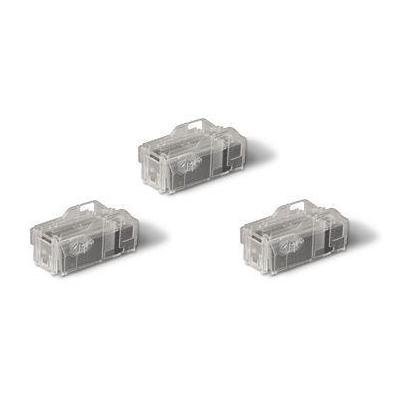
Image: Three Sharp MX-SCX1 Staple Cartridges. These cartridges are transparent, allowing visibility of the staples inside, and are designed for easy insertion into compatible Sharp office equipment.
คู่มือการติดตั้ง (การตั้งค่า)
Follow these steps to correctly install the Sharp MX-SCX1 Staple Cartridge into your compatible Sharp device. Always refer to your specific device's user manual for detailed instructions on accessing the stapler unit.
- Power Off (Recommended): For safety, it is recommended to power off your Sharp multifunction printer or copier before beginning the installation process.
- Locate Stapler Unit: Open the cover of your Sharp device to access the stapler unit. The location varies by model; consult your device's manual if unsure.
- Remove Old Cartridge (If Applicable): If replacing an empty cartridge, carefully remove the old staple cartridge by pressing any release levers or tabs as indicated by your device. Dispose of the empty cartridge responsibly.
- แกะกล่องตลับหมึกใหม่: Remove the new Sharp MX-SCX1 Staple Cartridge from its packaging. Handle it by its casing to avoid touching the staples directly.
- ใส่ตลับหมึกใหม่: Align the new cartridge with the slot in the stapler unit. Gently push the cartridge firmly into place until it clicks or locks securely. Do not force the cartridge.
- Close Device Cover: Close all covers and panels that were opened to access the stapler unit.
- Power On (If Powered Off): If you powered off the device, turn it back on. The device may perform a self-check and recognize the new staple cartridge.
การดำเนินการ
The Sharp MX-SCX1 Staple Cartridge operates automatically within your compatible Sharp device. Once installed, the device will utilize the staples for functions requiring stapling, such as document finishing or collating with stapling.
- การเย็บกระดาษอัตโนมัติ: When a print job or copy job is configured for stapling, the device will automatically feed staples from the cartridge to bind the documents.
- Staple Level Monitoring: Your Sharp device typically monitors the staple level. A message or indicator on the device's control panel will alert you when the staple cartridge is low or empty, prompting replacement.
- ประสิทธิภาพที่เหมาะสมที่สุด: For best results and to prevent jams, always use genuine Sharp MX-SCX1 staple cartridges.
Care and Storage (Maintenance)
Proper care and storage of your staple cartridges can help maintain their quality and ensure optimal performance when needed.
- เงื่อนไขการจัดเก็บ: Store unused staple cartridges in their original, sealed packaging in a cool, dry place, away from direct sunlight and extreme temperatures.
- การจัดการ: Handle cartridges carefully to avoid dropping them or damaging the staple strip. Do not attempt to open or tamper with the cartridge casing.
- การทำความสะอาด: The staple cartridge itself does not require cleaning. If dust accumulates on the exterior, gently wipe it with a dry, lint-free cloth before installation.
การแก้ไขปัญหา
If you encounter issues related to stapling, refer to the table below for common problems and their solutions. For more complex issues, consult your Sharp device's main user manual or contact Sharp support.
| ปัญหา | สาเหตุที่เป็นไปได้ / วิธีแก้ไข |
|---|---|
| Device displays "Staple Cartridge Empty" or "Replace Staples" message. | The staple cartridge is empty. Replace it with a new Sharp MX-SCX1 cartridge following the installation guide. |
| Staples are not feeding or documents are not stapling. |
|
| Staples are bent or misformed. |
|
ข้อมูลจำเพาะผลิตภัณฑ์
- หมายเลขรุ่น: MX-SCX1
- ประเภทสินค้า : ตลับลวดเย็บกระดาษ
- ยี่ห้อ: คม
- ความเข้ากันได้: Sharp DX-C400, DX-C311, and other compatible Sharp multifunction printers/copiers.
- ปริมาณ: Box of 3 cartridges
- ผู้ผลิต: คม
- ขนาดสินค้า : ขนาดโดยประมาณ 11 x 7 x 6 นิ้ว (ขนาดบรรจุภัณฑ์)
- สี: No specific color (clear casing)
- ASIN: B00KHVSHXE
- วันที่เข้าใช้งานครั้งแรก: 22 พฤษภาคม 2014
การรับประกันและการสนับสนุน
For information regarding the warranty of your Sharp MX-SCX1 Staple Cartridge or for technical support, please contact Sharp customer service directly. Warranty terms and conditions may vary. Always ensure you purchase genuine Sharp products from authorized resellers to ensure product authenticity and eligibility for support.
You can typically find contact information for Sharp support on their official website or within the documentation provided with your Sharp multifunction device.


