สินค้าเกินview
Avery Easy Peel Clear Return Address Labels are designed to provide a professional, printed appearance. These labels are engineered to blend seamlessly with colored and textured surfaces, making them virtually invisible once applied. The innovative Easy Peel feature, with its Pop-up Edge, allows for quick and efficient labeling by simply folding the edge sheet to expose the labels, then folding it flat again. These labels are compatible with laser printers and can be easily customized using Avery's free design tools and templates. Each pack contains 600 labels across 10 sheets, with individual label dimensions of 0.6 x 1.75 inches.
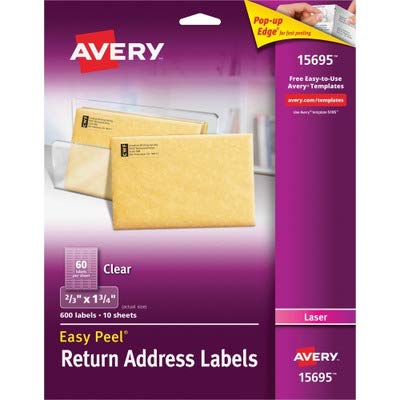
Image: Packaging for Avery Easy Peel Clear Return Address Labels, Model 15695. The packaging highlights the "Pop-up Edge" for fast peeling, the "Easy Peel" feature, and specifies the label count (600 labels, 10 sheets) and size (2/3" x 1 3/4"). It also indicates compatibility with laser printers.
การตั้งค่า
Before printing, ensure your laser printer is clean and free of dust or debris that could affect print quality. It is recommended to use the correct printer settings for labels or heavy paper to prevent smudging or jamming. Always load the label sheets into your printer's paper tray according to the printer's instructions, paying attention to the correct orientation for printing on the label side.
ซอฟต์แวร์และเทมเพลต:
To design and print your labels, visit the official Avery website to access free design tools and templates. ค้นหา templates compatible with Avery product number 15695. Using these templates ensures proper alignment and optimal print results.
- Prepare your design: Use Avery's online design software or downloadable templates to create your desired address or return address layout.
- Select printer settings: In your printer's settings, choose the appropriate paper type (e.g., "Labels," "Heavyweight Paper," or "Card Stock") to ensure proper toner adhesion and prevent smudging.
- Load labels: Load the Avery label sheets into your laser printer's paper tray. Refer to your printer's manual for specific loading instructions, especially regarding the print-side orientation.
คำแนะนำการใช้งาน
Once your design is ready and printer settings are configured, you can proceed with printing your labels.
- Print a test sheet: It is highly recommended to print a test sheet on plain paper first to verify alignment before printing on the actual label sheets. Hold the test print behind a label sheet to check for accurate positioning.
- Print on labels: Once satisfied with the alignment, print your design onto the Avery Easy Peel Clear Return Address Label sheets.
- Peel labels using Pop-up Edge: After printing, gently fold the label sheet along the perforated edge to activate the Pop-up Edge feature. This will slightly lift the labels, making them easier to peel off the backing.
- Apply labels: Carefully peel each label and apply it to your envelopes or desired surfaces. The clear design ensures a professional, integrated look.
การซ่อมบำรุง
Proper storage of your Avery labels will help maintain their quality and ensure optimal performance.
- พื้นที่จัดเก็บ: Store unused label sheets in their original packaging in a cool, dry place away from direct sunlight and excessive humidity.
- การจัดการ: Avoid touching the adhesive side of the labels to maintain their stickiness. Handle sheets by the edges to prevent fingerprints or smudges on the printable surface.
การแก้ไขปัญหา
| ปัญหา | สาเหตุที่เป็นไปได้ | สารละลาย |
|---|---|---|
| Labels are smudged or toner is not adhering. | Incorrect printer settings; printer fuser not hot enough; labels exposed to humidity. | Ensure printer settings are set to "Labels" or "Heavyweight Paper." Clean printer fuser if necessary. Store labels in a dry environment. |
| Labels are misaligned during printing. | Incorrect template used; labels loaded incorrectly; printer calibration issue. | Verify you are using the correct Avery template for model 15695. Re-load labels correctly according to printer's guide. Perform a printer calibration if available. |
| Labels are difficult to peel. | Pop-up Edge not activated; labels stored improperly. | Gently fold the sheet to activate the Pop-up Edge. Ensure labels are stored flat and not bent or creased. |
ข้อมูลจำเพาะ
- ยี่ห้อ: เอเวอรี่
- หมายเลขรุ่น: 15695
- ประเภทฉลาก: Clear Return Address Labels
- ขนาดฉลาก: 0.6 x 1.75 inches (2/3" x 1 3/4")
- Labels per Sheet: 60
- Sheets per Pack: 10
- Total Labels per Pack: 600
- ความเข้ากันได้: เครื่องพิมพ์เลเซอร์
- วัสดุ: กระดาษ
- สี: ชัดเจน
- คุณสมบัติพิเศษ: Easy Peel, Pop-up Edge
- น้ำหนักสินค้า: ประมาณ 2.24 ออนซ์
การสนับสนุนและทรัพยากร
For additional support, design tools, and templates, please visit the official Avery website. You can find comprehensive guides and frequently asked questions to assist with your labeling needs.
Avery Official Webเว็บไซต์: avery.com/templates (for free design tools and templates)
While specific warranty information for consumable label products is typically not provided, Avery stands by the quality of its products. For any product-related concerns, please contact Avery customer service through their official webเว็บไซต์.


