1. บทนำ
This manual provides instructions for the Mad Catz STRIKE7 Modular Gaming Keyboard. The STRIKE7 is designed for customization, featuring a modular layout, programmable macro buttons, RGB backlighting, and an integrated LCD touchscreen. This keyboard is compatible with Windows 7, 8, and 10 operating systems.

Figure 1: Mad Catz STRIKE7 Modular Gaming Keyboard fully assembled.
2. การตั้งค่า
2.1 การแกะกล่องและการระบุชิ้นส่วน
Carefully remove all components from the packaging. The STRIKE7 keyboard consists of several modular parts:
- Main Keyboard Module
- Numeric Keypad Module
- VENOM LCD Module
- Left Palm Rest Module (with control wheel)
- Right Palm Rest Module
- ที่วางข้อมือแบบปรับได้
- สาย USB และอะแดปเตอร์ไฟ

Figure 2: Individual modular components of the STRIKE7 keyboard.
2.2 การประกอบแบบโมดูลาร์
The STRIKE7 allows for various configurations. Connect the modules by aligning the connectors and gently pushing them together until they click into place. Ensure a secure connection for proper functionality.
- Attach the Numeric Keypad Module to the right side of the Main Keyboard Module, if desired.
- Connect the VENOM LCD Module to the top-left or top-right of the Main Keyboard Module.
- Attach the Left and Right Palm Rest Modules to the bottom of the Main Keyboard Module and Numeric Keypad Module, respectively.
- Adjust the integrated wrist rests for optimal comfort.
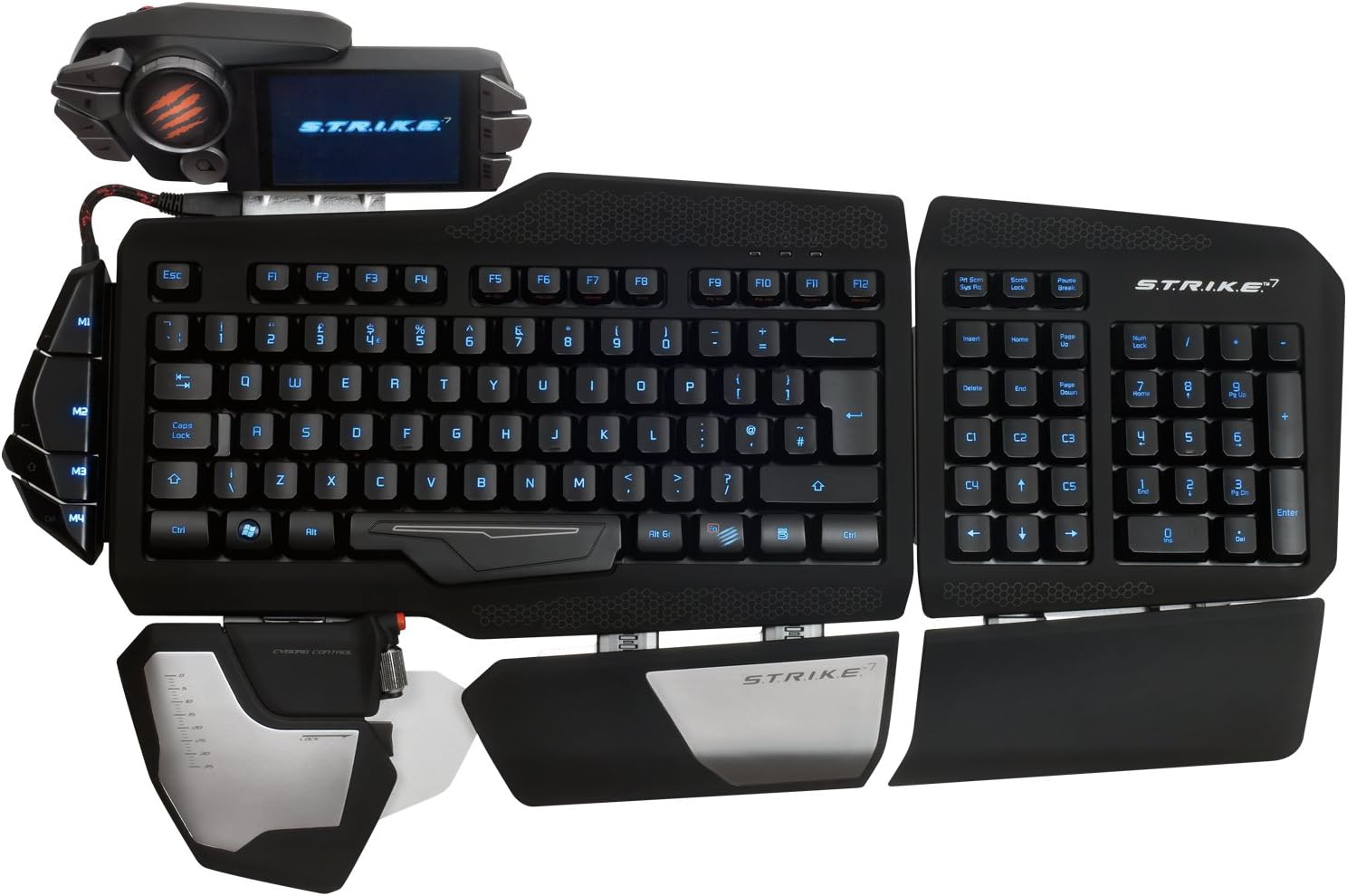
รูปที่ 3: ด้านบน view of the STRIKE7 in a common assembled configuration.
2.3 Connecting to Your PC
Connect the keyboard to your computer using the provided USB cable. The STRIKE7 requires an external power adapter for full functionality, including the VENOM LCD module and integrated USB ports. Plug the power adapter into a wall outlet and connect it to the keyboard.
หมายเหตุสำคัญ:
Ensure your system's USB ports are compatible. Some users have reported issues with USB 3.0 ports without updated firmware. If experiencing connectivity problems, try connecting to a USB 2.0 port or updating the keyboard's firmware from the official Mad Catz support webเว็บไซต์.
2.4 การติดตั้งไดรเวอร์และซอฟต์แวร์
After connecting the keyboard, your operating system (Windows 7, 8, or 10) should automatically detect the device. For full customization and macro programming, download and install the latest drivers and software from the official Mad Catz support webโปรดปฏิบัติตามคำแนะนำบนหน้าจอระหว่างการติดตั้ง
3. คู่มือการใช้งาน
3.1 VENOM LCD Module
The VENOM LCD Module provides access to various functions and settings. Use the touchscreen interface to navigate through menus, launch applications, and manage profiles. The module also includes two high-speed USB 2.0 ports for connecting additional peripherals.

Figure 4: VENOM LCD Module with integrated USB ports.
3.2 มาโครที่ตั้งโปรแกรมได้
The STRIKE7 features 24 programmable macro buttons. These buttons can be assigned complex commands or sequences using the keyboard's software. Refer to the software's user interface for detailed instructions on macro creation and assignment.
3.3 RGB แบ็คไลท์
The keyboard's RGB backlighting can be customized to various colors and effects through the Mad Catz software. Adjust brightness, color, and lighting patterns to suit your preferences.
3.4 Adjustable Palm and Wrist Rests
The 3-part active palm rest and two integrated wrist rests are designed for ergonomic comfort. Adjust their positions to find the most comfortable typing and gaming posture.
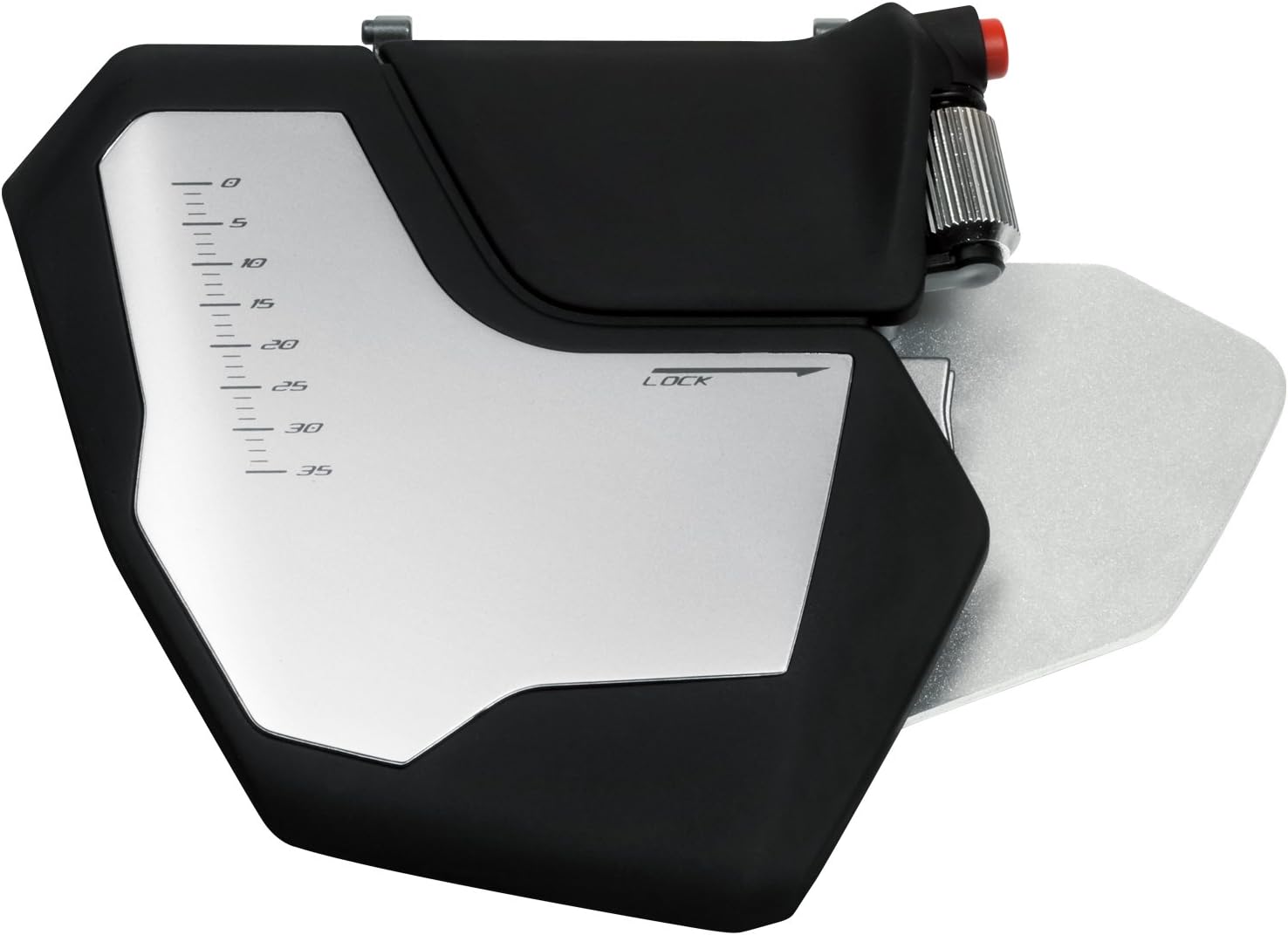
Figure 5: Left palm rest module with integrated control wheel.
3.5 Interchangeable Keys
The STRIKE7 includes interchangeable WASD and arrow keys. These can be swapped to provide a different tactile feel or visual distinction for common gaming controls.
4. การบำรุงรักษา
4.1 การทำความสะอาดแป้นพิมพ์
To clean the keyboard, disconnect it from your computer and power source. Use a soft, dry cloth to wipe down the surfaces. For stubborn dirt, a slightly damp cloth with mild soap can be used, ensuring no liquid enters the key switches or electronic components. Do not use harsh chemicals or abrasive materials.
4.2 การทำความสะอาดหน้าจอ LCD
Use a soft, lint-free cloth specifically designed for electronics to clean the VENOM LCD screen. Avoid excessive pressure and do not use chemical cleaners directly on the screen.
5 การแก้ไขปัญหา
5.1 แป้นพิมพ์ไม่ตอบสนอง
- ตรวจสอบให้แน่ใจว่าสาย USB เชื่อมต่อกับคีย์บอร์ดและคอมพิวเตอร์อย่างแน่นหนา
- Verify the external power adapter is properly connected and plugged into a working outlet.
- Try connecting the keyboard to a different USB port on your computer. If using a USB 3.0 port, try a USB 2.0 port or ensure firmware is updated.
- รีสตาร์ทเครื่องคอมพิวเตอร์ของคุณ
5.2 VENOM LCD Module Not Displaying
- Confirm the external power adapter is connected, as the LCD requires external power.
- Ensure the VENOM LCD Module is securely attached to the Main Keyboard Module.
- Check for updated drivers and software from the Mad Catz support webเว็บไซต์.
5.3 Macro Programming Issues
- Ensure the Mad Catz software is correctly installed and running.
- Refer to the software's help documentation for detailed macro creation steps.
- ตรวจสอบให้แน่ใจว่าโปรแกรมถูกต้องfile is active on the VENOM LCD Module.
5.4 ไฟแบ็คไลท์ไม่ทำงาน
- Check the backlighting settings within the Mad Catz software.
- Ensure the external power adapter is connected, as backlighting may require additional power.
6. ข้อมูลจำเพาะ
| คุณสมบัติ | รายละเอียด |
|---|---|
| ยี่ห้อ | แมดแคทซ์ |
| หมายเลขรุ่น | MCB43109N002/02/1 |
| เทคโนโลยีการเชื่อมต่อ | ยูเอสบี |
| แพลตฟอร์มฮาร์ดแวร์ | PC |
| ความเข้ากันได้ของระบบปฏิบัติการ | Windows 10, Windows 7, Windows 8, Windows Vista |
| น้ำหนักสินค้า | 7.28 ปอนด์ (ประมาณ 3.3 กก.) |
| ขนาดสินค้า (กxยxส) | 9.33 x 7.52 x 15.08 นิ้ว (ประมาณ 23.7 x 19.1 x 38.3 ซม.) |
| สี | สีดำ |
| แหล่งพลังงาน | USB Power (with external adapter) |
| จำนวนพอร์ต USB 2.0 | 2 (on VENOM LCD Module) |
| แป้นพิมพ์แบ็คไลท์ | อาร์จีบี |
| วัสดุ | โลหะ |
7. ข้อมูลการรับประกัน
This product is covered by a limited manufacturer's warranty. For specific warranty terms, conditions, and duration, please refer to the warranty card included with your product or visit the official Mad Catz webไซต์นี้ โปรดเก็บหลักฐานการซื้อไว้เพื่อใช้ยืนยันการรับประกัน
8. การสนับสนุนและการติดต่อ
For technical assistance, driver downloads, firmware updates, or further product information, please visit the official Mad Catz support website. You may also find FAQs and community forums there to assist with common inquiries.
Official Mad Catz Webเว็บไซต์: www.madcatz.com (โปรดทราบ: นี่เป็นเพียงตัวอย่างชั่วคราว) URL. Refer to your product packaging for the most current support contact information.)


