1. บทนำ
The Juniper Networks WLA532 Wireless Access Point is designed to provide a high level of integration for security, performance, and manageability, ensuring an optimal WLAN user experience with enhanced reliability. This device features an energy-efficient power design, robust security protocols, dual radios, 3x3 MIMO technology, 3 spatial streams, and a 1 Gigabit Ethernet uplink port. Its compact footprint allows for efficient deployment. The WLA532 helps reduce Capital Expenditure (CAPEX) by requiring fewer access points per floor and lowers Operational Costs (OPEX) through reduced IT staffing demands, thanks to improved reliability with concurrent spectrum analysis and deployments optimized for known interference sources.
2. เนื้อหาบรรจุภัณฑ์
Please verify that all items are present in your package. If any items are missing or damaged, contact your vendor or Juniper Networks support immediately.
- Juniper WLA532 Wireless Access Point
- Mounting Bracket (for ceiling or wall mount)
- ฮาร์ดแวร์สำหรับติดตั้ง (สกรู, พุก)
- คู่มือเริ่มต้นใช้งานฉบับย่อ / เอกสารประกอบ
- (Optional, depending on SKU) Power Adapter or PoE Injector
3. ข้อมูลด้านความปลอดภัย
Read all safety warnings and instructions before installing or operating this device. Keep this manual for future reference.
- แหล่งพลังงาน: Use only the power adapter or Power over Ethernet (PoE) source specified for this device. Incorrect voltagอาจทำให้เกิดความเสียหายหรือเกิดไฟไหม้ได้
- การระบายอากาศ : Ensure proper ventilation. Do not block any ventilation openings. Overheating can cause damage.
- สิ่งแวดล้อม: Do not expose the device to water, moisture, or extreme temperatures. Avoid placing it near heat sources or in direct sunlight.
- การบริการ: อย่าพยายามเปิดหรือซ่อมแซมอุปกรณ์ด้วยตนเอง แนะนำให้ส่งช่างผู้ชำนาญเข้ารับบริการทั้งหมด
- การติดตั้ง: Ensure the device is securely mounted to a stable surface to prevent it from falling.
4. การตั้งค่าและการติดตั้ง
This section guides you through the physical installation and initial power-up of your Juniper WLA532 Access Point.
4.1. ทางกายภาพมากกว่าview
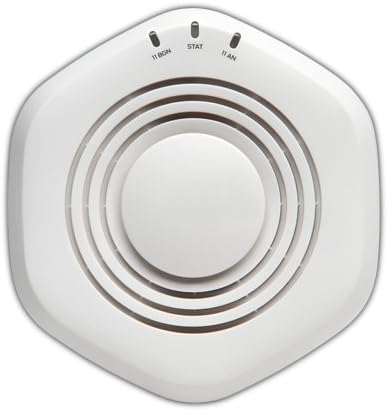
รูปที่ 1: ด้านบน view of the Juniper WLA532 Wireless Access Point. Note the indicator lights for 11 BGN, STAT, and 11 AN.
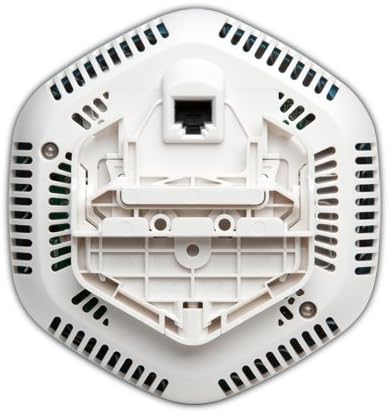
รูปที่ 2: ด้านล่าง view of the Juniper WLA532 Wireless Access Point, illustrating the integrated mounting bracket and the Gigabit Ethernet port for network connectivity and Power over Ethernet (PoE).
4.2. การติดตั้งจุดเข้าใช้งาน
The WLA532 can be mounted on a ceiling or wall. Choose a central location free from obstructions for optimal wireless coverage.
- เตรียมพื้นผิวการติดตั้ง: Use the mounting bracket as a template to mark the drill holes on the ceiling or wall.
- ติดตั้งจุดยึด: Drill pilot holes and insert appropriate wall anchors if mounting on drywall or plaster.
- ยึดวงเล็บให้แน่น: Attach the mounting bracket to the surface using the provided screws.
- Attach the Access Point: Align the access point with the mounting bracket and twist it clockwise until it clicks securely into place.
4.3. Connecting to the Network and Power
The WLA532 supports Power over Ethernet (PoE) for simplified installation.
- การเชื่อมต่ออีเทอร์เน็ต: Connect a standard Ethernet cable from your network switch (preferably a PoE-enabled switch) to the Gigabit Ethernet port on the bottom of the WLA532.
- Power (PoE): If using a PoE-enabled switch, the device will power on automatically once the Ethernet cable is connected.
- Power (Optional AC Adapter): If PoE is not available, connect a compatible Juniper Networks AC power adapter (sold separately) to the power input port on the device and then to a power outlet.
- ตรวจสอบพลังงาน: Once powered, the indicator lights on the top of the device (Figure 1) should illuminate, indicating power and network activity. Refer to the "Indicator Lights" section for details.
4.4. การกำหนดค่าเริ่มต้น
Initial configuration typically involves accessing the device's web-based management interface or using Juniper's network management software. Refer to the separate Juniper Networks WLA532 Software Configuration Guide for detailed instructions on setting up SSIDs, security, and other network parameters.
5. การใช้งานจุดเชื่อมต่อ
Once installed and configured, the Juniper WLA532 operates as a wireless access point, broadcasting Wi-Fi signals for client devices to connect to your network.
5.1. ไฟแสดงสถานะ
| แสงสว่าง | สถานะ | คำอธิบาย |
|---|---|---|
| 11 BGN | สีเขียวทึบ | 802.11b/g/n (2.4 GHz) radio is operational. |
| กะพริบสีเขียว | Activity on the 2.4 GHz radio. | |
| สถิติ | สีเขียวทึบ | อุปกรณ์เปิดอยู่และทำงานได้ปกติ |
| กะพริบสีเขียว | Firmware upgrade in progress or other system activity. | |
| 11 อัน | สีเขียวทึบ | 802.11a/n (5 GHz) radio is operational. |
| กะพริบสีเขียว | Activity on the 5 GHz radio. |
5.2. Connecting Client Devices
Client devices (laptops, smartphones, tablets) can connect to the WLA532 using the configured Wi-Fi network (SSID) and password. Ensure your devices support 802.11n for optimal performance.
6. การบำรุงรักษา
Regular maintenance helps ensure the longevity and optimal performance of your access point.
- การทำความสะอาด: Gently wipe the exterior of the device with a soft, dry cloth. Do not use liquid cleaners or aerosols. Ensure ventilation openings are free from dust accumulation.
- อัพเดตเฟิร์มแวร์: ตรวจสอบข้อมูลการสนับสนุนจาก Juniper Networks เป็นระยะ website for the latest firmware updates. Keeping the firmware updated ensures the best performance, security, and access to new features. Follow the instructions provided with the firmware update package carefully.
- สภาพแวดล้อม : Ensure the operating environment remains within the recommended temperature and humidity ranges to prevent damage.
7 การแก้ไขปัญหา
This section provides solutions to common issues you might encounter with your Juniper WLA532 Access Point.
7.1. No Power / Lights Off
- ตรวจสอบแหล่งพลังงาน: Ensure the Ethernet cable is securely connected to a PoE-enabled switch or a compatible AC power adapter is properly connected to a working power outlet.
- Verify PoE: If using PoE, confirm that the switch port is configured for PoE and is supplying power. Try a different PoE port or switch.
7.2. No Wireless Connectivity
- ตรวจสอบไฟแสดงสถานะ: Ensure the "11 BGN" and "11 AN" lights are solid green, indicating the radios are operational. If not, check network connectivity.
- สายเคเบิลเครือข่าย: Verify the Ethernet cable connecting the access point to your network is securely plugged in and functional.
- Router/Switch Status: Ensure your upstream router or switch is working correctly and providing internet access.
- การออกอากาศ SSID: Confirm that the SSID (Wi-Fi network name) is being broadcast and is visible to client devices. Check your access point's configuration.
- การตั้งค่าความปลอดภัย: Double-check the Wi-Fi password and security settings (e.g., WPA2-PSK).
- รีบูต: Power cycle the access point by disconnecting and reconnecting its power source.
7.3. Slow Wireless Speed
- การรบกวน: Wireless performance can be affected by interference from other Wi-Fi networks, cordless phones, microwaves, or other electronic devices. Consider changing the Wi-Fi channel in the access point's settings.
- ความแรงของสัญญาณ: Ensure client devices are within optimal range of the access point. Obstacles like thick walls can degrade signal.
- Client Device Capability: Ensure your client devices support 802.11n and are using the appropriate wireless adapter drivers.
- ความแออัดของเครือข่าย: Too many devices on the network or high bandwidth usage can slow down speeds.
7.4. Cannot Access Management Interface
- ที่อยู่ IP: Ensure your computer is on the same network segment as the access point and you are using the correct IP address for the management interface.
- ไฟร์วอลล์: Temporarily disable any firewalls on your computer to rule out blocking issues.
- รีเซ็ตเป็นค่าเริ่มต้นจากโรงงาน: As a last resort, if you cannot access the device, you may need to perform a factory reset. Refer to the Juniper Networks WLA532 Software Configuration Guide for instructions on how to perform a factory reset. คำเตือน: การดำเนินการนี้จะลบการกำหนดค่าแบบกำหนดเองทั้งหมด
8. ข้อมูลจำเพาะทางเทคนิค
| คุณสมบัติ | รายละเอียด |
|---|---|
| หมายเลขรุ่น | WLA532-WW |
| ประเภทไร้สาย | 802.11n |
| ระดับย่านความถี่ | ดูอัลแบนด์ (2.4 GHz และ 5 GHz) |
| มาตรฐานการสื่อสารไร้สาย | 802.11n |
| เทคโนโลยีการเชื่อมต่อ | อีเทอร์เน็ต, ไวไฟ |
| โปรโตคอลความปลอดภัย | WPS (การตั้งค่าการป้องกัน Wi-Fi) |
| ระบบปฏิบัติการ | จูโนส โอเอส |
| น้ำหนักสินค้า | 13.9 ออนซ์ (393 กรัม) |
| ขนาดสินค้า (กxยxส) | 5.71 x 5.37 x 1.77 นิ้ว |
| เล่มที่tage | 48 โวลต์ (กระแสตรง) |
| จำนวนโปรเซสเซอร์ | 1 |
| การใช้ที่แนะนำ | ธุรกิจ |
| ผู้ผลิต | Juniper Networks, Inc |
| วันที่พร้อมใช้งานครั้งแรก | วันที่ 6 กันยายน 2012 |
9. การรับประกันและการสนับสนุน
For detailed warranty information, please refer to the warranty card included with your product or visit the official Juniper Networks website. Warranty terms may vary by region and purchase agreement.
For technical support, product documentation, software downloads, and additional resources, please visit the Juniper Networks support portal:
ฝ่ายสนับสนุนของ Juniper Networks
When contacting support, please have your product model number (WLA532-WW) and serial number ready.


