1. บทนำ
The SteelSeries Sensei Laser Gaming Mouse is designed for precision and customization, catering to both casual and competitive gamers. It features an advanced laser sensor, an ambidextrous design, and extensive customization options through its dedicated software. This manual provides detailed instructions for setup, operation, maintenance, and troubleshooting to ensure optimal performance of your device.

ภาพที่ 1: จากบนลงล่าง view of the SteelSeries Sensei Laser Gaming Mouse, showcasing its sleek grey finish and central scroll wheel.
2. เนื้อหาบรรจุภัณฑ์
โปรดตรวจสอบว่าสินค้าทั้งหมดมีอยู่ในแพ็คเกจของคุณ:
- SteelSeries Sensei Laser Gaming Mouse
- คู่มือเริ่มต้นใช้งานฉบับย่อ (ถ้ามี)

Image 2: Retail packaging for the SteelSeries Sensei Laser Gaming Mouse, displaying the product name and brand logo.
3. การตั้งค่า
3.1 การเชื่อมต่อฮาร์ดแวร์
- Unpack the SteelSeries Sensei Laser Gaming Mouse from its packaging.
- Connect the USB cable of the mouse to an available USB port on your computer. The mouse is plug-and-play compatible, and your operating system should automatically detect and install the necessary basic drivers.
3.2 Software Installation (SteelSeries Engine)
For full customization and advanced features, it is recommended to install the SteelSeries Engine software:
- เยี่ยมชมเว็บไซต์อย่างเป็นทางการของ SteelSeries webงาน (steelseries.com/engine) to download the latest version of the SteelSeries Engine software.
- ปฏิบัติตามคำแนะนำบนหน้าจอเพื่อติดตั้งซอฟต์แวร์
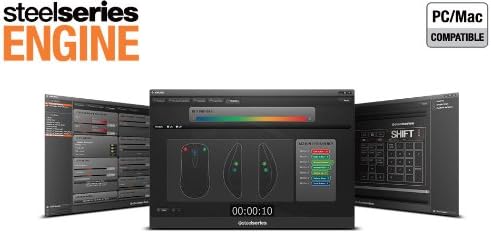
- Once installed, launch the SteelSeries Engine to configure your mouse settings, including CPI, button assignments, macros, and lighting effects.
ภาพที่ 3: ด้านล่าง view of the SteelSeries Sensei Laser Gaming Mouse, showing the laser sensor and product information label.
4. การใช้งานเมาส์
4.1 การออกแบบที่ใช้งานได้ทั้งสองมือ
The Sensei mouse features an ambidextrous shape, making it comfortable for both left-handed and right-handed users. The side buttons are mirrored on both sides to accommodate different grip styles and preferences.
4.2 ปุ่มตั้งโปรแกรมได้
The mouse is equipped with 7 programmable buttons. These buttons can be customized using the SteelSeries Engine software to perform various functions, including:
- Standard mouse clicks (left, right, middle)
- Keyboard key assignments
- Complex macros
- CPI switching

ภาพที่ 4: ด้านข้าง view of the SteelSeries Sensei Laser Gaming Mouse, highlighting the two programmable side buttons.
4.3 CPI Adjustment
The Sensei mouse allows for on-the-fly CPI (Counts Per Inch) adjustment. The dedicated CPI indicator button, typically located behind the scroll wheel, allows you to cycle between two user-defined CPI settings. These settings can be configured within the SteelSeries Engine software to match your preferred sensitivity levels for different tasks or games.
4.4. การส่องสว่าง
The mouse features three-zone illumination: the scroll wheel, the CPI indicator, and the SteelSeries logo. The color and lighting effects (e.g., steady, pulse) for these zones can be customized through the SteelSeries Engine software.
5. SteelSeries Engine Software
The SteelSeries Engine is a powerful software suite that unlocks the full potential of your Sensei mouse. Key functionalities include:
- การทำแผนที่ปุ่ม: Assign any function, keyboard key, or macro to any of the 7 programmable buttons.
- CPI Settings: Fine-tune and save multiple CPI profileสำหรับแอปพลิเคชันหรือเกมที่แตกต่างกัน
- ตัวแก้ไขมาโคร: Create and manage complex macros for in-game actions or productivity tasks.
- อัตราการสำรวจความคิดเห็น: ปรับอัตราการส่งข้อมูลของเมาส์เพื่อให้ได้การตอบสนองที่ดีที่สุด
- การควบคุมความสว่าง: Customize LED colors and effects for the scroll wheel, CPI indicator, and logo.
- โปรfile การจัดการ: สร้างและบันทึกโปรหลายรายการfiles, allowing you to switch between different configurations quickly.
- อัพเดตเฟิร์มแวร์: Keep your mouse's firmware up-to-date for improved performance and new features.

Image 5: Screenshot of the SteelSeries Engine software interface, showing options for button mapping, CPI adjustment, and lighting customization.
6. การบำรุงรักษา
To ensure the longevity and optimal performance of your SteelSeries Sensei mouse, follow these maintenance guidelines:
- การทำความสะอาด: ใช้ผ้านุ่มและแห้งเช็ดพื้นผิวของเมาส์ สำหรับสิ่งสกปรกฝังแน่น ให้เช็ดเบาๆamp สามารถใช้ผ้าได้ แต่ต้องแน่ใจว่าไม่มีความชื้นเข้าไปในตัวหนู หลีกเลี่ยงสารเคมีรุนแรงหรือน้ำยาทำความสะอาดที่มีฤทธิ์กัดกร่อน
- การดูแลเซ็นเซอร์: Keep the laser sensor on the bottom of the mouse clean and free from dust or debris. Use a cotton swab or compressed air if necessary.
- การจัดการสายเคเบิล: หลีกเลี่ยงการโค้งงออย่างแรงหรือการดึงสาย USB มากเกินไปเพื่อป้องกันความเสียหาย
7 การแก้ไขปัญหา
If you encounter issues with your SteelSeries Sensei mouse, refer to the following common solutions:
- เมาส์ไม่ตอบสนอง:
- ตรวจสอบให้แน่ใจว่าสาย USB เชื่อมต่อกับคอมพิวเตอร์ของคุณอย่างแน่นหนาแล้ว
- ลองเชื่อมต่อเมาส์กับพอร์ต USB อื่น
- รีสตาร์ทเครื่องคอมพิวเตอร์ของคุณ
- การติดตามที่ไม่สอดคล้องกัน:
- ทำความสะอาดเซ็นเซอร์เลเซอร์ที่ด้านล่างของเมาส์
- ตรวจสอบให้แน่ใจว่าคุณใช้เมาส์บนพื้นผิวที่เหมาะสม (เช่น แผ่นรองเมาส์)
- Check for dust or debris on your mouse pad.
- ปุ่มไม่ทำงาน:
- Verify button assignments in the SteelSeries Engine software.
- Ensure the software is running correctly and profileโหลดเสร็จแล้ว
- ปัญหาด้านซอฟต์แวร์:
- Update the SteelSeries Engine software to the latest version.
- ติดตั้งซอฟต์แวร์ SteelSeries Engine ใหม่
- Check for any available firmware updates for your mouse within the software.
8. ข้อมูลจำเพาะ
| คุณสมบัติ | รายละเอียด |
|---|---|
| ยี่ห้อ | สตีลซีรีส์ |
| หมายเลขรุ่น | 62150 |
| เทคโนโลยีตรวจจับการเคลื่อนไหว | เลเซอร์ |
| เทคโนโลยีการเชื่อมต่อ | ยูเอสบี |
| สี | สีเทา |
| แพลตฟอร์มฮาร์ดแวร์ | PC |
| ความเข้ากันได้ของระบบปฏิบัติการ | All Major PC Operating Systems |
| น้ำหนักสินค้า | 14.6 ออนซ์ |
| ขนาดสินค้า (กxยxส) | 7.9 x 6.8 x 2.3 นิ้ว |
| ปุ่มที่สามารถตั้งโปรแกรมได้ | 7 |
| Illumination Zones | 3 (Scroll Wheel, CPI Indicator, Logo) |
9. การรับประกันและการสนับสนุน
The SteelSeries Sensei Laser Gaming Mouse is covered by a manufacturer's warranty. For detailed information regarding warranty terms, conditions, and duration, please refer to the warranty card included with your product or visit the official SteelSeries website. For technical support, driver downloads, and frequently asked questions, please visit the SteelSeries support page.
SteelSeries Official Webเว็บไซต์: steelseries.com
ฝ่ายสนับสนุนของ SteelSeries: support.steelseries.com


