1. บทนำและเรื่องอื่นๆview
The Avision AV 320D2+ is a high-performance A3 document scanner designed for efficient and reliable document digitization. Featuring a 600 dpi optical resolution and USB connectivity, it is capable of handling a wide range of document sizes up to A3, making it suitable for various professional environments. This manual provides essential information for setting up, operating, maintaining, and troubleshooting your scanner.
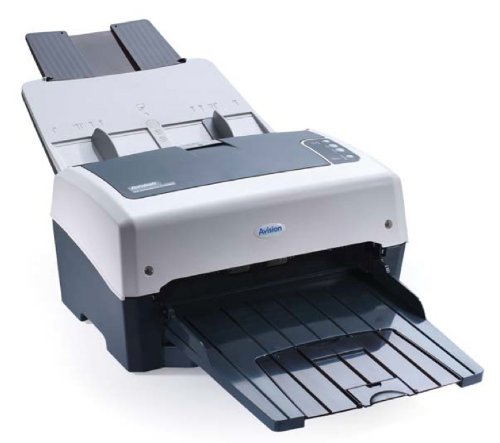
Figure 1: Avision AV 320D2+ A3 Document Scanner. This image displays the Avision AV 320D2+ A3 Document Scanner from a front-right perspective. The scanner is light grey and dark grey, featuring an automatic document feeder (ADF) at the top with paper guides visible, and an extended output tray at the front. The Avision logo is visible on the front panel.
2. การตั้งค่า
2.1 การแกะกล่อง
- ถอดเครื่องสแกนเนอร์และอุปกรณ์เสริมทั้งหมดออกจากบรรจุภัณฑ์อย่างระมัดระวัง
- ตรวจสอบว่ามีส่วนประกอบทั้งหมดที่ระบุไว้ในรายการบรรจุภัณฑ์อยู่
- Remove all protective tapes and packing materials from the scanner, including any inside the document feeder and output tray.
2.2 การเชื่อมต่อเครื่องสแกนเนอร์
- วางเครื่องสแกนบนพื้นผิวที่มั่นคงและเรียบใกล้กับคอมพิวเตอร์ของคุณ
- Connect the power adapter to the scanner's power input and then plug it into an electrical outlet.
- Connect one end of the supplied USB cable to the USB port on the scanner and the other end to an available USB port on your computer.
- Power on the scanner using the power button, typically located on the side or rear panel.
2.3 การติดตั้งซอฟต์แวร์
Before using the scanner, you must install the necessary drivers and scanning software. Refer to the included software CD or visit the official Avision website for the latest drivers and utilities.
- Insert the software installation CD into your computer's CD/DVD drive, or download the software package from the Avision support webเว็บไซต์.
- Follow the on-screen instructions to install the scanner drivers and bundled scanning applications. It is recommended to install all provided software for full functionality.
- หากระบบแจ้งให้รีสตาร์ทคอมพิวเตอร์หลังจากติดตั้งเสร็จสมบูรณ์แล้ว
3. การใช้งานเครื่องสแกนเนอร์
3.1 การโหลดเอกสาร
- ระบบป้อนเอกสารอัตโนมัติ (ADF): Open the ADF input tray. Adjust the paper guides to fit the width of your documents. Place the documents face-down with the top edge first into the ADF. The standard sheet capacity is 50 sheets.
- Ensure documents are free of staples, paper clips, or any foreign objects that could damage the scanner.
- For mixed-size documents, ensure they are aligned properly to prevent skewing.
3.2 ขั้นตอนการสแกนพื้นฐาน
- Load your documents into the ADF as described above.
- Open your preferred scanning application (e.g., Avision Button Manager, TWAIN/ISIS compatible software).
- Select the Avision AV 320D2+ as your scanner.
- Choose your desired scanning settings (e.g., color mode, resolution, destination folder).
- Initiate the scan from the software interface. The scanner will automatically feed and scan the documents.
- Review สแกนภาพที่ได้และบันทึกไว้ในตำแหน่งที่คุณต้องการ
3.3 การตั้งค่าการสแกน
The scanner supports various settings to optimize scan quality and file ขนาด:
- ปณิธาน: Adjustable up to 600 dpi. Higher resolution provides better image quality but results in larger file ขนาด
- โหมดสี: Options typically include Color, Grayscale, and Black & White (Binary).
- การสแกนสองหน้า: The AV 320D2+ supports duplex (two-sided) scanning, allowing you to capture both sides of a document in a single pass.
- รูปแบบเอาท์พุต: Common output formats include PDF, JPEG, TIFF, and searchable PDF.
4. การบำรุงรักษา
4.1 การทำความสะอาดสแกนเนอร์
การทำความสะอาดเป็นประจำจะช่วยให้เครื่องสแกนเนอร์ทำงานได้อย่างเหมาะสมที่สุดและยืดอายุการใช้งานของเครื่องสแกนเนอร์ของคุณ
- ภายนอก: เช็ดพื้นผิวภายนอกด้วยผ้านุ่ม dampใช้ผ้าที่ไม่เป็นขุยเช็ด ห้ามใช้สารทำความสะอาดที่มีฤทธิ์กัดกร่อนหรือตัวทำละลาย
- พื้นผิวกระจก: ใช้ผ้าเนื้อนุ่มเช็ดampened with a non-abrasive glass cleaner to clean the scanner's glass surfaces (if applicable).
- ลูกกลิ้ง: Periodically clean the feed rollers with a lint-free cloth lightly dampล้างออกด้วยไอโซโพรพิลแอลกอฮอล์เพื่อกำจัดฝุ่นกระดาษและคราบตกค้าง
- ปิดเครื่องสแกนเนอร์และถอดปลั๊กทุกครั้งก่อนทำความสะอาด
5 การแก้ไขปัญหา
This section addresses common issues you might encounter with your Avision AV 320D2+ scanner.
| ปัญหา | สาเหตุที่เป็นไปได้ | สารละลาย |
|---|---|---|
| เครื่องสแกนไม่ตรวจพบโดยคอมพิวเตอร์ | Loose USB cable, power off, driver issue | ตรวจสอบการเชื่อมต่อ USB ตรวจสอบให้แน่ใจว่าเครื่องสแกนเปิดอยู่ และติดตั้งไดรเวอร์ใหม่ |
| กระดาษติด | เอกสารวางไม่ตรงแนว ลูกกลิ้งสึกหรอ สิ่งแปลกปลอม | Remove jammed paper carefully, align documents properly, clean rollers. |
| คุณภาพการสแกนไม่ดี (มีรอยเปื้อน ภาพเบลอ) | Dirty glass, incorrect settings, worn rollers | Clean scanner glass and rollers, adjust resolution/color settings. |
| เอกสารไม่แสดงผล | Incorrectly loaded, worn feed rollers | Ensure documents are loaded correctly, clean or replace feed rollers if worn. |
6. ข้อมูลจำเพาะ
Key technical specifications for the Avision AV 320D2+ scanner:
- ประเภทสินค้า : เครื่องสแกนเอกสาร
- รูปแบบกระดาษ: A3
- ปณิธาน: 600 dpi (ออปติคอล)
- การเชื่อมต่อ: ยูเอสบี
- สี: สีดำ/สีขาว
- น้ำหนัก: ประมาณ 26.46 ปอนด์ (12 กก.)
- การใช้พลังงาน: 38.4 วัตต์
- ความจุกระดาษมาตรฐาน (ADF): 50 แผ่น
- เทคโนโลยีเซนเซอร์ออปติคัล: ซีมอส
- ชื่อรุ่น : AV320D2+
- หมายเลขรุ่นสินค้า: เอฟที-0807เอช
7. การรับประกันและการสนับสนุน
7.1 การรับประกันของผู้ผลิต
The Avision AV 320D2+ scanner typically comes with a การรับประกันจากผู้ผลิต 2 ปี. This warranty covers defects in materials and workmanship under normal use. Please retain your proof of purchase for warranty claims. For specific terms and conditions, refer to the warranty card included with your product or visit the official Avision webเว็บไซต์.
7.2 การสนับสนุนด้านเทคนิค
For technical assistance, driver updates, or further troubleshooting not covered in this manual, please contact Avision customer support. Support contact information can usually be found on the Avision official webไซต์หรือในเอกสารที่มาพร้อมกับสแกนเนอร์ของคุณ
Note: Availability of spare parts and software updates may vary. Please check the manufacturer's official channels for the most current information.


