1. สินค้าหมดview
The Logitech Wired Mouse M90 is a simple, reliable, and comfortable USB mouse designed for everyday use. It offers precise optical tracking and an ambidextrous design, making it suitable for both left and right-handed users. This manual provides essential information for setting up, operating, and maintaining your M90 mouse.
คุณสมบัติหลัก:
- ตั้งค่าได้ง่าย: Plug-and-play functionality with no software installation required.
- การติดตามด้วยแสงที่แม่นยำ: Enjoy smooth and accurate cursor control (1000 dpi).
- Full-Size Comfort: Designed for comfortable use, even after extended periods.
- การออกแบบตีสองหน้า: เหมาะสำหรับผู้ใช้งานทั้งมือซ้ายและมือขวา
- Durable Wired Connection: Reliable USB connection for consistent performance.
2. คู่มือการติดตั้ง
Setting up your Logitech M90 mouse is quick and straightforward. No special software or drivers are needed.
- แกะกล่องเมาส์: Carefully remove the Logitech M90 mouse from its packaging.
- ค้นหาพอร์ต USB: Identify an available USB-A port on your computer (desktop, laptop, or compatible device).
- เชื่อมต่อเมาส์: Insert the USB connector of the M90 mouse into the USB port. Ensure it is fully seated.
- การจดจำระบบ: Your operating system (Windows, macOS, Linux, Chrome OS) should automatically detect and install the necessary drivers for the mouse. This process usually takes a few seconds.
- เริ่มต้นการใช้งาน: Once recognized, the mouse is ready for immediate use. You can adjust cursor speed and other settings through your operating system's mouse settings if desired.

รูปที่ 2.1: จากบนลงล่าง view of the Logitech M90 mouse, ready for connection.
3. คู่มือการใช้งาน
The Logitech M90 mouse provides intuitive control for your computer. It features a standard three-button design with a scroll wheel.
- ปุ่มคลิกซ้าย: Located on the left side of the mouse. Used for selecting items, opening files และการเปิดใช้งานฟังก์ชั่น
- ปุ่มคลิกขวา: Located on the right side of the mouse. Used for accessing context menus and additional options.
- ล้อเลื่อน: Located between the left and right buttons.
- Scroll up or down to navigate through documents, web เพจ และแอปพลิเคชัน
- Press the scroll wheel down (middle-click) to activate specific functions in some applications, such as opening links in a new tab.
- ความเคลื่อนไหว: Move the mouse across a flat surface to control the cursor on your screen. The optical sensor provides precise tracking on most surfaces, with or without a mouse pad.
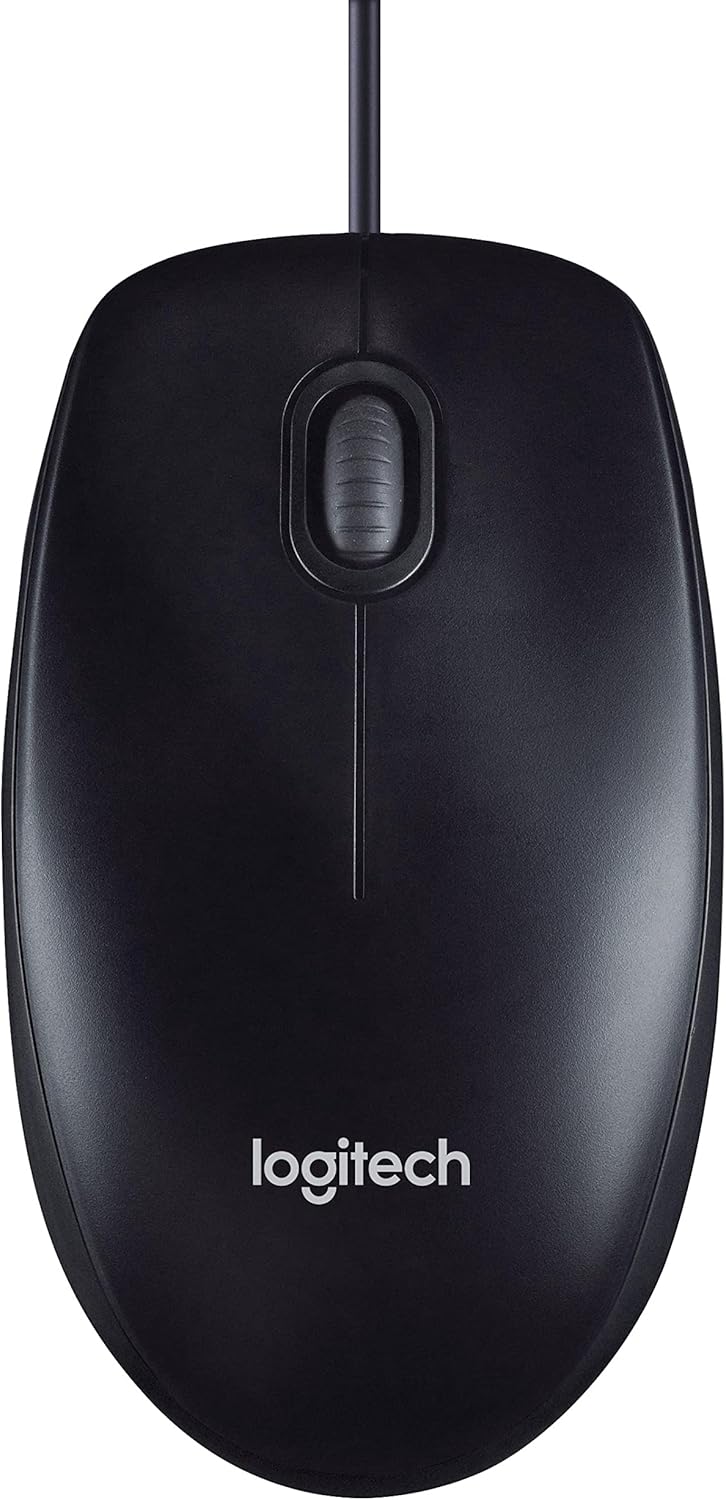
Figure 3.1: The Logitech M90 mouse in use, highlighting its simple design.
4. การบำรุงรักษา
To ensure the longevity and optimal performance of your Logitech M90 mouse, follow these simple maintenance guidelines:
- การทำความสะอาด:
- Regularly wipe the surface of the mouse with a soft, lint-free cloth.
- สำหรับสิ่งสกปรกฝังแน่น ให้เช็ดออกเล็กน้อยampชุบผ้าด้วยน้ำหรือน้ำยาทำความสะอาดอ่อนๆ ที่ไม่กัดกร่อน หลีกเลี่ยงสารเคมีรุนแรง
- Clean the optical sensor area on the bottom of the mouse periodically to prevent tracking issues. Use a dry cotton swab or compressed air.
- การดูแลสายเคเบิล: Avoid sharp bends or kinks in the USB cable. Do not pull the mouse by its cable when disconnecting it from the computer; always grasp the USB connector.
- พื้นที่จัดเก็บ: เมื่อไม่ได้ใช้งาน ให้เก็บเมาส์ไว้ในสภาพแวดล้อมที่สะอาดและแห้ง ห่างจากอุณหภูมิที่สูงหรือต่ำเกินไป
- พื้นผิว: Use the mouse on a clean, flat, and non-reflective surface for best tracking performance.

Figure 4.1: The underside of the Logitech M90 mouse, showing the optical sensor that requires occasional cleaning.
5 การแก้ไขปัญหา
หากคุณพบปัญหาเกี่ยวกับเมาส์ Logitech M90 โปรดลองทำตามขั้นตอนการแก้ไขปัญหาต่อไปนี้:
| ปัญหา | วิธีแก้ปัญหาที่เป็นไปได้ |
|---|---|
| Mouse not responding / Cursor not moving |
|
| การเคลื่อนไหวของเคอร์เซอร์ที่ผิดปกติ |
|
| ปุ่มหรือล้อเลื่อนไม่ทำงาน |
|
If these steps do not resolve the issue, please refer to the warranty and support information section.
6. ข้อมูลจำเพาะ
| คุณสมบัติ | รายละเอียด |
|---|---|
| ยี่ห้อ | โลจิเทค |
| หมายเลขรุ่น | 910-001793 |
| เทคโนโลยีการเชื่อมต่อ | มีสาย, USB |
| เทคโนโลยีตรวจจับการเคลื่อนไหว | ออฟติคอล |
| DPI (จุดต่อนิ้ว) | 1000 จุดต่อนิ้ว |
| สี | สีดำ |
| น้ำหนักสินค้า | 2.89 ออนซ์ |
| ขนาดสินค้า (กxยxส) | 5.91 x 4.72 x 0.04 นิ้ว |
| แพลตฟอร์มฮาร์ดแวร์ | PC |
| ความเข้ากันได้ของระบบปฏิบัติการ | Linux, Mac OS X 10.4 Tiger, Windows XP, Windows Vista, Windows 7 |
| แหล่งพลังงาน | สายไฟ |
| เล่มที่tage | 1.5 โวลต์ |
| วันที่พร้อมใช้งานครั้งแรก | วันที่ 19 กันยายน 2011 |

รูปที่ 6.1: ขนาดของเมาส์ Logitech M90
7. รูปภาพผลิตภัณฑ์
จากบนลงล่าง view of the Logitech M90 mouse.
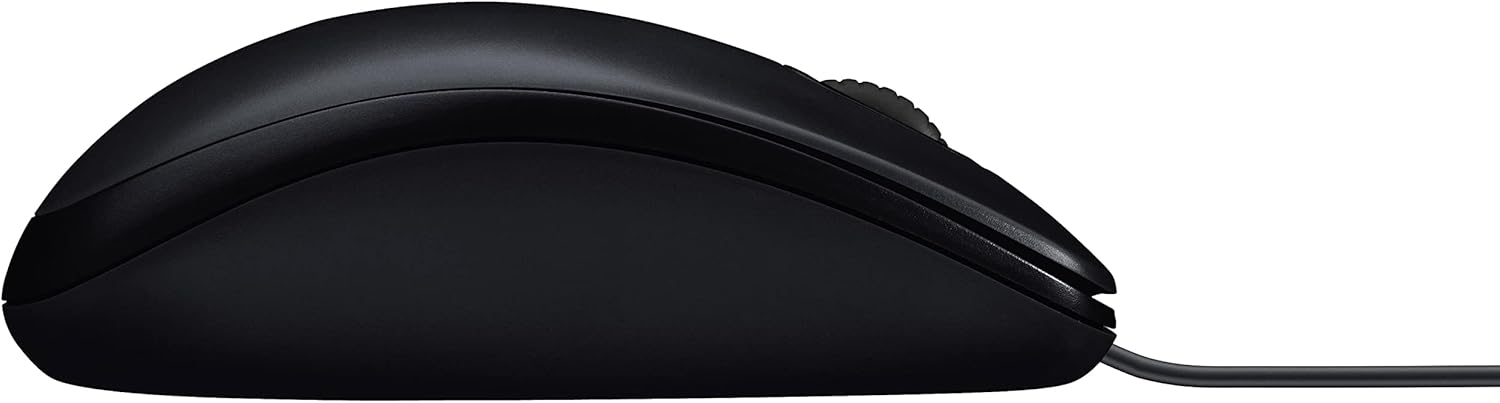
ด้านโปรfile of the Logitech M90 mouse.
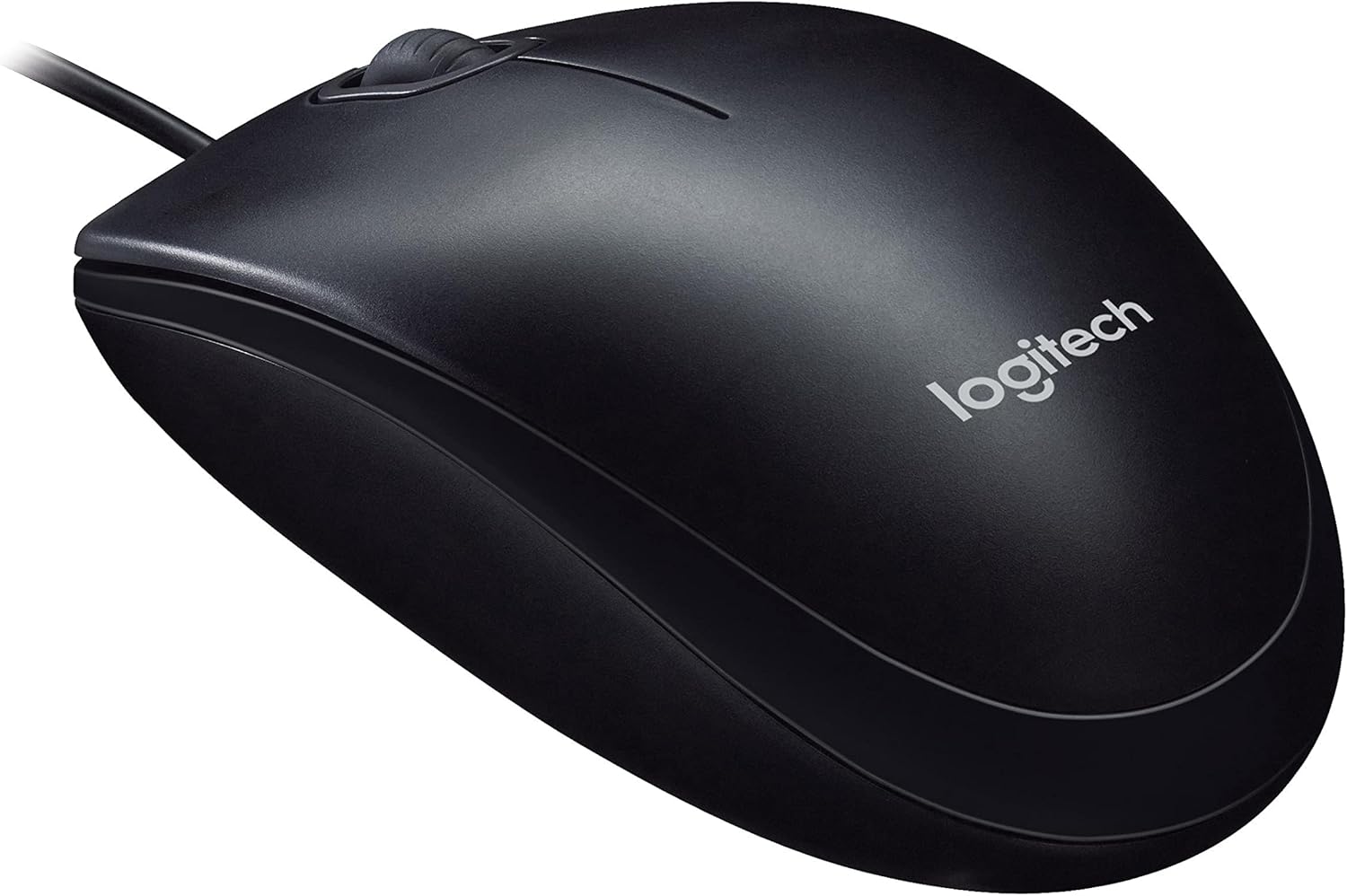
มุม view of the Logitech M90 mouse, highlighting the brand logo.
จากบนลงล่าง view of the Logitech M90 mouse, emphasizing the wired connection.
Logitech M90 mouse with key dimensions indicated.
8. วิดีโอผลิตภัณฑ์อย่างเป็นทางการ
ขณะนี้ผู้ขายยังไม่เผยแพร่คลิปวิดีโอแนะนำสินค้าอย่างเป็นทางการสำหรับสินค้านี้
9. การรับประกันและการสนับสนุน
For detailed warranty information and technical support, please refer to the documentation included in your product packaging or visit the official Logitech support webเว็บไซต์.
ฝ่ายสนับสนุนของ Logitech Webเว็บไซต์: www.logitech.com/support
Please have your product model number (M90) and serial number (if applicable) ready when contacting support.


