การแนะนำ
The TomTom XL 340S is a portable GPS navigator designed to provide reliable and efficient navigation for your journeys. This device comes preloaded with detailed maps of the US, Canada, and Mexico, ensuring comprehensive coverage for your travels across North America. It features a 4.3-inch touchscreen display for intuitive interaction and clear map viewการไอเอ็นจี
คุณสมบัติที่สำคัญ ได้แก่:
- Preloaded maps of the US, Canada, and Mexico with Map Share technology for easy modifications and updates.
- Over 7 million points of interest (POIs) across various categories, including gas stations, restaurants, hotels, and ATMs.
- IQ Routes Technology, which calculates the fastest route based on the time of day, optimizing travel time and fuel efficiency.
- Advanced Lane Guidance, providing clear visual instructions on which lane to use for upcoming turns and exits.
- Turn-by-turn voice directions, including spoken street and place names, for hands-free navigation.
This manual provides essential information on setting up, operating, maintaining, and troubleshooting your TomTom XL 340S to ensure optimal performance and a smooth navigation experience.
การติดตั้งและการตั้งค่า
มีอะไรอยู่ในกล่อง
Upon unboxing your TomTom XL 340S, verify that all components are present:
- TomTom XL 340S GPS Device
- ที่ยึดรถยนต์
- USB Cable (for charging and computer connection)
- ที่ชาร์จในรถยนต์
- Lithium Ion Battery (pre-installed)
การชาร์จอุปกรณ์
Before first use, fully charge your TomTom XL 340S. Connect the device to the car charger using the provided USB cable and plug it into your vehicle's 12V power outlet. Alternatively, you can charge it by connecting the USB cable to a computer's USB port. The battery indicator on the screen will show charging progress.
การติดตั้งอุปกรณ์
The TomTom XL 340S comes with a versatile mount for secure placement in your vehicle. The device supports both dashboard and windshield mounting options.
- ขายึดกระจกหน้ารถ: Clean the desired area on your windshield. Press the suction cup firmly against the glass and flip the lever to secure it.
- ที่ยึดแผงหน้าปัด: Ensure the dashboard surface is clean and flat. Attach the mount to the dashboard using the adhesive disc (if provided with your bundle) or by placing it on a non-slip mat.
- Attach the TomTom XL 340S device to the mount. Ensure it clicks securely into place.
- ปรับมุมของอุปกรณ์เพื่อให้ได้ผลลัพธ์ที่ดีที่สุด viewing without obstructing your view ของถนน

Figure 1: TomTom XL 340S mounted, showing the device's screen and its attachment to the mount.

รูปที่ 2: ด้านหลัง view of the TomTom XL 340S, highlighting the EasyPort mounting system.
การเปิด/ปิดเครื่อง
To power on your device, press and hold the power button located on the unit until the TomTom logo appears. To power off, press and hold the power button again until the shutdown prompt appears, then confirm.
Operating Your TomTom XL 340S
การนำทางพื้นฐาน
The TomTom XL 340S features a user-friendly touchscreen interface for entering destinations and managing routes.
- การป้อนจุดหมายปลายทาง: From the main menu, tap "Navigate to..." or "Plan route". You can then choose to enter an address, select a Point of Interest, or choose from your Favourites or Recent Destinations.
- การคำนวณเส้นทาง: Once a destination is entered, the device will calculate the fastest route using IQ Routes Technology, which considers typical traffic patterns based on the time of day.
- ทำตามคำแนะนำ: The device will provide clear turn-by-turn voice instructions, including street names, and visual cues on the screen.
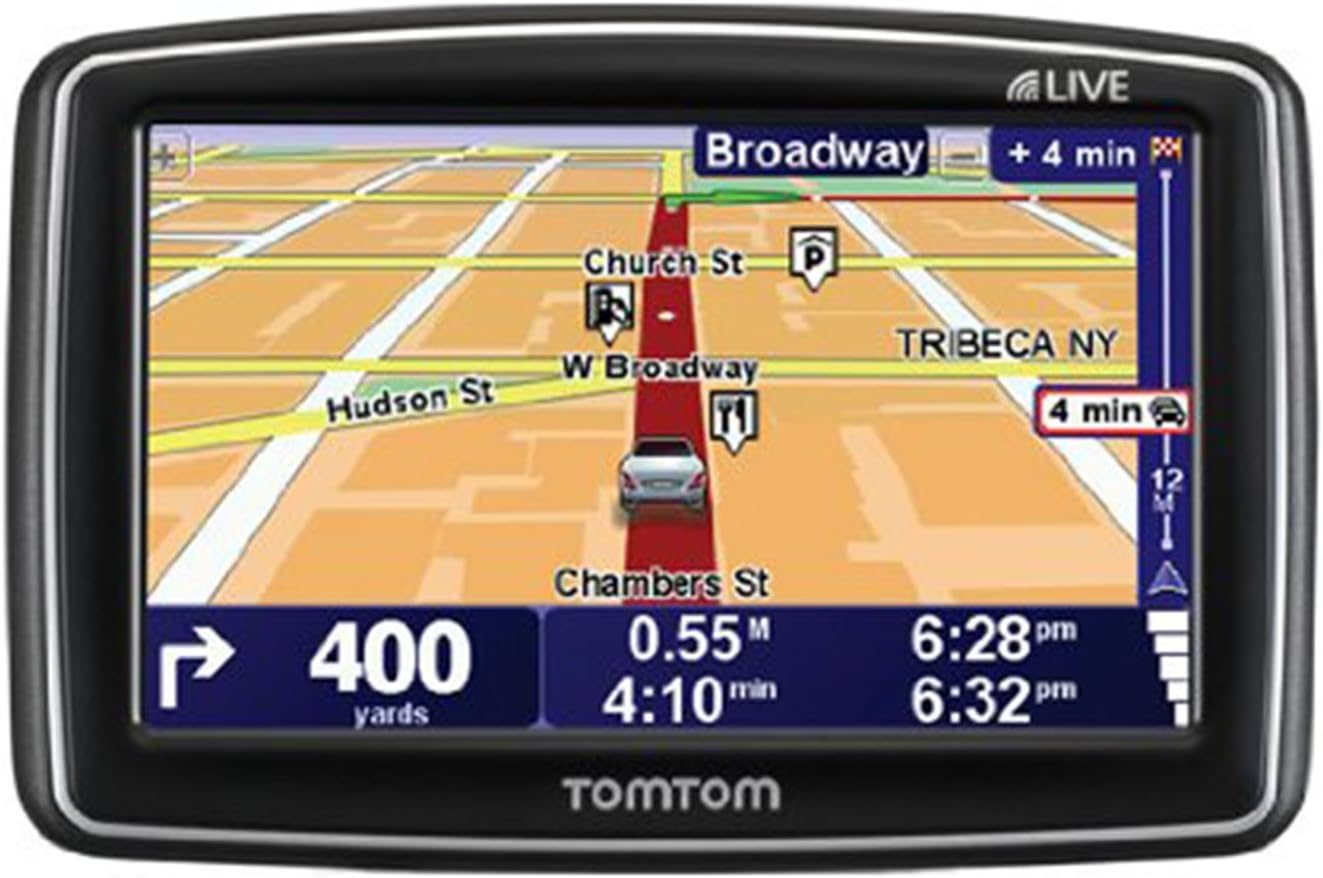
Figure 3: The TomTom XL 340S display showing an active navigation route with lane guidance and estimated arrival times.
Advanced Lane Guidance
When approaching complex junctions or highway exits, the Advanced Lane Guidance feature will display a realistic representation of the road ahead, indicating the correct lane to be in. This helps prevent missed turns and ensures confident navigation.
จุดที่น่าสนใจ (POI)
Your TomTom XL 340S is preloaded with millions of POIs. You can search for specific categories like gas stations, restaurants, hotels, or ATMs near your current location or along your route. To find a POI, select "Navigate to..." then "Point of Interest".
การซ่อมบำรุง
ทำความสะอาดอุปกรณ์ของคุณ
To maintain the clarity of your screen and the device's overall appearance, clean it regularly. Use a soft, lint-free cloth, slightly dampened with water or a screen cleaner. Avoid abrasive materials or harsh chemicals, which can damage the screen or casing.
Software and Map Updates
To ensure your device has the latest maps and software features, it is recommended to regularly connect it to a computer with internet access. Use the TomTom HOME software (available for download from the official TomTom website) to check for and install updates. This process typically involves connecting the device via the supplied USB cable.

Figure 4: TomTom XL 340S device shown with its car charger and USB cable, essential for charging and updates.
การดูแลแบตเตอรี่
The TomTom XL 340S is powered by a Lithium Ion battery. To prolong battery life:
- หลีกเลี่ยงการสัมผัสอุปกรณ์ในอุณหภูมิที่สูงหรือต่ำเกินไป (ร้อนหรือเย็น)
- Charge the battery fully before long periods of non-use.
- หากต้องเก็บรักษาเป็นเวลานาน ควรชาร์จแบตเตอรี่ให้มีประมาณ 50% และเก็บไว้ในที่แห้งและเย็น
การแก้ไขปัญหา
This section addresses common issues you might encounter with your TomTom XL 340S.
อุปกรณ์ไม่เปิดเครื่อง
- Ensure the device is fully charged. Connect it to the car charger or a computer via USB for at least 30 minutes.
- Perform a soft reset: Press and hold the power button for at least 15-20 seconds until you hear a drum roll sound or the device restarts.
No GPS Signal / Slow Satellite Acquisition
- ตรวจสอบให้แน่ใจว่าอุปกรณ์มีความชัดเจน view of the sky. Obstructions like tall buildings, tunnels, or dense foliage can interfere with GPS reception.
- Move to an open area. Initial satellite acquisition can take a few minutes, especially after being off for a long time or traveling a significant distance.
- Check for software updates, as these can improve GPS performance.
Device Not Connecting to Computer
- Ensure the USB cable is securely connected to both the device and the computer. Try a different USB port.
- Restart both the TomTom device and your computer.
- Ensure you have the latest version of TomTom HOME software installed on your computer.
- Try a different USB cable if available, as cables can sometimes be faulty.
หน้าจอไม่ตอบสนอง
- Perform a soft reset as described above.
- ตรวจสอบให้แน่ใจว่าหน้าจอสะอาดและไม่มีเศษขยะ
หากขั้นตอนเหล่านี้ไม่สามารถแก้ไขปัญหาของคุณได้ โปรดดูส่วนการสนับสนุนเพื่อขอความช่วยเหลือเพิ่มเติม
ข้อมูลจำเพาะ
| คุณสมบัติ | รายละเอียด |
|---|---|
| ขนาดสินค้า | 0.9 x 3.2 x 4.7 นิ้ว |
| น้ำหนักสินค้า | 6.9 ออนซ์ |
| ขนาดหน้าจอ | 4.3 นิ้ว |
| ปณิธาน | 480 x 272 พิกเซล |
| อินพุตอินเทอร์เฟซมนุษย์ | หน้าจอสัมผัส |
| เทคโนโลยีการเชื่อมต่อ | ยูเอสบี |
| คุณสมบัติพิเศษ | Lane Assist, IQ Routes Technology, Map Share |
| ประเภทแผนที่ | ทวีปอเมริกาเหนือ (สหรัฐอเมริกา แคนาดา เม็กซิโก) |
| ประเภทแบตเตอรี่ | แบตเตอรี่ลิเธียมไอออน 1 ก้อน (รวมอยู่ด้วย) |
| ประเภทการติดตั้ง | ติดตั้งบนแผงหน้าปัด ติดตั้งบนกระจกหน้ารถ |
การรับประกันและการสนับสนุน
ข้อมูลการรับประกัน
For detailed information regarding the warranty coverage for your TomTom XL 340S, please refer to the documentation included with your purchase or visit the official TomTom webไซต์ เงื่อนไขการรับประกันอาจแตกต่างกันไปตามภูมิภาคและผู้ค้าปลีก
การสนับสนุนลูกค้า
If you require further assistance, have questions, or encounter issues not covered in this manual, please contact TomTom customer support. You can find support resources, FAQs, and contact information on the official TomTom webเว็บไซต์:
Visit the Official TomTom Store Page
Regularly checking the official website for updated manuals, software, and support articles is recommended.


