1. สินค้าหมดview
The Aluratek AUV200F USB 2.0 to VGA Adapter is designed to extend your desktop by adding an additional display via a USB port. This adapter enables dual monitor support, enhancing multitasking capabilities for various applications.
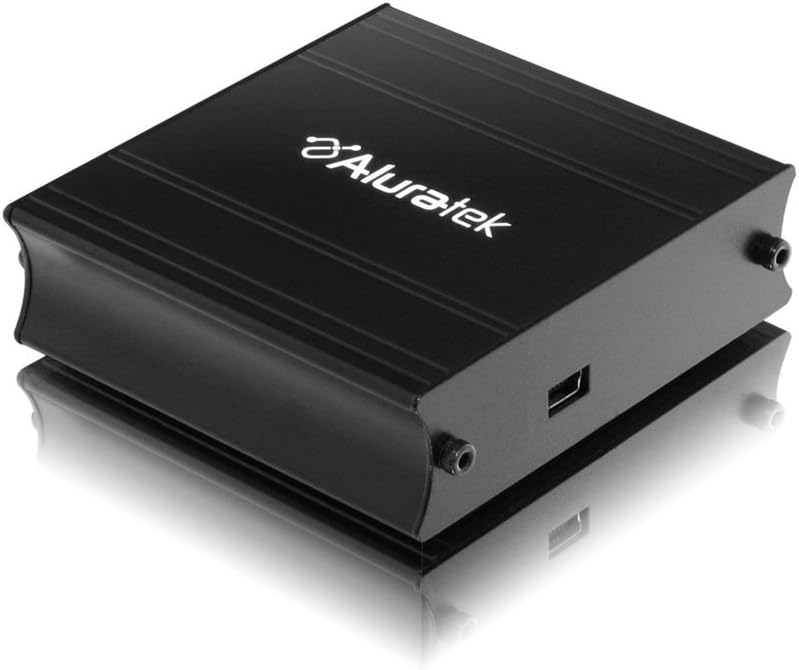
This image shows the Aluratek AUV200F USB to VGA Adapter. It is a compact, black rectangular device designed to connect a computer's USB port to a VGA monitor. The top surface displays the Aluratek logo, and one side features a USB input port, while the opposite side has screw holes for securing a VGA cable.
คุณสมบัติหลัก:
- Supports Primary, Extended, and Mirror display modes.
- Supports widescreen monitor resolutions up to 1680 x 1050.
- Supports standard monitor resolutions up to 1600 x 1200.
- ช่วยให้สามารถ viewing data across multiple screens or with display continuity.
- Facilitates more effective multitasking by reducing overlapping windows.
2. เนื้อหาบรรจุภัณฑ์
ก่อนดำเนินการติดตั้ง โปรดตรวจสอบว่าแพ็คเกจของคุณมีรายการต่อไปนี้หรือไม่:
- Aluratek AUV200F USB to VGA Adapter
- Driver Installation CD (or download instructions)
- คู่มือเริ่มต้นอย่างรวดเร็ว
3. ข้อกำหนดของระบบ
To ensure proper functionality, your computer system must meet the following minimum requirements:
- ระบบปฏิบัติการ: Windows XP-SP2/3, Vista, Windows 7, or Mac OS 10.4.11 or later (Intel-based only).
- พอร์ตที่มี: One available USB port and one available VGA port on the monitor.
- โปรเซสเซอร์: Recommended 1.2 GHz or higher.
- แรม : Recommended 512 MB or higher.
4. การตั้งค่าและการติดตั้ง
4.1 การติดตั้งไดรเวอร์
- ใส่แผ่นซีดีไดร์เวอร์: Place the provided driver installation CD into your computer's optical drive. If your computer does not have an optical drive, download the latest drivers from the official Aluratek webเว็บไซต์.
- เรียกใช้ตัวติดตั้ง: Follow the on-screen instructions to install the necessary drivers. It is recommended to restart your computer after the driver installation is complete.
4.2 การเชื่อมต่อฮาร์ดแวร์
- Connect VGA Cable: Connect one end of a VGA cable (not included) to the VGA port on your external monitor and the other end to the VGA port on the Aluratek AUV200F adapter. Secure the screws on the VGA connector for a stable connection.
- เชื่อมต่อสาย USB: Plug the USB connector of the Aluratek AUV200F adapter into an available USB 2.0 port on your computer.
- เปิดเครื่อง: Ensure your external monitor is powered on.
5. คู่มือการใช้งาน
Once the adapter is connected and drivers are installed, your operating system should detect the new display. You can configure the display settings through your computer's display control panel.
5.1 Configuring Display Modes (Windows)
- Access Display Settings: Right-click on an empty area of your desktop and select "Screen resolution" (Windows 7/Vista) or "Display settings" (Windows 10).
- Identify Displays: Click "Identify" to see which number corresponds to each monitor.
- Choose Display Mode: In the "Multiple displays" dropdown menu, select one of the following options:
- ขยายจอแสดงผลเหล่านี้: This creates an extended desktop, allowing you to drag windows between monitors.
- ทำซ้ำการแสดงผลเหล่านี้: This mirrors your primary display onto the second monitor.
- Show desktop only on 1/2: This disables one of the displays.
- ปรับความละเอียด: Select the desired resolution for each monitor. The Aluratek AUV200F supports up to 1680x1050 for widescreen and 1600x1200 for standard monitors.
- ใช้การตั้งค่า: Click "Apply" and then "OK" to save your changes.
5.2 Configuring Display Modes (Mac OS)
- Access Display Preferences: Go to "System Preferences" > "Displays".
- Arrangement Tab: In the "Arrangement" tab, you can drag the monitor icons to arrange them as desired for an extended desktop. To mirror displays, check the "Mirror Displays" box.
- Resolution Tab: In the "Display" tab for each monitor, select the desired resolution.
6 การแก้ไขปัญหา
If you encounter issues with your Aluratek AUV200F adapter, please refer to the following common solutions:
- No Display on Second Monitor:
- Ensure all cables (USB and VGA) are securely connected.
- Verify that the external monitor is powered on and set to the correct input source (VGA).
- Check your computer's display settings to ensure the second monitor is detected and configured for "Extend" or "Duplicate" mode.
- Reinstall the device drivers from the Aluratek webเว็บไซต์.
- Poor Display Quality or Lag:
- Ensure your computer meets the recommended system requirements.
- Adjust the display resolution to a lower setting to see if performance improves.
- Note that USB-to-VGA adapters are generally not recommended for high-motion video playback or demanding graphic applications like gaming due to potential latency.
- ปัญหาการติดตั้งไดรเวอร์:
- Download the latest drivers directly from the official Aluratek support webเว็บไซต์.
- หากโปรแกรมป้องกันไวรัสขัดขวางการติดตั้ง ให้ปิดใช้งานชั่วคราวในระหว่างการติดตั้ง
- Try installing the drivers in Safe Mode if standard installation fails.
- ไม่รู้จักอะแดปเตอร์:
- ลองเชื่อมต่ออะแดปเตอร์กับพอร์ต USB อื่นบนคอมพิวเตอร์ของคุณ
- Ensure the USB port is functional by testing it with another USB device.
7. ข้อมูลจำเพาะ
| แบบอย่าง | AUV200F |
| ยี่ห้อ | อลูราเท็ก |
| ประเภทขั้วต่อ | ยูเอสบี 2.0 ถึงวีจีเอ |
| Supported Resolutions (Widescreen) | สูงถึง 1680 x 1050 |
| Supported Resolutions (Standard) | สูงถึง 1600 x 1200 |
| ระบบปฏิบัติการที่รองรับ | Windows XP-SP2/3, Vista, Windows 7, Mac OS 10.4.11 or later (Intel-based) |
| อุปกรณ์ที่รองรับ | Laptop, Desktop Computers |
| ขนาดสินค้า | 23.62 x 14.73 x 6.35 ซม. |
| น้ำหนักสินค้า | 181.44 กรัม |
8. การบำรุงรักษา
To ensure the longevity and optimal performance of your Aluratek AUV200F adapter, follow these maintenance guidelines:
- การทำความสะอาด: ใช้ผ้าแห้งนุ่มๆ เช็ดทำความสะอาดอะแดปเตอร์ หลีกเลี่ยงการใช้น้ำยาทำความสะอาดหรือสารละลาย
- พื้นที่จัดเก็บ: เก็บอะแดปเตอร์ไว้ในที่แห้งและเย็น หลีกเลี่ยงแสงแดดโดยตรงและอุณหภูมิที่สูงหรือต่ำเกินไป
- การจัดการ: Handle the adapter with care. Avoid dropping it or subjecting it to strong impacts. Do not force connectors.
9. การรับประกันและการสนับสนุน
The Aluratek AUV200F USB to VGA Adapter comes with a รับประกันจำกัด 1 ปี ตั้งแต่วันที่ซื้อ การรับประกันนี้ครอบคลุมถึงข้อบกพร่องในวัสดุและฝีมือการผลิตภายใต้การใช้งานปกติ
For technical support, warranty claims, or further assistance, please visit the official Aluratek webหรือติดต่อฝ่ายบริการลูกค้า โปรดเก็บหลักฐานการซื้อไว้เพื่อใช้ยืนยันการรับประกัน
Aluratek Official Webเว็บไซต์: www.aluratek.com


