1. บทนำ
This manual provides instructions for the installation, operation, maintenance, and troubleshooting of the Juniper EX3200-24T Layer 3 Switch. The EX3200-24T is a fixed-configuration switch designed for access-layer deployments in various network environments, offering comprehensive Layer 2 and Layer 3 switching capabilities.
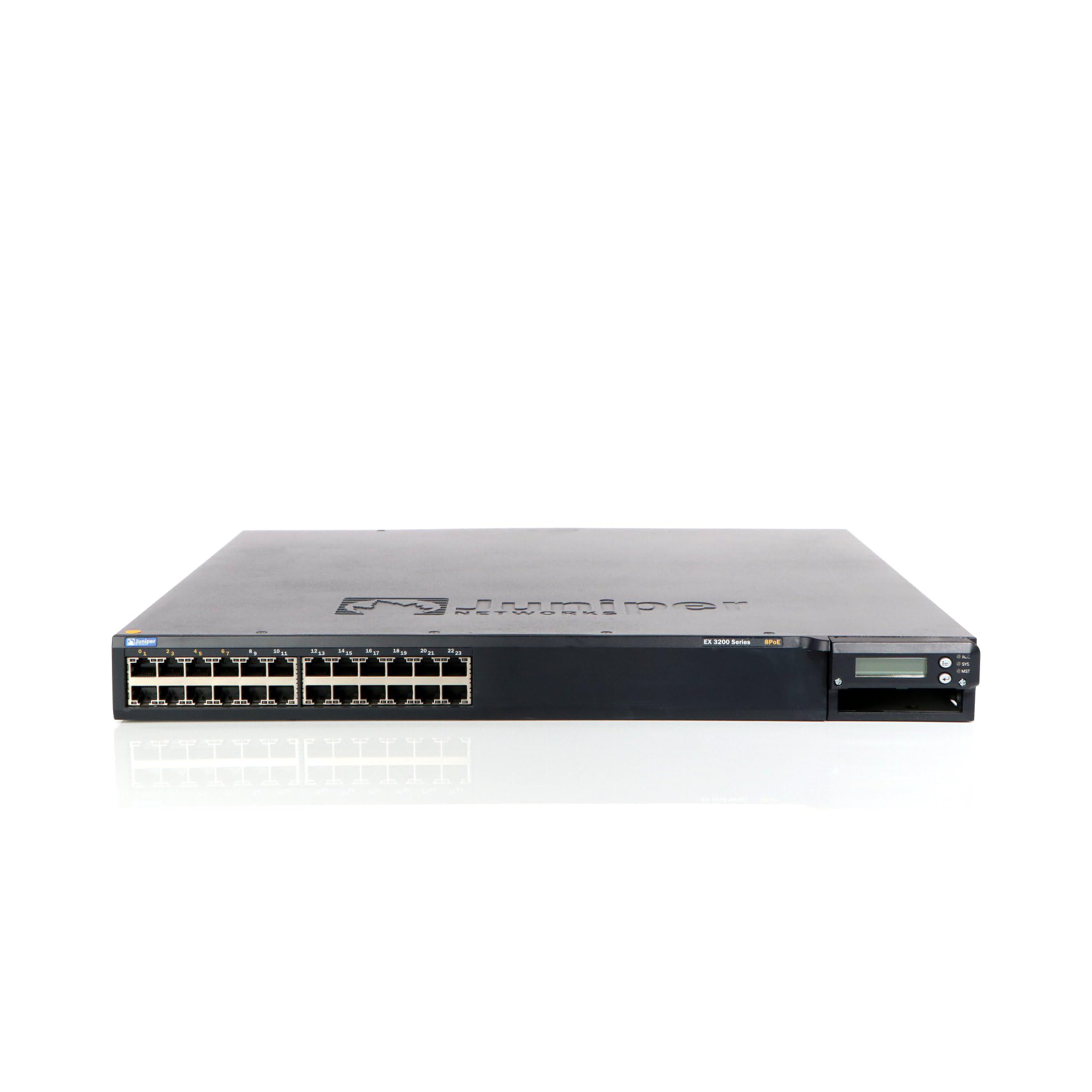
รูปที่ 1 : ด้านหน้า view of the Juniper EX3200-24T Layer 3 Switch. This image displays the 24 Ethernet ports, along with various status indicator lights and the Juniper Networks branding.
2. การตั้งค่า
Follow these steps to properly set up your Juniper EX3200-24T switch.
2.1 การแกะบรรจุภัณฑ์และการตรวจสอบ
- นำสวิตช์ออกจากบรรจุภัณฑ์อย่างระมัดระวัง
- ตรวจสอบสวิตช์ว่ามีร่องรอยความเสียหายทางกายภาพหรือไม่ หากพบความเสียหาย โปรดติดต่อผู้จำหน่ายของคุณทันที
- ตรวจสอบว่ามีส่วนประกอบทั้งหมดที่ระบุไว้ในรายการบรรจุภัณฑ์อยู่
2.2 การติดตั้งบนแร็ค (ทางเลือก)
The EX3200-24T can be mounted in a standard 19-inch equipment rack. Use the provided rack-mount kit and follow the instructions included with the kit for secure installation.
2.3 การต่อสายไฟ
- Ensure the power switch on the rear panel of the switch is in the OFF position.
- Connect the provided AC power cord to the power inlet on the rear of the switch.
- เสียบปลายอีกด้านของสายไฟเข้ากับเต้ารับไฟฟ้าที่มีสายดิน
2.4 การเชื่อมต่อสายเคเบิลเครือข่าย
Connect Ethernet cables from your network devices (computers, servers, other switches) to the 10/100/1000Base-T ports on the front panel of the EX3200-24T switch. Ensure cables are securely seated.
3. คู่มือการใช้งาน
This section outlines the basic operation of the Juniper EX3200-24T switch.
3.1 การเปิดสวิตช์
After connecting the power cord, flip the power switch on the rear panel to the ON position. The system status LEDs on the front panel will illuminate during the boot process.
3.2 Understanding Status LEDs
แผงด้านหน้ามีไฟ LED หลายดวงเพื่อแสดงสถานะการทำงานของสวิตช์และพอร์ตต่างๆ:
- ไฟ LED SYS: Indicates system status (e.g., green for normal operation, amber for warning, red for critical error).
- ไฟ LED ALM: ระบุสถานะการเตือน
- PPM LED: Indicates power supply module status.
- ไฟ LED พอร์ต: Each port has LEDs indicating link status and activity (e.g., green for link, blinking green for activity).
3.3 การกำหนดค่าเริ่มต้น (การเข้าถึงคอนโซล)
สำหรับการตั้งค่าเริ่มต้น ให้เชื่อมต่อสายคอนโซล (RJ-45 ถึง DB-9) จากเวิร์กสเตชันสำหรับการจัดการของคุณไปยังพอร์ตคอนโซลบนสวิตช์ ใช้โปรแกรมจำลองเทอร์มินัล (เช่น PuTTY, Tera Term) ด้วยการตั้งค่าต่อไปนี้:
- อัตราบอด: 9600
- บิตข้อมูล: 8
- ความเท่าเทียม: ไม่มี
- สต็อปบิต: 1
- การควบคุมการไหล: ไม่มี
Refer to the Juniper Networks documentation for detailed configuration procedures.
4. การบำรุงรักษา
Regular maintenance ensures optimal performance and longevity of your EX3200-24T switch.
4.1 การทำความสะอาด
- Periodically clean the exterior of the switch with a soft, dry, lint-free cloth.
- Ensure ventilation openings are free from dust and obstructions to prevent overheating. Do not use liquid or aerosol cleaners directly on the switch.
การอัปเดตเฟิร์มแวร์ 4.2 รายการ
Juniper Networks periodically releases firmware updates to improve performance, add features, and address security vulnerabilities. It is recommended to keep the switch firmware updated. Refer to the official Juniper Networks support webเว็บไซต์นี้เป็นแหล่งรวมเฟิร์มแวร์ล่าสุดและขั้นตอนการอัปเดต
4.3 ข้อพิจารณาด้านสิ่งแวดล้อม
Operate the switch within its specified environmental limits (temperature, humidity) to prevent damage and ensure reliable operation. Avoid exposing the switch to direct sunlight, excessive heat, or moisture.
5 การแก้ไขปัญหา
This section provides solutions to common issues you might encounter with your EX3200-24T switch.
5.1 ไม่มีไฟฟ้า
- อาการ: No LEDs are illuminated, and the switch does not power on.
- การกระทำ:
- ตรวจสอบว่าสายไฟเชื่อมต่อกับสวิตช์และเต้ารับไฟฟ้าอย่างแน่นหนา
- ตรวจสอบให้แน่ใจว่าสวิตช์เปิด/ปิดที่แผงด้านหลังอยู่ในตำแหน่งเปิด (ON)
- Check the electrical outlet with another device to confirm it is functional.
- If using a power strip or UPS, ensure it is powered on and functioning correctly.
5.2 ไม่มีการเชื่อมต่อเครือข่าย
- อาการ: อุปกรณ์ที่เชื่อมต่อกับสวิตช์ไม่สามารถเข้าถึงเครือข่ายได้
- การกระทำ:
- Check the port LEDs on the switch for the connected device. A solid green LED indicates a link. If no link, try a different port or cable.
- Verify the network cable is securely connected at both ends (switch and device).
- Ensure the connected device's network adapter is enabled and configured correctly.
- If multiple devices are affected, check the uplink connection from the EX3200-24T to your core network.
- Consult the switch's configuration for VLANs, IP addressing, and other network settings.
5.3 System Alarm LED (ALM) is Amber/Red
- อาการ: The ALM LED is illuminated amber or red.
- การกระทำ:
- Log in to the switch via the console or network management interface.
- Check system logs and alarm messages for details on the specific issue.
- Common causes include power supply issues, fan failures, or high temperature.
- Address the root cause as indicated by the logs.
6. ข้อมูลจำเพาะ
Key technical specifications for the Juniper EX3200-24T Layer 3 Switch:
| คุณสมบัติ | ข้อมูลจำเพาะ |
|---|---|
| ยี่ห้อ | จูนิเปอร์ เน็ตเวิร์กส์ |
| หมายเลขรุ่น | EX3200-24T |
| จำนวนพอร์ต | 24 (16 x 10/100/1000Base-T, 8 x 10/100/1000Base-T) |
| ช่องขยาย | 1 x Expansion Slot |
| อัตราการถ่ายโอนข้อมูล | 1 กิกะบิตต่อวินาที |
| การรองรับเลเยอร์ | ชั้นที่ 3 |
| น้ำหนักสินค้า | 14.9 ปอนด์ |
| สี | สีดำ |
| อุปกรณ์ที่รองรับ | เดสก์ท็อป |
| ยูพีซี | 832938037793 |
7. การรับประกันและการสนับสนุน
7.1 การรับประกันสินค้า
The Juniper EX3200-24T Layer 3 Switch is covered by a standard manufacturer's warranty. For detailed information regarding warranty terms, duration, and coverage, please refer to the warranty card included with your product or visit the official Juniper Networks webเว็บไซต์.
7.2 การสนับสนุนด้านเทคนิค
For technical assistance, troubleshooting beyond this manual, or to report issues, please contact Juniper Networks technical support. Support resources, including documentation, FAQs, and contact information, are available on the official Juniper Networks support portal: