
การแนะนำ
Thank you for choosing the Gamrombo Wired Controller. This manual provides detailed instructions for setting up, operating, and maintaining your controller. This controller is designed for use with Xbox Series X/S, Xbox One, and PC, offering a stable and responsive gaming experience with features like programmable macro functions, turbo mode, and a 3.5mm headphone jack.
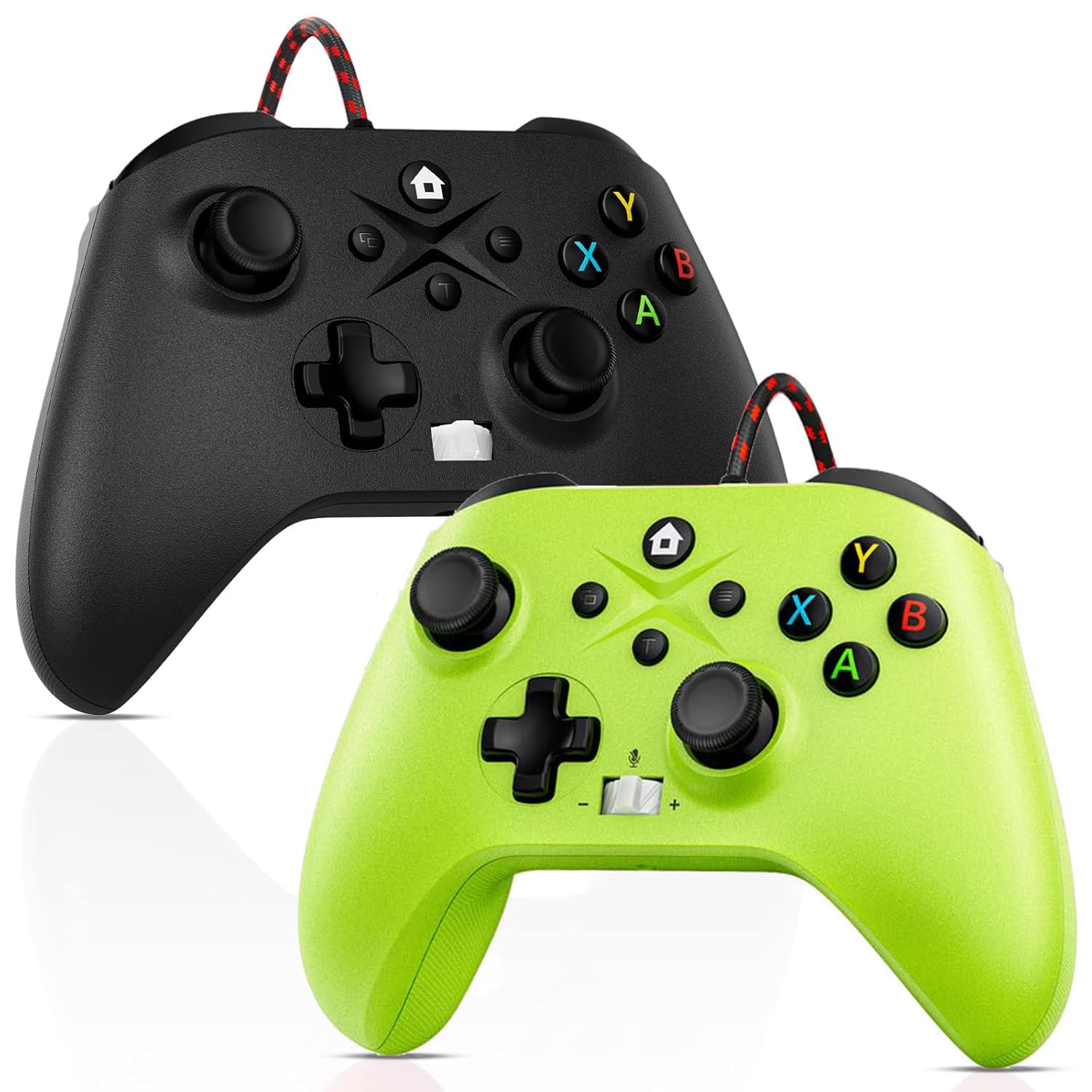
Image: Gamrombo Wired Controller in Black and Green.
คุณสมบัติผลิตภัณฑ์
- ความเข้ากันได้ที่หลากหลาย: Compatible with Xbox Series X/S, Xbox One (including One S/One X), and PC.
- การเชื่อมต่อแบบมีสาย: Provides a stable, low-latency gaming experience with a 10-foot (3-meter) durable, tangle-free cable. No batteries required.
- ฟังก์ชันมาโครที่ตั้งโปรแกรมได้: Two back mappable buttons (PR/PL) allow programming up to 16 button inputs for complex actions.
- ฟังก์ชั่นเทอร์โบ: Enables rapid-fire for selected buttons.
- แจ็คหูฟัง 3.5 มม.: Supports audio output and microphone input for clear in-game communication.
- One-Touch Mic Mute: Quickly mute your microphone directly from the controller.
- มอเตอร์สั่นสะเทือนแบบไม่สมมาตร: Built-in motors provide varied vibration feedback for an immersive gaming experience.
- Precise 3D Gaming Joysticks: Offers 360-degree response with zero delay for accurate control.
- การออกแบบตามหลักสรีรศาสตร์: จับถนัดมือ เหมาะสำหรับการเล่นเกมต่อเนื่องเป็นเวลานาน

Image: Diagram illustrating the wide compatibility of the Gamrombo Wired Controller with Xbox consoles and PC.

Image: The Gamrombo Wired Controller showcasing its 10-foot long braided cable for extended reach.
เนื้อหาแพ็คเกจ
โดยทั่วไปแพ็คเกจจะประกอบด้วย:
- 2 x Gamrombo Wired Controllers
- 1 x คู่มือผู้ใช้
การตั้งค่า
- Connect to Xbox Console: Plug the USB connector of the controller into an available USB port on your Xbox Series X/S or Xbox One console. The controller will automatically be recognized and ready for use.
- เชื่อมต่อกับพีซี: Plug the USB connector of the controller into an available USB port on your PC. The operating system (Windows 10/11 recommended) will typically install the necessary drivers automatically. The controller will be recognized as an Xbox controller.
- การเชื่อมต่อเริ่มต้น: Once connected, the controller's indicator light will illuminate, signifying a successful connection.
คำแนะนำการใช้งาน
เค้าโครงคอนโทรลเลอร์

Image: Detailed diagram of the Gamrombo Wired Controller showing all buttons and their labels, including Home, View, Menu, A/B/X/Y, D-pad, Joysticks (L3/R3), Bumpers (L1/R1), Triggers (L2/R2), Turbo, Programming Function Keys (PR/PL, Set), Adjustable Volume, and Headphone Jack.
การควบคุมพื้นฐาน
- ปุ่มโฮม: Powers on/off the console (Xbox) or opens the Xbox Game Bar (PC).
- View ปุ่ม: Provides additional context-sensitive options in games or apps.
- ปุ่มเมนู: Opens in-game menus or system settings.
- ปุ่ม A/B/X/Y: ปุ่มการดำเนินการมาตรฐาน
- ดี-แพด: การป้อนข้อมูลแบบทิศทาง
- Left/Right Joysticks (L3/R3): Analog movement and camera control. Pressing them down activates L3/R3 buttons.
- ซ้าย/ขวา (กันชน): ปุ่มด้านข้างไหล่ใช้สำหรับควบคุมการกระทำต่างๆ ในเกม
- L2/R2 (ทริกเกอร์): Analog triggers for precise control, often used for acceleration/braking or aiming/firing.
ฟังก์ชันเทอร์โบ
ฟังก์ชัน Turbo ช่วยให้สามารถกดปุ่มซ้ำๆ ได้ตราบเท่าที่ยังกดปุ่มค้างไว้
- เปิดใช้งานเทอร์โบ: กดปุ่มค้างไว้ เทอร์โบ button, then press the desired action button (e.g., A, B, X, Y, L1, R1, L2, R2, D-pad directions). The button will now have Turbo functionality.
- ปิดใช้งานเทอร์โบ: หากต้องการปิดใช้งานฟังก์ชัน Turbo จากปุ่มใดปุ่มหนึ่ง ให้กดปุ่มนั้นค้างไว้ เทอร์โบ button again, then press the button with active Turbo.
Macro Function (Programmable Back Buttons)
The two back buttons (PR and PL) can be programmed to execute a sequence of up to 16 button presses.
- เข้าสู่โหมดการเขียนโปรแกรม: กดปุ่ม ชุด button. The indicator light will start blinking.
- เลือกปุ่มมาโคร: กดปุ่มใดปุ่มหนึ่ง PR or PL ปุ่ม.
- บันทึกมาโคร: Input the desired sequence of up to 16 button presses (e.g., A, B, X, Y, L1, R1, D-pad, etc.).
- บันทึกแมโคร: กดปุ่ม ชุด กดปุ่มอีกครั้งเพื่อบันทึกแมโคร ไฟแสดงสถานะจะหยุดกะพริบ
- ใช้มาโคร: กดโปรแกรม PR or PL button to execute the recorded sequence.
- ล้างมาโคร: To clear a macro, enter programming mode (press ชุด) จากนั้นกด PR or PL button you wish to clear, and then press ชุด again without inputting any sequence.
3.5mm Headphone Jack and Mic Mute
- เชื่อมต่อชุดหูฟัง: Plug any standard 3.5mm gaming headset into the headphone jack located at the bottom of the controller.
- ปรับระดับเสียง: Use the volume control buttons (+/-) on the controller to adjust headset audio levels.
- ปิดเสียงไมค์: Press the dedicated mic mute button to toggle your microphone on or off. An indicator light may show the mute status.
การตอบรับการสั่นสะเทือน
The controller features asymmetric vibration motors in the grips, providing varied haptic feedback based on in-game events for enhanced immersion.

Image: Illustration of the asymmetric vibration motors within the grips of the Gamrombo Wired Controller.

Image: Depiction of the adjustable vibration feature and 6-axis gyro sensor in the Gamrombo Wired Controller.
3D Gaming Joysticks and Linear Triggers
The controller is equipped with high-precision 3D joysticks for accurate 360-degree movement and Hall Effect linear triggers that offer responsive and immersive control.

ภาพ: ระยะใกล้ view of the 3D gaming joystick on the Gamrombo Wired Controller, highlighting its precision.

Image: Visual representation of the precise 360-degree joystick and E-Sports level linear triggers with vibration function.
การซ่อมบำรุง
- การทำความสะอาด: ใช้ผ้านุ่มและแห้งเช็ดคอนโทรลเลอร์ สำหรับสิ่งสกปรกฝังแน่น ให้เช็ดเบาๆampชุบผ้าด้วยน้ำ หลีกเลี่ยงการใช้สารเคมีรุนแรงหรือวัสดุที่มีฤทธิ์กัดกร่อน
- พื้นที่จัดเก็บ: เก็บตัวควบคุมไว้ในที่แห้งและเย็น ห่างจากแสงแดดโดยตรงและอุณหภูมิที่สูงหรือต่ำมาก
- การดูแลสายเคเบิล: Avoid sharply bending or twisting the cable. Do not pull the controller by its cable.
- หลีกเลี่ยงของเหลว: ควรเก็บตัวควบคุมให้ห่างจากของเหลวเพื่อป้องกันความเสียหายต่อชิ้นส่วนภายใน
การแก้ไขปัญหา
- คอนโทรลเลอร์ไม่ตอบสนอง:
- ตรวจสอบให้แน่ใจว่าเสียบสาย USB เข้ากับทั้งคอนโทรลเลอร์และเครื่องเล่นเกม/พีซีอย่างแน่นหนาแล้ว
- ลองเสียบตัวควบคุมเข้ากับพอร์ต USB อื่นดู
- รีสตาร์ทเครื่องเล่นเกมหรือเครื่องคอมพิวเตอร์ของคุณ
- เสียงหูฟังไม่ทำงาน:
- Check if the headset is fully plugged into the 3.5mm jack.
- Verify that the volume is not muted or set too low using the controller's volume controls and system settings.
- Test the headset with another device to ensure it is functioning correctly.
- Macro/Turbo Function Not Working:
- Review the programming steps in the 'Operating Instructions' section to ensure correct setup.
- Ensure no other conflicting software or settings are interfering.
- การสั่นสะเทือนไม่ทำงาน:
- ตรวจสอบการตั้งค่าในเกมเพื่อให้แน่ใจว่าได้เปิดใช้งานการสั่นตอบสนองแล้ว
- Ensure the game supports vibration functionality.
ข้อมูลจำเพาะ
| คุณสมบัติ | คำอธิบาย |
|---|---|
| อุปกรณ์ที่รองรับ | Xbox Series X, Xbox Series S, Xbox One, Xbox One S, Xbox One X, PC (Windows) |
| ประเภทตัวควบคุม | มีสาย |
| เทคโนโลยีการเชื่อมต่อ | สาย USB |
| ความยาวสายเคเบิล | 10 Feet (approximately 3 meters) |
| คุณสมบัติเพิ่มเติม | 3.5mm Headphone Jack, Turbo Function, Macro Function, Vibration Feedback, 6-Axis Gyro Sensor |
| จำนวนปุ่ม | 21 |
| แพลตฟอร์มฮาร์ดแวร์ | Xbox, PC |
ข้อมูลการรับประกัน
Gamrombo products are manufactured to high-quality standards. For specific warranty details, please refer to the warranty card included with your purchase or contact Gamrombo customer support. Keep your proof of purchase for warranty claims.
สนับสนุน
If you encounter any issues or have questions not covered in this manual, please contact Gamrombo customer support through the retailer's platform or the official Gamrombo webเว็บไซต์เพื่อขอความช่วยเหลือ