
1. บทนำ
The TP-Link UB600 is a compact Bluetooth 6.0 USB adapter designed for PCs. It enhances connection security and stability compared to previous Bluetooth generations, providing reliable wireless connectivity for various Bluetooth-enabled devices. Its ultra-small nano design allows it to remain discreetly plugged into a USB port, making it ideal for mobile use or permanent connection.
This adapter supports Windows 11, 10, 8.1, and 7. For Windows 11, 10, and 8.1, it offers Plug & Play functionality. For Windows 7, driver installation is required.
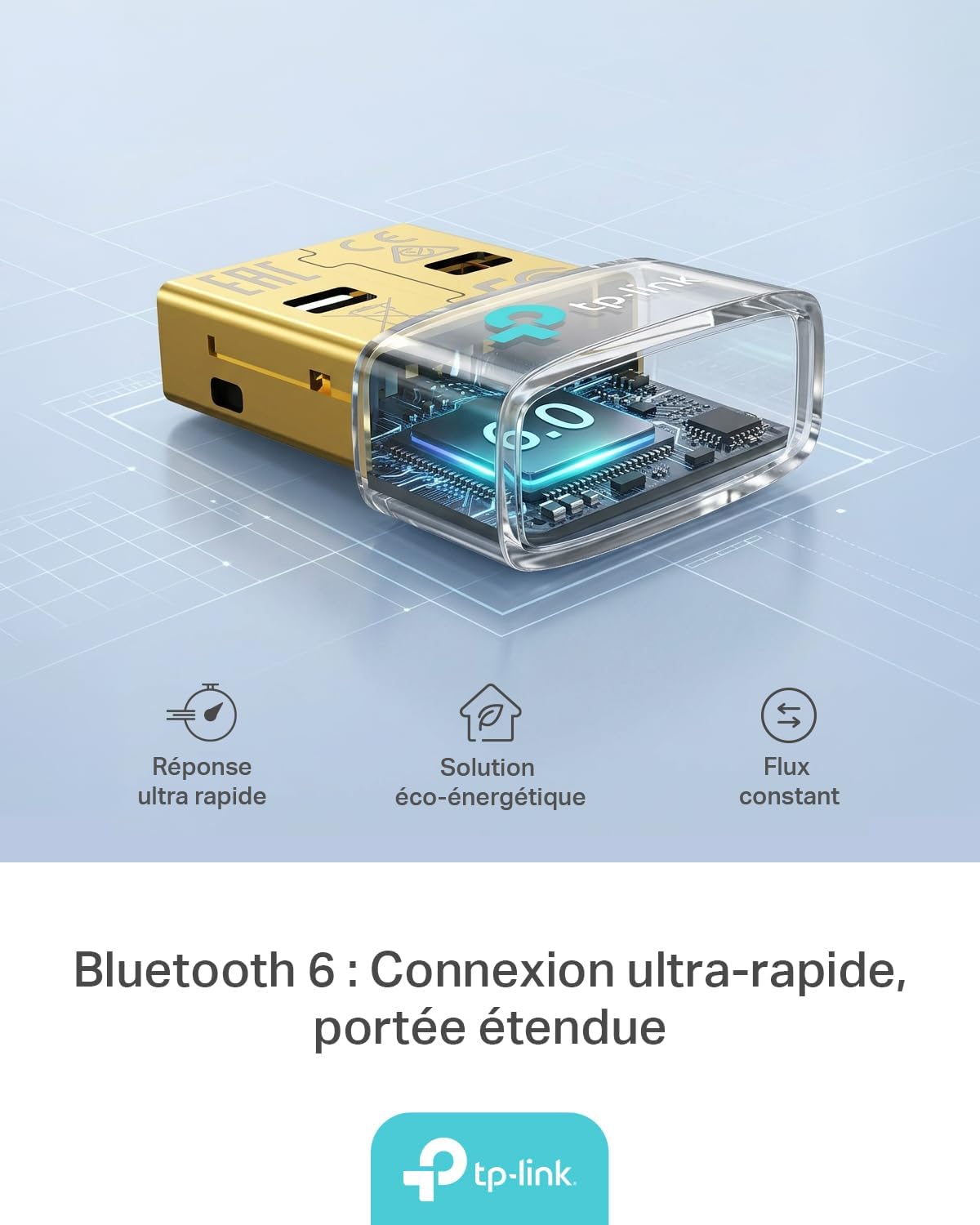
Figure 1: TP-Link UB600 Bluetooth 6.0 USB Adapter showcasing its key features: ultra-fast response, energy-saving solution, and constant data flow.
2. คำแนะนำในการตั้งค่า
2.1 ข้อกำหนดของระบบ
- Operating System: Windows 11, Windows 10, Windows 8.1, Windows 7.
- มีพอร์ต USB ให้ใช้งาน
2.2 การติดตั้ง
- ใส่อะแดปเตอร์: Plug the TP-Link UB600 Bluetooth USB adapter into an available USB port on your computer.

Figure 2: The UB600 adapter discreetly plugged into a laptop's USB port, demonstrating its compact design.
- การติดตั้งไดร์เวอร์:
- For Windows 11, 10, 8.1: The adapter is Plug & Play. Your operating system should automatically detect and install the necessary drivers. No manual installation is typically required.
- สำหรับ Windows 7: Driver installation is required. Please visit the official TP-Link webงาน (www.tp-link.com) to download the latest drivers for the UB600 model. Follow the on-screen instructions to complete the installation.

Figure 3: Visual representation of the UB600's compatibility with different Windows versions and various Bluetooth peripherals like smartphones, headphones, controllers, and keyboards.
- การตรวจสอบ: After installation, check your computer's Device Manager to ensure the Bluetooth adapter is recognized and functioning correctly.
3. คู่มือการใช้งาน
3.1 การจับคู่อุปกรณ์บลูทูธ
Once the UB600 adapter is installed, you can pair it with your Bluetooth-enabled devices:
- เปิดใช้งานบลูทูธ: Ensure Bluetooth is enabled on your computer. You can usually find this in the Windows Settings (Settings > Devices > Bluetooth & other devices).
- ตั้งค่าอุปกรณ์ให้อยู่ในโหมดจับคู่: Place your Bluetooth device (e.g., headphones, mouse, keyboard) into pairing mode. Refer to your device's manual for specific instructions.
- เพิ่มอุปกรณ์: บนคอมพิวเตอร์ของคุณ ให้คลิก "เพิ่มบลูทูธหรืออุปกรณ์อื่น" แล้วเลือก "บลูทูธ"
- เลือกอุปกรณ์: คอมพิวเตอร์ของคุณจะสแกนหาอุปกรณ์บลูทูธที่อยู่ใกล้เคียง เลือกอุปกรณ์ของคุณจากรายการและทำตามคำแนะนำบนหน้าจอเพื่อทำการจับคู่ให้เสร็จสมบูรณ์
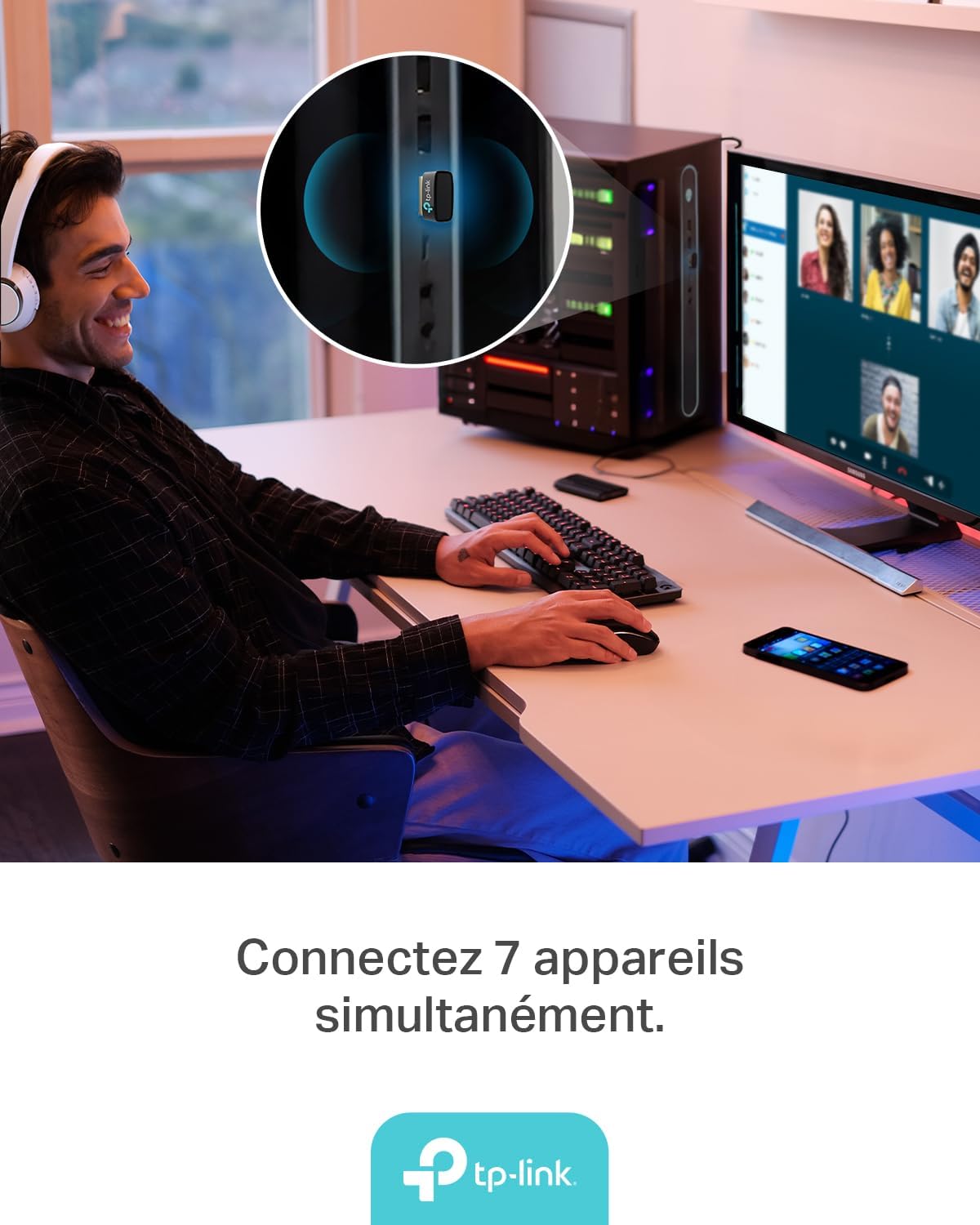
Figure 4: The UB600 adapter allows simultaneous connection of up to 7 Bluetooth devices, enhancing productivity and convenience.
3.2 บลูทูธ 6.0 แอดแวนtages
The UB600 utilizes Bluetooth 6.0 technology, offering several improvements:
- การรักษาความปลอดภัยที่เพิ่มขึ้น: Provides improved security features for your wireless connections.
- ความเสถียรที่เพิ่มขึ้น: Offers a more stable and reliable connection compared to older Bluetooth versions.
- Faster Speeds (EDR): Supports Enhanced Data Rate (EDR) for quicker data transfer.
- Reduced Power Consumption (BLE): Utilizes Bluetooth Low Energy (BLE) for energy-efficient operation, especially beneficial for battery-powered devices.

Figure 5: The UB600 adapter contributes to daily efficiency with faster speeds (EDR) and reduced power consumption (BLE).
4. การบำรุงรักษา
The TP-Link UB600 is designed for durability and requires minimal maintenance. To ensure optimal performance and longevity:
- รักษาความสะอาด: ควรเช็ดทำความสะอาดภายนอกของอะแดปเตอร์เป็นระยะด้วยผ้าแห้งเนื้อนุ่ม หลีกเลี่ยงการใช้น้ำยาทำความสะอาดหรือสารละลาย
- ปกป้องจากความเสียหาย: While compact, avoid subjecting the adapter to physical shocks, extreme temperatures, or moisture.
- การเชื่อมต่อที่มั่นคง: Ensure the adapter is securely plugged into the USB port to prevent intermittent connections.
5 การแก้ไขปัญหา
If you encounter issues with your TP-Link UB600 adapter, consider the following steps:
- ไม่พบอะแดปเตอร์:
- ลองเสียบอะแดปเตอร์เข้ากับพอร์ต USB อื่น
- รีสตาร์ทเครื่องคอมพิวเตอร์ของคุณ
- For Windows 7, ensure drivers are correctly installed from the TP-Link webเว็บไซต์.
- ไม่สามารถจับคู่อุปกรณ์ได้:
- Ensure Bluetooth is enabled on your computer and the device you are trying to pair.
- Make sure your device is in pairing mode.
- Check if the device is already paired with another computer or adapter.
- Move the device closer to the computer to rule out range issues.
- การเชื่อมต่อไม่ต่อเนื่อง:
- Ensure there are no major obstructions between the adapter and the Bluetooth device.
- Avoid placing the adapter near sources of strong electromagnetic interference (e.g., Wi-Fi routers, microwaves).
- Update your computer's operating system and Bluetooth drivers to the latest versions.
หากต้องการความช่วยเหลือเพิ่มเติม โปรดไปที่ฝ่ายสนับสนุน TP-Link อย่างเป็นทางการ webเว็บไซต์.
6. ข้อมูลจำเพาะ
| คุณสมบัติ | รายละเอียด |
|---|---|
| หมายเลขรุ่น | UB600 |
| อินเทอร์เฟซ | ยูเอสบี |
| เวอร์ชันบลูทูธ | บลูทูธ 6.0 |
| อัตราการถ่ายโอนข้อมูล | 2 เมกะบิตต่อวินาที |
| ระบบปฏิบัติการที่รองรับ | วินโดว์ 11, วินโดว์ 10, วินโดว์ 8.1, วินโดว์ 7 |
| อุปกรณ์ที่รองรับ | Computer, Laptop (for connecting mouse, keyboard, headset, smartphone, controller, etc.) |
| ขนาด (กว้าง x ยาว x สูง) | 0.68 x 1.89 x 1.48 ซม. |
| น้ำหนัก | 10 กรัม |
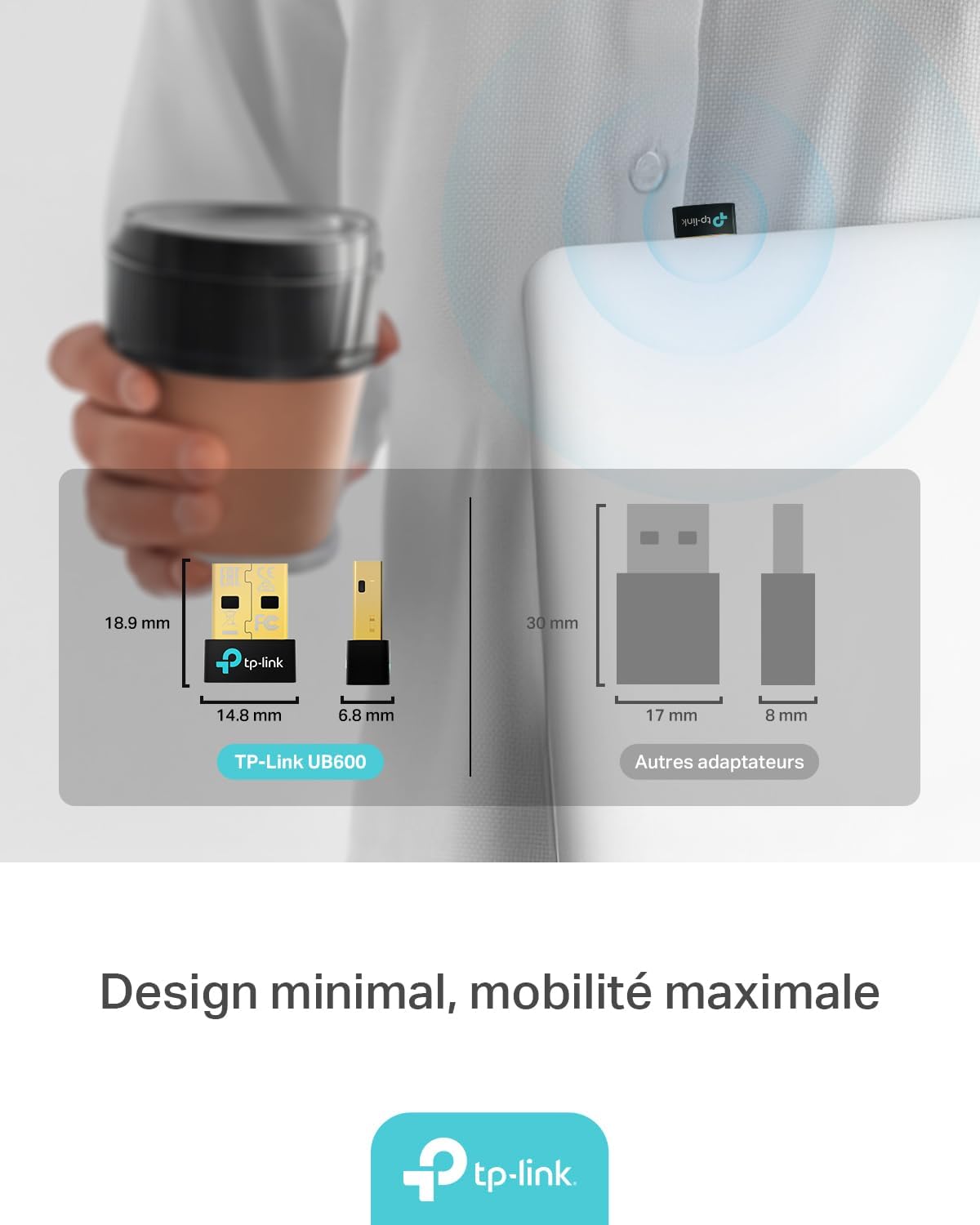
Figure 6: The UB600's minimal design ensures maximum mobility and discreet integration with your device.
7. ข้อมูลการรับประกัน
สำหรับข้อมูลการรับประกันโดยละเอียด โปรดดูบัตรรับประกันที่รวมอยู่ในผลิตภัณฑ์ของคุณหรือเยี่ยมชม TP-Link อย่างเป็นทางการ webไซต์ เงื่อนไขการรับประกันอาจแตกต่างกันไปในแต่ละภูมิภาค
8. การสนับสนุนด้านเทคนิค
If you require technical assistance or have questions regarding your TP-Link UB600 Bluetooth USB Adapter, please visit the TP-Link support webเว็บไซต์:
You can find FAQs, driver downloads, and contact information for customer service on their webเว็บไซต์.