
1. การตั้งค่า
Follow these steps to set up your ATTACK SHARK R68HE wired gaming keyboard:
- แกะคีย์บอร์ดออก: ถอดคีย์บอร์ดและอุปกรณ์เสริมทั้งหมดออกจากบรรจุภัณฑ์อย่างระมัดระวัง
- เชื่อมต่อสาย USB-C: Locate the USB-C port on the back of the keyboard. Connect one end of the provided USB-C cable to the keyboard and the other end to an available USB port on your computer, laptop, or compatible gaming console.
- การติดตั้งไดรเวอร์ (ทางเลือก): For advanced customization and features, download the official driver software from the ATTACK SHARK website. The driver link is typically provided in the product packaging or can be found at www.QMK.TOP. ปฏิบัติตามคำแนะนำบนหน้าจอเพื่อการติดตั้ง

Image: The ATTACK SHARK R68HE keyboard connected to a device using its coiled USB-C cable, illustrating the wired connection.
The keyboard is compatible with various devices including PCs, notebooks, tablets, and gaming consoles.
2. คู่มือการใช้งาน
The ATTACK SHARK R68HE keyboard features a 68-key QWERTY layout with Magnetic Hall Effect Switches and Rapid Trigger technology for precise and responsive input.

Image: The ATTACK SHARK R68HE keyboard, emphasizing its 8000Hz polling rate and 256K scan rate for instant response and ultimate precision.
คุณสมบัติหลัก:
- Magnetic Hall Effect Switches: These switches offer adjustable actuation points and rapid trigger functionality, allowing for quick key resets and repeated inputs.
- ประสิทธิภาพสูง: Features an 8000Hz polling rate, 256K scanning sampling rate, and 16K global sampling rate for minimal latency.
- ไฟแบ็คไลท์ RGB แบบไดนามิก: Customize your keyboard's appearance with over 20 preset lighting effects.
- โครงสร้างทนทาน: Built with CNC aluminum alloy and carbon fiber composite material for enhanced durability.
- คุณภาพเสียง: Incorporates a six-layer padding system for improved acoustic performance.
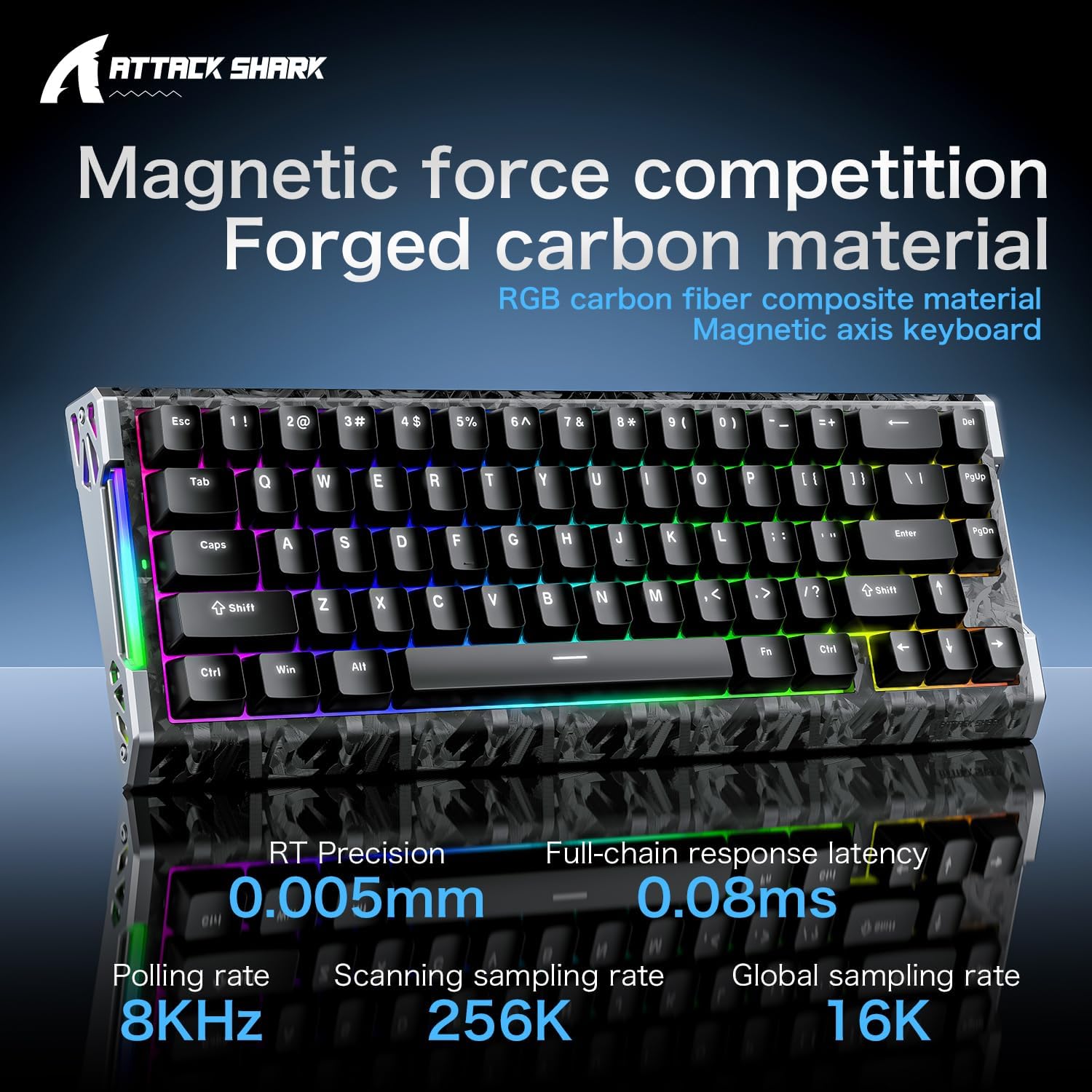
Image: The ATTACK SHARK R68HE keyboard showcasing its magnetic force competition features, including 0.005mm RT precision and 0.08ms full-chain response latency.
การควบคุมแสง RGB:
Use the Function (Fn) key in combination with other keys to control the keyboard's lighting:
- Fn + Z: Switch light effects for the side RGB lighting strips.
- Fn + X: Switch light color for the side RGB lighting strips.
- Fn + ค: Turn the side RGB lighting strips on/off.
- กดปุ่ม Fn + Enter: Switch backlight color for the keycaps.
- ฟน + \|: Switch backlight effects for the keycaps.
- Fn + แท็บ: Activate white light backlight for the keycaps.

ภาพ: รายละเอียด view of the ATTACK SHARK R68HE keyboard's CNC aluminum alloy frame and RGB lighting strips, with key combinations for controlling the side lights.

Image: The ATTACK SHARK R68HE keyboard displaying its dynamic RGB backlighting with over 20 preset light effects, along with key combinations for controlling the keycap backlights.
Magnetic Hall Effect Switches and Rapid Trigger:
The keyboard features linear magnetic switches with an actuation range of 0.005-3.4mm and a lifespan of 100 million clicks. The Rapid Trigger function allows for instant key reset upon release, providing a competitive edge in fast-paced applications.

Image: An illustration explaining the Magnetic Hall Effect Switches and the Rapid Trigger mechanism, comparing it to a regular switch's activation and reset points.
ซอฟต์แวร์ปรับแต่ง:
Utilize the dedicated software (available via the driver link mentioned in Setup) to tailor your gaming setup. This software allows for:
- การตั้งค่าไฟ RGB
- ฟังก์ชั่นคีย์ที่ตั้งโปรแกรมได้
- FN Layer Settings
- การตั้งค่ามาโคร
- Advanced Key Mapping

Image: A screenshot of the ATTACK SHARK keyboard's web driver interface, showing options for RGB lighting, key settings, macro creation, and advanced key mapping.
3. การบำรุงรักษา
การบำรุงรักษาอย่างถูกต้องจะช่วยให้แป้นพิมพ์ของคุณมีอายุการใช้งานยาวนานและมีประสิทธิภาพเหมาะสมที่สุด
- การทำความสะอาด: Regularly clean the keyboard with a soft, dry cloth. For dust and debris between keycaps, use compressed air. Avoid using harsh chemicals or abrasive materials.
- การสัมผัสของเหลว: Keep liquids away from the keyboard. In case of accidental spills, immediately disconnect the keyboard and allow it to dry completely before reconnecting.
- Keycap and Switch Removal: The keyboard is hot-swappable, meaning switches can be replaced. A 'DIY tool' is typically provided for safe removal of keycaps and switches. Exercise caution to avoid damaging the components.
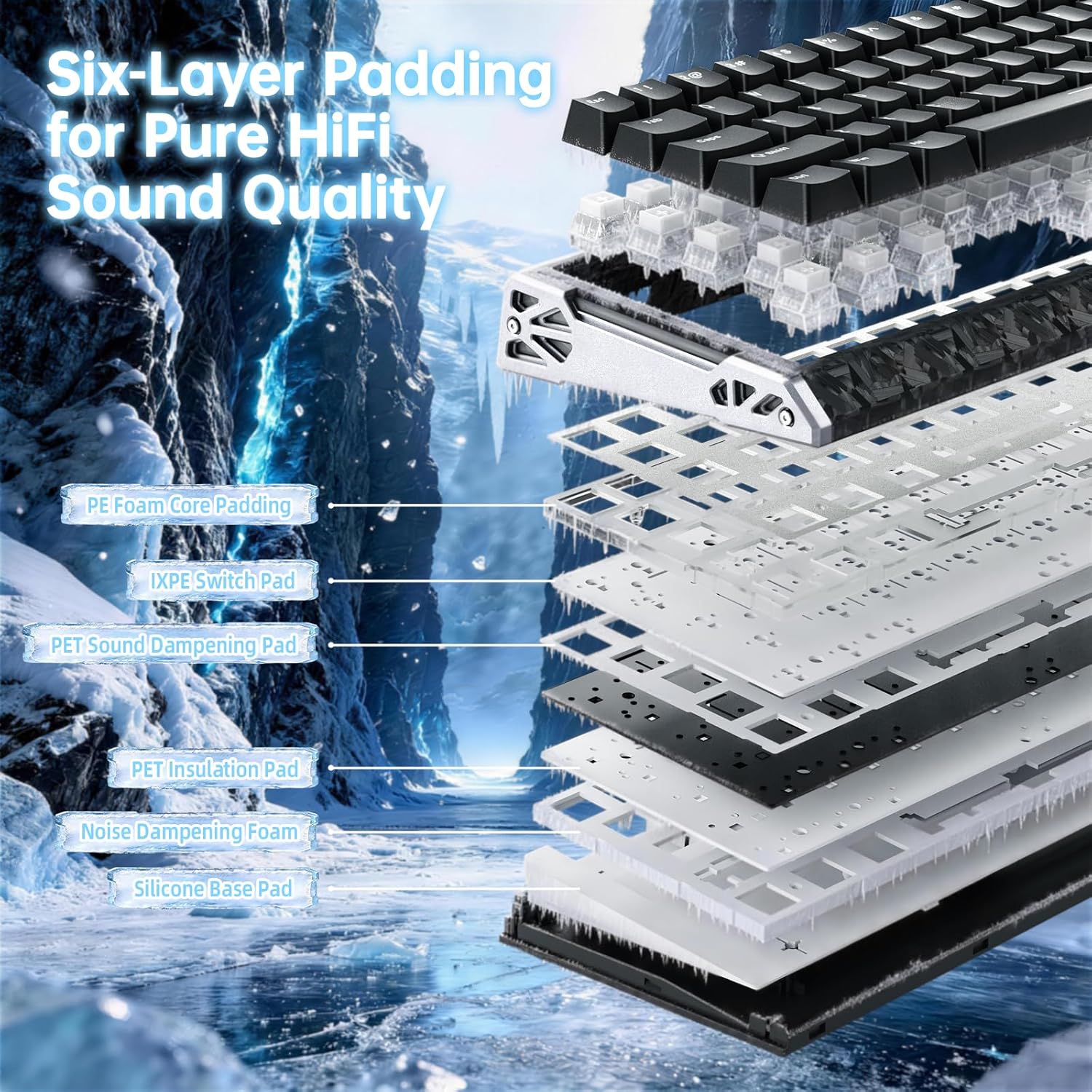
ภาพ: ระเบิด view of the ATTACK SHARK R68HE keyboard, illustrating its internal six-layer padding structure designed for pure HiFi sound quality, including PE foam, IXPE switch pad, and sound dampชั้นต่างๆ
4 การแก้ไขปัญหา
If you encounter issues with your ATTACK SHARK R68HE keyboard, refer to the following common solutions:
- แป้นพิมพ์ไม่ตอบสนอง:
- ตรวจสอบให้แน่ใจว่าได้เสียบสาย USB-C เข้ากับแป้นพิมพ์และอุปกรณ์ของคุณอย่างแน่นหนาแล้ว
- ลองเสียบแป้นพิมพ์เข้ากับพอร์ต USB อื่นบนอุปกรณ์ของคุณดู
- Test the keyboard on another computer to rule out a device-specific issue.
- ไฟ RGB ไม่ทำงาน:
- Check if the lighting is turned off using the Fn + C key combination.
- ตรวจสอบให้แน่ใจว่าไม่ได้ตั้งค่าความสว่างไว้ที่ระดับต่ำสุด
- If using the customization software, verify that lighting effects are enabled and configured correctly.
- คีย์ไม่ลงทะเบียนหรือพิมพ์ซ้ำ:
- This can sometimes be resolved by updating the keyboard firmware via the official software.
- หากสวิตช์ตัวใดตัวหนึ่งมีปัญหา สามารถเปลี่ยนได้เนื่องจากสวิตช์นั้นถูกออกแบบมาให้สามารถถอดเปลี่ยนได้ขณะทำงาน (hot-swappable)
- ปัญหาด้านซอฟต์แวร์:
- Ensure you have the latest version of the ATTACK SHARK driver software installed.
- Try reinstalling the software if problems persist.
For further assistance, consult the official ATTACK SHARK support resources.
5. ข้อมูลจำเพาะ
| ยี่ห้อ | โจมตีฉลาม |
| แบบอย่าง | R68HE |
| เทคโนโลยีการเชื่อมต่อ | USB-C (แบบมีสาย) |
| อุปกรณ์ที่รองรับ | PC, Notebook, Tablet, Gaming Console |
| เค้าโครงแป้นพิมพ์ | คีย์บอร์ด QWERTY |
| จำนวนคีย์ | 68 |
| ประเภทสวิตซ์ | Magnetic Hall Effect Switches (Linear) |
| ช่วงการทำงาน | 0.005 - 3.4 มม. |
| อัตราการสำรวจความคิดเห็น | 8000เฮิรตซ์ |
| การสแกน Sampลิงอัตรา | 256K |
| Global Sampลิงอัตรา | 16K |
| แสงไฟแบ็คไลท์ | RGB (20+ preset effects) |
| คุณสมบัติพิเศษ | Ergonomic, Rapid Trigger, Hot-swappable switches |
| วัสดุ | Carbon Fiber, Aluminum |
6. การรับประกันและการสนับสนุน
ข้อมูลการรับประกัน:
Specific warranty details for the ATTACK SHARK R68HE keyboard are not provided in this manual. Please refer to the product packaging, the official ATTACK SHARK webโปรดตรวจสอบเงื่อนไขและข้อกำหนดการรับประกันโดยละเอียดได้ที่เว็บไซต์ หรือ ณ จุดซื้อสินค้า
การสนับสนุนลูกค้า:
For technical support, troubleshooting assistance, or inquiries regarding your ATTACK SHARK R68HE keyboard, please visit the official ATTACK SHARK website. The driver software portal at www.QMK.TOP may also provide support resources and FAQs.


