
1. บทนำ
This manual provides detailed instructions for the installation, operation, and maintenance of your Lemorele 4K HDMI Video Capture Card with USB3.0. This device is designed for high-quality video capture and passthrough, supporting resolutions up to 4K@60Hz for passthrough and 1080p for capture. It is compatible with various gaming consoles, cameras, and computers, making it suitable for streaming, recording, and live presentations.
2. เนื้อหาบรรจุภัณฑ์
โปรดตรวจสอบว่าสินค้าทั้งหมดมีอยู่ในแพ็คเกจของคุณ:
- Lemorele 4K HDMI Video Capture Card (Model: 4K60HZ)
- สาย USB-C ถึง USB-A
- คู่มือการใช้งาน

Image: The Lemorele 4K HDMI Video Capture Card, USB-C cable, and user manual are shown together, indicating the typical package contents.
3. สินค้าหมดview
The Lemorele 4K HDMI Video Capture Card features a durable aluminum alloy body and multiple ports for versatile connectivity.
3.1. เค้าโครงอุปกรณ์
ภาพ: ด้านบน view of the capture card highlighting the HDMI OUT, HDMI IN, and Type-C ports. The HDMI OUT port is for looping out the display, HDMI IN is for the device being captured, and Type-C is for connecting to the acquisition device (computer).

ภาพ: ด้านข้าง view of the capture card highlighting the MIC IN, LINE IN, and AUDIO OUT ports. These ports are used for connecting external microphones, mixers, and audio output devices respectively.
3.2. คำอธิบายพอร์ต
- HDMI ออก: Connects to a display (monitor, TV, projector) for zero-latency passthrough.
- HDMI ใน: Connects to the source device (gaming console, camera, laptop) for video input.
- ประเภท-C: Connects to your computer (laptop, PC, Mac, iPad Pro) for data transfer and power.
- ไมค์ใน: Connects to an external microphone for audio input.
- เข้าแถว: Connects to an audio mixer or instrument for additional audio input.
- เสียงออก: Connects to headphones or speakers for audio monitoring.
4. การตั้งค่า
Follow these steps to set up your Lemorele 4K HDMI Video Capture Card:
- เชื่อมต่ออุปกรณ์ต้นทาง: Connect your HDMI source device (e.g., Nintendo Switch dock, PS5, Xbox, camera) to the HDMI IN เชื่อมต่อพอร์ตบนการ์ดจับภาพโดยใช้สาย HDMI
- เชื่อมต่อจอแสดงผล (ไม่บังคับ): If you wish to monitor your gameplay or video feed without latency, connect your display (monitor, TV) to the เอาต์พุต HDMI เชื่อมต่อพอร์ตบนการ์ดจับภาพโดยใช้สาย HDMI
- เชื่อมต่อกับคอมพิวเตอร์: Connect the capture card to your computer (laptop, PC, Mac, iPad Pro) using the provided USB-C to USB-A cable. Plug the USB-C end into the ประเภท C port on the capture card and the USB-A end into an available USB 3.0 port on your computer.
- เชื่อมต่อเสียง (อุปกรณ์เสริม): For external audio input, connect your microphone to the ไมค์เข้า port or an audio mixer to the ไลน์อิน port. For audio monitoring, connect headphones or speakers to the เสียงออก ท่าเรือ.
- การตั้งค่าซอฟต์แวร์: Install and open your preferred video capture software (e.g., OBS Studio, Zoom, Twitch, YouTube). The capture card should be recognized as a video input device.
Video: This video demonstrates the connection process for the Lemorele AC09 video capture card, showing how to connect the HDMI IN, HDMI OUT, and Type-C ports to a Nintendo Switch dock, a monitor, and a laptop for capturing game footage using OBS Studio.

Image: A visual diagram illustrating the connection of the capture card to a gaming console (PS5), a monitor, and a laptop for streaming and recording.
5. คู่มือการใช้งาน
Once the capture card is set up, you can begin capturing or streaming your content.
5.1. Using with OBS Studio (Exampเลอ)
- เปิดโปรแกรม OBS Studio บนคอมพิวเตอร์ของคุณ
- ในแผง 'แหล่งที่มา' ให้คลิกที่ '+' icon and select 'อุปกรณ์จับภาพวิดีโอ'.
- Create a new source or select an existing one. In the device dropdown, choose your Lemorele capture card (it may appear as 'USB Video' or similar).
- Configure resolution, FPS, and audio input settings as needed. Ensure 'Use custom audio device' is checked and select the capture card's audio input.
- Click 'OK' to add the source. You should now see your video feed in OBS.
- Adjust the video source size and position within the preview หน้าต่าง.
- To start recording or streaming, click the 'Start Recording' or 'Start Streaming' button in OBS Studio.
5.2. การควบคุมเสียง
The capture card features dedicated MIC IN and LINE IN ports for advanced audio integration. Ensure your capture software is configured to use these audio inputs for optimal sound quality.
วิดีโอ: วิดีโอนี้ให้ข้อมูลโดยรวมview of the Lemorele 4K HDMI Video Capture Card, showcasing its features and various applications in gaming, streaming, and professional settings.

Image: A user is shown actively streaming a game, with the capture card connected to a console and a laptop running streaming software, demonstrating a typical usage scenario.
6. คุณสมบัติ
- 4K@60Hz Ultra HD Passthrough: Supports 4K@60Hz zero-lag passthrough to a display while capturing video at 1080p, ensuring a smooth viewing experience for the user and high-quality capture for the audience.
- การควบคุมเสียงขั้นสูง: Dedicated MIC IN and LINE IN ports allow direct connection to external microphones, mixers, or instruments, facilitating professional audio integration for various content creation needs.
- Comprehensive I/O Connectivity: Equipped with HDMI IN & OUT, USB-C, and AUDIO OUT ports, providing flexible setup options for connecting gaming consoles, cameras, laptops, and monitors.
- Stable & Reliable Performance: The durable aluminum alloy body ensures efficient heat dissipation and anti-interference protection, supporting continuous operation during extended streaming or recording sessions.
- Plug-and-Play Wide Compatibility: Works seamlessly with Windows, macOS, and iPad Pro, and supports popular software such as OBS Studio, Zoom, Twitch, and YouTube. Compatible with PS5, Xbox Series X/S, Nintendo Switch, and DSLR cameras.

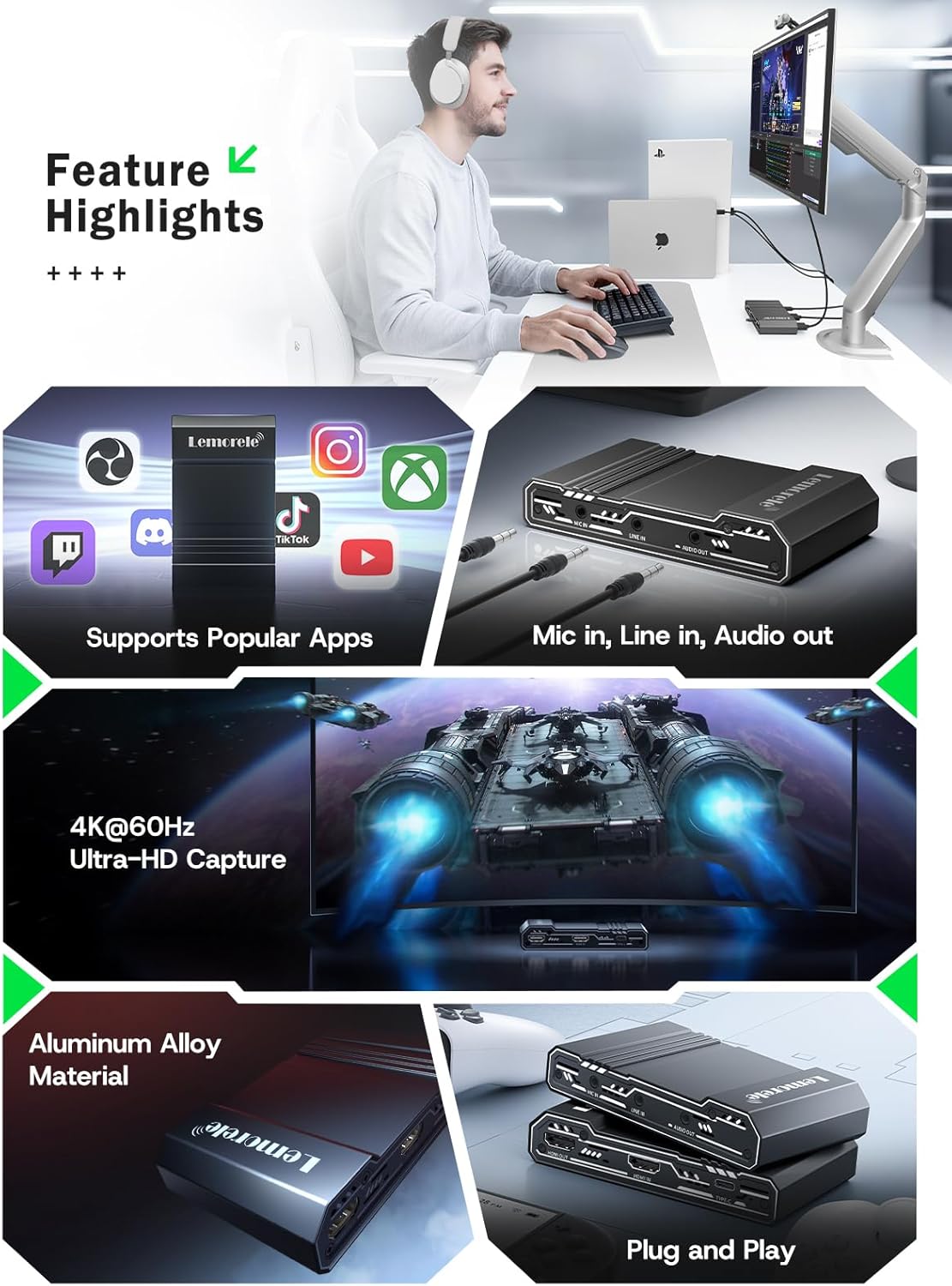
Image: This graphic highlights key features of the capture card, including support for popular streaming applications, dedicated audio input/output ports, 4K@60Hz Ultra-HD capture, durable aluminum alloy construction, and plug-and-play functionality.
7 การแก้ไขปัญหา
หากคุณพบปัญหา โปรดดูปัญหาทั่วไปและวิธีแก้ไขต่อไปนี้:
- ไม่มีสัญญาณวิดีโอ:
- Ensure all HDMI cables are securely connected to the correct ports (HDMI IN from source, HDMI OUT to display).
- Verify the source device is powered on and outputting video.
- Check your capture software settings to ensure the correct video capture device is selected and configured.
- Disable HDCP on your source device (e.g., PS5 settings) if you are experiencing a blank screen.
- ไม่มีเสียง:
- Confirm audio cables are correctly connected to MIC IN, LINE IN, or AUDIO OUT ports.
- In your capture software, ensure the audio input device is correctly selected and not muted.
- ตรวจสอบการตั้งค่าเสียงบนอุปกรณ์ต้นทางของคุณ
- วิดีโอกระตุกหรือค้าง:
- ตรวจสอบให้แน่ใจว่าคอมพิวเตอร์ของคุณตรงตามข้อกำหนดขั้นต่ำของระบบสำหรับการบันทึกและสตรีมวิดีโอ
- Use a USB 3.0 port for connecting the capture card to your computer.
- ปิดแอปพลิเคชันที่ไม่จำเป็นซึ่งทำงานอยู่เบื้องหลัง เพื่อเพิ่มทรัพยากรระบบให้มากขึ้น
- ลดความละเอียดในการจับภาพหรืออัตราเฟรมในตั้งค่าซอฟต์แวร์ของคุณ
- ไม่รู้จักอุปกรณ์:
- Try connecting the capture card to a different USB port on your computer.
- รีสตาร์ทเครื่องคอมพิวเตอร์ของคุณ
- ตรวจสอบให้แน่ใจว่าระบบปฏิบัติการของคุณเป็นเวอร์ชันล่าสุด
8. ข้อมูลจำเพาะ
| คุณสมบัติ | รายละเอียด |
|---|---|
| ยี่ห้อ | เลโมเรล |
| แบบอย่าง | 4K60HZ |
| ฮาร์ดแวร์อินเตอร์เฟซ | 3.5mm Audio, HDMI, USB 3.0 Type C |
| ความละเอียดสูงสุดของอินพุต HDMI | 4K@60Hz |
| ความละเอียดการส่งผ่าน HDMI สูงสุด | 4K@60Hz |
| ความละเอียดในการจับภาพสูงสุด | 1080p |
| น้ำหนักสินค้า | 9.8 ออนซ์ |
| ขนาดแพ็คเกจ | 6.1 x 4.02 x 1.42 นิ้ว |
| วัสดุ | โลหะผสมอลูมิเนียม |
| ความเข้ากันได้ | Windows, macOS, iPad Pro, OBS Studio, Zoom, Twitch, YouTube, PS5, Xbox Series X/S, Nintendo Switch, DSLR cameras |
9. การบำรุงรักษา
เพื่อให้การ์ดจับภาพของคุณใช้งานได้ยาวนานและทำงานได้อย่างมีประสิทธิภาพสูงสุด โปรดปฏิบัติตามคำแนะนำในการบำรุงรักษาเหล่านี้:
- การทำความสะอาด: ใช้ผ้าแห้งเนื้อนุ่มเช็ดทำความสะอาดภายนอกของอุปกรณ์ หลีกเลี่ยงการใช้น้ำยาทำความสะอาดหรือวัสดุที่มีฤทธิ์กัดกร่อน
- พื้นที่จัดเก็บ: เก็บอุปกรณ์ไว้ในที่แห้งและเย็น หลีกเลี่ยงแสงแดดโดยตรงและอุณหภูมิที่สูงหรือต่ำเกินไป
- การจัดการ: โปรดใช้งานอุปกรณ์อย่างระมัดระวังเพื่อป้องกันความเสียหาย หลีกเลี่ยงการทำตกหรือการกระแทกอย่างแรง
- การระบายอากาศ : Ensure the device has adequate ventilation during operation to prevent overheating, especially during long streaming sessions. The aluminum alloy body is designed for efficient heat dissipation.
10. การรับประกันและการสนับสนุน
Lemorele products are designed for reliability and performance. This product comes with a standard manufacturer's warranty. For specific warranty details, please refer to the warranty card included in your package or visit the official Lemorele webเว็บไซต์.
For technical support, troubleshooting assistance, or any inquiries regarding your Lemorele 4K HDMI Video Capture Card, please contact our customer support team:
- อีเมล: support@lemorele.com
- Webเว็บไซต์: Visit the Lemorele official webไซต์สำหรับคำถามที่พบบ่อยและแหล่งข้อมูลเพิ่มเติม