
1. บทนำ
This manual provides essential information for setting up, operating, maintaining, and troubleshooting your GMKtec K15 AI Mini PC. The K15 is a compact, high-performance barebone mini computer featuring an Intel Ultra 5 125U processor, designed for a wide range of applications from home entertainment to professional workloads.
โปรดอ่านคู่มือนี้อย่างละเอียดก่อนใช้งานอุปกรณ์ เพื่อให้มั่นใจได้ว่าอุปกรณ์จะทำงานได้อย่างถูกต้องและยืดอายุการใช้งานให้ยาวนานที่สุด
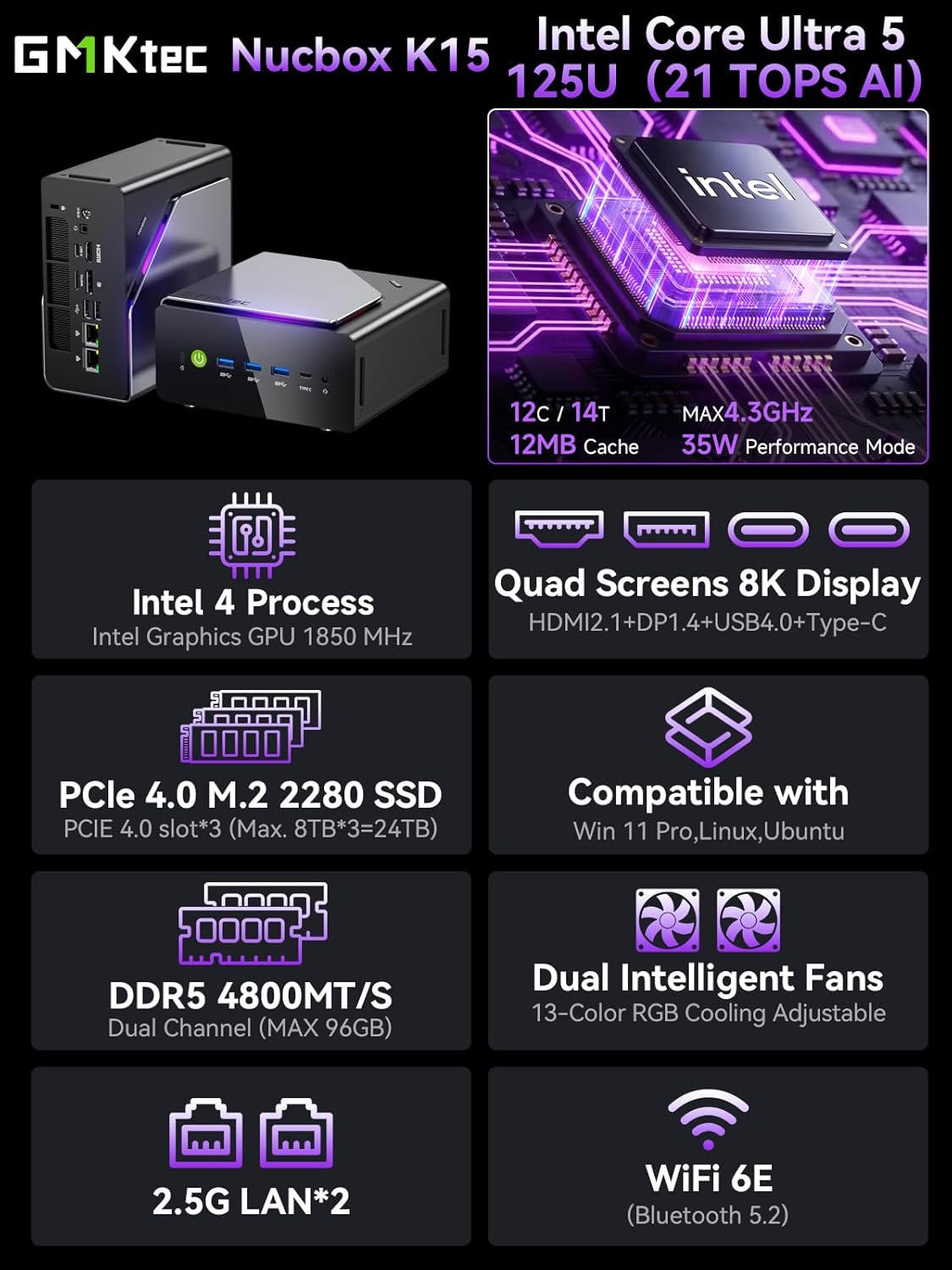
ภาพที่ 1.1: จบแล้วview of GMKtec K15 Mini PC features, including Intel Ultra 5 125U CPU, 8K display support, PCIe 4.0 SSD, DDR5 RAM, dual intelligent fans, 2.5G LAN, and WiFi 6E.
2. เนื้อหาบรรจุภัณฑ์
ตรวจสอบว่ามีรายการทั้งหมดอยู่ในแพ็คเกจ:
- 1 x GMKtec Nucbox K15 Mini PC
- อะแดปเตอร์ไฟฟ้า 1 ตัว
- 1 x ขาตั้ง VESA พร้อมสกรู
- สาย HDMI 1 เส้น
- 1 x คู่มือผู้ใช้ (เอกสารนี้)
3. ทางกายภาพมากกว่าview
Familiarize yourself with the ports and components of your GMKtec K15 Mini PC.

Image 3.1: Detailed diagram showing the front and rear I/O ports of the GMKtec K15 Mini PC.
แผงด้านหน้า
- ปุ่มเปิด/ปิด: เพื่อเปิดหรือปิดอุปกรณ์
- พอร์ต USB 3.2 Gen2 (3 พอร์ต): สำหรับเชื่อมต่ออุปกรณ์ USB ความเร็วสูง
- Full-Function Type-C Port (USB4): Supports data transfer, video output (DP1.4), and power delivery (PD3.0).
- แจ็คเสียงขนาด 3.5 มม.: สำหรับหูฟังหรือลำโพง
- ปุ่มรีเซ็ต: For system reset (use a pin).
แผงด้านหลัง
- อินพุตไฟ DC: เชื่อมต่ออะแดปเตอร์ไฟฟ้าที่ให้มาด้วย
- สล็อตล็อคเคนซิงตัน: For security locking.
- แจ็คเสียงขนาด 3.5 มม.: สำหรับเอาต์พุตเสียง
- พอร์ต USB4: รองรับการถ่ายโอนข้อมูลและการส่งออกวิดีโอ
- พอร์ต HDMI (2.1): สำหรับเชื่อมต่อกับจอแสดงผล
- พอร์ต OCuLink: High-speed direct connection for external graphics or 10G NICs.
- ดิสเพลย์พอร์ต (1.4): สำหรับเชื่อมต่อกับจอแสดงผล
- พอร์ต USB 2.0 (x2): สำหรับเชื่อมต่ออุปกรณ์ USB มาตรฐาน
- 2.5G Ethernet Ports (x2): สำหรับการเชื่อมต่อเครือข่ายแบบใช้สายความเร็วสูง
- ปุ่มโหมดพัดลม: To adjust fan speed/mode.

Image 3.2: The OCuLink port on the GMKtec K15 Mini PC, designed for high-speed external graphics card connections.
4. คู่มือการติดตั้ง
The GMKtec K15 is a barebone system, meaning RAM, SSD, and operating system are not pre-installed. Follow these steps to prepare your Mini PC for first use.
4.1 Installing RAM and SSD
The K15 supports dual-channel DDR5-4800MHz RAM (up to 128GB) and three PCIe 4.0 x4 M.2 2280 SSDs (up to 24TB total storage).
- หมดแรง: Ensure the Mini PC is powered off and disconnected from the power adapter.
- โครงตัวถังแบบเปิด: Carefully open the Mini PC chassis. Refer to the specific instructions provided with your device for opening the case.
- ติดตั้ง RAM: Locate the DDR5 SO-DIMM slots. Align the RAM module notch with the slot key and insert it firmly at a 45-degree angle. Push down until the clips on both sides lock the module in place.
- ติดตั้ง SSD: Locate the M.2 2280 PCIe 4.0 x4 slots. Insert the M.2 SSD into the slot at a slight angle, then gently push it down and secure it with the provided screw.
- ปิดแชสซี: Carefully close the Mini PC chassis, ensuring all connections are secure.

Image 4.1: Internal layout of the GMKtec K15 Mini PC, illustrating the locations for DDR5 RAM and three M.2 2280 PCIe 4.0 x4 SSDs.
4.2 การเชื่อมต่ออุปกรณ์ต่อพ่วง
- แสดง: Connect your monitor(s) to the HDMI, DisplayPort, or USB4 Type-C ports using appropriate cables. The K15 supports up to four displays simultaneously.
- คีย์บอร์ดและเมาส์: เชื่อมต่อคีย์บอร์ดและเมาส์ USB ของคุณเข้ากับพอร์ต USB ที่มีอยู่
- เครือข่าย: For wired internet, connect an Ethernet cable to one of the 2.5G LAN ports. For wireless, ensure your WiFi 6E router is configured.
- พลัง: Connect the power adapter to the DC Power Input port on the rear panel, then plug the adapter into a power outlet.
4.3 การติดตั้งระบบปฏิบัติการ
Since the K15 is a barebone system, an operating system (OS) is not included. You will need to install your preferred OS (e.g., Windows 11 Pro, Linux, Ubuntu) from a bootable USB drive. Refer to the OS manufacturer's instructions for installation.
5. การดำเนินการ
5.1 เปิด/ปิดเครื่อง
- เปิดเครื่อง: กดปุ่มเปิดปิดที่แผงด้านหน้า
- หมดแรง: From within your operating system, select the shutdown option. Alternatively, press and hold the power button for 5 seconds to force a shutdown (use only when necessary).
5.2 การกำหนดค่าการแสดงผล
The K15 supports up to four simultaneous displays via HDMI 2.1 (8K@60Hz), DisplayPort 1.4 (8K@30Hz), and dual USB4 Type-C ports (DP1.4/PD3.0). Configure your display settings within your operating system to extend, duplicate, or use only one screen.

Image 5.1: A GMKtec K15 Mini PC setup demonstrating connection to multiple 4K/8K displays for enhanced multitasking.
5.3 การเชื่อมต่อเครือข่าย
- มีสาย: The dual 2.5GbE LAN ports provide high-speed wired network access.
- ไร้สาย: Integrated Wi-Fi 6E offers fast and stable wireless connectivity. Configure Wi-Fi settings through your operating system.
- บลูทูธ: Bluetooth 5.2 allows connection to wireless peripherals such as keyboards, mice, and audio devices.
5.4 AI Processing with NPU
The Intel Ultra 5 125U processor includes a dedicated Neural Processing Unit (NPU) for accelerating AI tasks. This NPU enhances performance for machine learning applications, real-time analytics, and AI-driven creative workloads, reducing CPU load and improving efficiency.

Image 5.2: Visual representation of the K15's Intel AI Boost with Dedicated NPU, highlighting its benefits for AI-enhanced creativity and efficient computing.
6. การบำรุงรักษา
- การทำความสะอาด: Regularly clean the exterior of the Mini PC with a soft, dry cloth. Use compressed air to clear dust from vents and ports. Ensure the device is powered off before cleaning.
- การอัปเดตซอฟต์แวร์: Keep your operating system, drivers, and applications updated to ensure optimal performance and security.
- การระบายอากาศ : ควรวางมินิพีซีไว้ในบริเวณที่มีอากาศถ่ายเทสะดวกเพื่อป้องกันความร้อนสูงเกินไป อย่าปิดกั้นช่องระบายอากาศ
7 การแก้ไขปัญหา
If you encounter issues with your GMKtec K15 Mini PC, refer to the following common solutions:
| ปัญหา | วิธีแก้ปัญหาที่เป็นไปได้ |
|---|---|
| ไม่มีไฟ / อุปกรณ์ไม่เปิดใช้งาน | Check power adapter connection. Ensure the power outlet is functional. Press the power button firmly. |
| ไม่มีเอาต์พุตแสดงผล | Verify monitor connection and input source. Try a different HDMI/DP cable or port. Ensure RAM and SSD are correctly installed. |
| ประสิทธิภาพการทำงานช้า | Check for background processes. Ensure sufficient RAM and SSD space. Update drivers. Monitor system temperature. |
| ปัญหาการเชื่อมต่อเครือข่าย | For wired: Check Ethernet cable and router. For wireless: Verify Wi-Fi password, router status, and signal strength. Update network drivers. |
| Peripheral not recognized | Try a different USB port. Reinstall device drivers. Restart the Mini PC. |
หากปัญหายังคงมีอยู่ โปรดติดต่อฝ่ายสนับสนุนลูกค้า
8. ข้อมูลจำเพาะ
Detailed technical specifications for the GMKtec K15 AI Mini PC:
| คุณสมบัติ | รายละเอียด |
|---|---|
| ยี่ห้อ | จีเอ็มเคเทค |
| ชื่อรุ่น | เค15 |
| รุ่นซีพียู | Intel Core Ultra 5 125U (12 Cores/14 Threads) |
| ความเร็วซีพียู | สูงสุด 4.3 GHz |
| กราฟฟิก | Integrated Intel Graphics GPU (Max 1.85GHz) |
| ประเภทแรม | DDR5 RAM (Dual-channel, 4800 MHz) |
| ความจุ RAM สูงสุด | 128GB |
| พื้นที่จัดเก็บ | 3x M.2 2280 PCIe 4.0 x4 SSD slots (Max 24TB total) |
| เอาท์พุตวิดีโอ | HDMI 2.1 (8K@60Hz), DisplayPort 1.4 (8K@30Hz), 2x USB4 Type-C (DP1.4/PD3.0) |
| เครือข่าย | 2x 2.5GbE LAN, Wi-Fi 6E, Bluetooth 5.2 |
| พอร์ต USB | 3x USB 3.2 Gen2, 2x USB 2.0, 2x USB4 Type-C |
| พอร์ตอื่น ๆ | OCuLink, 2x 3.5mm Audio Jack, Kensington Lock |
| ระบบปฏิบัติการ | None (Barebone) |
| สี | สีเทาเหล็ก |
9. ข้อมูลการรับประกัน
The GMKtec K15 AI Mini PC comes with a รับประกัน 1 ปี from the date of purchase. This warranty covers manufacturing defects and hardware malfunctions under normal use. It does not cover damage caused by misuse, accidents, unauthorized modifications, or improper installation of components.
โปรดเก็บหลักฐานการซื้อของคุณไว้เพื่อเรียกร้องการรับประกัน
10. การสนับสนุนลูกค้า
For technical assistance, warranty claims, or any questions regarding your GMKtec K15 AI Mini PC, please contact our support team:
- การสนับสนุนทางอีเมล์: support@gmktec.com (ให้บริการตลอด 24 ชั่วโมง)
- การสนับสนุนของ Amazon: For purchases made on Amazon, you can also contact support through your Amazon account. Navigate to "Your Orders" and select "Ask Product Question" for the GMKtec K15.
11. วิดีโอผลิตภัณฑ์
ชมวิดีโออย่างเป็นทางการนี้เพื่อดูภาพรวมview of the GMKtec K15 AI Mini PC, highlighting its features and capabilities.
วิดีโอ 11.1: วิดีโอแสดงผลิตภัณฑ์อย่างเป็นทางการasing the GMKtec K15 AI Mini PC Intel Ultra 5 125U with Oculink port and other features.