
1. การตั้งค่า
1.1 เนื้อหาบรรจุภัณฑ์
ก่อนประกอบ โปรดตรวจสอบให้แน่ใจว่ามีชิ้นส่วนทั้งหมดอยู่ในบรรจุภัณฑ์:
- KTC H24F7 24 Inch 240Hz Monitor
- ฐานจอภาพ
- ขาตั้งจอภาพ
- อะแดปเตอร์แปลงไฟ
- สาย HDMI
- คู่มือการเริ่มต้นฉบับย่อ (QSG)
1.2 คำแนะนำในการประกอบ
ปฏิบัติตามขั้นตอนเหล่านี้เพื่อประกอบจอภาพของคุณ:
- ถอดจอภาพและส่วนประกอบทั้งหมดออกจากบรรจุภัณฑ์อย่างระมัดระวัง
- Attach the monitor stand to the monitor base. Ensure it clicks securely into place.
- Connect the assembled stand and base to the back of the monitor. The stand is designed for easy snap-in installation.
- วางจอภาพบนพื้นผิวเรียบและมั่นคง

1.3 การติดตั้ง VESA Mount
The KTC H24F7 monitor supports VESA 100mm x 100mm mounting for alternative stand or wall mount solutions. Ensure you use M4-0.7 x 10mm screws (not included) for secure installation.

1.4 การเชื่อมต่อกับอุปกรณ์
Connect your computer or other devices to the monitor using the appropriate cables.
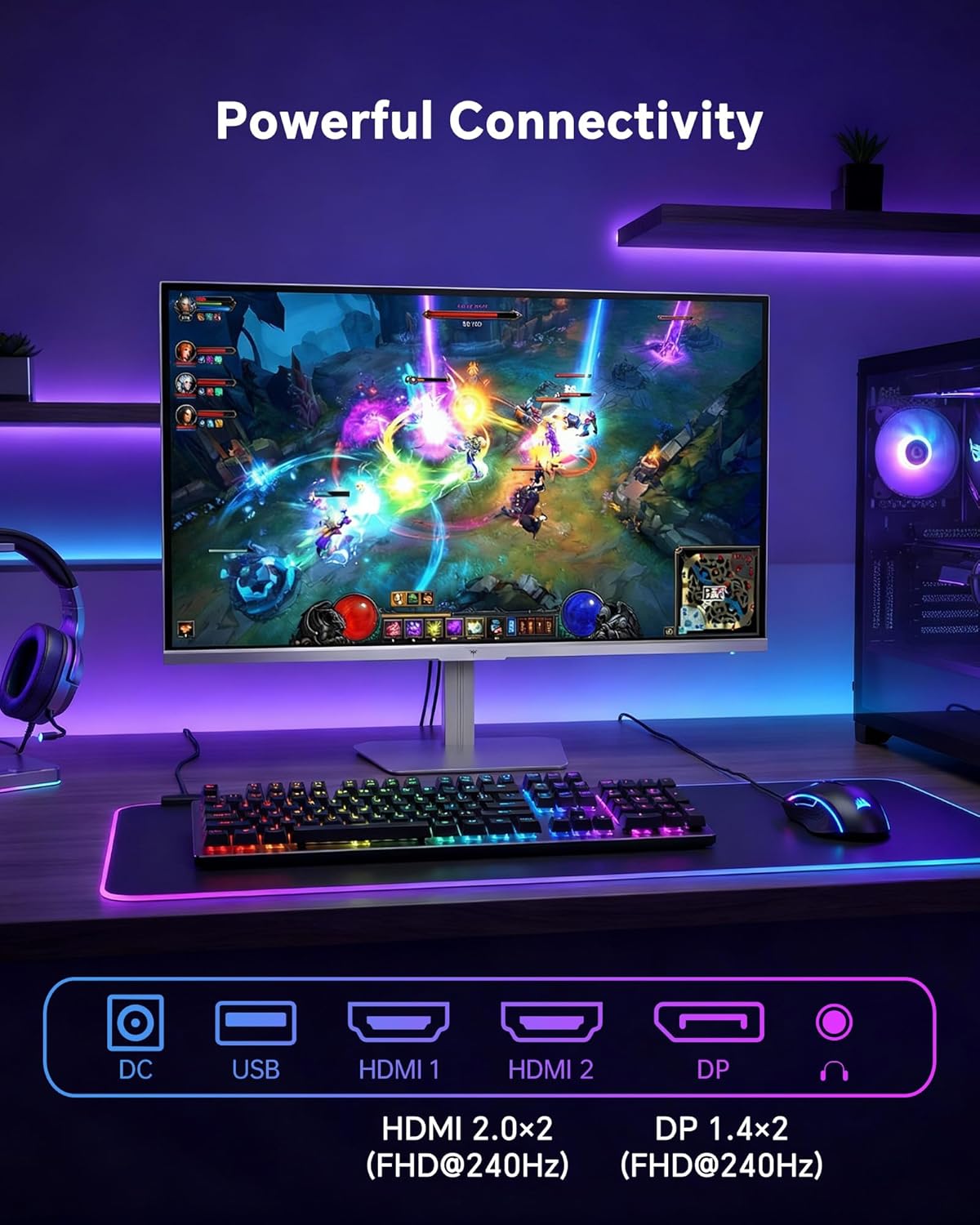
- ช่องต่อ HDMI: Use an HDMI cable to connect to devices with HDMI output. The monitor has two HDMI 2.0 ports, supporting FHD at 240Hz.
- ดิสเพลย์พอร์ต: Use a DisplayPort cable for devices with DisplayPort output. The monitor has one DisplayPort 1.4, supporting FHD at 240Hz.
- พลัง: Connect the power adaptor to the DC input on the monitor and then to a power outlet.
- ยูเอสบี: A USB 2.0 port is available for connecting peripherals.
- เสียงออก: A 3.5mm audio jack is available for connecting headphones or external speakers.
2. คู่มือการใช้งาน
2.1 เปิด/ปิดเครื่อง
กดปุ่มเปิด/ปิดที่อยู่บนจอภาพเพื่อเปิดหรือปิดเครื่อง ไฟแสดงสถานะการเปิด/ปิดเครื่องจะสว่างขึ้นเมื่อจอภาพทำงาน
2.2 เมนูการแสดงผลบนหน้าจอ (OSD)
The OSD menu allows you to adjust various monitor settings. Use the control buttons (typically located on the back or bottom of the monitor) to navigate the menu and select options. Refer to the Quick Start Guide for specific button functions.
2.3 การตั้งค่าการแสดงผล
เพิ่มประสิทธิภาพของคุณ viewปรับปรุงประสบการณ์การใช้งานโดยปรับการตั้งค่าต่อไปนี้:
- อัตราการรีเฟรช: The monitor supports a 240Hz refresh rate for smooth motion. Ensure your graphics card settings are configured to utilize this rate.

- การซิงโครไนซ์แบบปรับได้: This technology synchronizes the monitor's refresh rate with your graphics card's frame rate to eliminate screen tearing and stuttering. Enable Adaptive Sync in the OSD menu and ensure it is also enabled in your graphics card control panel (FreeSync/G-Sync compatible).

- HDR400: High Dynamic Range 400 provides enhanced contrast and color accuracy, delivering brighter highlights and deeper shadows. Activate HDR in the OSD menu and your operating system display settings for compatible content.

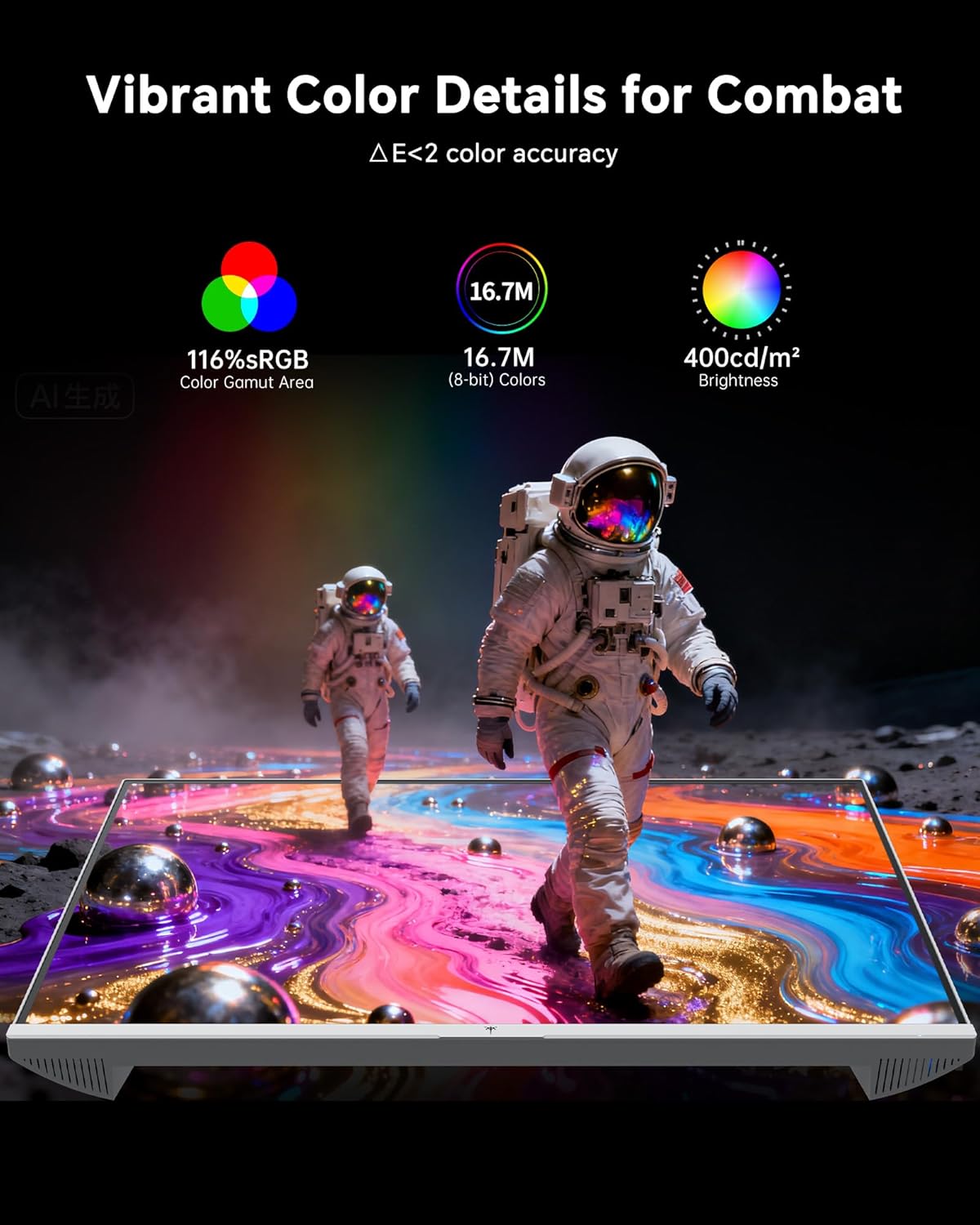
- การตั้งค่าสี: The monitor offers 116% sRGB color gamut and 16.7 million colors. Adjust brightness (up to 400 cd/m²) and color temperature through the OSD menu to suit your preference.
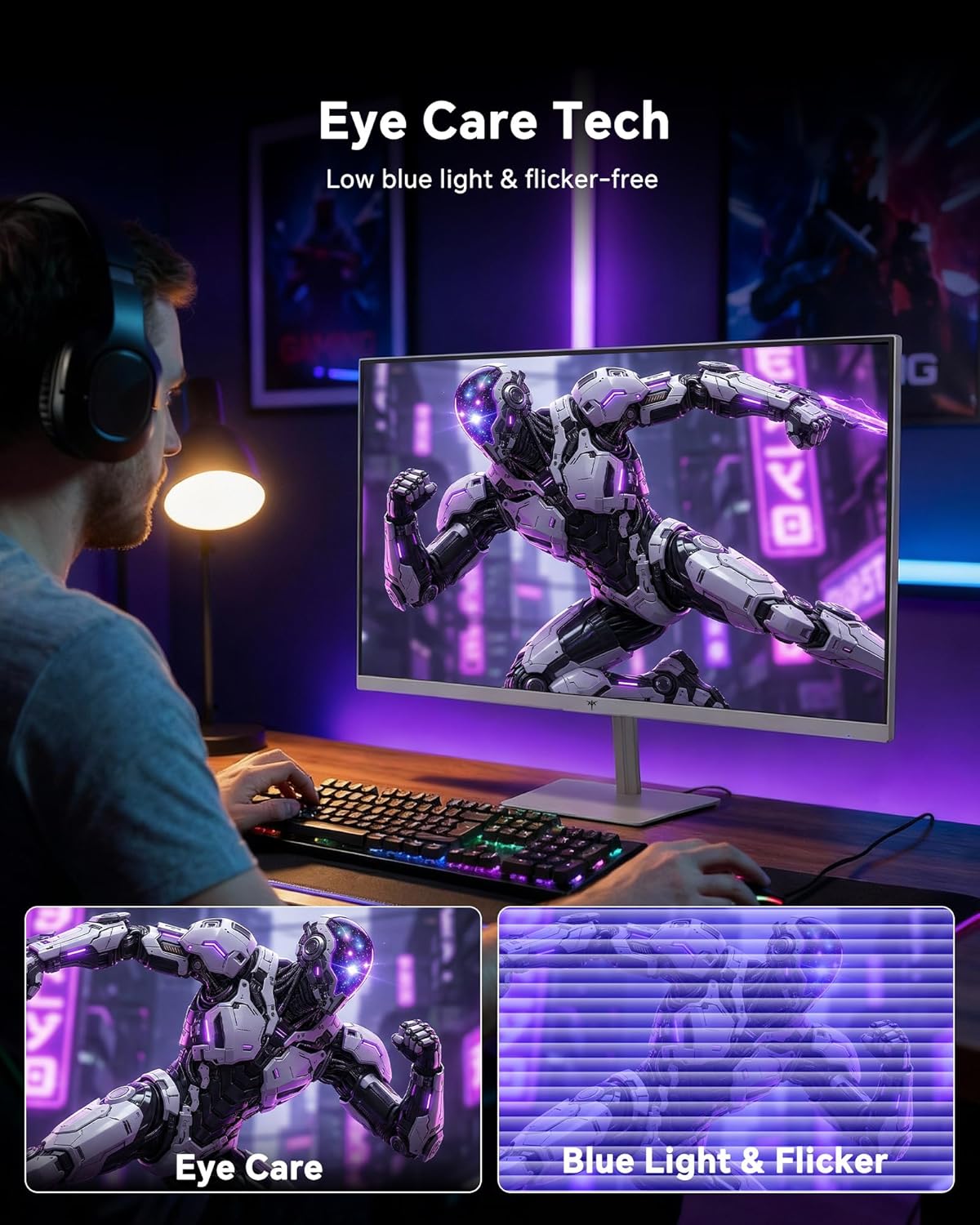
- เทคโนโลยีการดูแลดวงตา: The monitor features low blue light and flicker-free technology to reduce eye strain during prolonged use. These settings can typically be adjusted or enabled within the OSD menu.
2.4 Monitor Tilt Adjustment
The monitor supports tilt adjustment from -5° to 15° (±3°). Gently adjust the monitor panel to your desired viewมุมอิง
3. การบำรุงรักษา
3.1 การทำความสะอาดจอภาพ
เพื่อทำความสะอาดหน้าจอมอนิเตอร์และคasing:
- ปิดเครื่องจอภาพและถอดสายไฟออกทุกครั้งก่อนทำความสะอาด
- ใช้ผ้านุ่มไม่เป็นขุยเช็ดเล็กน้อยampเคลือบด้วยน้ำหรือน้ำยาทำความสะอาดหน้าจอชนิดอ่อนที่ไม่กัดกร่อน
- เช็ดหน้าจอเบาๆ เพื่อกำจัดฝุ่นและคราบสกปรก หลีกเลี่ยงการกดแรงเกินไป
- สำหรับคasing, use a dry, soft cloth. Do not use alcohol, ammonia, or abrasive cleaners, as these can damage the surface.
3.2 การดูแลทั่วไป
- หลีกเลี่ยงการวางวัตถุหนักบนจอภาพหรือสายเคเบิล
- อย่าวางจอภาพไว้ในที่ที่มีแสงแดดส่องโดยตรง ความร้อนสูง หรือความเย็นจัด
- Keep the monitor away from liquids and high humidity.
- ตรวจสอบให้แน่ใจว่ามีการระบายอากาศที่เหมาะสมรอบๆ จอภาพเพื่อป้องกันความร้อนสูงเกินไป
4 การแก้ไขปัญหา
If you encounter issues with your KTC H24F7 monitor, refer to the following common problems and solutions:
| ปัญหา | สาเหตุที่เป็นไปได้ | สารละลาย |
|---|---|---|
| ไม่มีภาพบนหน้าจอ | สายไฟหลุด; สายวิดีโอหลุดหรือหลวม; เลือกแหล่งสัญญาณเข้าไม่ถูกต้อง; จอภาพปิดอยู่ | Ensure power cable is securely connected and monitor is on. Check video cable connections (HDMI/DisplayPort) at both the monitor and computer. Press the input source button on the monitor to cycle through inputs. |
| ภาพกระพริบหรือฉีกขาด | Adaptive Sync not enabled; Graphics card driver issues; Faulty video cable. | Enable Adaptive Sync in the OSD menu and your graphics card control panel. Update graphics card drivers. Try a different video cable. If using DisplayPort 1, try DisplayPort 2 or HDMI if available, as some units may experience issues with specific ports. |
| สีดูผิดเพี้ยนหรือซีดจาง | Color settings incorrect; HDR not properly configured; Faulty video cable. | Adjust color settings (brightness, contrast, color temperature) in the OSD menu. Ensure HDR is enabled in both the OSD and your operating system for HDR content. Try a different video cable. |
| จอภาพไม่สามารถแสดงผลที่ 240Hz ได้ | Graphics card limitations; Incorrect display settings in OS; Cable bandwidth limitations. | Ensure your graphics card supports 240Hz at 1080p. Verify display settings in your operating system (e.g., Windows Display Settings or NVIDIA/AMD control panel) are set to 240Hz. Use the provided HDMI cable or a certified DisplayPort 1.4 cable. |
| พิกเซลค้างหรือพิกเซลเสีย | ข้อบกพร่องในการผลิต | A small number of stuck or dead pixels (typically 1-3) may be considered normal for LCD panels. If the issue is severe or persistent, contact customer support. |
5. ข้อมูลจำเพาะ
| คุณสมบัติ | รายละเอียด |
|---|---|
| ยี่ห้อ | เคทีซี |
| หมายเลขรุ่น | H24F7 |
| ขนาดหน้าจอ | 24 นิ้ว |
| ปณิธาน | ความละเอียด Full HD 1080p (1920 x 1080 พิกเซล) |
| ประเภทแผง | เกือบ IPS |
| อัตราการรีเฟรช | 240 เฮิรตซ์ |
| เวลาตอบสนอง | 1 Millisecond (MPRT) |
| อัตราส่วนภาพ | 16:9 น. |
| ความสว่าง | 400 แคนเดลาต่อตารางเมตร |
| อัตราส่วนคอนทราสต์ | 1000:1 น. |
| ช่วงสี | 116% sRGB |
| รองรับ HDR | เอชดีอาร์ 400 |
| การซิงค์แบบปรับตัว | FreeSync, G-Sync Compatible |
| การเชื่อมต่อ | 2x HDMI 2.0, 1x DisplayPort 1.4, 1x USB 2.0, 1x Audio Out (3.5mm) |
| คุณสมบัติการดูแลดวงตา | Low Blue Light, Flicker-Free, Anti-Glare Screen |
| การปรับเปลี่ยน | การเอียง (-5° ถึง 15°) |
| แท่นยึด VESA | 100มม. x 100มม. |
| ขนาด (D x W x H) | ลึก 5.39 นิ้ว x กว้าง 21.25 นิ้ว x สูง 15.74 นิ้ว |
| น้ำหนักสินค้า | 3.2 กิโลกรัม |
| สี | สีขาว |
6. การรับประกันและการสนับสนุน
6.1 ข้อมูลการรับประกัน
The KTC H24F7 monitor comes with a รับประกันจากผู้ผลิต 3 ปีการรับประกันนี้ครอบคลุมถึงข้อบกพร่องในวัสดุและฝีมือการผลิตภายใต้การใช้งานปกติ
โปรดเก็บหลักฐานการซื้อของคุณไว้เพื่อเรียกร้องการรับประกัน
6.2 การสนับสนุนลูกค้า
For technical assistance, warranty claims, or any questions regarding your KTC H24F7 monitor, please contact KTC customer support. KTC aims to provide responsive customer support and typically responds within 12 hours.
You can usually find contact information on the official KTC website or through the retailer where you purchased the product. When contacting support, please have your monitor model number (H24F7) and purchase details ready.