
1. บทนำ
Thank you for choosing the UGREEN 11-inch Keyboard Case. This product is designed to enhance your iPad experience by providing a comfortable typing solution and versatile viewing angles, transforming your tablet into a portable workstation. This manual provides essential information for setup, operation, maintenance, and troubleshooting to ensure optimal performance.
2. ความเข้ากันได้
เคสคีย์บอร์ดนี้เข้ากันได้กับ iPad รุ่นต่อไปนี้:
- iPad Air 11-inch (M4/M3/M2, 2026/2025/2024)
- iPad Pro 11-inch (4th/3rd/2nd/1st Gen)
- iPad Air 5th Generation (2022)
- iPad Air 4th Generation (2020)
หมายเลขรุ่นที่ใช้งานร่วมกันได้: A3459, A2902, A3266, A1980, A2228, A2759, A2377, A2316, A2588.
บันทึก: กรณีนี้คือ ไม่ compatible with iPad Pro 11-inch (M4) 2024.

Figure 2.1: Detailed compatibility chart for UGREEN 11-inch Keyboard Case.
3. เนื้อหาบรรจุภัณฑ์
โปรดตรวจสอบให้แน่ใจว่ามีสินค้าทั้งหมดอยู่ในแพ็คเกจของคุณ:
- UGREEN 11-inch Keyboard Case
- สายชาร์จ USB-C (3 ฟุต)
- คู่มือการใช้งาน
4. สินค้าหมดview
The UGREEN Keyboard Case features a robust design with several key functionalities:
- Precision Magnetic Back Plate: Ensures a secure and stable attachment for your iPad.
- ปรับได้ 125° Viewอิงมุม: Allows for flexible positioning for typing, browsing, or viewการไอเอ็นจี
- ปุ่มกดแบบกรรไกร: Provides a smooth, quiet, and consistent typing experience.
- ไฟแบ็คไลท์ปรับระดับได้ 3 ระดับ: Offers illumination for comfortable use in various lighting conditions.
- ทัชแพดตอบสนอง: Enables precise cursor control and supports multi-gesture navigation.
- Dual Orientation Viewการลง: Supports both portrait and landscape modes.
- แบตเตอรี่ 650mAh: Provides extended usage and standby times.

Figure 4.1: Powerful magnetic hold for stable iPad attachment.

Figure 4.2: Quick-set magnetic stand with 125° adjustable viewมุมอิง

Figure 4.3: Scissor-switch keyboard design and 3-level adjustable backlighting.

Figure 4.4: Responsive touchpad with multi-gesture support.
5. คำแนะนำในการตั้งค่า
5.1 การเชื่อมต่อ iPad ของคุณ
- Align your compatible iPad with the magnetic back plate of the case.
- The iPad will securely snap into place due to the strong magnetic connection.
5.2 Powering On the Keyboard
- Locate the power switch on the right side of the keyboard.
- Slide the switch to the 'ON' position. The indicator light will briefly illuminate.
5.3 การจับคู่บลูทูธ
- ตรวจสอบให้แน่ใจว่าแป้นพิมพ์เปิดอยู่
- บน iPad ของคุณไปที่ การตั้งค่า > บลูทูธ.
- เปิดบลูทูธ iPad ของคุณจะค้นหาอุปกรณ์ใกล้เคียง
- Select "UGREEN Keyboard" (or similar name) from the list of available devices.
- ปฏิบัติตามคำแนะนำบนหน้าจอเพื่อดำเนินการจับคู่ให้เสร็จสมบูรณ์
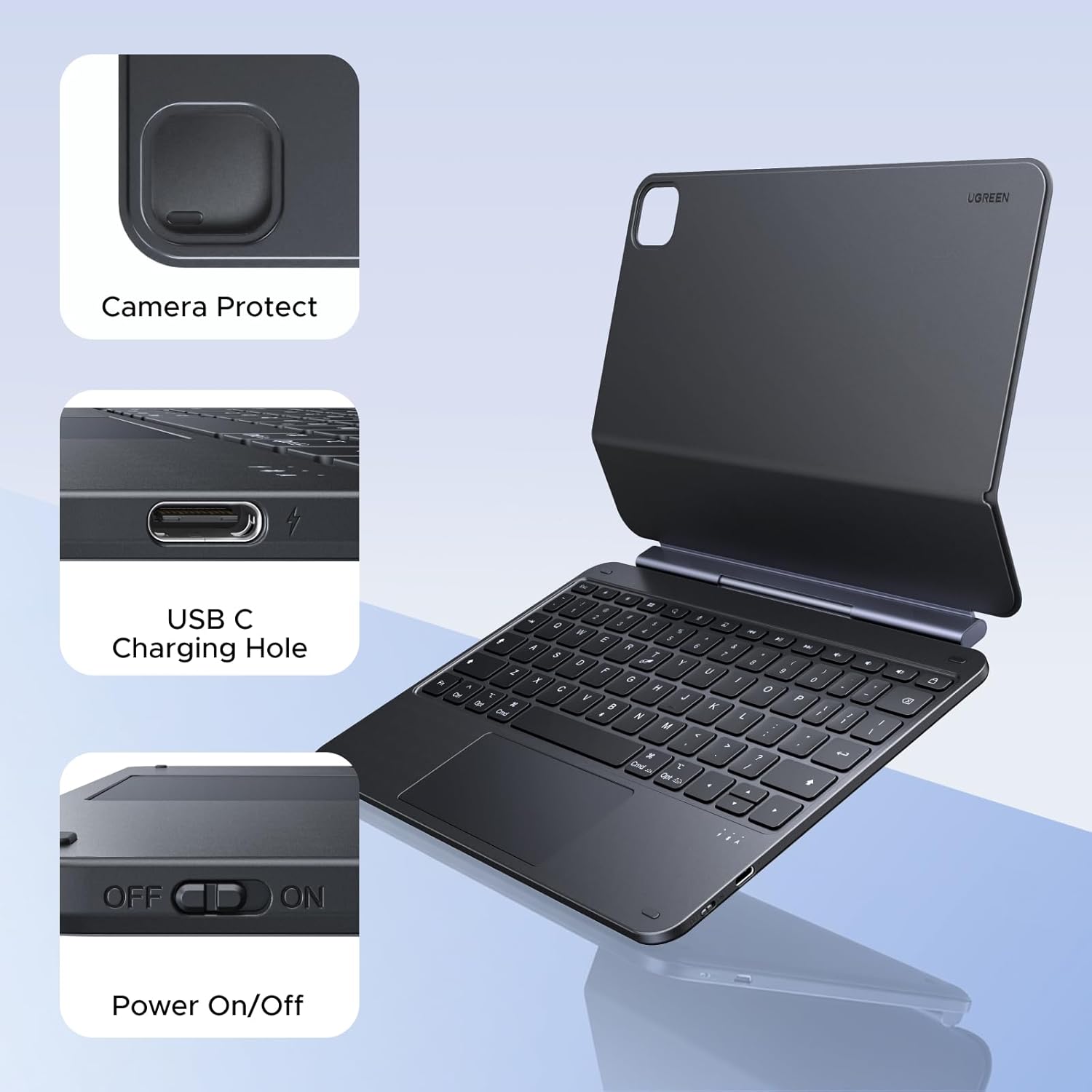
Figure 5.1: Location of the power switch and USB-C charging port.
6. คู่มือการใช้งาน
6.1 การปรับแต่ง Viewอิงแองเกิล
The magnetic stand allows for a 125° adjustable viewing angle. Gently tilt your iPad to achieve your desired position for typing, drawing, or media consumption.
6.2 การใช้งานทัชแพด
The integrated touchpad supports various multi-touch gestures for intuitive navigation:
- แตะนิ้วเดียว: คลิก/เลือก
- เลื่อนด้วยสองนิ้ว: เลื่อนขึ้น/ลง หรือ ซ้าย/ขวา
- หยิกเพื่อซูม: ซูมเข้า/ออก
- ปัดนิ้วสามนิ้วขึ้น: เปิดตัวสลับแอป
- ปัดนิ้วสามนิ้วลง: กลับสู่หน้าจอหลัก
- ใช้สามนิ้วปัดไปทางซ้าย/ขวา: สลับระหว่างแอปที่เปิดอยู่
6.3 การปรับแสงพื้นหลัง
กดปุ่ม light icon key (usually next to the function keys) to cycle through the 3 levels of backlight brightness or to turn it off.
6.4 Dual Orientation Viewกำลังทำ
The case supports both portrait and landscape orientations. Simply rotate your iPad while it is magnetically attached to switch modes. This allows for flexible viewing during video calls, streaming, or browsing without compromising stability.

Figure 6.1: Versatile usage modes including typing, viewing, sketching, and reading.
7. การชาร์จคีย์บอร์ด
The keyboard is equipped with a 650mAh battery for extended use.
- อายุการใช้งานแบตเตอรี่: Up to 6 months standby time, or 5 months of regular use with the backlight off.
- เวลาในการชาร์จ: ประมาณ 2 ชั่วโมงสำหรับการชาร์จเต็ม
- วิธีการชาร์จ: Use the included USB-C cable to connect the keyboard's USB-C port to a power source.

รูปที่ 7.1: ประสิทธิภาพของแบตเตอรี่view.
8. การบำรุงรักษา
To ensure the longevity and optimal performance of your UGREEN Keyboard Case, follow these maintenance guidelines:
- การทำความสะอาด: ใช้แบบนุ่มๆamp cloth to wipe the exterior of the case. Avoid harsh chemicals or abrasive materials. For the keyboard keys, use a soft brush or compressed air to remove dust and debris.
- พื้นที่จัดเก็บ: When not in use, store the keyboard case in a clean, dry environment away from extreme temperatures and direct sunlight.
- การจัดการ: Avoid dropping the case or subjecting it to strong impacts, which could damage internal components or the magnetic mechanism.
9 การแก้ไขปัญหา
If you encounter issues with your UGREEN Keyboard Case, refer to the following common problems and solutions:
9.1 Keyboard Not Pairing or Connecting
- ตรวจสอบพลังงาน: ตรวจสอบให้แน่ใจว่าสวิตช์เปิด/ปิดของแป้นพิมพ์อยู่ในตำแหน่ง 'เปิด'
- ระดับแบตเตอรี่: Verify that the keyboard has sufficient battery charge. Charge it if necessary.
- Bluetooth on iPad: Confirm that Bluetooth is enabled on your iPad (การตั้งค่า > บลูทูธ).
- ซ่อมแซมอุปกรณ์: If the keyboard was previously paired, try forgetting the device on your iPad's Bluetooth settings and then re-pairing it.
- รีสตาร์ทอุปกรณ์: รีสตาร์ททั้ง iPad และคีย์บอร์ดของคุณ
9.2 Inconsistent Touchpad Response
- ทำความสะอาดทัชแพด: ตรวจสอบให้แน่ใจว่าพื้นผิวของทัชแพดสะอาด ปราศจากสิ่งสกปรกหรือความชื้น
- อัพเดตเฟิร์มแวร์: ตรวจสอบ UGREEN website for any available firmware updates for the keyboard.
- iPad Settings: Review your iPad's touchpad settings under การตั้งค่า > ทั่วไป > Trackpad & Mouse.
9.3 iPad Feels Top-Heavy or Unstable
- ความเสถียรของพื้นผิว: Ensure the keyboard case is placed on a flat, stable surface.
- การปรับมุม: ปรับแต่ง viewing angle to a more balanced position. Extreme angles may reduce stability.
- การเชื่อมต่อแม่เหล็ก: Confirm the iPad is fully and securely attached to the magnetic back plate.
10. ข้อมูลจำเพาะ
| คุณสมบัติ | รายละเอียด |
|---|---|
| ยี่ห้อ | ยูกรีน |
| หมายเลขรุ่น | ไอ711 |
| อุปกรณ์ที่รองรับ | Tablet (Specific iPad models listed in Compatibility section) |
| เทคโนโลยีการเชื่อมต่อ | บลูทูธ |
| คำอธิบายแป้นพิมพ์ | Flexible, Scissor-switch |
| เค้าโครงแป้นพิมพ์ | คีย์บอร์ด QWERTY |
| วัสดุ | Plastic, Steel (Keyboard Plate) |
| แหล่งพลังงาน | ใช้แบตเตอรี่ (แบตเตอรี่ลิเธียม 650mAh) |
| คุณสมบัติพิเศษ | Magnetic Case, Adjustable Backlight, Touchpad |
11. การรับประกันและการสนับสนุน
11.1 ข้อมูลการรับประกัน
This UGREEN product is covered by a การรับประกันจากผู้ผลิต 2 ปี ตั้งแต่วันที่ซื้อ การรับประกันนี้ครอบคลุมถึงข้อบกพร่องในวัสดุและฝีมือการผลิตภายใต้การใช้งานปกติ
การรับประกันไม่ครอบคลุมถึง:
- ความเสียหายที่เกิดจากอุบัติเหตุ การใช้งานในทางที่ผิด น้ำท่วม ไฟไหม้ แผ่นดินไหว หรือสาเหตุภายนอกอื่นๆ
- Damage caused by operating the product outside the permitted or intended uses described by UGREEN.
- Damage caused by service performed by anyone who is not a representative of UGREEN.
11.2 การสนับสนุนลูกค้า
For technical support, warranty claims, or general inquiries, please contact UGREEN customer service through the following channels:
- Webเว็บไซต์: เยี่ยมชม UGREEN อย่างเป็นทางการ webไซต์สำหรับทรัพยากรสนับสนุนและข้อมูลการติดต่อ
- อีเมล: ดูที่บรรจุภัณฑ์ผลิตภัณฑ์ของคุณหรือ UGREEN webค้นหาที่อยู่อีเมลฝ่ายสนับสนุนที่เหมาะสมได้ที่เว็บไซต์นี้
- ผู้ค้าปลีกออนไลน์: If purchased from an online retailer, you may also contact their customer service for assistance.
Please have your product model number (i711) and proof of purchase ready when contacting support.