
1. บทนำและเรื่องอื่นๆview
This manual provides essential information for the proper setup, operation, and maintenance of your AOC Q27G4ZDF QD-OLED Gaming Monitor. The AOC Q27G4ZDF is a 27-inch QHD (2560 x 1440) display featuring QD-OLED panel technology, a 240Hz refresh rate, and an ultra-fast 0.03ms pixel response time. It supports Adaptive Sync for tear-free gaming and HDR10 for enhanced picture quality. Please read this manual thoroughly before using your monitor.
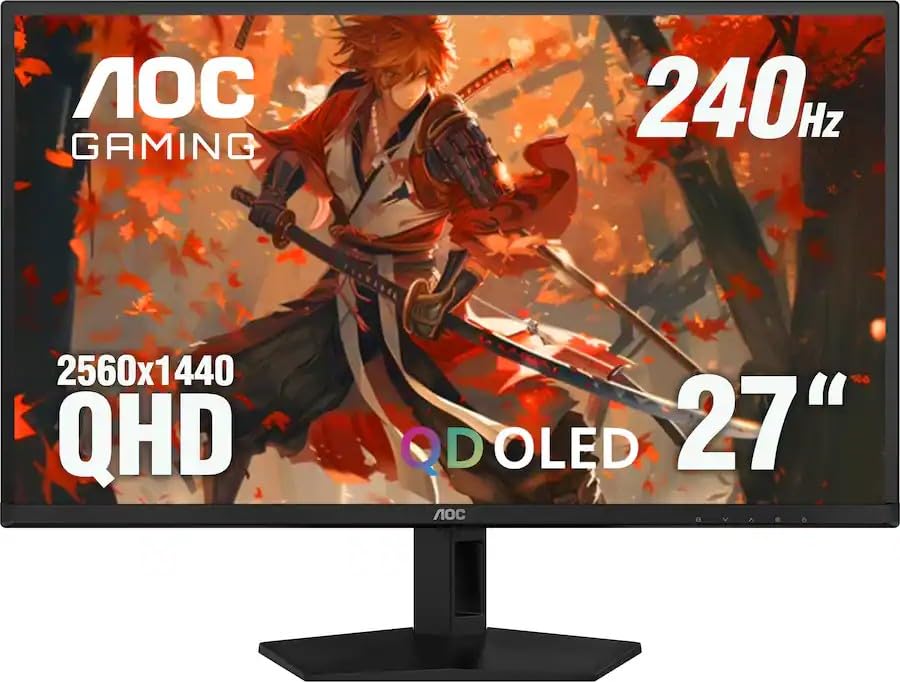
รูปที่ 1.1 : ด้านหน้า view of the AOC Q27G4ZDF QD-OLED Gaming Monitor.
2. อะไรอยู่ในกล่อง
ตรวจสอบว่าบรรจุภัณฑ์มีส่วนประกอบทั้งหมด:
- AOC Q27G4ZDF Monitor Display
- ขาตั้งจอมอนิเตอร์ (ฐานและคอ)
- สาย HDMI
- สายไฟ
- คู่มือการใช้งาน (เอกสารนี้)
3. คำแนะนำในการตั้งค่า
3.1. การประกอบขาตั้ง
- ถอดส่วนประกอบของจอภาพและขาตั้งออกจากบรรจุภัณฑ์อย่างระมัดระวัง
- ติดส่วนคอของขาตั้งเข้ากับแผงจอภาพ ตรวจสอบให้แน่ใจว่าล็อคเข้าที่อย่างแน่นหนา หรือยึดด้วยสกรูตามที่ระบุไว้ในคู่มือเริ่มต้นใช้งานฉบับย่อ
- ติดฐานขาตั้งเข้ากับส่วนคอของขาตั้ง ขันสกรูหัวแม่มือจากด้านล่างของฐานให้แน่นเพื่อยึดให้มั่นคง
- วางจอภาพที่ประกอบแล้วไว้บนพื้นผิวที่มั่นคงและเรียบ
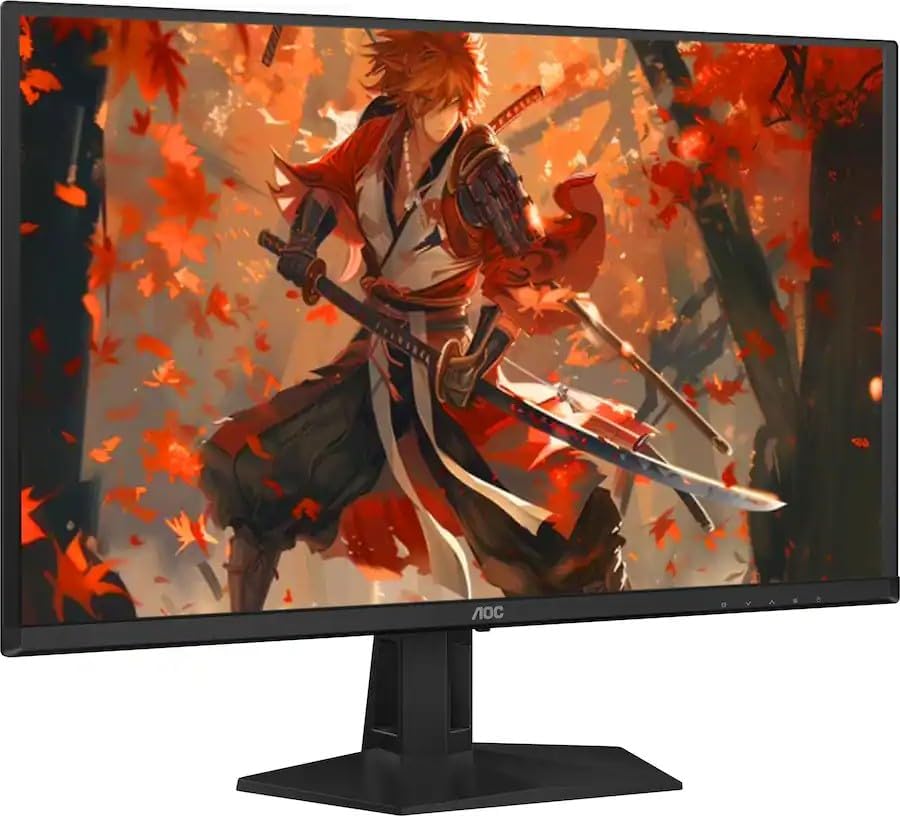
รูปที่ 3.1: ด้านหลัง view ของจอภาพพร้อมขาตั้งประกอบแล้ว
3.2. การเชื่อมต่อกับคอมพิวเตอร์
- ตรวจสอบให้แน่ใจว่าทั้งจอภาพและคอมพิวเตอร์ของคุณปิดอยู่
- Connect one end of the provided HDMI cable to the HDMI port on your computer's graphics card.
- Connect the other end of the HDMI cable to an available HDMI input port on the monitor. Alternatively, use a DisplayPort cable for DisplayPort connections.
- ต่อสายไฟเข้ากับช่องเสียบสายไฟของจอภาพ แล้วเสียบปลายอีกด้านหนึ่งเข้ากับเต้ารับไฟฟ้าที่มีสายดิน
- เปิดเครื่องคอมพิวเตอร์ของคุณ จากนั้นเปิดจอภาพ
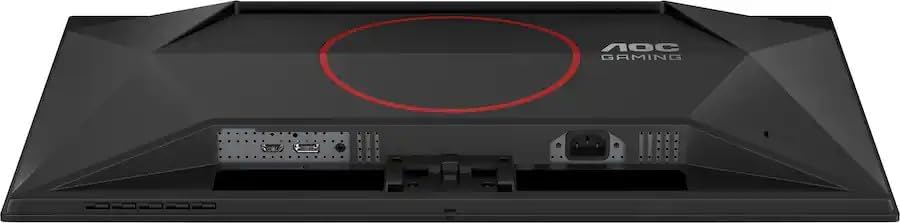
รูปที่ 3.2: ด้านหลัง view showing the monitor's input ports (HDMI, DisplayPort, Power).
4. คู่มือการใช้งาน
4.1. เปิด/ปิดเครื่อง
- To power on the monitor, press the power button located on the bottom right side of the monitor.
- หากต้องการปิดจอภาพ ให้กดปุ่มเปิด/ปิดอีกครั้ง
4.2. การนำทางเมนูการแสดงผลบนหน้าจอ (OSD)
The OSD menu allows you to adjust various monitor settings. Use the navigation buttons (usually located on the bottom right of the monitor) to access and navigate the OSD.
- กดปุ่ม Menu เพื่อเปิด OSD
- Use the directional buttons (Up/Down/Left/Right) to navigate through menu options.
- กดปุ่มเลือก/ตกลง เพื่อยืนยันการเลือกหรือเข้าสู่เมนูย่อย
- Press the Exit button to go back to the previous menu or exit the OSD.
4.3. การเลือกอินพุต
If you have multiple devices connected to the monitor, you can switch between input sources:
- เข้าสู่เมนู OSD
- Navigate to the 'Input' or 'Source' section.
- Select the desired input (e.g., HDMI1, DisplayPort).
4.4. การตั้งค่ารูปภาพ
Adjust display characteristics such as brightness, contrast, color temperature, and gamma through the OSD menu's 'Picture' or 'Color' settings.
4.5. คุณสมบัติการเล่นเกม
The monitor includes features optimized for gaming:
- การซิงโครไนซ์แบบปรับได้: Ensures smooth, tear-free gameplay by synchronizing the monitor's refresh rate with your GPU's frame rate. Enable this feature in your graphics card control panel.
- โหมดเกม: Preset display modes (e.g., FPS, RTS) can be selected via the OSD to optimize visual settings for different game genres.
- ความล่าช้าในการป้อนข้อมูลต่ำ: The monitor is designed for minimal input lag, enhancing responsiveness in fast-paced games.
5. การบำรุงรักษา
5.1. การทำความสะอาดจอภาพ
- ปิดเครื่องจอภาพและถอดสายไฟออกทุกครั้งก่อนทำความสะอาด
- ใช้ผ้านุ่มไม่เป็นขุยค่อยๆ งampเคลือบด้วยน้ำหรือน้ำยาทำความสะอาดหน้าจอชนิดอ่อนที่ไม่กัดกร่อน
- ห้ามฉีดน้ำยาทำความสะอาดลงบนหน้าจอโดยตรง
- หลีกเลี่ยงการใช้เบนซีน ทินเนอร์ น้ำยาทำความสะอาดที่มีส่วนผสมของแอมโมเนีย หรือวัสดุที่มีฤทธิ์กัดกร่อน เนื่องจากสารเหล่านี้อาจทำให้หน้าจอหรือตัวเครื่องเสียหายได้asing.
5.2. การจัดเก็บ
- If storing the monitor for an extended period, disconnect all cables and pack it in its original packaging to protect it from dust and physical damage.
- เก็บในที่เย็นและแห้ง ห่างจากแสงแดดโดยตรงและอุณหภูมิที่สูงเกินไป
6 การแก้ไขปัญหา
โปรดดูตารางด้านล่างเพื่อดูปัญหาทั่วไปและวิธีแก้ไข
| ปัญหา | สาเหตุที่เป็นไปได้ | สารละลาย |
|---|---|---|
| ไม่มีไฟฟ้า | ไม่ได้เสียบสายไฟ; ปลั๊กไฟชำรุด; ปุ่มเปิดปิดจอภาพปิดอยู่ | ตรวจสอบให้แน่ใจว่าสายไฟเชื่อมต่อกับจอภาพและปลั๊กไฟอย่างแน่นหนา ทดสอบปลั๊กไฟด้วยอุปกรณ์อื่น กดปุ่มเปิด/ปิดจอภาพ |
| ไม่มีสัญญาณ | ไม่ได้เชื่อมต่อสายวิดีโอ; เลือกแหล่งสัญญาณเข้าไม่ถูกต้อง; คอมพิวเตอร์ไม่ได้เปิดเครื่อง | Check video cable connections (HDMI/DisplayPort). Select correct input source via OSD. Ensure computer is powered on and outputting video. |
| Image Flickering | สายวิดีโอหลวม ปัญหาเกี่ยวกับไดรเวอร์การ์ดจอ อัตราการรีเฟรชไม่ตรงกัน | Secure video cable connections. Update graphics card drivers. Ensure monitor refresh rate is set correctly in display settings. |
| คุณภาพของภาพไม่ดี | Incorrect resolution; OSD settings not optimized. | Set display resolution to native QHD (2560x1440). Adjust brightness, contrast, and color settings in the OSD. |
7. ข้อมูลจำเพาะ
| คุณสมบัติ | ข้อมูลจำเพาะ |
|---|---|
| ยี่ห้อ | เอโอซี |
| ชื่อรุ่น | Q27G4ZDF |
| ขนาดหน้าจอ | 27 นิ้ว |
| ประเภทจอภาพ | โอแอลอีดี QD |
| ปณิธาน | ความละเอียด QHD (2560 x 1440 พิกเซล) |
| อัตราการรีเฟรช | 240 เฮิรตซ์ |
| เวลาตอบสนอง | 0.03ms (จีทีจี) |
| อัตราส่วนความคมชัดของภาพ | 1,500,000:1 น. |
| เทคโนโลยีการเชื่อมต่อ | พอร์ตแสดงผล, HDMI |
| คุณสมบัติเพิ่มเติม | Adaptive Sync, Eye Care, Frameless Design |
| ประเภทการติดตั้ง | โต๊ะเมาท์ |
| น้ำหนักสินค้า | 11.4 ปอนด์ |
| UPC / GTIN | 604467590038 |
8. การรับประกันและการสนับสนุน
This AOC Q27G4ZDF monitor comes with a รับประกันจำกัด 90 วันการรับประกันนี้ครอบคลุมถึงข้อบกพร่องในวัสดุและฝีมือการผลิตภายใต้การใช้งานปกติในระหว่างระยะเวลาการรับประกัน
สำหรับการขอรับการสนับสนุนทางเทคนิค การเรียกร้องการรับประกัน หรือความช่วยเหลือเพิ่มเติม โปรดไปที่เว็บไซต์ฝ่ายสนับสนุนอย่างเป็นทางการของ AOC website or contact their customer service. Keep your purchase receipt as proof of purchase for warranty services.
การสนับสนุนทางออนไลน์: www.aoc.com/support