
1. บทนำ
The Strong 4G LTE N300 WiFi Router provides high-speed internet access using a 4G SIM card, offering reliable Cat4 LTE speeds up to 150 Mbps and stable N300 Mbps Wi-Fi coverage. This device is designed for easy setup and use, supporting up to 32 devices simultaneously, making it suitable for both home and small office environments where wired broadband may not be available.
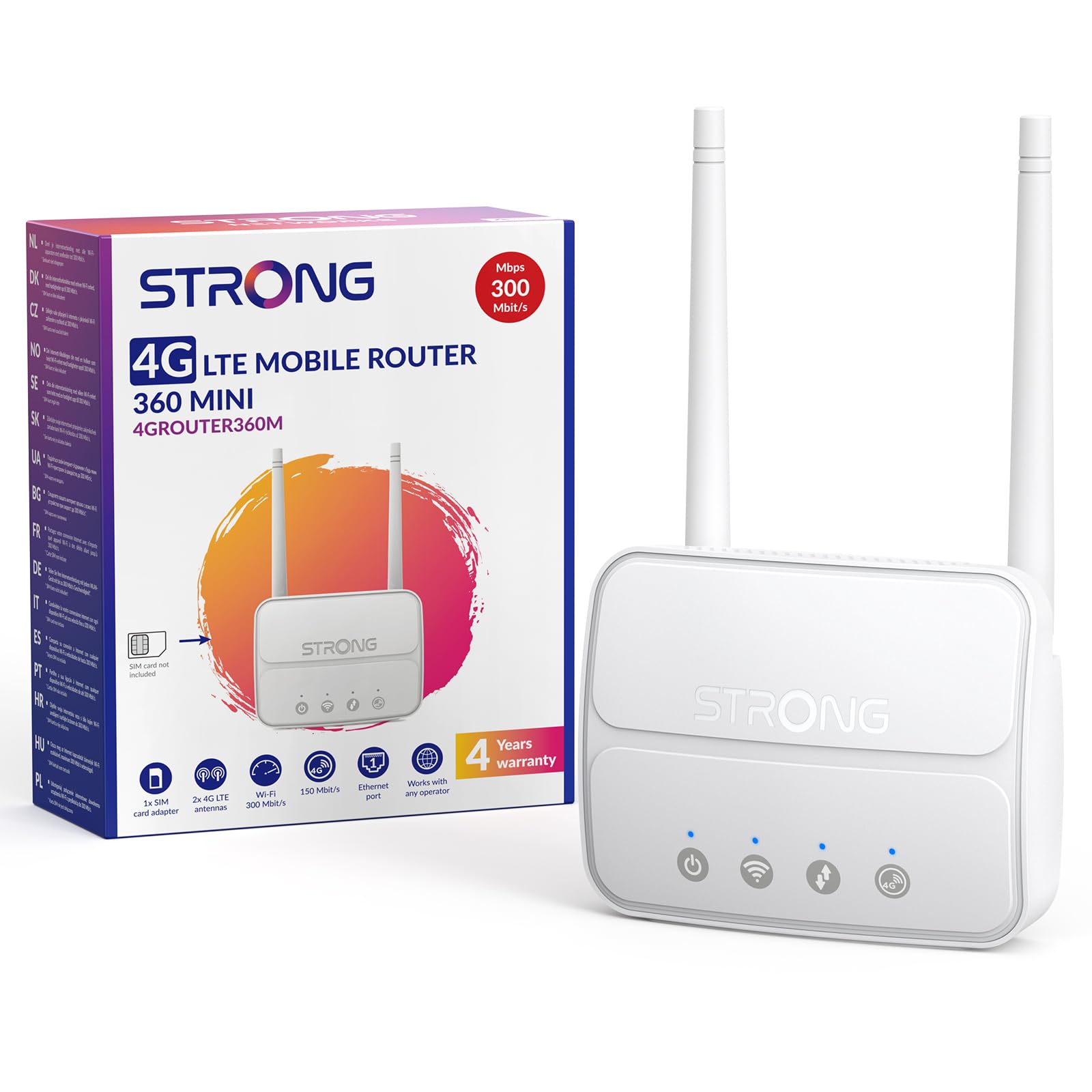
Image 1: The Strong 4G LTE N300 WiFi Router, a compact device with two external antennas for enhanced signal reception.
2. อะไรอยู่ในกล่อง
โปรดตรวจสอบสิ่งของภายในบรรจุภัณฑ์อย่างละเอียด หากมีสินค้าใดสูญหายหรือเสียหาย โปรดติดต่อฝ่ายสนับสนุนลูกค้า
- Strong 4G LTE N300 WiFi Router
- External Antennas (2 units)
- สายเคเบิล RJ45 Ethernet
- แหล่งจ่ายไฟภายนอก
- Nano to Micro SIM Card Adapter
- คู่มือการติดตั้งแบบด่วน
- บัตรความปลอดภัยและบัตรรับประกัน
3. คู่มือการติดตั้ง
Follow these steps for a quick and easy setup of your Strong 4G LTE N300 WiFi Router.
3.1. Prepare Your SIM Card
Before inserting your SIM card, ensure that any PIN protection is disabled. You can do this by inserting the SIM card into a smartphone and disabling the PIN request through the phone's settings.
3.2. Insert the SIM Card
- ค้นหาช่องใส่การ์ด SIM บนเราเตอร์
- If you have a Nano SIM, use the provided Nano to Micro SIM adapter to fit it into the standard SIM slot.
- Gently insert the prepared SIM card into the slot until it clicks into place.
3.3. Attach External Antennas
Screw the two external 4G antennas onto the designated connectors at the back of the router. Adjust their orientation for optimal signal reception.
3.4. เปิดเราเตอร์
Connect the external power supply to the router's DC-in port and then plug it into a power outlet. The router will automatically power on and begin the startup sequence.
3.5. Connect to the Network (Plug & Play)
The router is designed for Plug & Play operation. Once powered on and with a valid SIM card, it will automatically connect to the 4G LTE network. You can then connect your devices via Wi-Fi or Ethernet.

Image 2: Visual guide for SIM card insertion and powering on the router for instant connection. The image also shows the SIM card slot supporting standard, micro, and nano SIMs with an adapter.
3.6. การเข้าถึง Web อินเทอร์เฟซ
For advanced settings and network management, access the router's web อินเทอร์เฟซโดยการพิมพ์ 192.168.188.1 เข้าไปในของคุณ web browser's address bar. Refer to the Quick Installation Guide for default login credentials.
4. คู่มือการใช้งาน
This section details how to use your Strong 4G LTE N300 WiFi Router for optimal performance.
4.1. อุปกรณ์เชื่อมต่อ
The router supports connections for up to 32 devices simultaneously.
- การเชื่อมต่อ Wi-Fi: ค้นหาชื่อเครือข่าย Wi-Fi (SSID) และรหัสผ่านที่พิมพ์อยู่บนฉลากด้านล่างของเราเตอร์ เลือกเครือข่ายนี้บนอุปกรณ์ของคุณและป้อนรหัสผ่านเพื่อเชื่อมต่อ
- การเชื่อมต่ออีเทอร์เน็ต: Use an RJ45 Ethernet cable to connect devices such as PCs, game consoles, or Smart TVs to the router's 100 Mbps LAN port for a stable wired connection.
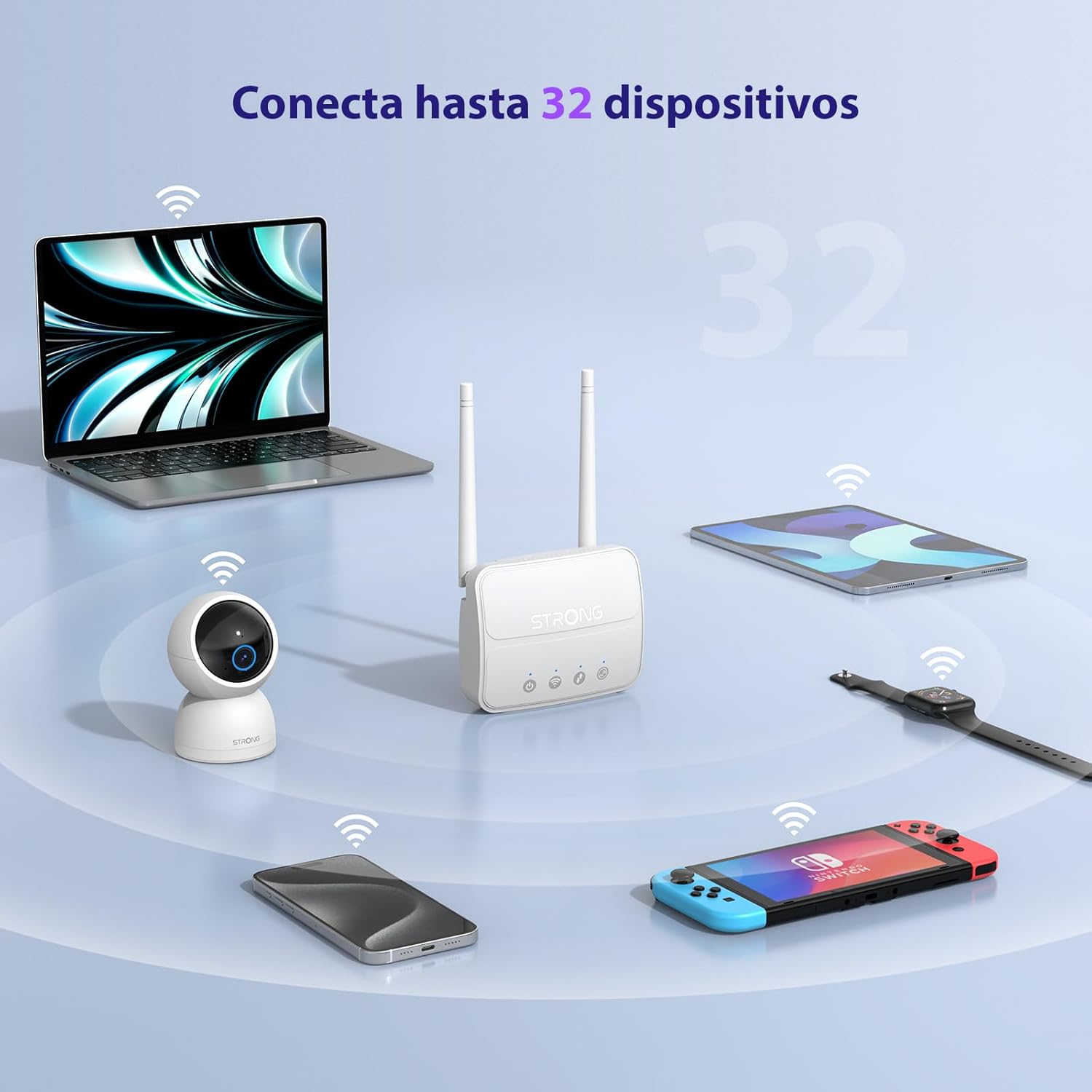
Image 3: The router connecting various devices including laptops, tablets, smartphones, and gaming consoles, demonstrating its capacity for up to 32 simultaneous connections.
4.2. Network Management and Security
The router offers robust security features to protect your network:
- การเข้ารหัส WPA / WPA2: Ensures secure wireless communication.
- PIN Control: Manage SIM card PIN settings.
- การกรอง MAC: Control which devices can connect to your network based on their MAC addresses.
- Advanced Firewall Settings: Customize firewall rules for enhanced protection.
All these settings can be managed through the easy-to-use web อินเตอร์เฟซ (192.168.188.1)

Image 4: A user managing network settings on a laptop, illustrating the router's WPA/WPA2 encryption and PIN control features for secure network management.
5. การบำรุงรักษา
การบำรุงรักษาอย่างถูกวิธีจะช่วยให้เราเตอร์ของคุณมีอายุการใช้งานยาวนานและทำงานได้อย่างมีประสิทธิภาพสูงสุด
- การทำความสะอาด: ใช้ผ้านุ่มและแห้งเช็ดทำความสะอาดภายนอกเราเตอร์ ห้ามใช้น้ำยาทำความสะอาดหรือสเปรย์
- การจัดวาง: วางเราเตอร์ในบริเวณที่มีอากาศถ่ายเทสะดวก ห่างจากแสงแดดโดยตรง แหล่งความร้อน และสนามแม่เหล็กไฟฟ้าที่แรง
- อัพเดตเฟิร์มแวร์: The router features a USB port specifically for firmware updates. Regularly check the Strong official website for the latest firmware versions to ensure improved performance and security. Follow the instructions provided with the firmware update package carefully.
6 การแก้ไขปัญหา
หากคุณพบปัญหาเกี่ยวกับเราเตอร์ โปรดดูขั้นตอนการแก้ไขปัญหาทั่วไปต่อไปนี้:
- ไม่มีการเชื่อมต่ออินเทอร์เน็ต:
- ตรวจสอบให้แน่ใจว่าได้ใส่ซิมการ์ดอย่างถูกต้องและมีแพ็กเกจอินเทอร์เน็ตที่ใช้งานได้
- Verify that the SIM card's PIN protection is disabled.
- Check the signal strength indicators on the router. If the signal is weak, try adjusting the external antennas or relocating the router.
- รีสตาร์ทเราเตอร์โดยถอดปลั๊กอะแดปเตอร์ไฟแล้วเสียบใหม่
- Wi-Fi Not Visible or Connecting:
- Ensure the Wi-Fi function is enabled (check the router's LED indicators).
- โปรดตรวจสอบให้แน่ใจว่าคุณป้อนรหัสผ่าน Wi-Fi ถูกต้อง (ชื่อเครือข่าย (SSID) และรหัสผ่านจะอยู่บนฉลากของเราเตอร์)
- Try connecting a device via Ethernet to confirm the router has internet access.
- ความเร็วช้า:
- Check the 4G signal strength. Weak signal can lead to slower speeds.
- ตรวจสอบให้แน่ใจว่าไม่มีแอปพลิเคชันหรืออุปกรณ์อื่นกำลังใช้แบนด์วิดท์มากเกินไป
- Consider the number of connected devices; the router supports up to 32, but performance may vary with heavy usage.
- ไม่สามารถเข้าถึง Web อินเทอร์เฟซ:
- ตรวจสอบให้แน่ใจว่าอุปกรณ์ของคุณเชื่อมต่อกับเครือข่ายของเราเตอร์ (Wi-Fi หรืออีเทอร์เน็ต)
- โปรดตรวจสอบให้แน่ใจว่าคุณพิมพ์ที่อยู่ IP ถูกต้อง: 192.168.188.1.
- ลองแบบอื่น web เบราว์เซอร์
If these steps do not resolve the issue, please contact Strong customer support.
7. ข้อมูลจำเพาะ
Detailed technical specifications for the Strong 4G LTE N300 WiFi Router (Model 4GROUTER360M).
| คุณสมบัติ | ข้อมูลจำเพาะ |
|---|---|
| ยี่ห้อ | แข็งแกร่ง |
| ชื่อรุ่น | 4กราวเตอร์360M |
| เทคโนโลยีการเชื่อมต่อ | 4G, อีเธอร์เน็ต, LTE, Wi-Fi |
| ไร้มาตรฐาน | 802.11n (N300 Mbps) |
| ความเร็ว 4G LTE | Up to 150 Mbps (Cat4) |
| พอร์ตอีเทอร์เน็ต | 1 x 100 Mbps LAN Port |
| ช่องใส่ซิมการ์ด | Standard (2FF), includes Nano to Micro adapter |
| ประเภทเสาอากาศ | 2 x External, Detachable 4G Antennas; 2 x Internal Wi-Fi Antennas |
| อุปกรณ์ที่เชื่อมต่อสูงสุด | สูงถึง 32 |
| คุณสมบัติด้านความปลอดภัย | WPA/WPA2 Encryption, PIN Control, MAC Filtering, Firewall |
| ระบบปฏิบัติการ | StrongOS |
| ขนาด (แพ็คเกจ) | 18.1 x 15.6 x 7.3 ซม. |
| น้ำหนักผลิตภัณฑ์ | 204 กรัม |
| แหล่งจ่ายไฟ | อะแดปเตอร์ไฟภายนอก |
| คุณสมบัติพิเศษ | Secure Network Management, Plug & Play, Connect up to 32 devices, USB port for firmware updates |
8. การรับประกันและการสนับสนุน
Strong is committed to providing reliable products and excellent customer service.
8.1. ข้อมูลการรับประกัน
Your Strong 4G LTE N300 WiFi Router comes with a 4-year protection plan, ensuring long-term peace of mind. Please refer to the included Safety and Warranty Card for detailed terms and conditions.
8.2. การสนับสนุนลูกค้า
For any technical assistance, troubleshooting, or warranty inquiries, please contact our expert support team:
- อีเมล: support_at@strong-eu.com
Our support team offers solid service and extended coverage to assist you.

Image 5: Visual representation of Strong's reliable support, highlighting the 4-year protection and contact email for assistance.