
1. บทนำ
Thank you for choosing the UPERFECT 18.5-inch 120Hz Portable Gaming Monitor. This monitor is designed to provide a high-performance visual experience with its 120Hz refresh rate, Full HD IPS non-glare panel, and 100% sRGB color gamut. Its versatile connectivity, integrated stand, and VESA compatibility make it suitable for various applications, from gaming to professional work. This manual provides essential information for setting up, operating, and maintaining your monitor.
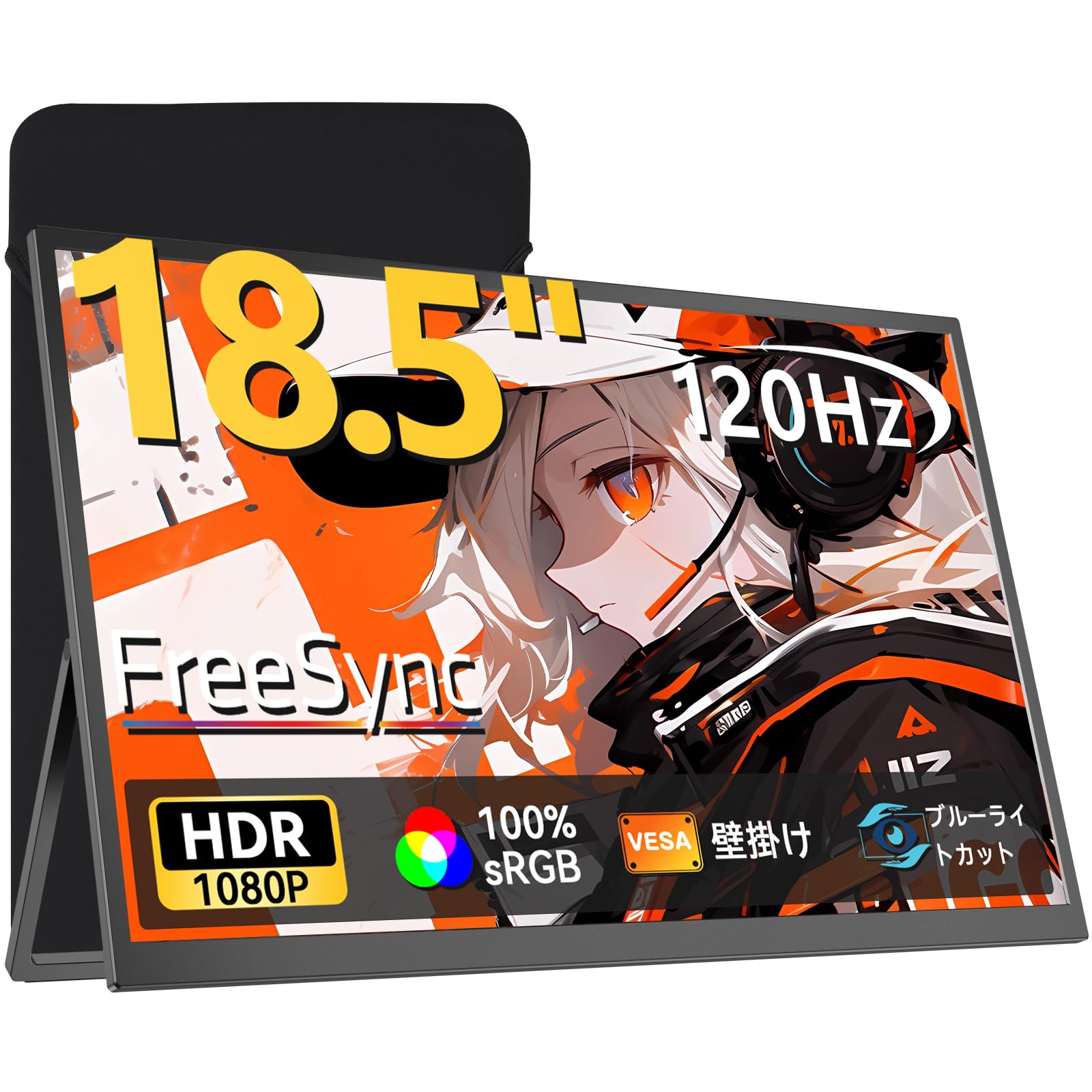
The UPERFECT 18.5-inch Portable Gaming Monitor.
2. อะไรอยู่ในกล่อง
กรุณาตรวจสอบเนื้อหาในแพ็คเกจของคุณเพื่อให้แน่ใจว่ามีสินค้าครบทั้งหมด:
- 1 x UPERFECT 18.5-inch Portable Monitor
- 1 x Mini HDMI 4K Cable
- 2 x Type-C Cables
- อะแดปเตอร์แปลงไฟ PD 30W จำนวน 1 ชิ้น
- 1 x เคสป้องกัน
- 1 x Japanese Instruction Manual (This document serves as the English version)

สิ่งของทั้งหมดที่รวมอยู่ในแพ็คเกจ
วิดีโอแกะกล่อง
This video demonstrates the unboxing process and shows the included accessories.
3. สินค้าหมดview
Familiarize yourself with the monitor's physical features, ports, and controls.
พอร์ตและการควบคุม

รายละเอียด view of the monitor's ports and control buttons.
- พอร์ต USB Type-C (2 พอร์ต): For power, video, audio, and data transmission with compatible devices.
- พอร์ตมินิ HDMI: สำหรับการรับสัญญาณวิดีโอและเสียงจากอุปกรณ์ต่างๆ
- แจ็คหูฟัง: สำหรับการเชื่อมต่อหูฟังหรือลำโพงภายนอก
- Menu & Confirmation Button: Navigates and confirms selections in the On-Screen Display (OSD) menu.
- ปุ่ม '+' / '-': Adjusts settings or navigates menu options.
- Power / Return Button: Powers the monitor on/off or returns to the previous menu.
Integrated Stand and VESA Mount
The monitor features an integrated stand for flexible viewing angles (0° to 180°). It also supports VESA mounting (75x75mm) for use with monitor arms.

The monitor can be mounted on a VESA-compatible arm for ergonomic setups.
4. การตั้งค่า
Follow these steps to connect your UPERFECT portable monitor to various devices.
Connecting via USB-C (Single Cable Solution)
For modern laptops and smartphones with full-featured USB-C ports (supporting DisplayPort Alt Mode and power delivery), a single USB-C cable can transmit video, audio, power, and data simultaneously.
- Connect one end of the provided USB-C cable to a full-featured USB-C port on your device.
- Connect the other end of the USB-C cable to either of the USB Type-C ports on the monitor.
- If your device cannot provide sufficient power, connect the PD 30W power adapter to the other USB Type-C port on the monitor.

Connecting the monitor to a laptop using a single USB-C cable.
Connecting via Mini HDMI
For devices like gaming consoles (PS5, Nintendo Switch, Xbox) or older PCs, use the Mini HDMI port for video and audio, and a USB-C cable for power.
- Connect one end of the provided Mini HDMI cable to your device's HDMI output.
- Connect the other end of the Mini HDMI cable to the Mini HDMI port on the monitor.
- Connect the PD 30W power adapter to one of the USB Type-C ports on the monitor using a USB-C cable to provide power.

Gaming setup with the portable monitor connected to a Nintendo Switch.
ความเข้ากันได้กับหลายอุปกรณ์
The monitor supports a wide range of devices including smartphones, laptops, PCs, Nintendo Switch, PS5, mice, and keyboards.

The monitor supports various devices for extended display functionality.
5. คู่มือการใช้งาน
This section details how to navigate the On-Screen Display (OSD) menu and adjust various settings.
การนำทางเมนู OSD
Use the control buttons on the side of the monitor to access and navigate the OSD menu.
- กดปุ่ม Menu/Confirmation ปุ่มสำหรับเปิดเมนู OSD
- ใช้ - และ - ปุ่มสำหรับเลื่อนดูตัวเลือกในเมนู
- กดปุ่ม Menu/Confirmation ปุ่มสำหรับเลือกตัวเลือกหรือเข้าสู่เมนูย่อย
- กดปุ่ม พลังงาน/ผลตอบแทน ปุ่มสำหรับย้อนกลับไปยังเมนูก่อนหน้าหรือออกจากเมนู OSD
การตั้งค่าการแสดงผล
Adjust settings such as brightness, contrast, color temperature, and aspect ratio to optimize your viewการสร้างประสบการณ์
This video demonstrates adjusting display settings like brightness, contrast, color temperature, and aspect ratio via the OSD menu.
- ความสว่างและคอนทราสต์: Adjust these to suit your environment and content.
- อุณหภูมิสี: Choose from presets (Warm, Cool, User) or customize RGB values for desired color balance.
- อัตราส่วนภาพ: Select between Wide (16:9) or other options to match your content.
- โหมด HDR: Enable or disable HDR for enhanced dynamic range with compatible content.
- ฟรีซิงค์: Enable FreeSync for smoother gaming by synchronizing the monitor's refresh rate with your GPU's frame rate.
- แสงสีฟ้าต่ำ: Activate this mode to reduce blue light emission, which can help reduce eye strain during prolonged use.
ปฐมนิเทศ
The monitor supports both horizontal and vertical orientations. You can switch between them to optimize for programming, document work, or video editing.

The monitor can be used in both horizontal and vertical modes for various tasks.
6. การบำรุงรักษา
การดูแลอย่างเหมาะสมจะช่วยให้จอภาพของคุณมีอายุการใช้งานยาวนานและมีประสิทธิภาพเหมาะสมที่สุด
- การทำความสะอาด: ใช้ผ้านุ่มไม่เป็นขุยเช็ดหน้าจอเบาๆ สำหรับรอยฝังแน่น ให้เช็ดเบาๆampชุบผ้าด้วยน้ำหรือน้ำยาทำความสะอาดหน้าจอ หลีกเลี่ยงสารเคมีรุนแรงหรือวัสดุที่มีฤทธิ์กัดกร่อน
- พื้นที่จัดเก็บ: When not in use, store the monitor in its protective case to prevent scratches and damage, especially during transport.
- การจัดการ: Always handle the monitor with care. Avoid applying excessive pressure to the screen or dropping the device.
- การระบายอากาศ : ตรวจสอบให้แน่ใจว่ามีการระบายอากาศที่ดีรอบๆ จอภาพเพื่อป้องกันความร้อนสูงเกินไป อย่าอุดรูระบายอากาศ

The included protective case helps keep the monitor safe during travel.
7 การแก้ไขปัญหา
หากคุณพบปัญหาเกี่ยวกับจอภาพ โปรดดูปัญหาและวิธีแก้ไขที่พบบ่อยต่อไปนี้
- ไม่มีสัญญาณ:
- Ensure all cables (USB-C or HDMI) are securely connected to both the monitor and the source device.
- ตรวจสอบว่าอุปกรณ์ต้นทางเปิดใช้งานอยู่และส่งสัญญาณออกมา
- ตรวจสอบว่าได้เลือกแหล่งสัญญาณเข้าที่ถูกต้องในเมนู OSD ของจอภาพแล้ว
- If using USB-C, ensure your device's USB-C port supports DisplayPort Alt Mode.
- ไม่มีไฟฟ้า:
- Ensure the power adapter is correctly connected to the monitor and a working power outlet.
- If powered via USB-C from a device, ensure the device has sufficient power and its USB-C port supports power delivery.
- หน้าจอกระพริบ:
- ตรวจสอบการเชื่อมต่อสายเคเบิลว่าหลวมหรือไม่
- ลองใช้สายเคเบิลหรือพอร์ตอื่น
- Ensure your graphics driver is up to date.
- Disable FreeSync in the OSD menu if the issue persists.

The monitor features anti-flicker technology for a stable display.
- คุณภาพของภาพไม่ดี (เบลอ/บิดเบี้ยว):
- Ensure the display resolution and refresh rate are correctly set on your source device.
- ปรับค่าความสว่าง ความคมชัด และความละเอียดในเมนู OSD
- Reset display settings to factory defaults via the OSD menu.
- ไม่มีเสียง:
- Check the volume level on both the monitor and the source device.
- Ensure the audio output on your source device is set to the monitor.
- If using external speakers or headphones, ensure they are properly connected to the monitor's earphone jack.
8. ข้อมูลจำเพาะ
| คุณสมบัติ | ข้อมูลจำเพาะ |
|---|---|
| ยี่ห้อ | สุดยอด U |
| หมายเลขรุ่น | M185T08 |
| ขนาดหน้าจอ | 18.5 นิ้ว |
| ปณิธาน | FHD 1080p (1920 x 1080) |
| อัตราส่วนภาพ | 16:9 น. |
| พื้นผิวหน้าจอ | ไม่สะท้อนแสง |
| อัตราการรีเฟรช | 120 เฮิรตซ์ |
| เวลาตอบสนอง | 2 มิลลิวินาที |
| สี | สีดำ |
| คุณสมบัติพิเศษ | Eye Care, Flicker-Free, Blue Light Filter, Portable, High Dynamic Range |
| ขนาดสินค้า (ลึก x กว้าง x สูง) | 21 x 38 x 49 ซม. |
9. การรับประกันและการสนับสนุน
UPERFECT มุ่งมั่นที่จะนำเสนอผลิตภัณฑ์คุณภาพสูงและบริการลูกค้าที่เป็นเลิศ
- การรับรองคุณภาพ: Products undergo rigorous inspection to ensure no dead pixels or bright spots upon shipment.
- 90-Day Trial: Enjoy a 90-day trial period. If you are not satisfied, a full refund is available.
- การสนับสนุนเฉพาะ: A dedicated support team is available to assist you with any inquiries or issues.
- Free Accessories: Genuine cables and adapters are provided free of charge for life.
- รับประกัน 1 ปี: สินค้ามาพร้อมกับการรับประกัน 1 ปี
- ได้รับการรับรองจาก PSE: This product is PSE certified, ensuring safety and compliance.
For any questions regarding product use or initial defects within the warranty period, please contact us through your order history. We are dedicated to providing the best possible support.

UPERFECT customer support is available to assist you.