
GeekShare GC1201A
GeekShare Hall Effect Switch Controller (GC1201A) User Manual
Model: GC1201A
1. บทนำ
The GeekShare Hall Effect Switch Controller is a versatile gaming controller designed for multi-platform compatibility, including Nintendo Switch (OLED/NS2/1/Lite), PC (Steam, Windows), and mobile devices (Android, iOS). It features dual-mode connectivity (Bluetooth and 2.4G wireless), a 1000mAh battery, 6-axis gyroscope, dual vibration motors, and customizable RGB lighting for an immersive gaming experience.
เนื้อหาแพ็คเกจ
- 1 x GeekShare Hall Effect Wireless Controller
- สายชาร์จ 1 x USB-C
- ตัวรับสัญญาณไร้สาย 2.4G จำนวน 1 ตัว
- 1 x คู่มือผู้ใช้
2. คุณสมบัติหลัก
- จอยสติ๊กเอฟเฟกต์ฮอลล์: Provides precise control and prevents stick drift.
- โหมดการเชื่อมต่อแบบคู่: Seamlessly switch between Bluetooth 5.0 for mobile and consoles, and 2.4G wireless with the included dongle for PC.
- ความเข้ากันได้กับหลายแพลตฟอร์ม: Supports Nintendo Switch (OLED/NS2/1/Lite), PC (Steam, Windows), Android, and iOS devices.
- ข้อเสนอแนะที่ดื่มด่ำ: Features a 6-axis gyroscope for motion control and dual vibration motors with 5-level adjustment for realistic haptic feedback.
- แบตเตอรี่ใช้งานได้ยาวนาน: Integrated 1000mAh rechargeable battery offers up to 15 hours of continuous gameplay.
- ไฟ RGB ที่ปรับแต่งได้: Enhance your gaming setup with personalized RGB light effects.
- ปุ่มที่สามารถตั้งโปรแกรมได้: Two back buttons (M1, M2) can be mapped to complex commands for quick execution.
- ฟังก์ชั่นเทอร์โบ: Auto and manual turbo settings for rapid-fire actions.
ตัวเลือกการเชื่อมต่อ
The controller supports three connection methods: Bluetooth, 2.4G wireless (with dongle), and wired USB-C.

ปุ่มที่สามารถตั้งโปรแกรมได้
The M1 and M2 buttons on the back can be programmed to perform specific actions, allowing for quick execution of complex in-game commands.

การตอบรับการสั่นสะเทือน
Equipped with dual motors, the controller provides adjustable vibration feedback to enhance immersion. There are 5 levels of vibration intensity.

อายุการใช้งานแบตเตอรี่
The built-in 1000mAh battery provides extended gameplay. A full charge takes approximately 2.5 hours and offers up to 20 hours of continuous use.

ฟังก์ชันเทอร์โบ
The controller supports both automatic and manual turbo functions, allowing for rapid, repeated input of a button press. This is typically activated by pressing the 'M' button along with a desired action key.

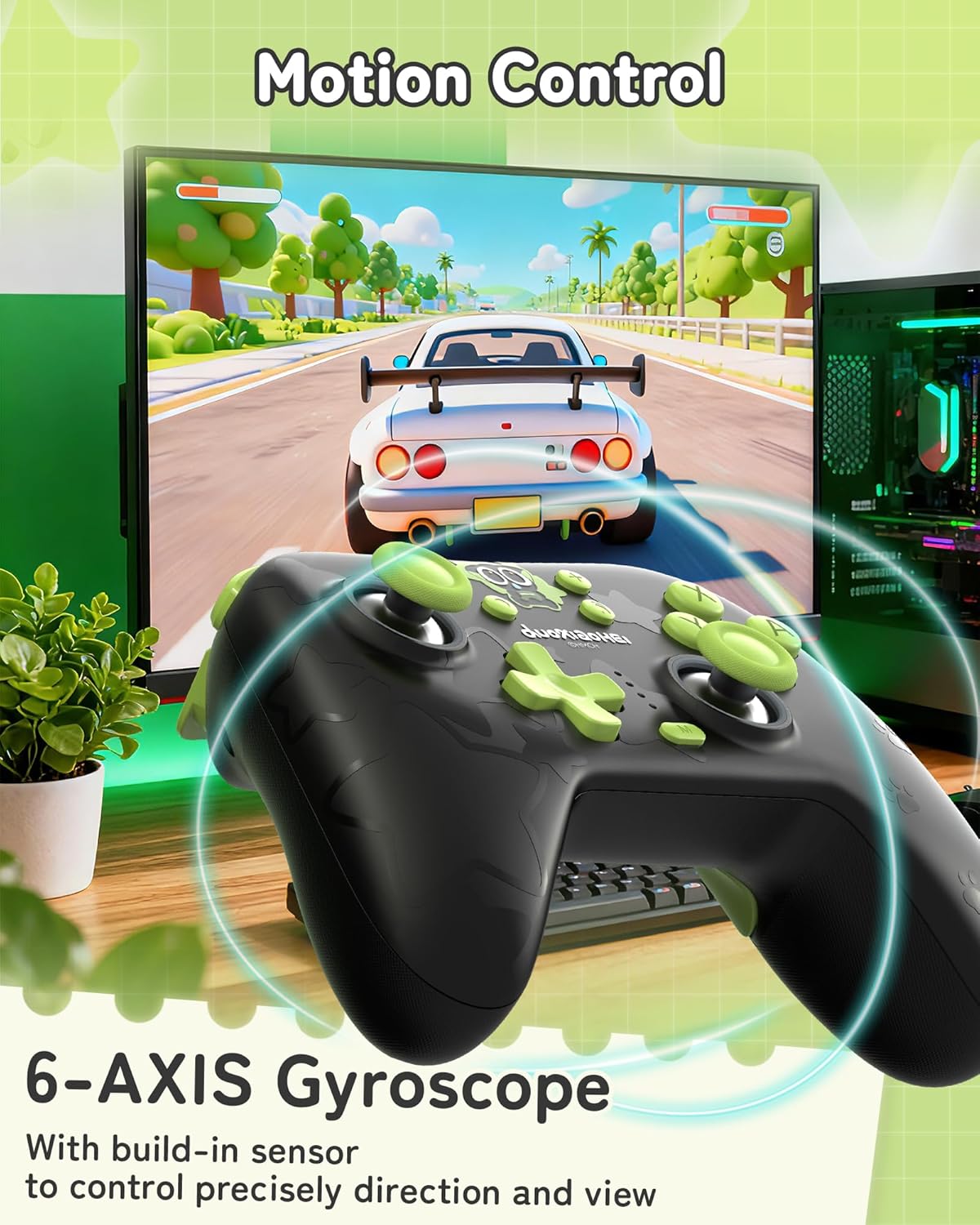
การควบคุมการเคลื่อนไหว
A built-in 6-axis gyroscope enables precise motion control, allowing for intuitive direction and view adjustments in compatible games.
3. การตั้งค่าและการเชื่อมต่อ
3.1 การชาร์จคอนโทรลเลอร์
Before first use, fully charge the controller. Connect the included USB-C cable to the controller's charging port and the other end to a USB power source (e.g., console, PC, or USB wall adapter). The indicator lights will show charging status and turn off when fully charged.
3.2 Connecting to Nintendo Switch (Bluetooth)
- บน Nintendo Switch ของคุณ ให้ไปที่เมนู HOME
- เลือก "ตัวควบคุม" > "เปลี่ยนการจับ/ลำดับ"
- Press and hold the Pairing button on the top of the GeekShare controller until the indicator lights begin to flash rapidly.
- The Switch will detect the controller. Once paired, the indicator light(s) on the controller will remain solid.
- Note: This controller may not support waking up the Switch console from sleep mode. You may need to manually wake the console before connecting.
3.3 Connecting to PC (2.4G Wireless)
- เสียบตัวรับสัญญาณไร้สาย 2.4G เข้ากับพอร์ต USB ที่ว่างอยู่บนคอมพิวเตอร์ของคุณ
- Turn on the GeekShare controller.
- The controller should automatically connect to the receiver. The indicator light(s) on the controller will remain solid once connected.
- If connection fails, press the pairing button on the controller and the button on the 2.4G receiver simultaneously to initiate pairing.
3.4 Connecting to Mobile Devices (Bluetooth)
- โปรดตรวจสอบให้แน่ใจว่าได้เปิดใช้งานบลูทูธบนอุปกรณ์ Android หรือ iOS ของคุณแล้ว
- On your device, go to Bluetooth settings and scan for new devices.
- Press and hold the Pairing button on the top of the GeekShare controller until the indicator lights begin to flash rapidly.
- Select "GeekShare Controller" (or similar name) from the list of available devices.
- เมื่อจับคู่แล้ว ไฟแสดงสถานะบนตัวควบคุมจะยังคงติดอยู่
3.5 การเชื่อมต่อแบบมีสาย
Connect the controller directly to your device (Switch dock, PC) using the USB-C cable. The controller will function as a wired controller and will also charge simultaneously.
4. คู่มือการใช้งาน
4.1 การควบคุมขั้นพื้นฐาน
The controller features standard button layouts including A/B/X/Y buttons, D-pad, Left/Right joysticks, L/R/ZL/ZR shoulder buttons, and Home/Capture/Plus/Minus buttons. Refer to in-game prompts for specific button functions.
4.2 Programming M1/M2 Buttons
The M1 and M2 buttons on the back can be assigned to replicate other button presses or sequences. Consult the full user manual (included in the box) for detailed programming instructions, as the process may vary based on desired complexity.
4.3 Turbo Function Activation
วิธีเปิดใช้งานฟังก์ชัน Turbo สำหรับปุ่มเฉพาะ:
- กดปุ่ม 'M' ค้างไว้
- While holding 'M', press the desired action button (e.g., A, B, X, Y, L, R, ZL, ZR).
- Release both buttons. The selected button will now have the Turbo function enabled.
To adjust between manual and auto turbo, or to clear the turbo setting, refer to the detailed instructions in the included user manual.
4.4 การปรับระดับความแรงของการสั่นสะเทือน
The controller offers 5 levels of vibration intensity. Specific button combinations (e.g., 'M' button + D-pad Up/Down) are typically used to cycle through these levels. Refer to the included user manual for the exact key combinations.
4.5 การควบคุมแสง RGB
The RGB lighting can be customized. This usually involves pressing a dedicated button or a combination of buttons to change colors, patterns, or turn the lighting on/off. Consult the included user manual for specific instructions.
5. การบำรุงรักษาและการดูแล
- เก็บตัวควบคุมให้แห้งและห่างจากอุณหภูมิที่สูงหรือต่ำเกินไป
- ทำความสะอาดคอนโทรลเลอร์ด้วยผ้านุ่มและแห้ง ห้ามใช้สารเคมีรุนแรงหรือวัสดุที่มีฤทธิ์กัดกร่อน
- หลีกเลี่ยงการทำคอนโทรลเลอร์ตกหรือได้รับแรงกระแทกรุนแรง
- ควรเก็บตัวควบคุมไว้ในที่สะอาด ปราศจากฝุ่นเมื่อไม่ได้ใช้งาน
- Charge the controller regularly, even if not used frequently, to maintain battery health.
6 การแก้ไขปัญหา
6.1 ตัวควบคุมไม่เชื่อมต่อ
- ตรวจสอบให้แน่ใจว่าตัวควบคุมมีประจุเพียงพอ
- Verify that the correct connection mode (Bluetooth, 2.4G, Wired) is selected or attempted for your device.
- For Bluetooth, ensure your device's Bluetooth is on and the controller is in pairing mode (flashing lights).
- For 2.4G, ensure the receiver is properly inserted into the PC and try re-pairing if necessary.
- ลองรีสตาร์ททั้งตัวควบคุมและอุปกรณ์ที่คุณพยายามเชื่อมต่อดู
- หากเชื่อมต่อกับ Switch โปรดตรวจสอบให้แน่ใจว่าคุณอยู่ในเมนู "เปลี่ยนท่าจับ/ลำดับ"
6.2 ความล่าช้าของอินพุตหรือการตัดการเชื่อมต่อ
- ตรวจสอบให้แน่ใจว่าไม่มีสัญญาณรบกวนแม่เหล็กไฟฟ้าที่รุนแรงอยู่บริเวณใกล้เคียง
- Move closer to the connected device (for wireless connections).
- For PC, ensure the 2.4G receiver is in a clear line of sight and not obstructed.
- ลองใช้การเชื่อมต่อแบบใช้สายเพื่อตัดปัญหาการรบกวนจากสัญญาณไร้สาย
6.3 ปุ่มหรือจอยสติ๊กไม่ตอบสนอง
- ตรวจสอบว่าตัวควบคุมเชื่อมต่ออย่างถูกต้องและเปิดใช้งานอยู่หรือไม่
- Restart the controller and the gaming device.
- ตรวจสอบให้แน่ใจว่าไม่มีเศษขยะติดอยู่รอบ ๆ ปุ่มหรือจอยสติ๊ก
- If the issue persists, a factory reset (if available, consult the included manual) might be necessary.
6.4 ตัวควบคุมไม่ชาร์จไฟ
- ตรวจสอบให้แน่ใจว่าสาย USB-C เชื่อมต่อกับตัวควบคุมและแหล่งจ่ายไฟอย่างแน่นหนาแล้ว
- ลองใช้สาย USB-C หรือแหล่งจ่ายไฟอื่น
- ตรวจสอบให้แน่ใจว่าแหล่งจ่ายไฟทำงานอยู่และจ่ายไฟได้เพียงพอ
7. ข้อมูลจำเพาะ
| หมายเลขรุ่น | GC1201A |
| การเชื่อมต่อ | Bluetooth 5.0, 2.4G Wireless (with receiver), USB-C Wired |
| ความเข้ากันได้ | Nintendo Switch (OLED/NS2/1/Lite), PC (Windows), Android, iOS |
| ความจุของแบตเตอรี่ | 1000mAh |
| เวลาเล่น | Up to 15-20 hours (approx.) |
| เวลาในการชาร์จ | ประมาณ 2.5 ชั่วโมง |
| เซ็นเซอร์ตรวจจับความเคลื่อนไหว | Gyroscope แกนหมุน 6 |
| การสั่นสะเทือน | Dual Motors with 5-level adjustment |
| คุณสมบัติพิเศษ | Hall Effect Joysticks, Programmable M1/M2 buttons, Turbo function, RGB Lighting |
8. การรับประกันและการสนับสนุน
For warranty information and technical support, please refer to the official GeekShare webดูรายละเอียดเพิ่มเติมได้ที่เว็บไซต์หรือติดต่อฝ่ายบริการลูกค้าโดยตรง โดยปกติรายละเอียดจะอยู่ที่บรรจุภัณฑ์ของผลิตภัณฑ์หรือคู่มือการใช้งานที่แนบมาด้วย
GeekShare Official Webเว็บไซต์: Visit GeekShare Store on Amazon
Ask a question about this manual
Ask about setup, troubleshooting, compatibility, parts, safety, or missing instructions. Manuals+ will review the question and use this page’s manual context to help answer it.