
1. ข้อมูลด้านความปลอดภัยที่สำคัญ
โปรดอ่านคำแนะนำทั้งหมดอย่างละเอียดก่อนการติดตั้งและการใช้งาน เก็บคู่มือนี้ไว้เพื่อใช้อ้างอิงในอนาคต
- การติดตั้งสองคน: Always use at least two people to lift and install the TV to prevent injury or damage.
- การติดตั้งบนผนัง: Follow all wall mounting instructions precisely. Ensure the wall structure can support the TV's weight. If unsure, consult a professional.
- หลีกเลี่ยงสิ่งกีดขวาง: Do not drill into walls where electrical wiring or piping may be present.
- ตำแหน่งที่มั่นคง: If not wall-mounted, ensure the TV is placed on a stable, level surface to prevent tipping.
- การระบายอากาศ : อย่าปิดกั้นช่องระบายอากาศ ควรมีพื้นที่รอบทีวีเพียงพอเพื่อให้อากาศถ่ายเทได้สะดวก
- ความชื้น: Keep the TV away from water, moisture, and high humidity environments.
- สายไฟ: Protect the power cord from being walked on or pinched. Do not use a damaged power cord.
- การทำความสะอาด: ถอดปลั๊กทีวีก่อนทำความสะอาด ใช้ผ้านุ่มและแห้ง ห้ามใช้น้ำยาทำความสะอาดชนิดน้ำหรือสเปรย์ทำความสะอาด
2. สิ่งที่รวมอยู่
ตรวจสอบว่ากล่องมีส่วนประกอบทั้งหมดอยู่:
- Amazon Ember Artline TV (55-inch)
- รีโมทควบคุมด้วยเสียง Alexa รุ่นปรับปรุงใหม่
- ชุดติดผนัง
- สายไฟ
- ถ่าน AAA 2 ก้อน
- คู่มือเริ่มต้นอย่างรวดเร็ว
- Amazon Ember Artline 55” Frame (four pieces) - Note: Frames ship separately and may arrive at a different time.

Image: Amazon Ember Artline 55-inch Fire TV with Ash frame.
3. การตั้งค่าและการติดตั้ง
3.1. Preparing the TV for Wall Mount
Before mounting, ensure the TV is prepared correctly. You will need a number two Phillips screwdriver. Do not use an electric drill to prevent stripping the bolt holes.
- Lay the TV screen side down on a soft, clean surface to access the recessed cover on the back.
- Remove the recessed cover.
- Install the two mount bolts into the designated holes using a number two Phillips screwdriver.
Video: Instructions for wall mounting the Amazon Ember Artline TV. This video demonstrates the steps for preparing the TV and installing the wall mount hardware.
3.2. การติดตั้งแบบติดผนัง
You will need at least two people to complete this process. Ensure you have the included wall mounting template, bolts, screws, and anchors. Additionally, you will need an electric drill with a 3/16 inch drill bit, a #2 Phillips driver bit, a hammer, a pencil, and a level or level app. If mounting on wood studs, you'll need a 1/8 inch drill bit. If mounting on brick, you'll need a 5/16 inch drill bit and a stud finder for drywall.
- การวางแผนสถานที่:
- Consider the height of everyone using the TV. Place it at eye level for comfortable viewการไอเอ็นจี
- Find a mount location away from water or moisture.
- Avoid drilling holes over electrical wiring or piping.
- If installing on a brick wall, locate an area free of cracks.
- If your wall doesn't have proper stud spacing, contact a professional for installation.
- การติดตั้งวงเล็บ:
- Plan the location of the wall mount using the wall mounting template.
- Locate two studs using a stud finder (for drywall). Mark the center of each stud with a pencil.
- Place the mount against the wall and mark at least four screw holes. Use a level or level app to ensure the mount is straight.
- Drill pilot holes on each mark using an electric drill with the appropriate bit (1/8" for drywall, 5/16" for brick).
- If on drywall, anchors are not needed. If on brick, use a hammer to install the mount anchors in the holes.
- Attach the mount to the wall using the mount screws, an electric drill, and a #2 Phillips bit.
- Installing Magnet Plates:
- Attach the template to the wall using double-sided tape.
- Mark the locations for the four magnet plates on the wall, then remove the template.
- Drill pilot holes on each mark using an electric drill with a 3/16 inch bit.
- Install the magnet plate anchors using a hammer.
- Install the magnet plates into the anchors using the magnet plate screws and an electric drill with a #2 Phillips bit.
- Attaching the TV to the Mount:
- While attaching the TV, avoid pressing against the screen.
- Fully extend the TV bracket away from the wall and gently release the bolt latches.
- Place the four alignment stickers above the mount bolts on the back of the TV and the bolt latches on the mount. Fold the stickers up to see them more clearly.
- Hang the mount bolts on the mount hooks. Use the alignment stickers to guide you.
- Close the bolt latches, then push the TV flush with the wall to connect the magnets and magnet plates.
4. Operating Your Amazon Ember Artline Fire TV
4.1. อินเทอร์เฟซ Fire TV
The Amazon Ember Artline features the new Fire TV experience (2026 release) with a modern design for fast access to entertainment. You can pin frequently used apps and browse dedicated content categories. Access hundreds of thousands of movies and TV episodes, including free, ad-supported content. Subscription fees may apply for certain services.

Image: The Fire TV interface displaying various streaming applications and content.
4.2. Alexa Voice Remote Enhanced
The included Alexa Voice Remote Enhanced allows for easy navigation and voice control. Talk naturally to find content, manage your smart home, or explore topics.
- การควบคุมด้วยเสียง: Press and hold the voice button to use your voice commands.
- การนำทาง: Use the directional pad to navigate menus and content.
- ปุ่มเข้าถึงด่วน: Dedicated buttons for popular streaming services (e.g., Prime Video, Netflix) provide instant access.
4.3. Ambient Experience and Art Mode
The Ember Artline functions as both an entertainment hub and a curated art gallery. It can display art, stream content, and manage your smart home. The matte screen reduces glare for an optimal viewการสร้างประสบการณ์
- ห้องแสดงงานศิลปะ : Access a gallery of over 2,000 free works of art.
- รูปถ่ายส่วนตัว: Upload and display your own photos from the Amazon Photos App. Use Alexa to create slideshows or collages (e.g., "Play a slideshow of us biking in the mountains.").
- Match the Room: Upload photos of your space, and the TV will recommend art pieces that complement your decor.
- เฟรมที่กำหนดเอง: Choose from ten available frame colors. Frames are easy to install and change.

Image: The Amazon Ember Artline TV seamlessly integrated into a living room, displaying a vibrant piece of art.
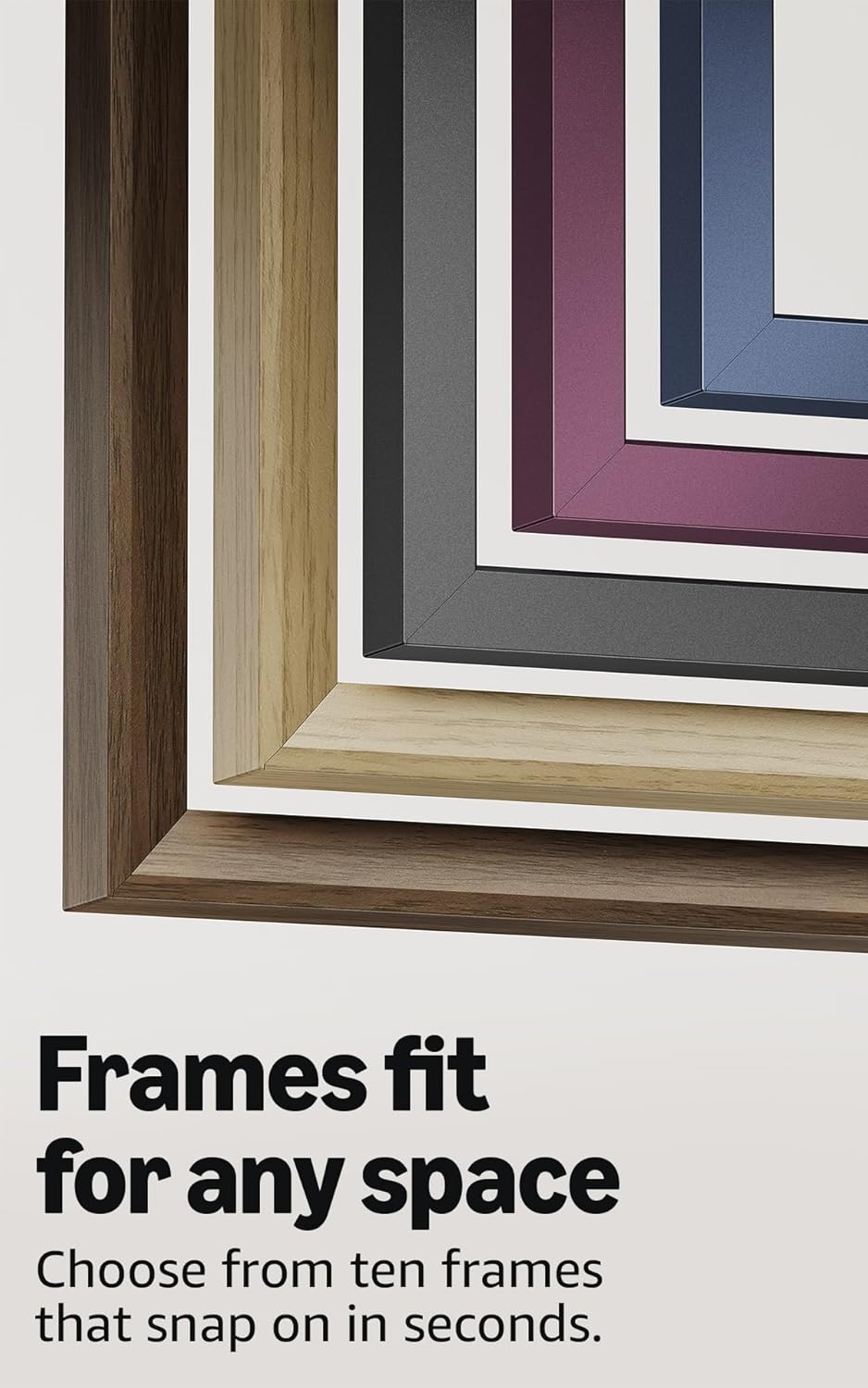
Image: A selection of different colored frames available for the Amazon Ember Artline TV, highlighting customization options.
4.4. Omnisense Technology (Motion Detection)
The custom Omnisense technology uses built-in sensors to detect your presence. The display will wake to show your favorite artwork or allow you to start watching content quickly. When you leave the area, the TV automatically turns off to save energy.

ภาพ: รายละเอียด view of the Omnisense sensor, which enables motion detection for automatic display activation and power saving.
วิดีโอ: จบแล้วview of the Amazon Fire TV 4K TV with Alexa Voice Remote, demonstrating initial setup, interface navigation, and motion detection features.
5. ข้อมูลจำเพาะ
| คุณสมบัติ | รายละเอียด |
|---|---|
| ปณิธาน | 3840 x 2160 (4K UHD) |
| รูปแบบช่วงไดนามิกสูง (HDR) | HDR10, HLG, HDR10+ Adaptive, Dolby Vision |
| ประเภทแบ็คไลท์ | นำ |
| อัตราการรีเฟรช | 60เฮิรตซ์ |
| Screen finish | Matte, anti-glare |
| ขนาดหน้าจอ | 55“ (Viewable display size: 54.6“) |
| พอร์ต HDMI | 3 HDMI 2.0 + 1 HDMI 2.1 พร้อม eARC |
| Wifi & Ethernet connectivity | Wi-Fi 6 + พอร์ตอีเธอร์เน็ต 1 ช่อง |
| ยูเอสบี | 1 3.0 USB |
| เอาต์พุตเสียงออปติคัลดิจิตอล | พอร์ตเสียงดิจิตอลออปติคอล 1 พอร์ต |
| การรองรับเสียง | Yes, hands-free with Alexa, press and ask Alexa with the Fire TV Alexa Voice Remote Enhanced or the free Fire TV app. |
| การรองรับเสียง | Dolby Digital Plus พร้อมการส่งผ่านเสียงที่เข้ารหัส Dolby |
| พลังเสียง | 10W + 10W |
| OS | ระบบปฏิบัติการไฟร์ |
| Product size (without frame) | 48.3” x 28.3” x 1.54” |
| น้ำหนัก (ไม่รวมกรอบ) | 39.9 ปอนด์ |
| หมายเลข SKU | QL55M800A |
| มาตรฐานติดผนัง VESA | 300mm x 400mm (Note: Included wall mount is non-VESA; TV is VESA compatible for separately purchased mounts.) |
| TV size with frame | 49.1” x 28.7” x 1.8” |
| TV weight with frame | 42.5 ปอนด์ |
6. คุณสมบัติการเข้าถึง
The Amazon Ember Artline Fire TV includes several accessibility features:
- เสียงView โปรแกรมอ่านหน้าจอ: ช่วยให้เข้าถึงฟีเจอร์ส่วนใหญ่ของ Fire TV สำหรับผู้ใช้ที่ตาบอดหรือมีปัญหาทางสายตา
- แว่นขยายหน้าจอ: ช่วยให้ผู้ใช้สามารถซูมเข้าและออก และเลื่อนไปรอบๆ หน้าจอได้
- แบนเนอร์ข้อความ: รวบรวมข้อความบนหน้าจอไว้ในแบนเนอร์ขนาดกะทัดรัดที่สามารถปรับแต่งได้
- คำบรรยายปิด: ใช้ได้กับวิดีโอและรายการทีวีที่รองรับ
- คำอธิบายเสียง: ให้คำอธิบายด้วยวาจาเกี่ยวกับการกระทำบนหน้าจอ การแสดงออกทางสีหน้า และการเปลี่ยนแปลงฉาก (ไม่สามารถใช้ได้กับเนื้อหาทั้งหมด)
- การรองรับเครื่องช่วยฟังบลูทูธ: รองรับการสตรีมเสียงสำหรับเครื่องช่วยฟังบลูทูธบางรุ่นที่รองรับ และอุปกรณ์เพื่อการฟังส่วนตัว นอกจากนี้ยังรองรับหูฟังบลูทูธที่รองรับอีกด้วย
7. Software Updates and Security
อุปกรณ์นี้ได้รับการอัปเดตความปลอดภัยของซอฟต์แวร์ที่รับประกันจนถึงอย่างน้อยสี่ปีหลังจากที่อุปกรณ์พร้อมสำหรับการซื้อเป็นหน่วยใหม่ในเครื่องล่าสุดของเรา webไซต์ สำหรับข้อมูลเฉพาะสำหรับอุปกรณ์ของคุณ โปรดไปที่จัดการเนื้อหาและอุปกรณ์ของคุณ
8. การรับประกันและบริการ
A 1-Year limited warranty and service are included with the Amazon Ember Artline TV. Optional 3-Year and 4-Year Extended Warranties are available for U.S. customers and are sold separately. Extended warranty excludes frame accessories. Use of Fire TV is subject to the terms found on the Amazon webเว็บไซต์.
The Amazon Ember Artline 55” Frame includes a 90-day limited warranty and service.
9 การแก้ไขปัญหา
If you encounter issues with your Amazon Ember Artline Fire TV, consider the following common troubleshooting steps:
- ไม่มีไฟฟ้า: ตรวจสอบให้แน่ใจว่าสายไฟเชื่อมต่อกับทีวีและเต้ารับไฟฟ้าที่ใช้งานได้แน่นหนาดีแล้ว
- ไม่มีภาพ/เสียง:
- Check all cable connections (HDMI, optical audio).
- ตรวจสอบว่าได้เลือกแหล่งสัญญาณเข้าที่ถูกต้องบนทีวี
- รีสตาร์ททีวีโดยถอดปลั๊กออกจากเต้าเสียบไฟเป็นเวลา 60 วินาที จากนั้นเสียบปลั๊กกลับเข้าไปอีกครั้ง
- รีโมตไม่ตอบสนอง:
- เปลี่ยนแบตเตอรี่ AAA ใน Alexa Voice Remote
- จับคู่รีโมตใหม่โดยกดปุ่มโฮมค้างไว้ 10 วินาที
- ปัญหาการเชื่อมต่อเครือข่าย:
- ตรวจสอบเราเตอร์ Wi-Fi และโมเด็มของคุณเพื่อให้แน่ใจว่าทำงานได้อย่างถูกต้อง
- รีสตาร์ทเราเตอร์และโมเด็มของคุณ
- Go to the TV's Network settings to re-connect to your Wi-Fi network or try a wired Ethernet connection.
- Ambient Experience Not Activating:
- Ensure Omnisense technology is enabled in the TV settings.
- Check for any physical obstructions blocking the motion sensors.
- Software Performance: If the TV is slow or unresponsive, try restarting it. Ensure the TV's software is up to date.
For further assistance, refer to the online support resources or contact Amazon customer service.