
1. บทนำ
This manual provides detailed instructions for the setup, operation, maintenance, and troubleshooting of your NGTeco 15.3 Inch Triple Screen Extender. Please read this manual thoroughly before using the product to ensure optimal performance and longevity.
The NGTeco S8 PRO MAX is an upgraded triple-screen monitor designed to expand your laptop's display area, enhancing productivity and multitasking capabilities. It features a 15.3-inch 1200P 16:10 IPS display, ultra-slim design, and broad compatibility with various operating systems and devices.
2. อะไรอยู่ในกล่อง
Carefully unpack your NGTeco Triple Screen Extender and verify that all components are present. The package includes:
- 1x NGTeco 15.3 Inch Triple Screen Extender (S8 PRO MAX)
- 1x H5-T Adapter
- 2x USB-C to USB-C Cables
- สาย USB-A ถึง USB-C 1 เส้น
- 1x HDMI to Type-C Cable
- 1x คู่มือผู้ใช้
- 1x คู่มือฉบับย่อ
- 1x กระเป๋าถือ

Image: All components included in the NGTeco Triple Screen Extender package.
Video: An unboxing demonstration of the S8Promax Triple Laptop Screen Extender, showing the contents and initial setup steps.
3. การตั้งค่าและการติดตั้ง
Follow these steps to set up your NGTeco Triple Screen Extender:
- กางส่วนขยายออก: Gently unfold the screen extender. Ensure the central bracket is securely positioned on top of your laptop screen.
- เชื่อมต่อกับแล็ปท็อป:
- Two Full-Featured Type-C Ports: If your laptop has two full-featured Type-C ports (supporting video output/DisplayPort/Thunderbolt), connect each screen of the extender using the provided USB-C to USB-C cables.

Image: Connecting the extender via two full-featured Type-C ports.
- One Full-Featured Type-C and One HDMI Port: If your laptop has one full-featured Type-C port and one HDMI port, use a USB-C to USB-C cable for one screen and the HDMI to Type-C cable for the other.

Image: Connecting the extender via one full-featured Type-C and one HDMI port.
- No Full-Featured Type-C Port (Older Laptops/Apple M1/M2/M3/M4): For laptops without full-featured Type-C ports, use the H5-T adapter. Connect the H5-T adapter to your laptop's USB-A or USB-C port and an HDMI port. Then connect the extender screens to the H5-T adapter.

Image: Connecting the extender using the H5-T adapter for laptops without full-featured Type-C ports.
- Two Full-Featured Type-C Ports: If your laptop has two full-featured Type-C ports (supporting video output/DisplayPort/Thunderbolt), connect each screen of the extender using the provided USB-C to USB-C cables.
- การเชื่อมต่อไฟฟ้า: If the screen flickers or is unresponsive due to insufficient power, connect an external power supply (not included) to the extender. The extender supports up to 100W PD power pass-through (requires a 100W certified cable and adapter).
- ปรับตำแหน่ง: The S8 PRO MAX offers 0–180° screen adjustment and 0–90° stand tilt for customized optimal viewมุมการเอียง

Image: The extendable bracket and 90° rotating bracket for optimal viewมุมการเอียง
4. คู่มือการใช้งาน
Once connected, configure your display settings for optimal use.
4.1 Display Modes (Windows/Mac)
Your NGTeco Triple Screen Extender supports various display modes:
- โหมดขยาย: Expands your desktop across all three screens, providing maximum workspace.
- โหมดซ้ำ: Mirrors your main laptop screen onto the extender screens.
- โหมดแนวตั้ง: Allows you to orient the external screens vertically.
- โหมดมิเรอร์: Duplicates the content of one screen onto another.

Image: Visual representation of different display modes.
4.2 Adjusting Display Settings (Windows)
วิธีการตั้งค่าการแสดงผลบน Windows:
- คลิกขวาบนเดสก์ท็อป แล้วเลือก "การตั้งค่าการแสดงผล"
- Under "System > Display", you will see representations of your connected displays (1, 2, 3).
- ปณิธาน: Scroll down to "Display resolution" and select "1920 x 1200 (Recommended)" for optimal clarity.
- ปฐมนิเทศ: Under "Display orientation", choose "Landscape" or "Portrait" as desired.
- อัตราการรีเฟรช: For smoother motion, go to "Advanced display settings" and set the "Refresh rate" to 60 Hz for each external display.
- การจัดเตรียม: Drag and drop the display representations to match their physical arrangement. Select a display and click "Apply" to save changes.
- จอแสดงผลหลัก: To set a screen as the main display, select it and check the "Make this my main display" box.
Video: A demonstration of adjusting display settings on Windows for the S8 Triple Laptop Screen Extender, including resolution, refresh rate, and display arrangement.
4.3 Power Pass-Through
The extender supports up to 100W PD power pass-through. Connect a 100W certified power adapter and cable to the extender's power input port. This allows the extender to power itself and charge your laptop simultaneously through its power cable.

Image: Reverse charging feature, powering the laptop through the extender.
5. ความเข้ากันได้
The NGTeco S8 PRO MAX is designed for 14-17.3 inch laptops and offers wide compatibility:
- ระบบปฏิบัติการ: Windows, Mac, Android, Linux, Chrome OS.
- โปรเซสเซอร์: Compatible with Apple M1/M2/M3/M4 chips.
- อุปกรณ์: Laptops, phones, Macs, gaming consoles (e.g., Switch, PS4).
6. ข้อมูลจำเพาะ
| คุณสมบัติ | รายละเอียด |
|---|---|
| ยี่ห้อ | NGTECO |
| หมายเลขรุ่น | S8PROMAX |
| ขนาดหน้าจอ | 15.3 นิ้ว |
| ปณิธาน | FHD 1920 x 1200 Pixels (1200p) |
| อัตราส่วนภาพ | 16:10 น. |
| คำอธิบายพื้นผิวหน้าจอ | แมทต์ |
| อัตราการรีเฟรช | 60 เฮิรตซ์ |
| น้ำหนักสินค้า | 1.2 กิโลกรัม |
| ขนาด (D x W x H) | ลึก 14.3 นิ้ว x กว้าง 0.8 นิ้ว x สูง 9.3 นิ้ว |
| เทคโนโลยีการเชื่อมต่อ | ยูเอสบี ประเภท C, HDMI |
| คุณสมบัติเพิ่มเติม | Anti Glare Screen, Eye Care, Lightweight, Portable, Ultra-Slim |
| การใช้พลังงาน | ≤15W (ultra-low) |

Image: Key specifications of the NGTeco Triple Screen Extender.
7 การแก้ไขปัญหา
If you encounter issues with your NGTeco Triple Screen Extender, refer to the following common solutions:
- Screen Flickering or Unresponsive: This often indicates insufficient power. Connect an external power supply to the extender. Ensure you are using a 100W certified cable and adapter if utilizing PD pass-through.
- "No Signal" or "Flickering":
- Verify all cables are securely connected to both the extender and your laptop.
- Ensure your laptop's ports are functioning correctly.
- If your laptop has only one video output port (HDMI or full-featured Type-C), use the H5-T cable to generate a second video signal for the second external screen.
- Check your laptop's display settings to ensure the external monitors are detected and configured correctly (Extend or Duplicate mode).
- Display Orientation Issues: Adjust the display orientation (Landscape/Portrait) in your operating system's display settings.
- คุณภาพเสียง: The built-in speakers are suitable for casual use. For higher quality audio, connect external speakers or headphones to your laptop.
For persistent issues, contact NGTeco Support for assistance.
8. การบำรุงรักษา
To ensure the longevity and optimal performance of your NGTeco Triple Screen Extender:
- การทำความสะอาด: Use a soft, lint-free cloth to gently wipe the screen and exterior surfaces. Avoid abrasive cleaners or solvents.
- พื้นที่จัดเก็บ: When not in use, fold the extender carefully and store it in the provided carrying bag to protect it from dust and scratches. Always fold the right screen first, then the left screen.
- การจัดการ: Handle the extender with care. Avoid dropping it or applying excessive force, especially to the screens and hinges.
- อุณหภูมิ: ควรใช้งานและเก็บรักษาอุปกรณ์ภายในช่วงอุณหภูมิที่แนะนำเพื่อป้องกันความเสียหาย
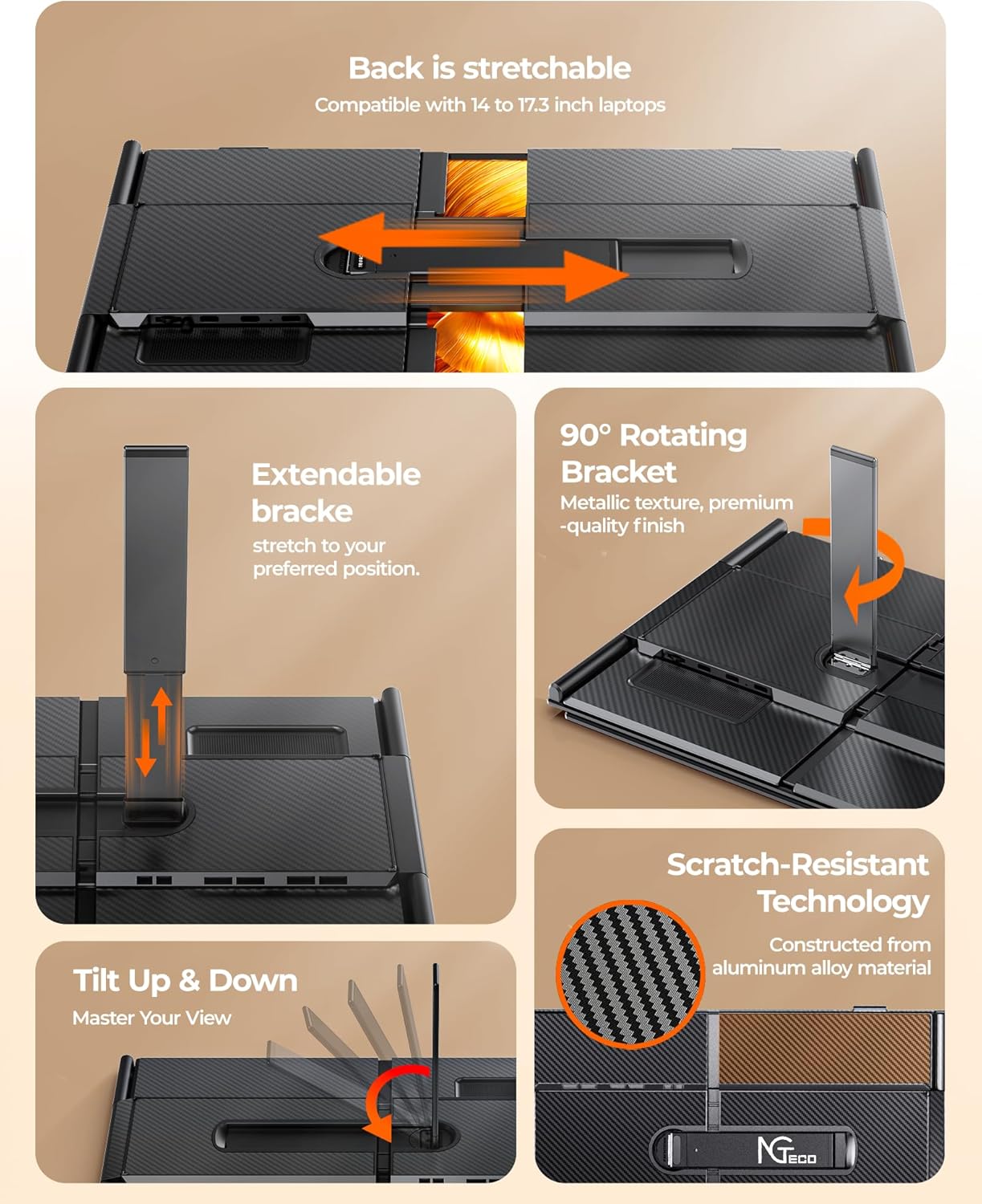
Image: Proper folding instructions for storage.
9. การรับประกันและการสนับสนุน
Your NGTeco Triple Screen Extender comes with a รับประกัน 1 ปี from the manufacturer, NGTeco.
For technical support, warranty claims, or any product-related inquiries, please contact NGTeco Support. Refer to the contact information provided in your Quick Guide or visit the official NGTeco webเว็บไซต์.