
1. บทนำ
Thank you for choosing the MOFII Wireless Keyboard and Mouse Combo. This full-size 2.4G plug-and-play set features a typewriter retro round key design, enhancing both aesthetics and functionality for your Windows PC, desktop, laptop, or notebook. This manual provides detailed instructions for setup, operation, maintenance, and troubleshooting to ensure optimal performance and longevity of your device.
2. เนื้อหาบรรจุภัณฑ์
- คีย์บอร์ดไร้สาย MOFII
- เมาส์ไร้สาย MOFII
- ตัวรับสัญญาณ USB Nano (เก็บอยู่ภายในเมาส์)
- คู่มือการใช้งาน
3. คำแนะนำในการตั้งค่า
3.1. การติดตั้งแบตเตอรี่
Both the keyboard and mouse require 1 AA battery each (not included). To install:
- ค้นหาช่องใส่แบตเตอรี่ที่ด้านล่างของคีย์บอร์ดและเมาส์
- เปิดฝาครอบช่อง
- ใส่แบตเตอรี่ AA หนึ่งก้อนลงในแต่ละอุปกรณ์ โดยตรวจสอบให้แน่ใจว่าขั้วถูกต้อง (+/-)
- ปิดฝาช่องใส่แบตเตอรี่ให้แน่น
3.2. Connecting the Wireless Combo
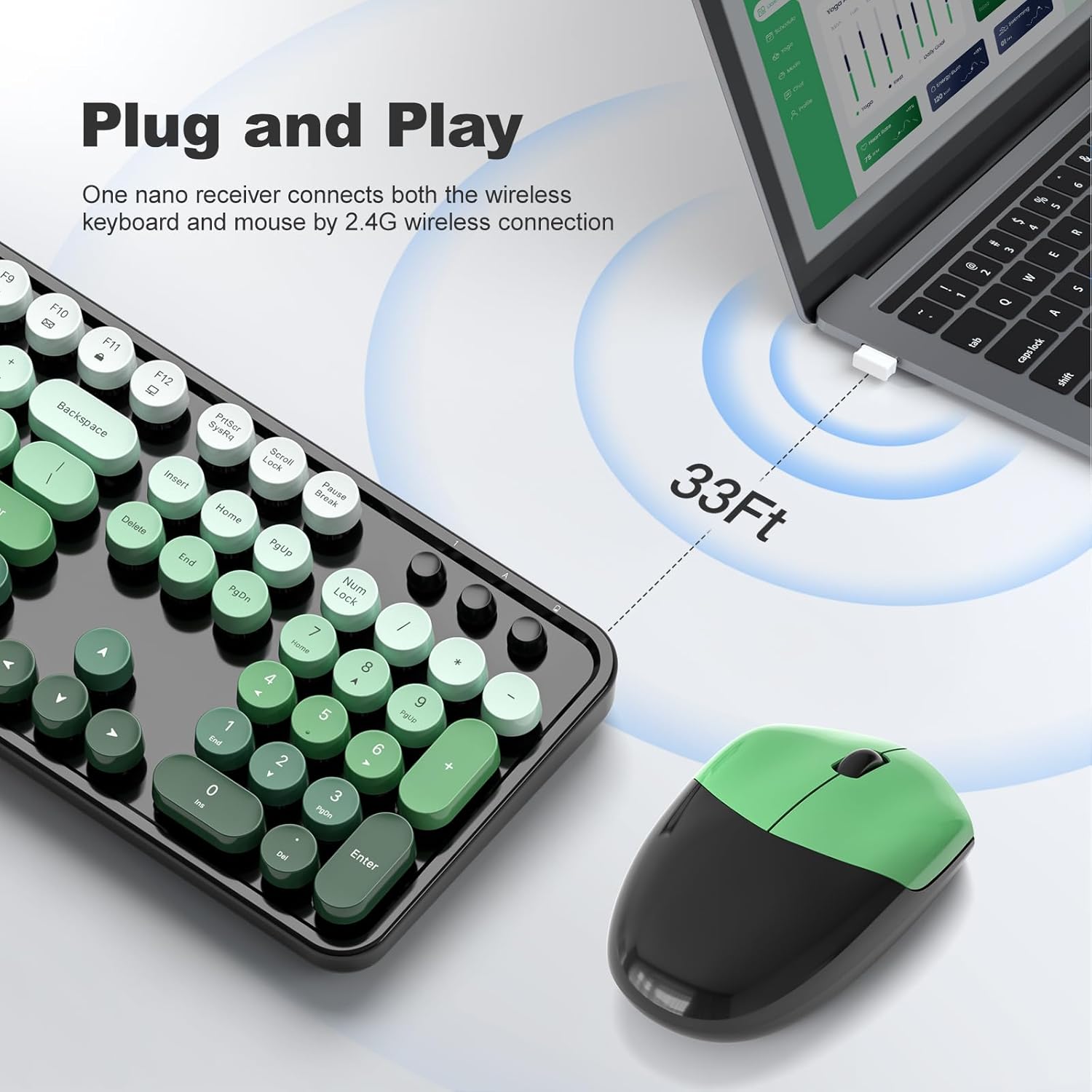
The keyboard and mouse connect via a single 2.4G USB nano receiver.
- Locate the USB nano receiver, which is typically stored in a small slot on the underside of the mouse.
- Plug the USB nano receiver into an available USB port on your computer (PC, desktop, laptop, or notebook).
- The system should automatically detect and install the necessary drivers. This is a plug-and-play device, so no additional software installation is usually required.
- Turn on the keyboard and mouse (if they have a power switch). The mouse may activate by clicking its buttons.
4. คู่มือการใช้งาน
4.1. การใช้แป้นพิมพ์
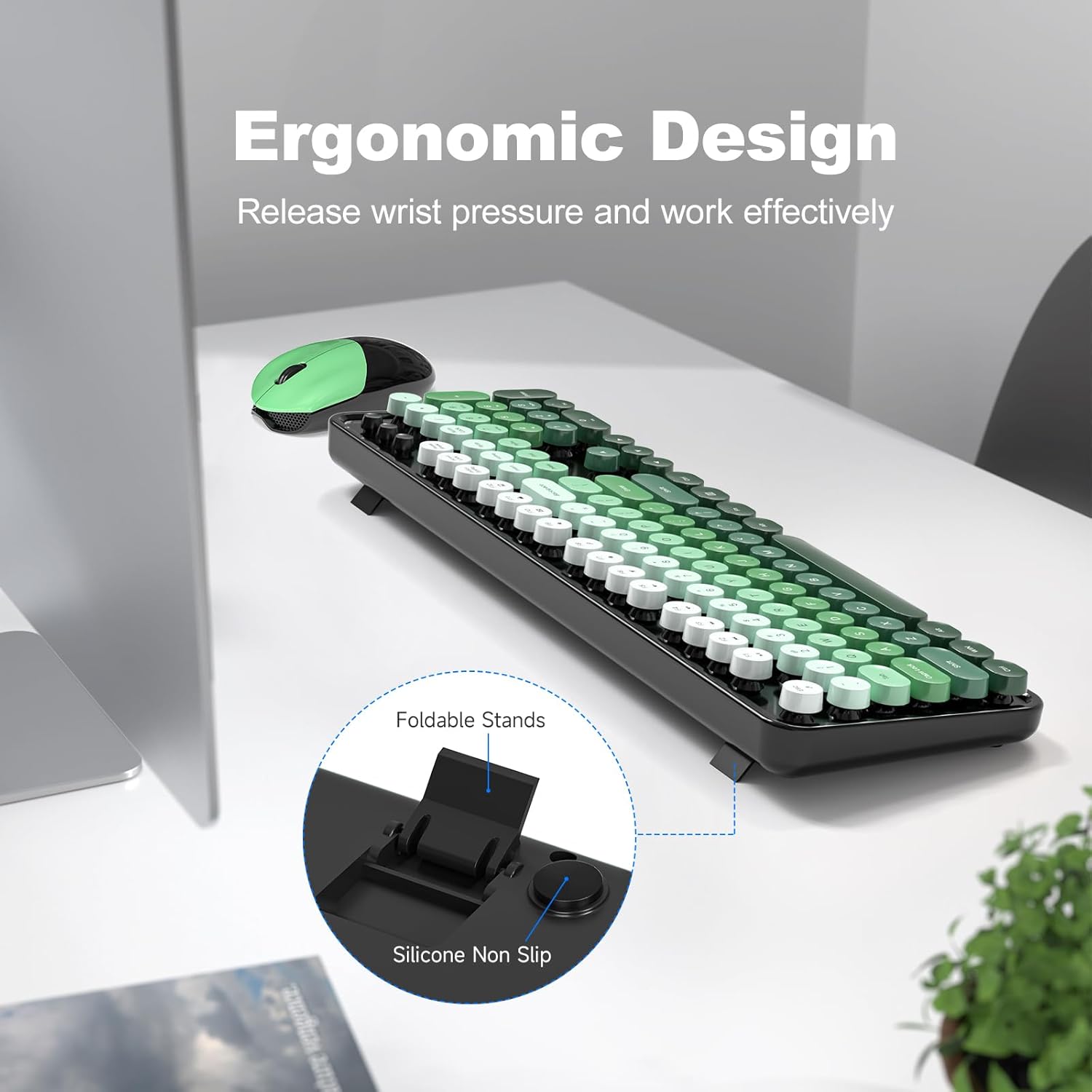
The full-size keyboard features a standard QWERTY layout with a dedicated number pad. The retro round keycaps provide a comfortable typing experience.
- การออกแบบตามหลักสรีรศาสตร์: The keyboard includes a folding holder and anti-slide pads on the underside. Adjust these stands to achieve an optimal typing angle, which helps reduce wrist strain during extended use.
- คีย์มัลติมีเดีย: Utilize the function keys (F1-F12) in combination with the 'Fn' key for quick access to multimedia controls and other system functions.
4.2. การใช้เมาส์
The contoured mouse is designed for comfortable use over long periods. It features standard left/right click buttons and a scroll wheel.
4.3. คุณสมบัติการนอนหลับอัตโนมัติ
To conserve battery life, both the keyboard and mouse are equipped with an intelligent auto-sleep function. After 8-10 minutes of inactivity, the devices will automatically enter sleep mode. To wake them up, simply press any key on the keyboard or click a mouse button.

5. การบำรุงรักษา
5.1. การทำความสะอาด
The keyboard features detachable keycaps, making cleaning convenient.
- Gently remove the keycaps. A keycap puller (if included) or a small tool can assist.
- Use a soft brush (a cleaning brush may be included) or compressed air to remove dust and debris from beneath the keycaps and from the keyboard surface.
- Wipe the keycaps and the keyboard surface with a soft, damp ผ้า. ตรวจสอบให้แน่ใจว่าไม่มีความชื้นเข้าไปในส่วนประกอบภายใน
- Allow all parts to dry completely before reattaching the keycaps.

5.2. การเปลี่ยนแบตเตอรี่
When the devices stop responding or exhibit intermittent connectivity, it may be time to replace the batteries. The estimated battery life is up to 18 months, but this can vary based on usage.
- Open the battery compartment on the underside of the keyboard and mouse.
- ถอดแบตเตอรี่ AA เก่าออก
- ใส่แบตเตอรี่ AA ใหม่ โดยสังเกตขั้วให้ถูกต้อง
- ปิดฝาปิดช่อง
6 การแก้ไขปัญหา
- ไม่มีการตอบกลับ: Ensure batteries are correctly installed and charged. Check that the USB nano receiver is securely plugged into your computer.
- การเชื่อมต่อไม่ต่อเนื่อง: Move the keyboard and mouse closer to the USB receiver. Ensure there are no large metal objects or other wireless devices interfering with the 2.4G signal. Replace batteries if they are low.
- ปุ่มไม่ทำงาน: If specific keys are not responding, try removing and re-inserting the keycap to ensure it is properly seated. Clean any debris around the key switch.
- เคอร์เซอร์เมาส์กระโดดหรือไม่แน่นอน: Ensure the mouse sensor is clean and free of obstructions. Use the mouse on a suitable surface (a mouse pad is recommended).
7. ข้อมูลจำเพาะ
| คุณสมบัติ | รายละเอียด |
|---|---|
| ยี่ห้อ | โมฟี่ |
| แบบอย่าง | B0G3PL9CJS |
| สี | Black Green Gradient |
| เทคโนโลยีการเชื่อมต่อ | ไร้สาย USB 2.4G |
| คุณสมบัติพิเศษ | Round Key, Ergonomic Design, Auto-Sleep |
| อุปกรณ์ที่รองรับ | Personal Computer (PC, Desktop, Laptop, Notebook) |
| ความต้องการแบตเตอรี่ | 1 AA battery for keyboard, 1 AA battery for mouse |
| คำอธิบายแป้นพิมพ์ | Multimedia, Full-Size with Number Pad |
| ผู้ผลิต | โมฟี่ |

8. การรับประกันและการสนับสนุน
MOFII offers a 12-month warranty for this product. For any issues or support needs, please contact MOFII Direct, the seller, through your purchase platform. Additionally, a 30-day money-back guarantee is provided.