
1. บทนำ
The ATTACK SHARK G800 is a versatile wireless RGB gaming headset designed for an immersive audio experience across multiple platforms. It features tri-mode connectivity (2.4Ghz wireless, Bluetooth, and wired), 7.1 virtual surround sound, 50mm drivers, and a detachable AI noise-canceling microphone. This manual provides instructions for setup, operation, and maintenance to ensure optimal performance.
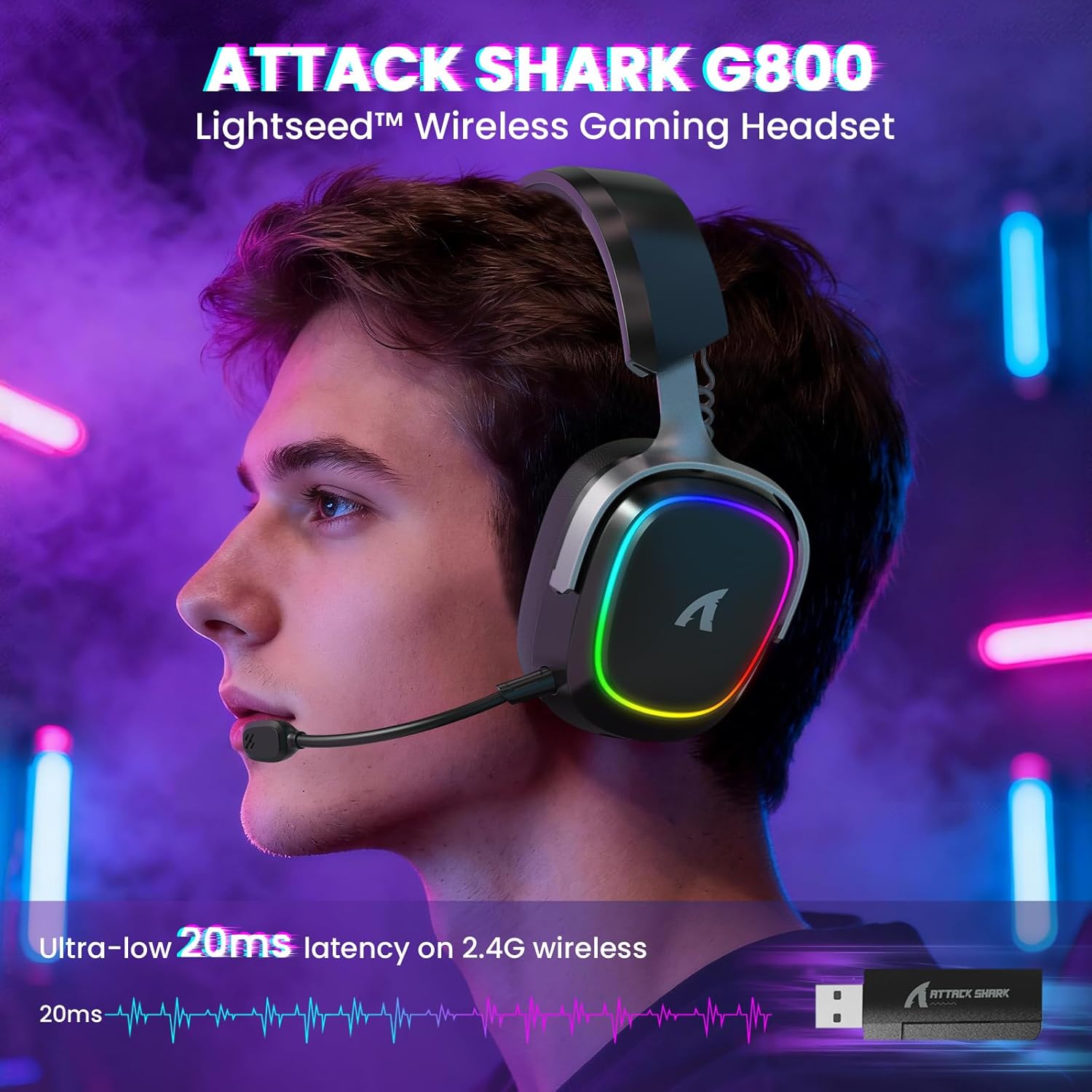
Image: The G800 headset in use, highlighting its RGB lighting and comfortable fit.
2. อะไรอยู่ในกล่อง
- ATTACK SHARK G800 Wireless RGB Gaming Headset
- Detachable AI Noise-Canceling Microphone
- 2.4Ghz Wireless USB-A + Type-C Dual-Head Receiver
- สายชาร์จ USB-A ถึง USB-C
- สายเคเบิลเสียง USB-C ถึง USB-C
- คู่มือการใช้งาน (เอกสารนี้)
3. สินค้าหมดview: การควบคุมและพอร์ต
Familiarize yourself with the various controls and ports on your G800 headset for seamless operation.
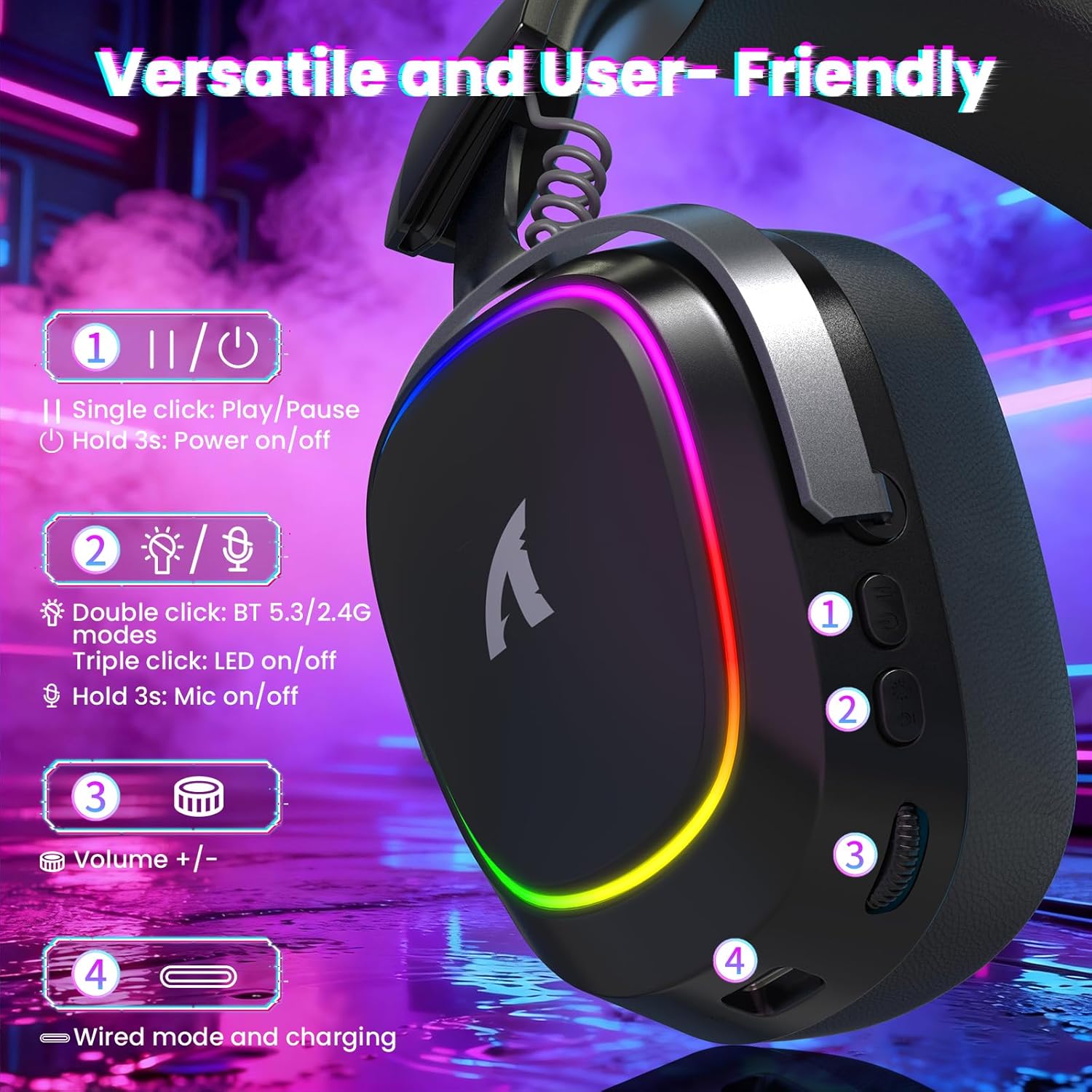
ภาพ: รายละเอียด view of the headset's left earcup with numbered controls and their functions.
- Play/Pause & Power Button: Single click for play/pause. Hold for 3 seconds to power on/off.
- Mode Switch & LED/Mic Control: Double click to switch between Bluetooth (BT 5.3) and 2.4Ghz wireless modes. Triple click to toggle RGB LED on/off. Hold for 3 seconds to toggle microphone on/off.
- ล้อระดับเสียง: Rotate to adjust audio volume up or down.
- Wired Mode & Charging Port: พอร์ต USB-C สำหรับเชื่อมต่อแบบมีสายและชาร์จไฟ
- แจ็คไมโครโฟน: ช่องสำหรับเชื่อมต่อไมโครโฟนแบบถอดได้
4. การตั้งค่าและการเชื่อมต่อ
The G800 headset offers three connection methods: 2.4Ghz wireless, Bluetooth, and wired.
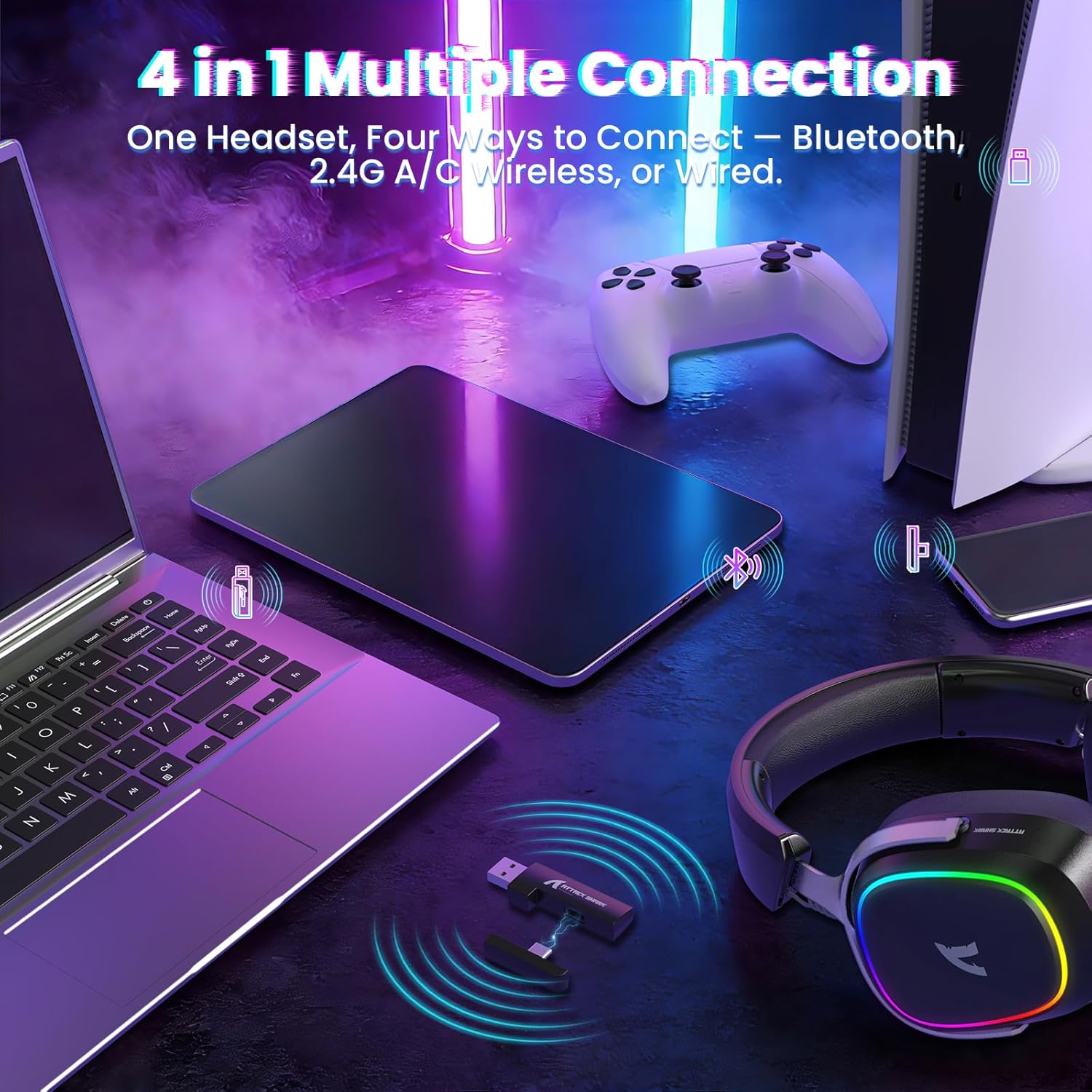
Image: The headset demonstrating its multi-platform connectivity options.
4.1. การเชื่อมต่อไร้สาย 2.4Ghz
- Insert the 2.4Ghz USB-A or Type-C dual-head receiver into an available USB port on your PC, laptop, or PS5.
- Power on the G800 headset by holding the Power Button (1) for 3 seconds.
- Double click the Mode Switch (2) until the headset indicates 2.4Ghz mode (usually via an LED indicator or voice prompt).
- The headset should automatically connect to the receiver. If not, ensure the receiver is properly inserted and the headset is in 2.4Ghz mode.
4.2. การเชื่อมต่อบลูทู ธ
- Power on the G800 headset by holding the Power Button (1) for 3 seconds.
- Double click the Mode Switch (2) until the headset indicates Bluetooth mode (usually via an LED indicator or voice prompt). The headset will enter pairing mode.
- On your device (e.g., mobile phone, tablet, PC), go to Bluetooth settings and search for available devices.
- Select "ATTACK SHARK G800" from the list to pair.
4.3. การเชื่อมต่อแบบมีสาย
- Connect one end of the USB-C audio cable to the Wired Mode & Charging Port (4) on the headset.
- Connect the other end of the USB-C audio cable to your device's compatible port.
- ชุดหูฟังจะสลับเป็นโหมดสายโดยอัตโนมัติ
4.4. การชาร์จชุดหูฟัง
The G800 headset is equipped with a 1000mAh battery for extended use.

Image: Visual representation of the headset's 1000mAh battery capacity.
- Connect the USB-A to USB-C charging cable to the Wired Mode & Charging Port (4) on the headset and to a USB power source (e.g., computer USB port, wall adapter).
- ไฟ LED บนหูฟังจะแสดงสถานะการชาร์จ
- The headset includes charging over-voltage protection for safety.
- An auto-shutdown function activates after 5 minutes of inactivity to conserve power.
5. คู่มือการใช้งาน
5.1. ประสบการณ์ด้านเสียง
The G800 features 50mm large-aperture biological diaphragm drivers and virtual 7.1 surround sound for an immersive audio experience.

Image: The 50mm audio drivers, responsible for high-fidelity sound.

Image: Demonstrating the 7.1 surround sound capability for precise audio positioning.
5.2. การใช้ไมโครโฟน
The detachable 360° AI Noise-Canceling Microphone ensures clear voice communication by filtering out background noise.
- Insert the detachable microphone into the dedicated microphone jack on the headset.
- Hold the Mode Switch (2) for 3 seconds to toggle the microphone on or off.
5.3. การควบคุมแสง RGB
The headset features customizable RGB lighting.
- Triple click the Mode Switch (2) to toggle the RGB LED lighting on or off.
5.4. การปรับแต่งซอฟต์แวร์
Enhance your audio experience with the dedicated driver software.
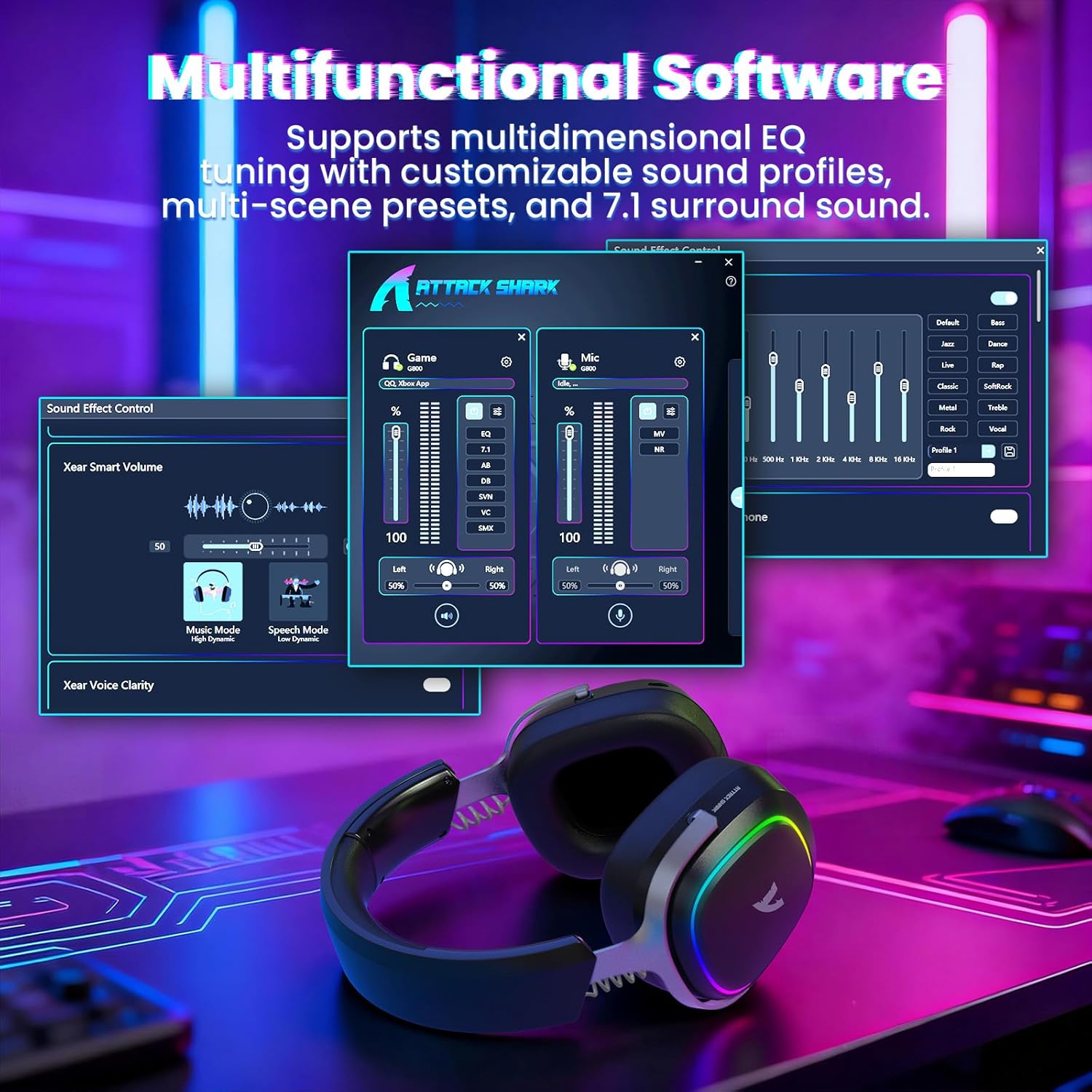
Image: The software interface for customizing audio settings.
- Download the official ATTACK SHARK G800 driver software from the manufacturer's webเว็บไซต์.
- The software allows you to create custom EQ sound profiles and fine-tune 7.1 surround sound settings to match your preferences and game types.
6. การบำรุงรักษา
Proper maintenance ensures the longevity and performance of your G800 headset.
- การทำความสะอาด: Use a soft, dry cloth to clean the headset. Avoid liquid cleaners or abrasive materials.
- พื้นที่จัดเก็บ: เก็บหูฟังไว้ในที่แห้งและเย็น หลีกเลี่ยงแสงแดดโดยตรงและอุณหภูมิที่สูงหรือต่ำเกินไป
- แผ่นรองหู: The ear cushions are replaceable. Refer to the manufacturer's webเว็บไซต์สำหรับอะไหล่และคำแนะนำ

Image: Components of the headset, including replaceable ear cushions.
7 การแก้ไขปัญหา
- ไม่มีเสียง:
- ตรวจสอบระดับเสียงทั้งบนชุดหูฟังและอุปกรณ์ที่เชื่อมต่อของคุณ
- Ensure the correct audio output device is selected in your device's sound settings.
- Verify the headset is properly connected (2.4Ghz receiver, Bluetooth paired, or wired cable).
- Reboot the headset and your device.
- ไมโครโฟนไม่ทำงาน:
- ตรวจสอบให้แน่ใจว่าไมโครโฟนติดเข้ากับชุดหูฟังอย่างแน่นหนา
- Check if the microphone is muted (hold Mode Switch (2) for 3 seconds to toggle).
- ตรวจสอบว่าได้เลือกอุปกรณ์อินพุตไมโครโฟนที่ถูกต้องในการตั้งค่าเสียงของอุปกรณ์ของคุณ
- ถ้าเป็นไปได้ ให้ลองทดสอบไมโครโฟนกับอุปกรณ์อื่นดู
- ปัญหาการเชื่อมต่อ:
- For 2.4Ghz, ensure the receiver is fully inserted and the headset is in 2.4Ghz mode.
- For Bluetooth, ensure the headset is in pairing mode and within range of your device. Try unpairing and re-pairing.
- For wired, ensure the cable is securely connected to both the headset and your device.
- Avoid sources of interference (e.g., other wireless devices, microwaves).
- ไฟ RGB ไม่ทำงาน:
- Triple click the Mode Switch (2) to toggle the RGB LED on/off.
- ตรวจสอบให้แน่ใจว่าหูฟังมีแบตเตอรี่เหลือเพียงพอ
8. ข้อมูลจำเพาะ
| คุณสมบัติ | ข้อมูลจำเพาะ |
|---|---|
| ชื่อรุ่น | จี800 |
| เทคโนโลยีการเชื่อมต่อ | Wired, Bluetooth (BT 5.3), 2.4Ghz Wireless |
| ประเภทไดร์เวอร์เสียง | ไดรเวอร์ไดนามิก (50 มม.) |
| ระบบเสียงรอบทิศทาง | Virtual 7.1 Spatial Audio |
| ไมโครโฟน | Detachable 360° AI Noise-Canceling |
| Wireless Latency (2.4Ghz) | 20ms (Lightseed Wireless Technology) |
| Wireless Range (2.4Ghz) | สูงสุด 10ม. / 32.8ฟุต |
| ช่วงบลูทูธ | สูงสุด 30ม. / 98.4ฟุต |
| ความจุของแบตเตอรี่ | 1000mAh |
| การวางตำแหน่งหู | ครอบหู |
| วัสดุ | Aluminum Alloy, Protein Leather, Memory Foam |
| น้ำหนัก | 1.1 ปอนด์ (ประมาณ) |
| อุปกรณ์ที่รองรับ | PC, Laptops, PS5, Mobile Devices |
9. ข้อมูลด้านความปลอดภัย
- ควรหลีกเลี่ยงการฟังเพลงด้วยเสียงดังเป็นเวลานานเพื่อป้องกันความเสียหายต่อการได้ยิน
- อย่าให้ชุดหูฟังสัมผัสกับอุณหภูมิที่สูงจัด ความชื้นสูง หรือของเหลว
- เก็บให้พ้นจากมือเด็ก
- ห้ามถอดประกอบหรือดัดแปลงชุดหูฟัง การกระทำดังกล่าวจะทำให้การรับประกันเป็นโมฆะ
- กำจัดผลิตภัณฑ์ด้วยความรับผิดชอบตามข้อบังคับท้องถิ่น
10. วิดีโอผลิตภัณฑ์อย่างเป็นทางการ
วิดีโอ: วิดีโอแสดงผลิตภัณฑ์อย่างเป็นทางการasing the ATTACK SHARK G800 Wireless Tri Mode RGB Gaming Headset's features and design. This video is provided by the seller, UrWorthLtd US.
11. การรับประกันและการสนับสนุน
For warranty information, technical support, or customer service, please refer to the documentation included with your purchase or visit the official ATTACK SHARK webไซต์นี้ โปรดเก็บหลักฐานการซื้อไว้เพื่อใช้ยืนยันการรับประกัน