
ข้อมูลด้านความปลอดภัยที่สำคัญ
โปรดอ่านคำแนะนำทั้งหมดอย่างละเอียดก่อนใช้งานจอภาพนี้ เก็บคู่มือนี้ไว้เพื่อใช้อ้างอิงในอนาคต
- ห้ามวางจอภาพใกล้แหล่งน้ำหรือในสภาพแวดล้อมที่มีความชื้น
- ตรวจสอบให้แน่ใจว่ามีการระบายอากาศที่เหมาะสมรอบๆ จอภาพเพื่อป้องกันความร้อนสูงเกินไป
- ใช้เฉพาะอะแดปเตอร์แปลงไฟที่ให้มาพร้อมกับจอภาพเท่านั้น
- ควรหลีกเลี่ยงการวางจอภาพไว้ในที่ที่มีแสงแดดส่องโดยตรงหรือในอุณหภูมิที่สูงหรือต่ำเกินไป
- อย่าพยายามซ่อมจอภาพด้วยตนเอง โปรดส่งซ่อมโดยช่างผู้ชำนาญการเท่านั้น
- เช็ดหน้าจอด้วยผ้าเนื้อนุ่มที่ไม่เป็นขุย หลีกเลี่ยงการใช้สารเคมีรุนแรง
เนื้อหาแพ็คเกจ
โปรดตรวจสอบว่าแพ็คเกจของคุณมีรายการทั้งหมดต่อไปนี้:
- 31.5-inch 2K 120Hz Monitor (x1)
- ขาตั้งจอภาพ (1 ชิ้น)
- คู่มือเริ่มต้นใช้งานฉบับย่อ (QSG) (x1)
- สาย HDMI (x1)
- อะแดปเตอร์ไฟ (x1)
- สายไฟ (x1)

An image showing the monitor's dimensions and a list of included accessories: monitor, QSG, HDMI cable, adapter, power cord, and monitor stand.
การตั้งค่า
ตรวจสอบการประกอบ
ทำตามขั้นตอนต่อไปนี้เพื่อประกอบขาตั้งจอภาพและติดตั้งเข้ากับแผงจอแสดงผล:
- ถอดส่วนประกอบของจอภาพและขาตั้งออกจากบรรจุภัณฑ์อย่างระมัดระวัง
- Attach the base to the stand column, securing it with the provided screw.
- จัดวางขาตั้งที่ประกอบเสร็จแล้วให้ตรงกับจุดยึดที่ด้านหลังของแผงจอภาพ
- ค่อยๆ ดันขาตั้งเข้าที่จนกระทั่งได้ยินเสียงคลิกและแน่นสนิท
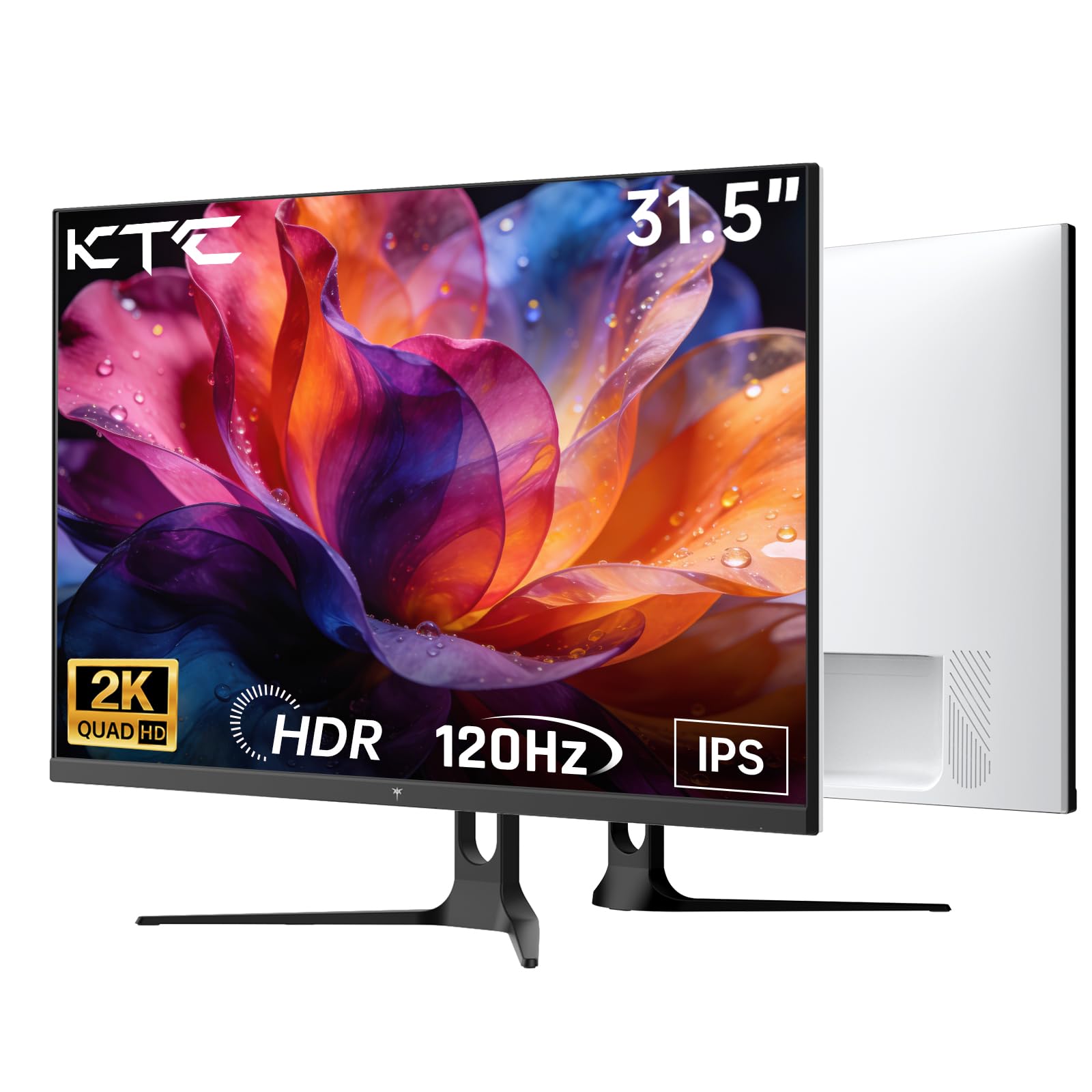
ด้านหน้า view of the KTC H32D6 31.5-inch monitor on its stand.
การเชื่อมต่อ
Connect your monitor to a power source and your computer using the appropriate cables:
- Connect the power adapter to the monitor's DC input port, then plug the power cord into an electrical outlet.
- For video input, connect one end of the HDMI or DisplayPort cable to your computer's graphics card and the other end to the corresponding port on the monitor.
- If desired, connect headphones or external speakers to the earphone jack.

Close-up of the monitor's rear panel, highlighting the HDMI 2.0 ports (x2), DisplayPort 1.4 (x1), and earphone jack.
วิดีโอนี้มีเนื้อหาเกี่ยวกับview of the KTC 32 Inch 2K 120Hz Computer Monitor, showcasing its features and benefits in a dynamic presentation.
คำแนะนำการใช้งาน
เปิด/ปิดเครื่อง
กดปุ่มเปิด/ปิด (โดยปกติจะอยู่ด้านหลังหรือด้านล่างขวาของจอภาพ) เพื่อเปิดหรือปิดจอภาพ ไฟแสดงสถานะจะสว่างขึ้นเมื่อจอภาพเปิดอยู่
การนำทางเมนูที่แสดงบนหน้าจอ (OSD)
The monitor features an intuitive OSD menu for adjusting various settings. Use the joystick or buttons (depending on your model) on the back of the monitor to navigate the menu:
- กดจอยสติ๊ก/ปุ่มเพื่อเปิดเมนู OSD
- Move the joystick up/down or left/right to select menu options.
- กดจอยสติ๊ก/ปุ่มอีกครั้งเพื่อยืนยันการเลือกหรือเข้าสู่เมนูย่อย
- To exit the OSD menu, navigate to the 'Exit' option or hold the joystick/button for a few seconds.
การปรับแต่งการตั้งค่าการแสดงผล
ภายในเมนู OSD คุณสามารถปรับการตั้งค่าต่างๆ เช่น:
- ปณิธาน: Set to QHD (2560x1440) for optimal clarity.
- อัตราการรีเฟรช: Adjust to 120Hz for ultra-smooth visuals.
- ความสว่างและคอนทราสต์: Fine-tune for your preferred viewการสร้างประสบการณ์
- การตั้งค่าสี: Adjust color temperature, gamma, and other color parameters.

An image demonstrating the superior clarity of QHD (2560x1440) resolution compared to FHD (1920x1080) on the monitor screen.

A visual representation of smooth motion on the monitor, illustrating the benefit of a 120Hz refresh rate for seamless visuals.
การซิงค์แบบปรับตัว
This monitor supports Adaptive Sync technology (FreeSync, G-Sync Compatible) to eliminate screen tearing and stuttering during gaming or fast-paced video. Ensure Adaptive Sync is enabled in both your monitor's OSD settings and your graphics card control panel for optimal performance.

A side-by-side comparison showing the visual difference with Adaptive Sync ON (smooth image) and OFF (screen tearing) during fast-paced action.
รองรับ HDR10
The monitor supports HDR10, providing a wider range of colors and contrast for a more immersive viewing experience. To utilize HDR10, ensure your content and graphics card support HDR, and enable it in your operating system display settings.

An image highlighting the enhanced color and contrast provided by HDR10 technology.
คุณสมบัติการดูแลดวงตา
The KTC H32D6 monitor includes Low Blue Light and Flicker-Free technologies to reduce eye fatigue during prolonged use. These features are designed to provide a more comfortable viewการสร้างประสบการณ์

An image illustrating the eye care features, including low blue light and flicker-free technology, designed to reduce eye strain.
การปรับความเอียง
The monitor stand allows for tilt adjustment from -5° to 20°. Gently adjust the monitor panel to your desired viewมุมเพื่อความสะดวกสบายตามหลักสรีรศาสตร์

An image demonstrating the wide 178-degree viewing angle provided by the IPS panel, ensuring consistent image quality from various positions.
การซ่อมบำรุง
การบำรุงรักษาอย่างถูกต้องจะช่วยให้จอภาพของคุณมีอายุการใช้งานยาวนานและมีประสิทธิภาพเหมาะสมที่สุด
- การทำความสะอาดหน้าจอ: เช็ดหน้าจอเบาๆ ด้วยผ้านุ่ม แห้ง และไม่เป็นขุย สำหรับรอยฝังแน่น ให้เช็ดเบาๆampen the cloth with water or a screen-cleaning solution specifically designed for monitors. Never spray liquid directly onto the screen.
- การทำความสะอาด Casing: ใช้ผ้าแห้งนุ่มๆ เช็ดทำความสะอาดจอภาพasinก. หลีกเลี่ยงน้ำยาทำความสะอาดหรือตัวทำละลายที่มีฤทธิ์กัดกร่อน
- ปิดเครื่องเมื่อไม่ใช้งาน: Turn off the monitor when not in use to save energy and extend its lifespan.
- หลีกเลี่ยงสิ่งกีดขวาง: ตรวจสอบให้แน่ใจว่าช่องระบายอากาศบนจอภาพไม่ถูกปิดกั้น เพื่อป้องกันความร้อนสูงเกินไป
การแก้ไขปัญหา
หากคุณพบปัญหาเกี่ยวกับจอภาพของคุณ โปรดดูปัญหาทั่วไปและวิธีแก้ไขต่อไปนี้:
| ปัญหา | วิธีแก้ปัญหาที่เป็นไปได้ |
|---|---|
| ไม่มีภาพบนหน้าจอ | Ensure the power cable is securely connected and the monitor is turned on. Check that the video cable (HDMI/DP) is firmly connected to both the monitor and your computer. Select the correct input source via the OSD menu. |
| ภาพมีการสั่นไหวหรือไม่เสถียร | Check the video cable connection. Ensure your graphics card drivers are up to date. Verify that the refresh rate is set correctly in your computer's display settings. Enable Adaptive Sync if supported by your graphics card. |
| สีที่ปรากฏไม่ถูกต้อง | Adjust color settings (brightness, contrast, color temperature) in the OSD menu. Ensure HDR is correctly configured in your operating system if you are using HDR content. |
| Monitor not recognized by computer | Restart your computer. Try a different video port or cable. Update your graphics card drivers. |
ข้อมูลจำเพาะ
Key technical specifications for the KTC H32D6 monitor:
| คุณสมบัติ | ข้อมูลจำเพาะ |
|---|---|
| ยี่ห้อ | เคทีซี |
| หมายเลขรุ่น | H32D6 |
| ขนาดหน้าจอ | 31.5 นิ้ว |
| ปณิธาน | QHD จอไวด์สกรีน 1440p (2560 x 1440 พิกเซล) |
| อัตราการรีเฟรช | 100 Hz (up to 120Hz overclocked) |
| ประเภทจอภาพ | ไอพีเอส |
| เวลาตอบสนอง | 7 มิลลิวินาที |
| อัตราส่วนภาพ | 16:9 น. |
| ความสว่าง | 350 แคนเดลา (cd/m²) |
| อัตราส่วนคอนทราสต์ | 1000:1 น. |
| Viewอิงแองเกิล | 178 องศา |
| ช่วงสี | 109% sRGB |
| Picture Quality Enhancement | HDR10 |
| การเชื่อมต่อ | 2 x HDMI 2.0, 1 x DisplayPort 1.4, Earphone Jack |
| การซิงค์แบบปรับตัว | FreeSync, G-Sync Compatible |
| คุณสมบัติเพิ่มเติม | Eye Care, Flicker-Free, Tilt Adjustment, VESA 100x100mm Compatible |
| การใช้พลังงาน | 48 วัตต์ |
| ขนาดสินค้า (ลึก x กว้าง x สูง) | ลึก 7.09 นิ้ว x กว้าง 28.23 นิ้ว x สูง 20.08 นิ้ว |
การรับประกันและการสนับสนุน
ข้อมูลการรับประกัน
This KTC H32D6 monitor comes with a การรับประกันจากผู้ผลิต 3 ปีการรับประกันนี้ครอบคลุมข้อบกพร่องด้านวัสดุและฝีมือการผลิตภายใต้การใช้งานปกติ โปรดเก็บหลักฐานการซื้อไว้เพื่อขอรับสิทธิ์การรับประกัน
The warranty does not cover damage caused by misuse, accidents, unauthorized modifications, or external factors such as power surges.
การสนับสนุนลูกค้า
For technical assistance, warranty claims, or any other inquiries, please contact KTC customer support through the official website or the contact information provided with your purchase. You may also refer to the Quick Start Guide for additional support resources.