
การแนะนำ
Thank you for choosing the Wodgreat AX1800 USB WiFi 6 Adapter. This device provides high-speed wireless connectivity for your desktop or laptop computer, leveraging Wi-Fi 6 technology for improved performance. This manual will guide you through the installation, operation, and troubleshooting of your new adapter.
เนื้อหาแพ็คเกจ
กรุณาตรวจสอบแพ็คเกจสำหรับรายการต่อไปนี้:
- 1 x Wodgreat AX1800 USB WiFi 6 Adapter
- 1 x คู่มือผู้ใช้
- 1 x Driver Card (Built-in driver for Windows 10/11)
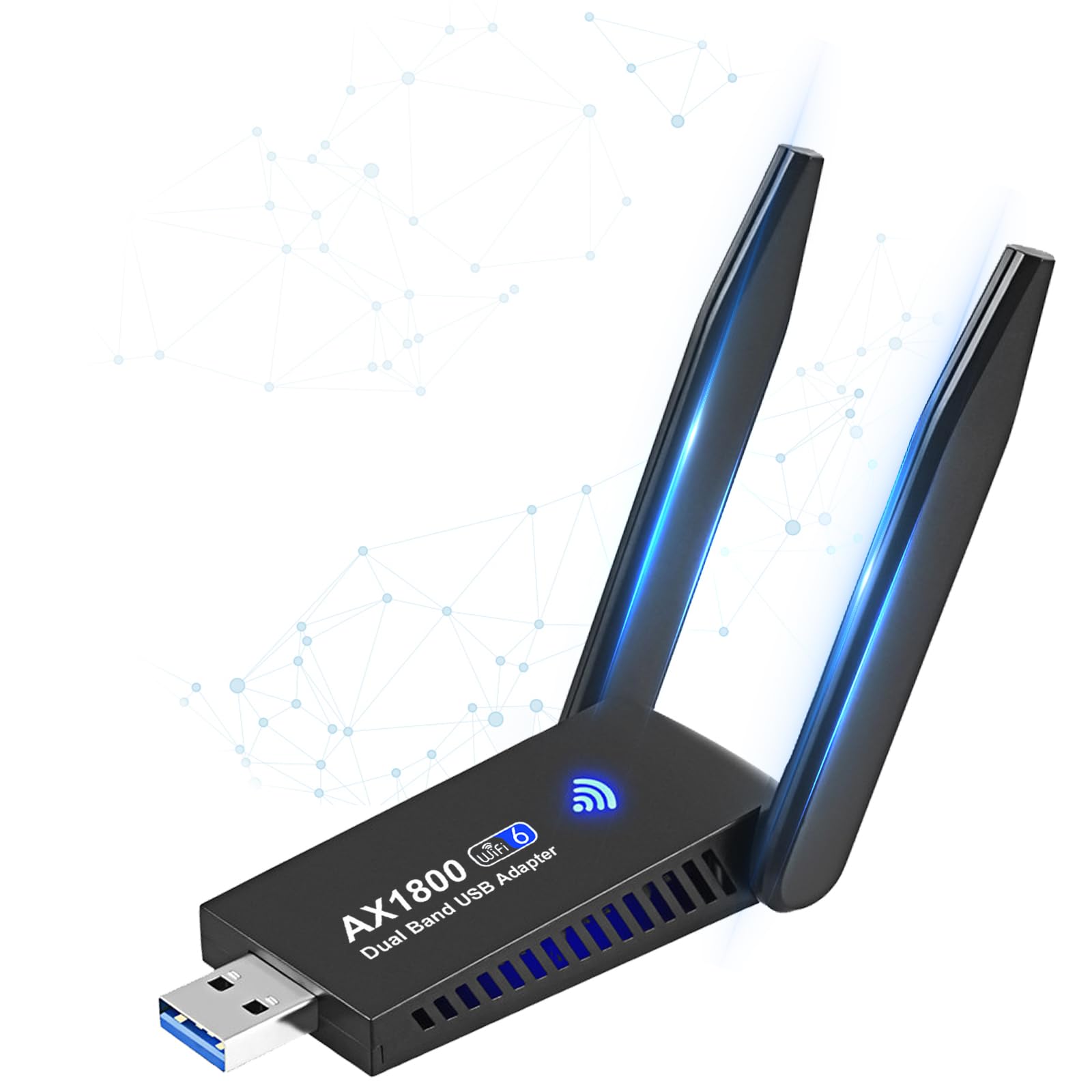
Image: The Wodgreat AX1800 USB WiFi 6 Adapter with its dual antennas and USB 3.0 connector.
คุณสมบัติผลิตภัณฑ์
- เทคโนโลยี Wi-Fi 6 (802.11ax): Provides faster data transfer speeds, lower latency, and extended range.
- การเชื่อมต่อแบบดูอัลแบนด์: Up to 1201 Mbps on 5 GHz and 574 Mbps on 2.4 GHz for versatile network performance.
- อินเทอร์เฟซ USB 3.0: Ensures optimal speed and performance, up to 10 times faster than USB 2.0.
- ไดร์เวอร์ในตัว: Plug-and-play setup for Windows 10 and 11, eliminating the need for manual driver installation.
- Dual High-Gain Antennas: Enhances signal reception for stronger, more stable wireless connectivity.
- การรักษาความปลอดภัยขั้นสูง: Supports WPA3 encryption for enhanced personal password safety.
- OFDMA และ MU-MIMO: Technologies for efficient data transmission and lower latency, especially in busy network environments.

Image: Visual representation of the AX1800 adapter's dual-band capabilities (2.4GHz and 5GHz) and speed benefits.
คู่มือการติดตั้ง
1. การติดตั้งไดรเวอร์ (Windows 10/11)
The Wodgreat AX1800 USB WiFi 6 Adapter features a built-in driver for Windows 10 and Windows 11, allowing for a plug-and-play experience. No CD or external download is required.
- Insert the AX1800 USB WiFi 6 Adapter into an available USB 3.0 port on your desktop or laptop. For optimal performance, use a USB 3.0 port (usually blue inside).
- Windows will automatically detect the new hardware and install the necessary drivers. This process may take a few moments.
- Once the driver installation is complete, a notification may appear, or you can check the network icon in your system tray.

Image: The AX1800 adapter connected to a laptop, illustrating the plug-and-play setup without external drivers.
2. การเชื่อมต่อกับเครือข่าย Wi-Fi
- Click on the Wi-Fi icon in the system tray (bottom-right corner of your screen).
- รายการเครือข่าย Wi-Fi ที่ใช้งานได้จะปรากฏขึ้น เลือกเครือข่ายที่คุณต้องการ
- Click "Connect". If prompted, enter the network security key (password).
- เมื่อเชื่อมต่อแล้ว ไอคอน Wi-Fi จะแสดงสถานะการเชื่อมต่อที่ใช้งานอยู่ และคุณสามารถเริ่มใช้งานอินเทอร์เน็ตได้

Image: The AX1800 adapter shown with compatibility for Windows 10 and Windows 11, and a note that it does not support Mac, Linux, or TV.
คำแนะนำการใช้งาน
Once the Wodgreat AX1800 USB WiFi 6 Adapter is successfully installed and connected to a Wi-Fi network, it operates automatically. The adapter will maintain a stable wireless connection, allowing you to browse the internet, stream media, and engage in online activities.
- ความแรงของสัญญาณ: The dual high-gain antennas can be adjusted to optimize signal reception. Position them for the best possible signal strength.
- การเลือกวงดนตรี: The adapter automatically selects the optimal band (2.4 GHz or 5 GHz) based on network conditions and device capabilities. For higher speeds and less interference, connect to a 5 GHz network if available. For wider coverage, 2.4 GHz is often preferred.
- การตัดการเชื่อมต่อ: To disconnect from a network, click the Wi-Fi icon in the system tray, select the connected network, and click "Disconnect".
- กำลังเชื่อมต่อใหม่: The adapter will typically reconnect to previously saved networks automatically when in range.

Image: The AX1800 adapter showcasing its adjustable dual antennas for improved signal reception.
ข้อมูลจำเพาะ
| คุณสมบัติ | รายละเอียด |
|---|---|
| ยี่ห้อ | Wodgreat |
| แบบอย่าง | AX1800 USB WiFi 6 Adapter |
| ฮาร์ดแวร์อินเตอร์เฟซ | ยูเอสบี 3.0 |
| สี | สีดำ |
| อุปกรณ์ที่รองรับ | เดสก์ท็อป, โน๊ตบุ๊ก |
| โปรโตคอลการเชื่อมโยงข้อมูล | IEEE 802.11ax, IEEE 802.11ac, IEEE 802.11b, IEEE 802.11g, IEEE 802.11n |
| อัตราการถ่ายโอนข้อมูล | 1800 Megabits Per Second (1201 Mbps on 5 GHz + 574 Mbps on 2.4 GHz) |
| น้ำหนักสินค้า | 0.05 กิโลกรัม |
| ระบบปฏิบัติการที่รองรับ | Windows 10, Windows 11 (Does not support Mac, Linux, TV) |
| ความปลอดภัย | WPA3 |
| คุณสมบัติพิเศษ | MU-MIMO, OFDMA, Dual High-Gain Antennas, Built-in Driver |

ภาพ: ภาพระยะใกล้ view of the AX1800 adapter, highlighting its USB 3.0 interface and compact design.
การแก้ไขปัญหา
- Q: The adapter is not detected or not working.
- ตรวจสอบให้แน่ใจว่าเสียบอะแดปเตอร์เข้ากับพอร์ต USB 3.0 อย่างแน่นหนาแล้ว
- ลองใช้พอร์ต USB อื่นบนคอมพิวเตอร์ของคุณ
- รีสตาร์ทเครื่องคอมพิวเตอร์ของคุณ
- Verify that your computer is running Windows 10 or Windows 11. This adapter does not support Mac, Linux, or TV operating systems.
- Check Device Manager in Windows to see if the adapter is listed under "Network adapters" without any error symbols. If there are errors, try updating the driver (though it's built-in, sometimes a Windows update can interfere).
- Q: Cannot connect to Wi-Fi or connection is unstable.
- ตรวจสอบให้แน่ใจว่าเราเตอร์ Wi-Fi ของคุณเปิดอยู่และกำลังส่งสัญญาณอยู่
- ตรวจสอบว่าคุณป้อนรหัสผ่าน Wi-Fi ที่ถูกต้องหรือไม่
- ขยับเข้าไปใกล้เราเตอร์ Wi-Fi ของคุณเพื่อปรับปรุงความแรงของสัญญาณ
- ปรับเสาอากาศบนอะแดปเตอร์เพื่อให้รับสัญญาณได้ดีขึ้น
- Try restarting your Wi-Fi router and modem.
- Ensure your computer's built-in Wi-Fi (if any) is disabled to avoid conflicts.
- Q: Slow internet speeds.
- Ensure you are connected to a 5 GHz network if available, as it generally offers higher speeds.
- Confirm your internet service provider (ISP) plan supports the speeds you expect.
- ตรวจสอบว่ามีอุปกรณ์อื่นใดที่ใช้แบนด์วิดท์ในเครือข่ายของคุณอยู่หรือไม่
- Ensure the adapter is plugged into a USB 3.0 port. USB 2.0 ports will limit performance.
- ลดการกีดขวางทางกายภาพระหว่างอะแดปเตอร์และเราเตอร์ของคุณ
การซ่อมบำรุง
- รักษาอะแดปเตอร์ให้สะอาดและปราศจากฝุ่น ใช้ผ้านุ่มและแห้งเช็ดทำความสะอาด
- หลีกเลี่ยงการให้อะแดปเตอร์สัมผัสกับอุณหภูมิที่สูงหรือความชื้นสูงหรือแสงแดดโดยตรง
- ห้ามถอดประกอบหรือซ่อมแซมอะแดปเตอร์ด้วยตนเอง เนื่องจากจะทำให้การรับประกันเป็นโมฆะ
- Ensure proper ventilation around the adapter to prevent overheating, especially during prolonged use. The adapter features a cooling design to help manage heat.

Image: The AX1800 adapter highlighting its ventilation holes for efficient cooling during operation.
การรับประกันและการสนับสนุน
Wodgreat offers a รับประกัน 2 ปี for this product. For technical support or warranty claims, please contact Wodgreat customer service through the platform where you purchased the product or refer to the contact information provided in your product packaging.
หากต้องการความช่วยเหลือเพิ่มเติม โปรดไปที่ Wodgreat Store on Amazon.