
การแนะนำ
The UGREEN FineCam Pro 4K Webcam (Model 75726A) is designed to provide high-quality video and audio for various applications, including streaming, video conferencing, and content creation. Featuring a 1/2" Sony sensor for sharp 4K video, AI-powered auto framing, Face AE for intelligent lighting, AI noise-canceling microphones, and gesture control, this webcam offers advanced functionalities for a professional experience. This manual provides detailed instructions for setup, operation, and maintenance to ensure optimal performance.
มีอะไรอยู่ในกล่อง
- UGREEN AI 4K FineCam x 1
- USB C cable x 1
- USB C to A adapter x 1
- Extendable Tripod x 1
- คู่มือการใช้งาน x 1
สินค้าเกินview
The UGREEN FineCam Pro 4K Webcam is equipped with several key features to enhance your video communication and content creation:
- Flagship 4K Visual Experience: Captures sharp 4K@30FPS (backward supports 1080P@60FPS) video with accurate colors using a 1/2" Sony sensor. Offers superior low-light performance.
- Instant Focus & Face AE: Phase Detection Auto Focus (PDAF) for crisp video and Face AE for intelligent fill-light, ensuring clear visuals in variable lighting.
- Dual Noise-Canceling Mics: AI noise reduction picks up clear voice within a 360-degree range, suppressing background chatter.
- ระบบจัดเฟรมภาพอัตโนมัติด้วย AI: Automatically adjusts composition and zoom to keep participants in the spotlight.
- การจดจำท่าทาง: Use intuitive hand gestures to enable AI Framing or zoom in/out for touch-free control.
- Privacy Care: Integrated privacy cover for instant privacy.
- ปลั๊กแอนด์เพลย์: Easy setup with no driver required for Windows 11/10/8, Mac OS, and Linux.
- 7 Filters & Portrait Mode: Digitally replicate classic photographic tones with 7 built-in filter modes. Supports 2K 9:16 portrait mode by rotating 90 degrees.
การตั้งค่า
- การติดตั้ง Webลูกเบี้ยว:
The FineCam Pro comes with a magnetic base that allows it to be securely mounted on top of a monitor or laptop screen. The base also features a 1/4-inch thread on the bottom, enabling attachment to the included extendable tripod or other compatible tripods.

Image: UGREEN FineCam Pro 4K Webcam mounted on a monitor, demonstrating its compact size and magnetic base attachment.

Image: UGREEN FineCam Pro 4K Webcam attached to the included extendable tripod, suitable for desktop placement.
- การเชื่อมต่อกับคอมพิวเตอร์ของคุณ:
เชื่อมต่อ webcam to your computer using the provided USB-C cable. An additional USB-C to USB-A adapter is included for compatibility with various ports. The webcam is plug-and-play, requiring no additional driver installation for Windows 11/10/8, Mac OS, and Linux.

Image: UGREEN FineCam Pro 4K Webcam connected to a laptop, illustrating the USB-C connection and the included USB-C to USB-A adapter.
คำแนะนำการใช้งาน
1. ความคุ้มครองความเป็นส่วนตัว
การ webcam features an integrated privacy cover. To activate privacy mode, slide the cover over the lens. This physically blocks the camera view, ensuring your privacy when the webแคมไม่ได้ใช้งาน

Image: The UGREEN FineCam Pro 4K Webcam showing the privacy cover in both open and closed positions, indicating its physical privacy mechanism.
2. โหมดภาพบุคคล
To switch to 2K 9:16 portrait mode, gently rotate the webcam 90 degrees. This feature is ideal for mobile-optimized live streams and vertical content creation.

Image: UGREEN FineCam Pro 4K Webcam positioned in portrait mode on a tripod, demonstrating its use for vertical live streaming.
3. Filter Switching
การ webcam includes a side-plate dial for switching between 7 built-in filters. Rotate the dial to apply different photographic tones and effects to your video feed.

Image: The UGREEN FineCam Pro 4K Webcam showing its filter dial and a split image demonstrating the effect of different filters on the video output.
- ตัวกรอง 0 (ค่าเริ่มต้น): Neutral color reproduction.
- Filter 1 (Black & White): Delivers rich shadow details and excellent sharpness for monochrome.
- Filter 2 (Vintage Film): Based on film cameras from the 1990s, adds depth and definition with adjusted shades and reduced saturation.
- Filter 3 (Natural Tone): Offers warm brown tones and golden highlights, imitating a healthy skin tone after sun exposure.
- Filter 4 (Artistic): Emphasizes deep shadows, cool tones (blue/gray), highlights layers of light and shadow, and enhances contrast.
- Filter 5 (Forest Glow): Has a greenish tone, prioritizes soft and faithful skin tone reproduction, creating a fresh atmosphere.
- Filter 6 (Cinematic): Minimizes saturation for no color overpowering, provides soft tonal gradation, reproducing a cinematic look.
- Filter 7 (Romantic): Provides richer and more high-contrast color than standard, creating a romantic feel.
4. AI-Powered Features
The FineCam Pro integrates several AI features for an enhanced user experience:
- AI Auto Framing: การ webcam automatically adjusts its composition and zoom to keep you centered in the frame, even if you move. This works across various platforms.
- Face AE (Auto Exposure): Acts as an intelligent fill-light, ensuring your face remains well-lit and radiant even when sitting in front of windows or in challenging lighting conditions.
- ระบบโฟกัสอัตโนมัติ PDAF: Phase Detection Auto Focus provides immediate and crisp focusing, ensuring you are always sharp and clear.
- AI Noise-Canceling Microphones: The dual-microphone array with AI noise reduction picks up your voice clearly within a 360-degree range, suppressing background noise for reliable audio.
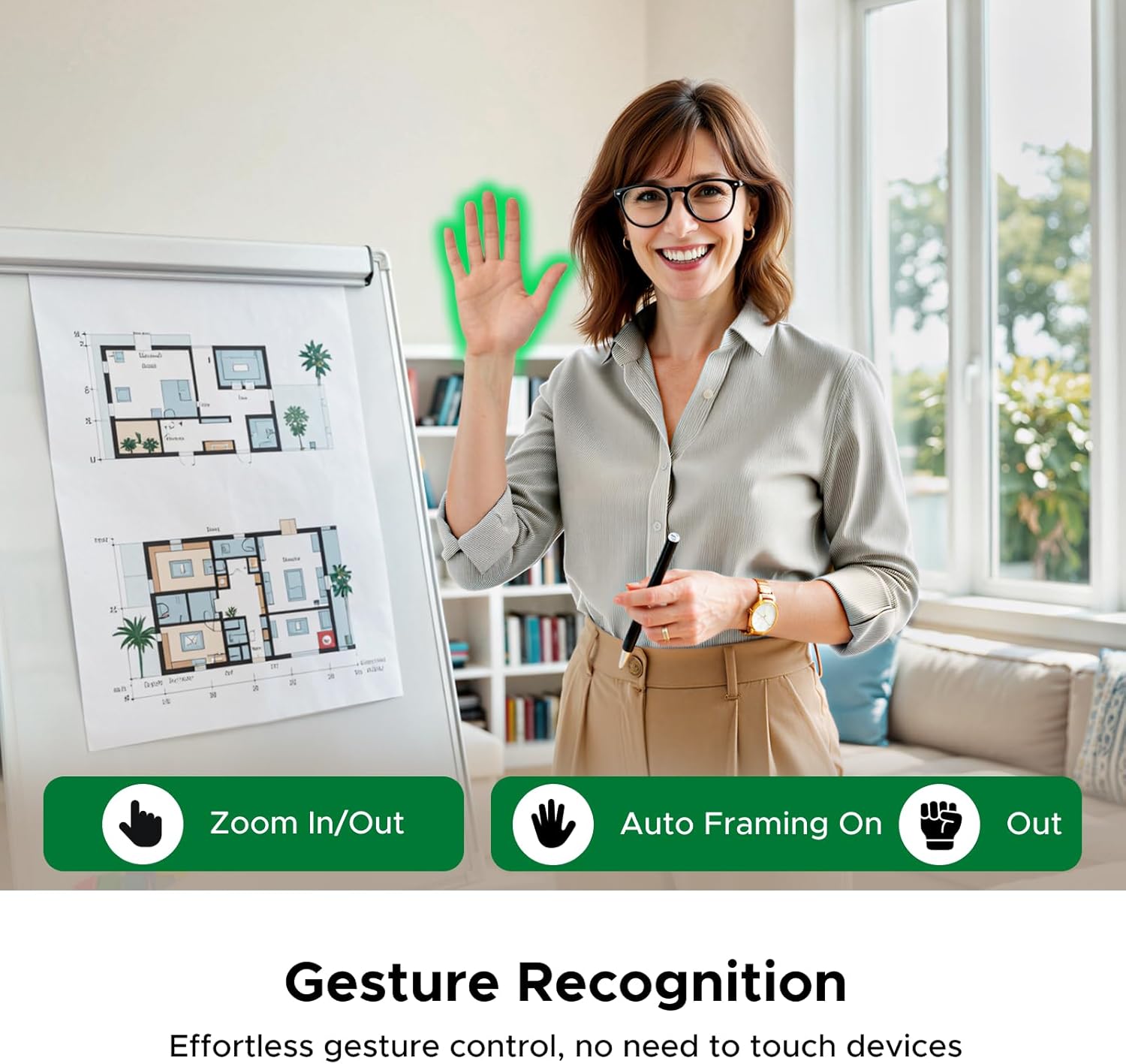
Image: A visual representation of the AI Auto Framing feature, showing how the webcam keeps subjects centered in the frame.

Image: A comparison showing the effect of Dynamic Face AE Auto Light Correction, improving facial brightness in challenging lighting.

Image: A demonstration of the PDAF Auto Focus feature, showing quick and accurate focusing on both faces and objects.
5. การควบคุมด้วยท่าทาง
การ webcam supports effortless gesture control, allowing you to manage certain features without touching the device. Use specific hand gestures to instantly enable AI Framing or zoom in/out.
- ซูมเข้า/ออก: Specific hand gestures can trigger zooming in or out.
- AI Framing On/Off: Gestures can activate or deactivate the AI Auto Framing feature.

Image: Two individuals demonstrating hand gestures for controlling zoom and AI auto framing on the UGREEN FineCam Pro 4K Webลูกเบี้ยว.
6. ความเข้ากันได้สากล
The UGREEN FineCam Pro 4K Webcam is compatible with a wide range of operating systems and applications, ensuring seamless integration into your existing setup.
- ระบบที่รองรับ: Windows 7/8/10/11, Mac OS 10.6 and above, Linux, Switch 2.
- Applicable Apps: Zoom, Skype, Microsoft Teams, Google Meet, Twitch, Facetime, YouTube, GoToMeeting, OBS.

Image: An illustration detailing the universal compatibility of the UGREEN FineCam Pro 4K Webcam with different operating systems and popular video conferencing/streaming applications.
การซ่อมบำรุง
To ensure the longevity and optimal performance of your UGREEN FineCam Pro 4K Webแคม ปฏิบัติตามคำแนะนำการบำรุงรักษาดังต่อไปนี้:
- การทำความสะอาด: Use a soft, dry, lint-free cloth to clean the camera lens and body. Avoid using harsh chemicals, cleaning solvents, or abrasive materials, as these can damage the surfaces.
- พื้นที่จัดเก็บ: เมื่อไม่ใช้งาน ให้เก็บ webcam in a cool, dry place away from direct sunlight and extreme temperatures. Utilize the integrated privacy cover to protect the lens from dust and scratches.
- การจัดการ: จัดการกับ webโปรดใช้ด้วยความระมัดระวัง หลีกเลี่ยงการทำตกหรือการกระแทกอย่างรุนแรง
การแก้ไขปัญหา
If you encounter issues with your UGREEN FineCam Pro 4K Webcam, refer to the following common troubleshooting steps:
- Webไม่พบกล้อง:
- ตรวจสอบให้แน่ใจว่าสาย USB เชื่อมต่ออย่างแน่นหนากับทั้งสอง webแคมและคอมพิวเตอร์ของคุณ
- ลองเชื่อมต่อดู webเสียบกล้องเข้ากับพอร์ต USB อื่นบนคอมพิวเตอร์ของคุณ
- If using a USB-A port, ensure the USB-C to USB-A adapter is correctly attached.
- รีสตาร์ทเครื่องคอมพิวเตอร์ของคุณ
- Check your operating system's device manager (Windows) or system information (Mac) to see if the webมีรายการแคมอยู่
- No Video Output / Black Screen:
- Verify that the privacy cover is open.
- ให้แน่ใจว่า webcam is selected as the active video input device in your video conferencing or streaming application.
- ปิดและเปิดแอปพลิเคชันใหม่อีกครั้ง
- If the issue persists, try restarting the computer.
- Poor Image Quality / Overexposure:
- ให้แน่ใจว่ามีแสงสว่างเพียงพอในสภาพแวดล้อมของคุณ webcam performs best with sufficient ambient light.
- Avoid strong backlighting directly behind you, as this can cause overexposure.
- Check the settings within your video application (e.g., OBS, Zoom) for exposure, brightness, contrast, and white balance. Adjust these manually if auto-settings are not optimal.
- ทำความสะอาดเลนส์ด้วยผ้าแห้งเนื้อนุ่ม
- Microphone Issues / Poor Audio:
- ให้แน่ใจว่า webในตั้งค่าแอปพลิเคชันของคุณ ได้เลือกไมโครโฟนของกล้องเป็นอุปกรณ์รับเสียงแล้ว
- Check the microphone volume levels in your computer's sound settings and within the application.
- Minimize background noise in your environment. The AI noise-canceling feature works best when significant noise is present.
- Gesture Control Not Responding:
- Ensure your hand gestures are clear and performed within the camera's field of view.
- Verify that your face is clearly visible to the camera for proper gesture recognition.
- Check for any obstructions between your hand and the camera.
ข้อมูลจำเพาะ
| คุณสมบัติ | รายละเอียด |
|---|---|
| ยี่ห้อ | ยูกรีน |
| หมายเลขรุ่น | 75726เอ |
| ความละเอียดในการจับภาพวิดีโอ | 4K (30FPS), 1080P (60FPS) |
| เทคโนโลยีโฟโต้เซนเซอร์ | CMOS (1/2-inch Sony Sensor) |
| ความละเอียดของภาพนิ่งที่มีประสิทธิภาพ | 12 MP |
| ประเภทโฟกัส | Auto Focus (PDAF) |
| รูรับแสงสูงสุด | 1.8 ฟ. |
| เทคโนโลยีการเชื่อมต่อ | USB (USB-C with USB-A adapter) |
| คุณสมบัติ | AI-Powered Auto Framing, Omnidirectional Noise Reduction (AI Mics), Gesture Recognition, Face AE, 7 Built-in Filters, Portrait Mode |
| อุปกรณ์ที่รองรับ | แล็ปท็อป, คอมพิวเตอร์ส่วนบุคคล, สมาร์ทโฟน, แท็บเล็ต |
| ระบบที่รองรับ | Windows 7/8/10/11, Mac OS 10.6+, Linux, Switch 2 |
การรับประกันและการสนับสนุน
The UGREEN FineCam Pro 4K Webกล้องมาพร้อมกับ 24 Months Warranty Service by UGREEN. For technical support, warranty claims, or further assistance, please contact UGREEN customer service through their official webหรือร้านค้าที่ซื้อผลิตภัณฑ์ โปรดเก็บหลักฐานการซื้อไว้เพื่อยืนยันการรับประกัน