
1. บทนำ
The ZTE U60 Pro MU5250 is a portable 5G Wi-Fi 7 router designed to provide high-speed internet connectivity on the go. It features an ultra-high-speed 5G-A network, the flagship Snapdragon X75 chip platform, and advanced Wi-Fi 7 technology. This device is equipped with a 10,000 mAh high-capacity battery, offering extended usage and the ability to function as a power bank for other electronic devices. Its 3.5-inch HD touchscreen allows for easy network management and traffic monitoring. The U60 Pro supports up to 64 simultaneous device connections and offers convenient NFC one-touch connectivity, intelligent AI scenes, and AI voice management for a fast, stable, and efficient internet experience.

ภาพที่ 1.1: ด้านหน้า view of the ZTE U60 Pro MU5250, showing its 3.5-inch display with network information.
2. การตั้งค่า
2.1 เนื้อหาบรรจุภัณฑ์
ก่อนเริ่มต้น โปรดตรวจสอบให้แน่ใจว่ามีส่วนประกอบครบถ้วน:
- ZTE U60 Pro MU5250 5G Pocket Wi-Fi 7 Router
- อะแดปเตอร์ AC
- คู่มือการใช้งาน (เอกสารนี้)
2.2 การติดตั้งซิมการ์ด
To enable 5G connectivity, a compatible SIM card must be installed.
- หาช่องใส่ซิมการ์ดที่ด้านข้างของอุปกรณ์
- Using the provided SIM ejector tool (if applicable) or a small pin, gently press into the small hole next to the SIM tray to eject it.
- Place your 5G-enabled Nano-SIM card into the tray, ensuring proper orientation.
- ใส่ถาดซิมกลับเข้าไปในอุปกรณ์อย่างระมัดระวังจนกระทั่งล็อคเข้าที่
2.3 การเปิด/ปิดเครื่อง
To power on the device, press and hold the power button located on the side until the screen illuminates. To power off, press and hold the power button until the power-off options appear on the screen, then select 'Power Off'.
2.4 การเชื่อมต่อ Wi-Fi เบื้องต้น
After powering on, the device will automatically search for a 5G network. You can connect to the Wi-Fi network using one of the following methods:
- การเชื่อมต่อด้วยตนเอง: On your device (phone, laptop, etc.), search for available Wi-Fi networks. Select the network name (SSID) displayed on the U60 Pro's screen and enter the password (also displayed on the screen).
- การเชื่อมต่อ NFC แบบสัมผัสเดียว: For Android phones with NFC enabled, tap your phone against the NFC area on the U60 Pro. Your phone will automatically connect to the Wi-Fi network without requiring a password.

Image 2.1: Illustrates the NFC one-touch connection process for quick Wi-Fi access.
3. คู่มือการใช้งาน
3.1 อินเทอร์เฟซหน้าจอสัมผัส
The 3.5-inch HD touchscreen provides a minimalist user interface for managing the device. You can view network status, data usage, signal strength, battery level, and adjust basic settings directly from the screen. Swipe and tap gestures are used for navigation.
3.2 การเชื่อมต่ออุปกรณ์หลายเครื่อง
The ZTE U60 Pro supports simultaneous connections for up to 64 devices, allowing multiple users to share the 5G network. Connect devices using the standard Wi-Fi connection method as described in Section 2.4.
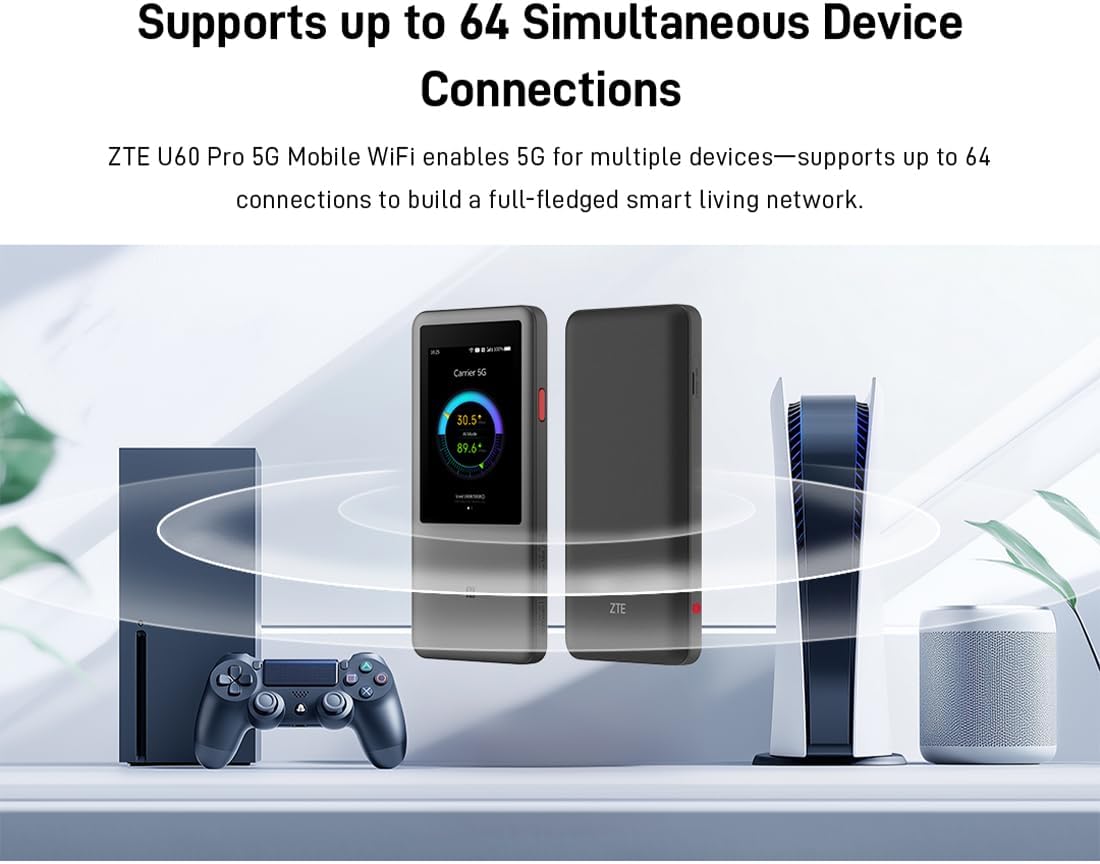
Image 3.1: The ZTE U60 Pro providing 5G Wi-Fi connectivity to various electronic devices.
3.3 AI Smart Scene Modes
The device features intelligent AI Scene technology with dynamic bandwidth allocation. It adjusts bandwidth and priority for applications based on user usage patterns to ensure smooth operation. Available modes include:
- Anchor Mode: Optimized for live streaming.
- โหมดการประชุม: Prioritizes video conferencing applications.
- โหมดวิดีโอ: Enhances video playback and streaming.
- โหมดความเร็ว: Maximizes overall network speed.
- โหมดเกม: Reduces latency for online gaming.
3.4 AI Voice Management (via ZTE Smart Life APP)
The ZTE Smart Life APP enables effortless device management, including AI voice control. This feature allows for intelligent management of the router through voice commands. Download the ZTE Smart Life APP from your device's app store.

Image 3.2: The ZTE Smart Life APP interface demonstrating AI voice management capabilities.
3.5 ฟังก์ชันการทำงานของพาวเวอร์แบงค์
The U60 Pro can also serve as a power bank. With its 10,000 mAh battery and 18W reverse fast charging, you can charge other electronic devices by connecting them to the router's appropriate port (e.g., USB-C).
4. การบำรุงรักษา
4.1 การดูแลแบตเตอรี่
อุปกรณ์นี้มาพร้อมกับแบตเตอรี่ความจุ 10,000 mAh เพื่อยืดอายุการใช้งานแบตเตอรี่:
- หลีกเลี่ยงอุณหภูมิที่สูงหรือต่ำเกินไป
- ใช้ที่ชาร์จเร็ว 27W ที่ให้มาเพื่อการชาร์จที่ดีที่สุด
- สำหรับการเก็บรักษาในระยะยาว ให้ชาร์จแบตเตอรี่ประมาณ 50% และเก็บไว้ในที่แห้งและเย็น
4.2 การดูแลอุปกรณ์ทั่วไป
To ensure the longevity and optimal performance of your ZTE U60 Pro:
- รักษาอุปกรณ์ให้สะอาดและปราศจากฝุ่น ใช้ผ้านุ่มและแห้งทำความสะอาด
- ควรหลีกเลี่ยงการนำอุปกรณ์ไปสัมผัสกับน้ำหรือความชื้นสูงเกินไป
- อย่าทำอุปกรณ์หล่นหรือกระแทกอย่างรุนแรง
- ควรมีการระบายอากาศที่เหมาะสมเมื่อใช้งานเพื่อป้องกันความร้อนสูงเกินไป
5 การแก้ไขปัญหา
If you encounter issues with your ZTE U60 Pro, refer to the following common solutions:
5.1 ไม่มีการเชื่อมต่อเครือข่าย
- ตรวจสอบซิมการ์ด: Ensure the SIM card is correctly inserted and activated with a 5G data plan.
- ความแรงของสัญญาณ: Verify the signal strength indicator on the device's screen. Move to an area with better 5G coverage if the signal is weak.
- รีสตาร์ทอุปกรณ์: Power off and then power on the U60 Pro.
- การตั้งค่าเครือข่าย: Check network settings via the touchscreen or ZTE Smart Life APP to ensure APN settings are correct (usually automatic).
5.2 ปัญหาการเชื่อมต่อ Wi-Fi
- รหัสผ่านไม่ถูกต้อง: Double-check the Wi-Fi password displayed on the U60 Pro's screen.
- ขีดจำกัดของอุปกรณ์: Ensure you have not exceeded the maximum of 64 connected devices.
- Restart Connected Device: Restart the device attempting to connect to the Wi-Fi.
- รีสตาร์ทเราเตอร์: Restart the ZTE U60 Pro.
5.3 ความเร็วอินเทอร์เน็ตช้า
- ความแรงของสัญญาณ: A weak 5G signal will result in slower speeds.
- ขีดจำกัดข้อมูล: Check if your data plan has a fair usage policy or if you have exceeded a data cap, which might throttle speeds.
- AI Scene Mode: Ensure the appropriate AI Scene mode (e.g., Speed Mode) is selected for your activity.
- การรบกวน: ย้ายอุปกรณ์ให้ห่างจากอุปกรณ์อิเล็กทรอนิกส์อื่นๆ ที่อาจก่อให้เกิดการรบกวน
6. ข้อมูลจำเพาะ
The following table details the technical specifications of the ZTE U60 Pro MU5250:

Image 6.1: The Snapdragon X75 Flagship Chip-set Platform, central to the router's performance.
| คุณสมบัติ | รายละเอียด |
|---|---|
| ยี่ห้อ | แซดทีอี |
| ชื่อรุ่น | MU5250 |
| หมายเลขรุ่นสินค้า | MU5250 |
| ผู้ผลิต | แซดทีอี |
| คุณสมบัติพิเศษ | 5G Connection, Wi-Fi 7, AI Scenes, Voice Control, Power Bank |
| เทคโนโลยีการเชื่อมต่อ | 5G, ไวไฟ |
| การสร้าง Wi-Fi | ไวไฟ 7 |
| มาตรฐานการสื่อสารไร้สาย | 802.11a, 802.11ac, 802.11b, 802.11g, 802.11n |
| ระดับย่านความถี่ | ดูอัลแบนด์ |
| ความถี่ | 5 กิกะเฮิรตซ์ |
| อัตราการถ่ายโอนข้อมูล | 4.29 Gigabits per second (Download) |
| อัตราการถ่ายโอนข้อมูลต้นทางสูงสุด | 3600 Megabits per second (Wi-Fi 7 Peak Throughput) |
| จำนวนเสาอากาศ | 9 (Omnidirectional 5G Array) |
| ความครอบคลุม | Wide and complete (360° full-band coverage) |
| วิธีการควบคุม | สัมผัส |
| ระบบปฏิบัติการ | ไซโนส |
| โปรโตคอลความปลอดภัย | WPA3 |
| Router Firewall Security Level | พื้นฐาน |
| แบตเตอรี่ | 1 AAA - included (Note: Product description mentions 10,000 mAh, likely internal) |
| น้ำหนักสินค้า | 435 กรัม |
| ส่วนประกอบที่รวมอยู่ | อะแดปเตอร์ AC |
| อุปกรณ์ที่รองรับ | Game Console, various Wi-Fi enabled devices |
| การใช้งานที่แนะนำสำหรับผลิตภัณฑ์ | Streaming, Gaming, Outdoor/Travel, Small Office |
| การเชื่อมต่ออินเตอร์เน็ต | ใช่ |
| Modem Compatible | No (Functions as a standalone 5G router) |
| ความเข้ากันได้ของสมาร์ทโฮม | Not Smart Home Compatible |
| ความพร้อมของอะไหล่ | ไม่มีข้อมูล |
| รับประกันการอัปเดตซอฟต์แวร์จนถึง | ไม่มีข้อมูล |

Image 6.2: Highlighting the 5G ultra-high-speed network of the ZTE U60 Pro MU5250.

Image 6.3: Illustration of the 9 omnidirectional 5G antennas providing 360° full-band coverage.
7. การสนับสนุนและการรับประกัน
7.1 การสนับสนุนลูกค้า
For further assistance, technical support, or inquiries not covered in this manual, please refer to the official ZTE support channels or contact your retailer.
7.2 ข้อมูลการรับประกัน
Warranty terms and conditions may vary by region and retailer. Please refer to the warranty card included with your product or consult your point of purchase for detailed warranty information.