
การแนะนำ
Thank you for choosing the UPERFECT 16-inch 2K 144Hz Portable Gaming Monitor. This manual provides essential information for setting up, operating, maintaining, and troubleshooting your new monitor. Please read it thoroughly to ensure optimal performance and longevity of your device.
การตั้งค่า
เนื้อหาแพ็คเกจ
- UPERFECT 16-inch Portable Gaming Monitor
- Protective Case (may vary by model)
- Cables (USB-C, Mini HDMI - specific types and quantities may vary)
- อะแดปเตอร์ไฟฟ้า (ถ้ามี)
การตั้งค่าทางกายภาพ
- การวางตำแหน่งจอภาพ: Place the monitor on a stable, flat surface. The integrated kickstand allows for adjustable viewมุมการเอียง
- การติดตั้ง VESA: For a more permanent setup, the monitor supports VESA mounting. Attach a compatible VESA mount (not included) to the designated mounting points on the back of the monitor. Ensure the mount can support the monitor's weight.
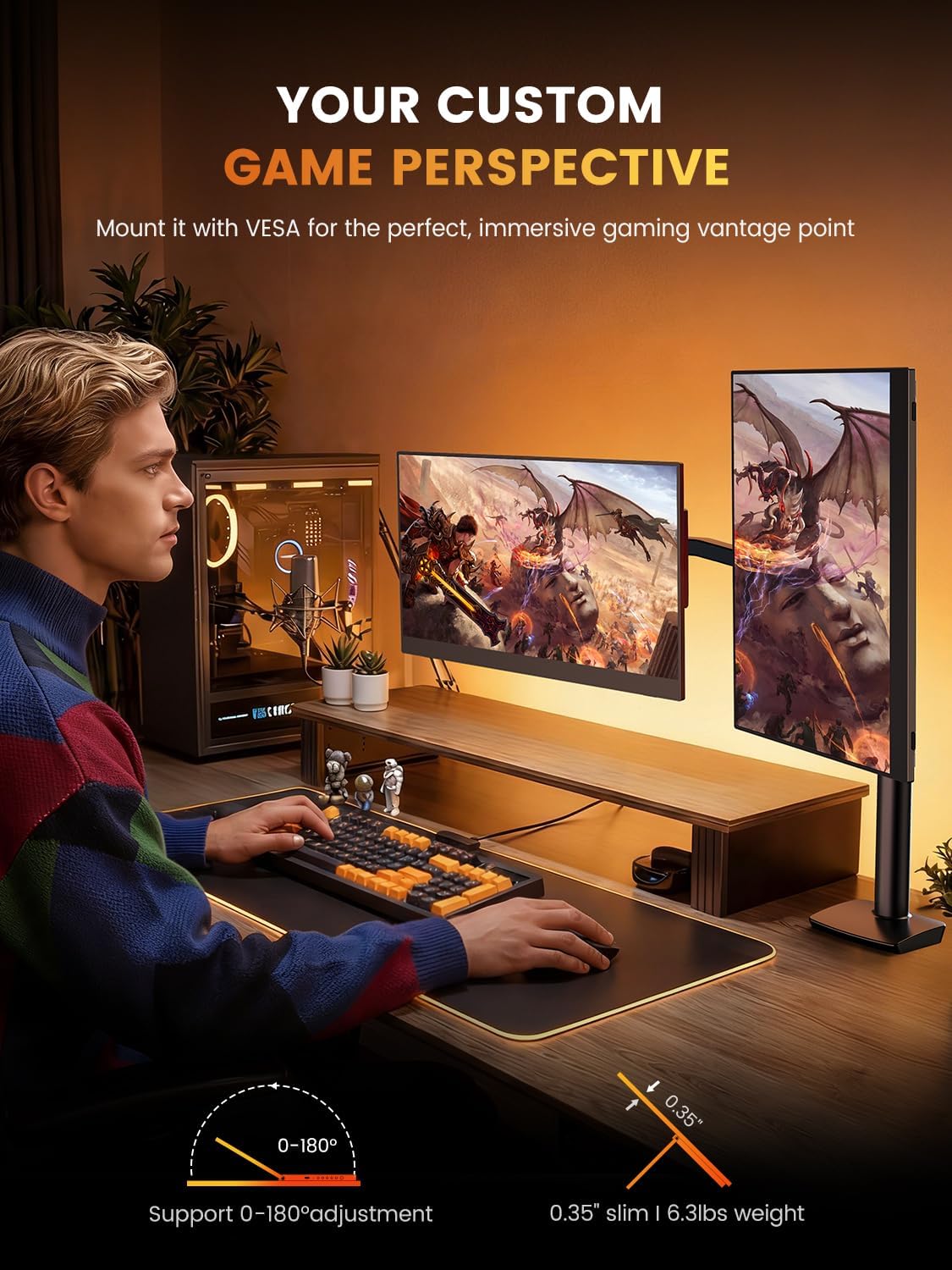
Image: The monitor can be mounted using a VESA arm for flexible positioning, as shown with a user at a desk with a gaming PC.
การเชื่อมต่อกับอุปกรณ์
The monitor offers versatile connectivity for various devices including laptops, smartphones, gaming consoles, and cameras.
- การเชื่อมต่อ USB-C: For devices with a full-featured USB-C port (supporting DisplayPort Alternate Mode and power delivery), a single USB-C cable can provide both video signal and power to the monitor. Connect one end of the USB-C cable to your device and the other to the monitor's USB-C port.
- การเชื่อมต่อ Mini HDMI: For devices with an HDMI output, use a Mini HDMI to HDMI cable. Connect the Mini HDMI end to the monitor and the HDMI end to your device. An additional USB-C to USB-A cable or power adapter (5V) may be required to power the monitor if your device does not supply sufficient power via HDMI.
- เอาต์พุตเสียง: The monitor features built-in speakers. For external audio, connect headphones or external speakers to the 3.5mm audio jack.
คำแนะนำการใช้งาน
การเปิด/ปิดเครื่อง
Press the power button located on the side or back of the monitor to turn it on or off. The monitor will automatically detect the input signal.
การตั้งค่าการแสดงผล
Use the OSD (On-Screen Display) menu buttons to adjust various display settings. Common adjustments include:
- ความสว่าง/คอนทราสต์: Adjust the image brightness and contrast levels. The monitor supports up to 400 nits brightness and a 1500:1 contrast ratio.
- การตั้งค่าสี: Fine-tune color temperature, hue, and saturation. The monitor offers 100% DCI-P3 color gamut for accurate color reproduction.
- แหล่งสัญญาณเข้า: Manually select between USB-C and Mini HDMI input sources if auto-detection fails.
- เสียง: ปรับระดับเสียงของลำโพงในตัวหรือหูฟังที่เชื่อมต่ออยู่
- คุณสมบัติพิเศษ: Enable or disable features like Blue Light Filter and Flicker-Free technology for eye care.
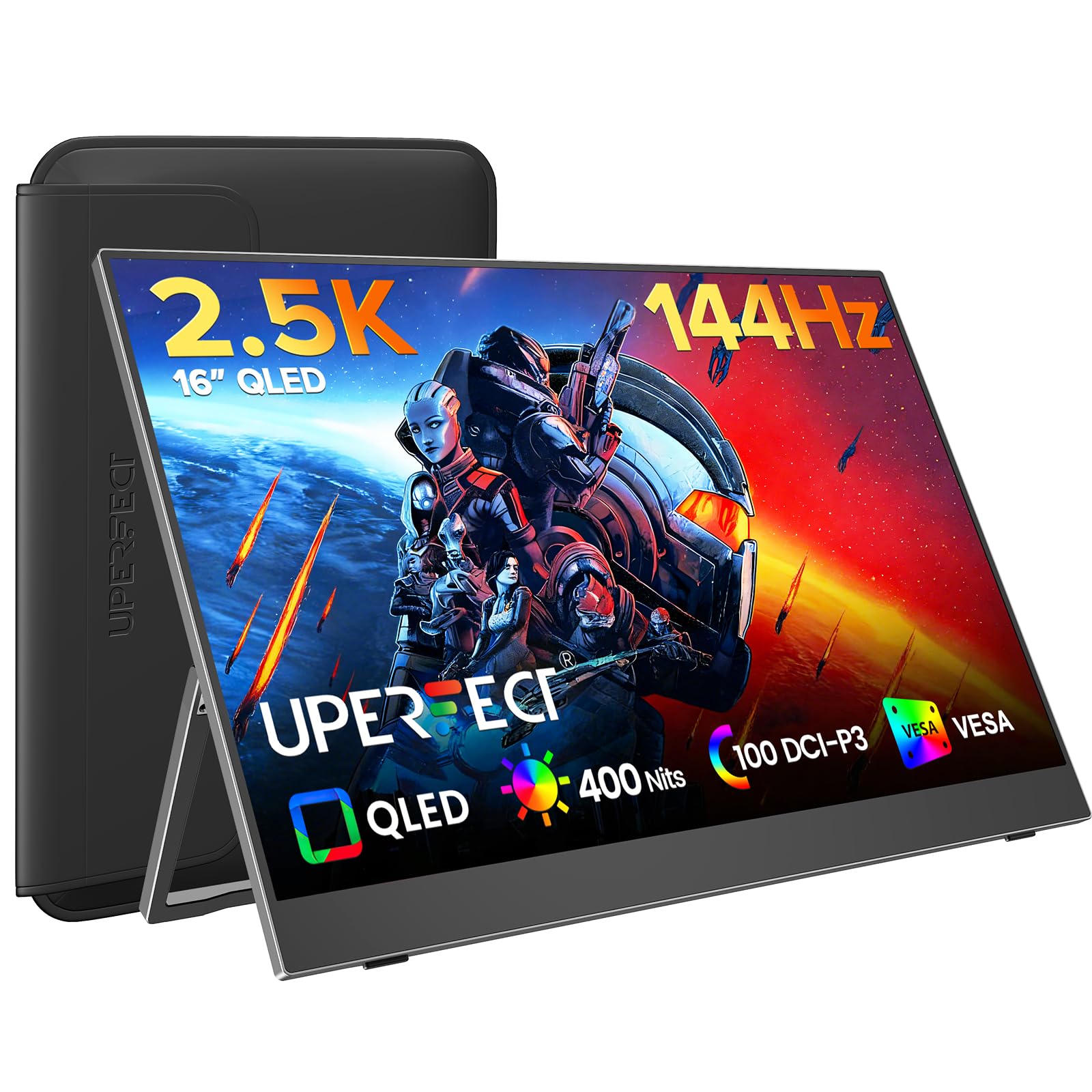
Image: The monitor features a 0.1ms response time and 144Hz refresh rate for smooth motion in gaming.

Image: Enjoy a smooth gaming experience and stunning 2.5K visual effects with the 144Hz refresh rate.

Image: QLED technology provides true color reproduction with 100% DCI-P3, 400 Nits brightness, and 2000:1 contrast.

Image: The monitor achieves 100% DCI-P3 color space, a cinema standard, for a stunning visual experience.
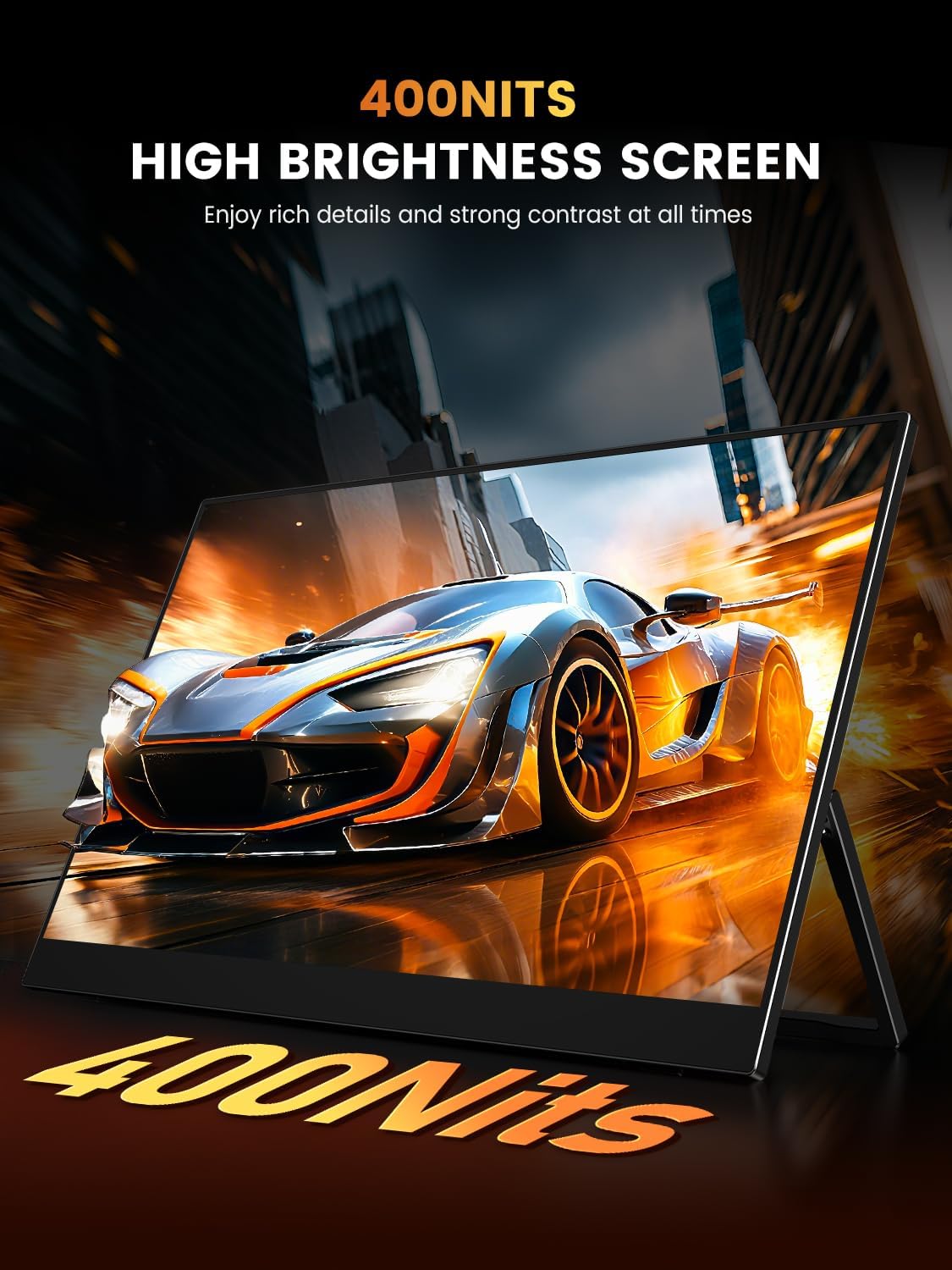
Image: The 400 Nits high brightness screen ensures rich details and strong contrast in various lighting conditions.
การซ่อมบำรุง
การทำความสะอาดจอภาพ
- ปิดเครื่องและถอดปลั๊กจอภาพทุกครั้งก่อนทำความสะอาด
- ใช้ผ้านุ่มไม่เป็นขุยเช็ดเล็กน้อยampเคลือบด้วยน้ำหรือน้ำยาทำความสะอาดหน้าจอที่ไม่กัดกร่อน
- ห้ามฉีดน้ำยาทำความสะอาดลงบนหน้าจอโดยตรง
- Avoid using alcohol, ammonia, or abrasive cleaners, as these can damage the matte screen surface.
การดูแลรักษาเคสป้องกัน
If your monitor came with a protective case, ensure it is used during transport to prevent scratches and damage. The case is designed to be waterproof, anti-scratch, durable, and breathable.
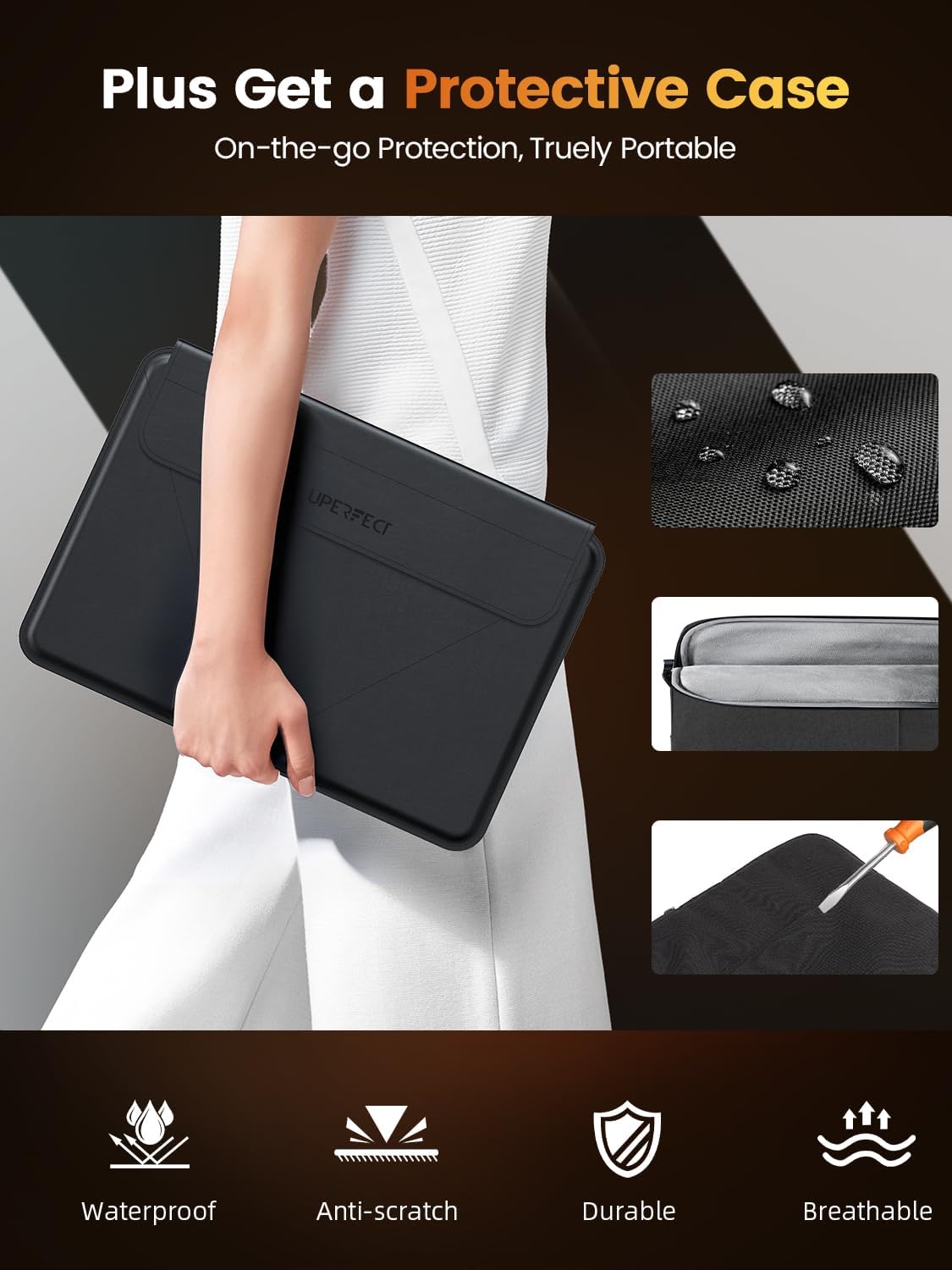
Image: The included protective case offers on-the-go protection, featuring waterproof, anti-scratch, durable, and breathable properties.
การแก้ไขปัญหา
หากคุณพบปัญหาเกี่ยวกับจอภาพ โปรดดูวิธีแก้ไขปัญหาทั่วไปต่อไปนี้:
- ไม่มีสัญญาณ:
- Ensure all cables (USB-C, Mini HDMI) are securely connected to both the monitor and your device.
- Verify that your device's display output is enabled and configured correctly (e.g., extended display, duplicate display).
- Try selecting the input source manually via the OSD menu.
- ไม่มีไฟฟ้า:
- Confirm the power adapter (if used) is properly connected to a working power outlet and the monitor.
- If using a single USB-C cable, ensure your device's USB-C port supports power delivery to external displays.
- ลองใช้แหล่งจ่ายไฟหรือสายเคเบิลอื่น
- หน้าจอกระพริบ:
- ตรวจสอบว่าการเชื่อมต่อสายเคเบิลหลวมหรือไม่
- ปรับการตั้งค่าอัตราการรีเฟรชบนอุปกรณ์ที่เชื่อมต่อของคุณ
- Ensure the monitor's power supply is stable.
- ปัญหาเกี่ยวกับคุณภาพของภาพ (ภาพเบลอ ภาพบิดเบี้ยว):
- Ensure your device's display resolution is set to the monitor's native resolution (2560x1600).
- ปรับความสว่าง ความคมชัด และการตั้งค่าสีผ่านเมนู OSD
ข้อมูลจำเพาะ
| คุณสมบัติ | ข้อมูลจำเพาะ |
|---|---|
| ยี่ห้อ | สุดยอด U |
| แบบอย่าง | 16 |
| ขนาดหน้าจอ | 16 นิ้ว |
| ความละเอียดการแสดงผล | 2560 x 1600 พิกเซล (2K) |
| อัตราการรีเฟรช | 144 เฮิรตซ์ |
| เวลาตอบสนอง | 0.1 มิลลิวินาที |
| เทคโนโลยีการแสดงผล | คิวแอลอีดี |
| ความสว่าง | 400 นิต |
| อัตราส่วนคอนทราสต์ | 1500:1 น. |
| Viewอิงแองเกิล | 178 องศา |
| ช่วงสี | 100% DCI-P3 |
| อัตราส่วนภาพ | 16:10 น. |
| ฮาร์ดแวร์อินเตอร์เฟซ | 3.5mm Audio, USB 3.0 Type C, Mini HDMI |
| คุณสมบัติพิเศษ | Blue Light Filter, Built-In Speakers, Eye Care, Flicker-Free, Lightweight |
| อุปกรณ์ที่รองรับ | Camera, Desktop, Gaming Console, Laptop, Smartphone |
| เล่มที่tage | 5 โวลต์ |
| ขนาดสินค้า | 0.58 x 35.56 x 24.13 ซม. |
| น้ำหนักสินค้า | 680.39 กรัม |
การรับประกันและการสนับสนุน
For warranty information or technical support, please refer to the documentation included with your purchase or visit the official UPERFECT website. If you have further questions or require assistance, please contact UPERFECT customer service.