
การแนะนำ
Thank you for choosing the ProtoArc KM310 Wireless Mechanical Keyboard and Mouse. This combo offers a responsive typing experience with low-profile linear red switches and versatile multi-device connectivity. The ergonomic mouse is designed for comfort and precision. This manual provides detailed instructions for setup, operation, maintenance, and troubleshooting to ensure optimal performance.
มีอะไรอยู่ในกล่อง

Image: Contents of the ProtoArc KM310 package, including the keyboard, mouse, charging cable, and user manual.
- ProtoArc KM310 Wireless Mechanical Keyboard
- ProtoArc Wireless Mouse
- สายชาร์จ USB-C
- คู่มือการใช้งาน
สินค้าเกินview
คุณสมบัติของแป้นพิมพ์

ภาพ: ภาพระยะใกล้ view of the ProtoArc KM310 keyboard, highlighting its low-profile keys and linear red switches.
- โปรต่ำfile กุญแจเครื่องกล: Equipped with linear red switches for a smooth, quiet, and responsive typing experience.
- Aluminum Top Case: Provides durability and a sleek, modern aesthetic.
- ขาปรับเอียงได้: Ergonomically designed with 2-stage foot mats offering 6° and 9° tilt options for comfortable typing.
- เค้าโครงขนาดเต็ม: A 108-key layout suitable for office and business use.
คุณสมบัติของเมาส์

Image: The ProtoArc KM310 mouse being held, showcasing its ergonomic design for a natural grip.
- 63G Ultra-Lightweight: Reduces hand fatigue during extended use and enhances portability.
- การออกแบบตามหลักสรีรศาสตร์: Contoured shape for a comfortable and natural grip.
- DPI ที่ปรับได้: Three DPI levels (1000/1600/2400) for tailored control and precision.
- คลิกเงียบ: ออกแบบมาเพื่อการทำงานที่เงียบสงบ
- ปุ่มเดินหน้า/ถอยหลัง: Integrated for seamless browsing.
การเชื่อมต่อและพลังงาน
- การเชื่อมต่อหลายอุปกรณ์: Connects up to 3 devices via 2.4G USB receiver or Dual Bluetooth (BT1, BT2).
- ชาร์จไฟได้: Both keyboard and mouse feature Type-C charging. The mouse's USB receiver is stored on its bottom.
- อายุการใช้งานแบตเตอรี่ยาวนาน: Up to 150-200 days standby time; 2-3 hours for a full charge.
คำแนะนำการตั้งค่า
1. การชาร์จอุปกรณ์

Image: The keyboard and mouse are shown connected to power sources via USB-C cables for charging.
- Connect the provided USB-C charging cable to the charging port on the keyboard (located on the top edge) and the mouse (located on the front edge).
- เสียบปลายอีกด้านของสายเคเบิลเข้ากับแหล่งจ่ายไฟ USB (เช่น พอร์ต USB ของคอมพิวเตอร์ อะแดปเตอร์ติดผนัง USB)
- The indicator lights will show charging status. Allow 2-3 hours for a full charge.
2. การเชื่อมต่อกับอุปกรณ์

Image: A desk setup showing the ProtoArc KM310 keyboard and mouse connected to a laptop, monitor, and tablet, illustrating multi-device capability.
The KM310 combo supports three connection modes: 2.4G wireless via USB receiver, Bluetooth 1 (BT1), and Bluetooth 2 (BT2).
2.1. การเชื่อมต่อไร้สาย 2.4G
- ค้นหาตัวรับสัญญาณ USB ที่เก็บไว้ในช่องด้านล่างของเมาส์
- เสียบตัวรับสัญญาณ USB เข้ากับพอร์ต USB ที่พร้อมใช้งานบนคอมพิวเตอร์ของคุณ
- เปิดคีย์บอร์ดและเมาส์โดยใช้สวิตช์เปิด/ปิดตามลำดับ
- อุปกรณ์ควรเชื่อมต่อกันโดยอัตโนมัติ
2.2. การเชื่อมต่อบลูทูธ (BT1 / BT2)
- เปิดแป้นพิมพ์และเมาส์
- บนแป้นพิมพ์ กดปุ่ม BT1 or BT2 key (usually located on the number pad, indicated by orange keycaps) to select the desired Bluetooth channel. The indicator light will flash.
- On your device (computer, tablet, etc.), go to Bluetooth settings and search for "ProtoArc KM310 Keyboard" and "ProtoArc KM310 Mouse".
- Select the devices to pair. The indicator light will stop flashing once connected.
- ทำซ้ำขั้นตอนเดียวกันสำหรับอุปกรณ์บลูทูธตัวที่สอง โดยใช้ช่องสัญญาณบลูทูธอีกช่องหนึ่ง
2.3 การสลับระหว่างอุปกรณ์
To switch between connected devices, simply press the corresponding connection key on the keyboard (2.4G, BT1, or BT2) and the channel switch button on the bottom of the mouse.
คำแนะนำการใช้งาน
การใช้แป้นพิมพ์
- การพิมพ์: โปรต่ำfile linear red switches provide a responsive and quiet typing experience.
- ความเข้ากันได้ของระบบปฏิบัติการ: The keyboard is compatible with Windows and Mac OS. Keys like 'Win' and 'Alt' also show 'Option' and 'Cmd' for Mac users.
- การปรับความเอียง: Use the adjustable tilt legs on the underside of the keyboard to set your preferred typing angle (6° or 9°).
การใช้เมาส์
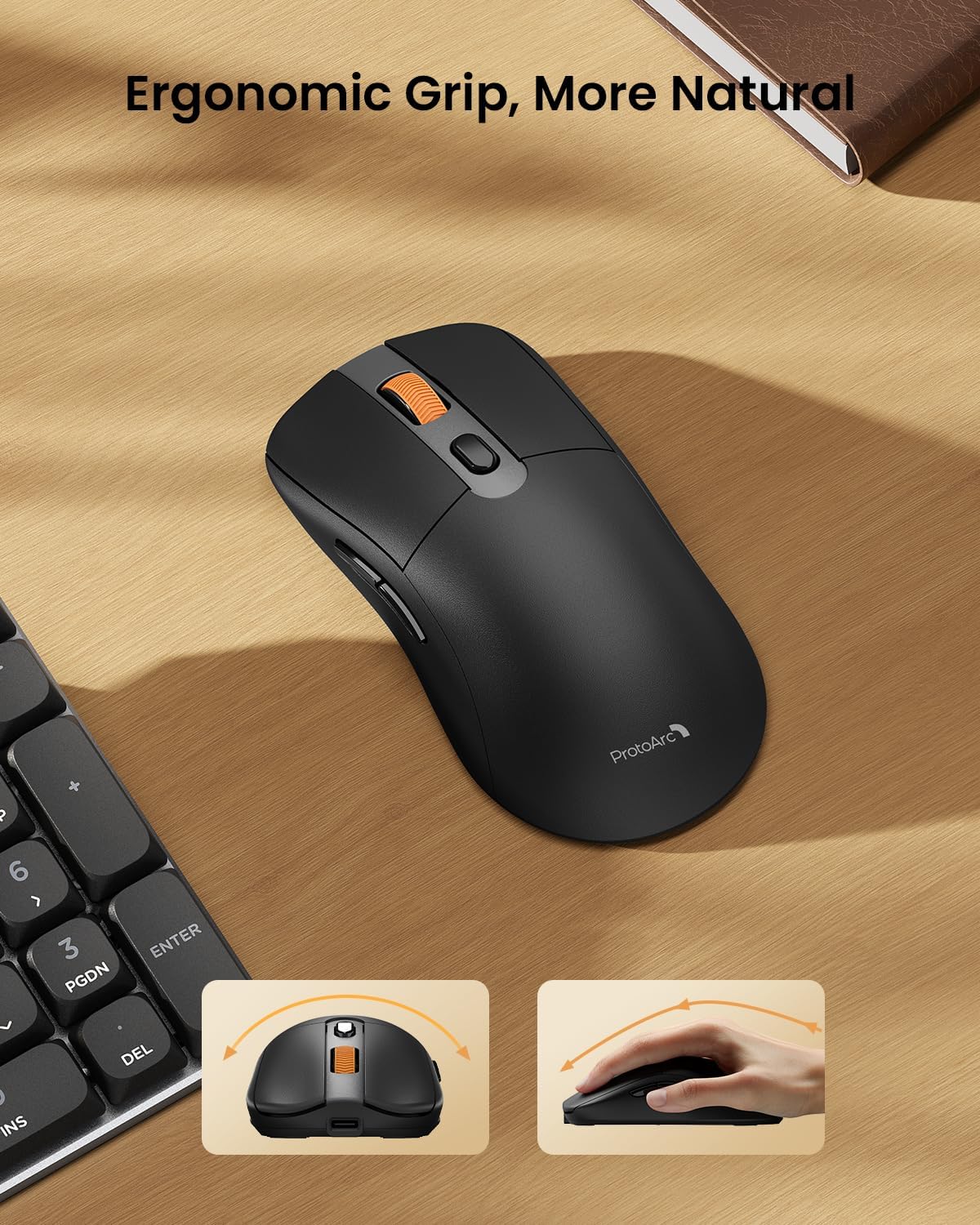
Image: A close-up of the ProtoArc KM310 mouse, illustrating the three adjustable DPI settings (1000, 1600, 2400).
- การปรับ DPI: Press the DPI switch button (usually located near the scroll wheel) to cycle through the 3 DPI levels (1000/1600/2400) to match your preference for cursor speed and precision.
- ปุ่มนำทาง: Use the forward and backward buttons on the side of the mouse for quick navigation in web เบราว์เซอร์หรือ file นักสำรวจ
- คลิกเงียบ: The mouse features silent click buttons for a quiet working environment.
การซ่อมบำรุง
- การทำความสะอาด: ใช้ผ้านุ่มและแห้งเช็ดคีย์บอร์ดและเมาส์ สำหรับคราบสกปรกฝังแน่น ให้เช็ดเบาๆamp สามารถใช้ผ้าชุบสบู่เหลวอ่อนๆ เช็ดได้ โดยระวังอย่าให้ของเหลวเข้าไปในตัวเครื่อง
- การดูแลแบตเตอรี่ Recharge the devices when the battery indicator is low. Avoid prolonged exposure to extreme temperatures.
- พื้นที่จัดเก็บ: When not in use for extended periods, turn off the devices to conserve battery life. Store the USB receiver inside the mouse to prevent loss.
การแก้ไขปัญหา
Keyboard/Mouse Not Turning On or Stopping Working
- ตรวจสอบแบตเตอรี่: Ensure both the keyboard and mouse are sufficiently charged. Connect them to a power source using the USB-C cable.
- ซ่อมแซมอุปกรณ์อีกครั้ง:
- For 2.4G connection, ensure the USB receiver is securely plugged in and the devices are set to 2.4G mode.
- For Bluetooth connection, ensure the devices are set to the correct BT channel (BT1 or BT2) and re-pair them through your device's Bluetooth settings.
- ลองใช้สายเคเบิลอื่น: If charging issues persist, try using a different USB-C cable to rule out a faulty cable.
- การรบกวน: Move the devices closer to your computer or away from other wireless devices that might cause interference.
- ติดต่อฝ่ายสนับสนุน: If the issue persists, please contact ProtoArc customer support for further assistance.
ข้อมูลจำเพาะ
| หมายเลขรุ่น | KM310 |
| ยี่ห้อ | โปรโตอาร์ค |
| สี | สีเทาสเปซเกรย์ |
| เทคโนโลยีการเชื่อมต่อ | บลูทูธ, USB (ไร้สาย 2.4G) |
| คุณสมบัติพิเศษ | โปรต่ำfile Keys, Linear Red Switches, Ergonomic Design, Ultra-Light Mouse, Ergonomic Mouse |
| อุปกรณ์ที่รองรับ | Laptop, Personal Computer, Tablet (Windows 7/8/10, Mac OS X 10.12, Android 4.3 or higher) |
| น้ำหนักสินค้า | 2.31 ปอนด์ |
| ขนาดแพ็คเกจ | 17.68 x 8.07 x 2.05 นิ้ว |
การรับประกันและการสนับสนุน
The ProtoArc KM310 Mechanical Keyboard and Mouse combo comes with a รับประกัน 2 ปี.
For any questions, technical support, or warranty claims, please contact ProtoArc customer service:
- อีเมล: support@protoarc.com
- โทรศัพท์: +1 866-287-8188
วิดีโอผลิตภัณฑ์อย่างเป็นทางการ
วิดีโอ: วิดีโอแสดงผลิตภัณฑ์อย่างเป็นทางการasing the features and design of the ProtoArc KM310 Aluminum Mechanical Keyboard and Mouse.