
1. บทนำ
The SofaBaton X2 is a universal remote control designed to consolidate control of your home entertainment and smart home devices. It features a 2.4-inch HD touchscreen, a comprehensive cloud-based code library, and supports various connectivity technologies including Infrared (IR), Bluetooth, RF, and Wi-Fi. This manual provides detailed instructions for setting up, operating, and maintaining your SofaBaton X2.
2. เนื้อหาบรรจุภัณฑ์
ตรวจสอบให้แน่ใจว่ามีรายการทั้งหมดอยู่ในบรรจุภัณฑ์:
- SofaBaton X2 Universal Remote Control
- SofaBaton Hub
- แท่นชาร์จ
- สายชาร์จแบบ USB Type-C
- IR Extension Cable (optional)
- คู่มือการใช้งาน

Image: SofaBaton X2 remote, hub, charging base, and infrared transponder.
3. สินค้าหมดview
The SofaBaton X2 system consists of the remote control, a central hub, and a charging dock. The remote features a touchscreen for intuitive navigation and control, while the hub provides 360-degree IR transmission and extends connectivity options.
คุณสมบัติหลัก:
- หน้าจอสัมผัส HD ขนาด 2.4 นิ้ว: For intuitive control and digital keypads.
- การเชื่อมต่อหลายอุปกรณ์: Supports IR, Bluetooth, RF, and Wi-Fi 2.4GHz.
- ความเข้ากันได้ของอุปกรณ์อย่างกว้างขวาง: Cloud-based library with over 500,000 devices from 6,000+ brands.
- Customizable Activities: Execute multi-device commands with a single press.
- การรวมระบบบ้านอัจฉริยะ: Compatible with Home Assistant, Alexa, and Google Home.
- SofaBaton Hub: Provides 360-degree IR transmission with a range of up to 40 feet.
- แท่นชาร์จ: Convenient Type-C charging dock for the remote.
- อายุการใช้งานแบตเตอรี่ยาวนาน: 1200mAh battery provides 3-4 weeks of working time.
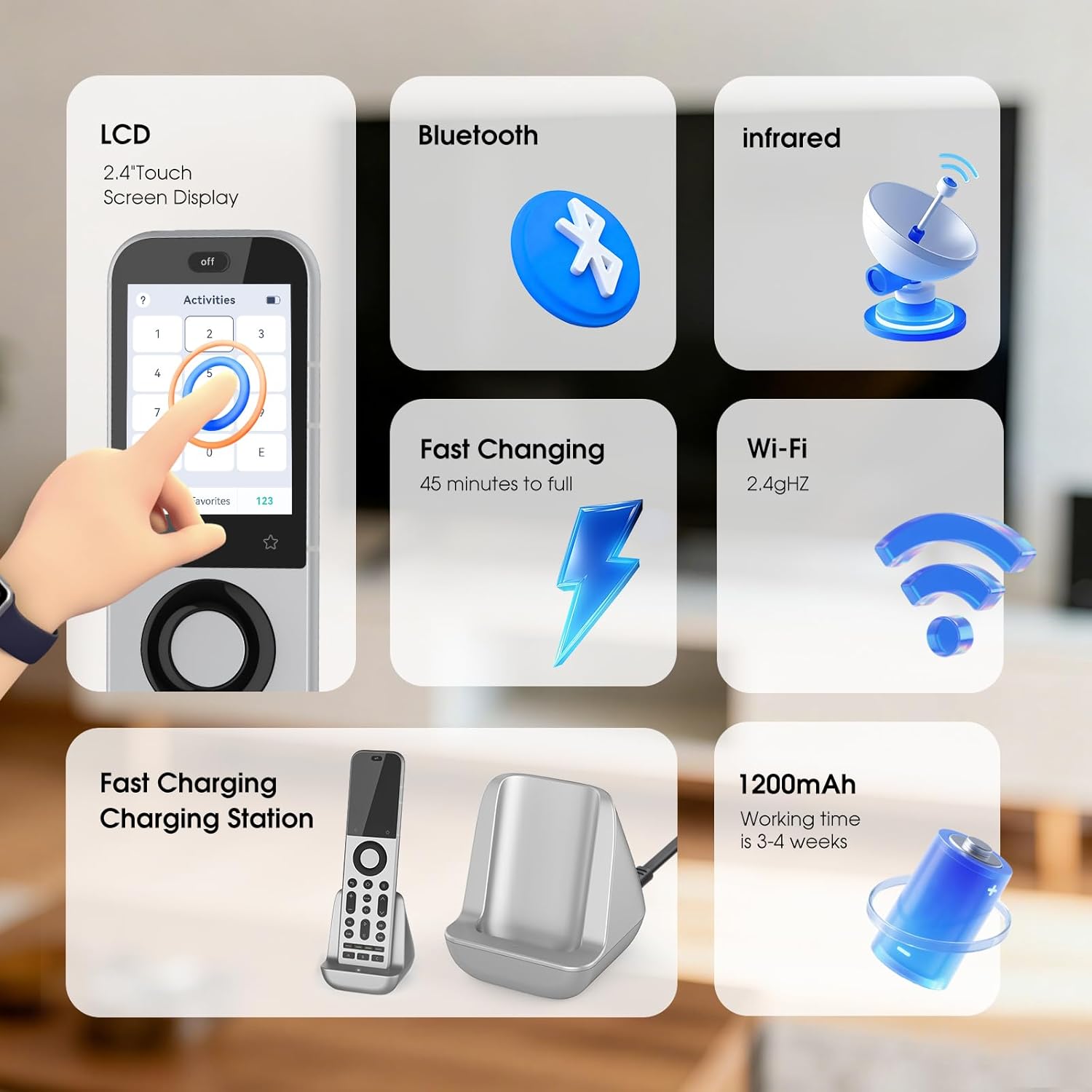
Image: SofaBaton X2 remote control highlighting its LCD touchscreen, Bluetooth, Infrared, Fast Charging capability, Wi-Fi 2.4GHz connectivity, and 1200mAh battery.
4. การตั้งค่า
4.1 การชาร์จรีโมท
- Place the SofaBaton X2 remote into the charging dock.
- Connect the Type-C charging cable to the dock and a power source.
- The remote's screen will indicate charging status. A full charge takes approximately 45 minutes.
4.2 การเชื่อมต่อฮับ
- Position the SofaBaton Hub in a central location within your entertainment area, ensuring it has a clear line of sight to the devices you wish to control via IR.
- Connect the hub to power using the provided adapter.
- If devices are obstructed or out of direct line of sight, use the optional IR extension cable by plugging it into the hub and positioning its emitter near the target device's IR receiver.
4.3 ดาวน์โหลดและติดตั้งแอพ
The SofaBaton app is essential for configuring your remote and hub.
- Scan the QR code in the quick start guide or search for "SofaBaton" in your mobile device's app store (Google Play Store for Android, Apple App Store for iOS).
- Download and install the SofaBaton application.
- เปิดแอปและทำตามคำแนะนำบนหน้าจอเพื่อสร้างบัญชีหรือเข้าสู่ระบบ

Image: SofaBaton app download screen on a smartphone, showing options for Google Play and Apple App Store.
4.4 การจับคู่อุปกรณ์
Use the SofaBaton app to add and pair your devices with the remote and hub.
- In the SofaBaton app, navigate to the "Devices" section.
- Select "Add Device" and choose the type of device you want to add (e.g., TV, Soundbar, Streaming Device).
- Follow the app's instructions to search for your device by brand and model. The app will guide you through the pairing process, which may involve IR, Bluetooth, or Wi-Fi connectivity depending on the device.
- Test the controls to ensure proper functionality after pairing.

Image: Diagram illustrating Bluetooth connectivity between the SofaBaton X2 remote, hub, and various devices throughout a home, emphasizing multi-room control.
5. คู่มือการใช้งาน
5.1 การใช้งานหน้าจอสัมผัส
The 2.4-inch HD touchscreen provides access to devices, activities, settings, and digital keypads.
- การนำทาง: Swipe left/right or up/down to navigate through menus and options.
- การเลือก: Tap on an icon or option to select it.
- Digital Keypads: Access digital keypads (e.g., number pad) for specific devices or functions.

Image: SofaBaton X2 touchscreen displaying a digital keypad for number input, with IR transmitters indicated at the top.
5.2 Creating and Using Activities
Activities allow you to control multiple devices with a single command, such as turning on your TV, soundbar, and streaming device simultaneously for "Movie Night."
- Create Activity: In the SofaBaton app, go to the "Activities" section and select "Add Activity." Follow the prompts to select devices and define the sequence of commands.
- Launch Activity: On the remote's touchscreen, navigate to the "Activities" menu. To launch an activity, slide or swipe the activity icon to the right. This prevents accidental activation.
- Deactivate Activity: To turn off all devices associated with an activity, press the "Off" button located at the top of the remote. This action shuts down all active devices and ends the current mode.

Image: SofaBaton X2 touchscreen showing instructions for launching and deactivating activities by swiping the activity icon and pressing the 'Off' button.
5.3 App-Based Personalization
The SofaBaton app provides extensive customization options:
- เค้าโครงปุ่ม: Customize the function of physical buttons on the remote.
- การเขียนโปรแกรมมาโคร: Create complex sequences of commands (macros) for specific tasks.
- Reassignments: Reassign functions to different buttons or touchscreen areas.
- การเก็บข้อมูลบนคลาวด์: Your preferences and configurations are stored in the cloud for easy backup and restoration.

Image: SofaBaton app interface on a smartphone showing device control methods like Infrared, Bluetooth, Wi-Fi, and RF, emphasizing customization.
5.4 การรวมระบบบ้านอัจฉริยะ
The SofaBaton X2 can integrate with various smart home platforms:
- ผู้ช่วยในบ้าน: Connect the X2 to Home Assistant for automated activities and cross-platform synchronization via MQTT. This allows direct command subscriptions to automate audio-video gear, lighting, and other smart devices.
- ผู้ช่วยเสียง: Compatible with Alexa and Google Home for voice control of your entertainment system.
5.5 ตัวตั้งเวลาปิดเครื่อง
Set a one-time timer for the current activity:
- On the remote's touchscreen, navigate to the "Sleep Timer" option.
- Select the desired duration (e.g., 0.5 hours, 1 hour, 2 hours, 3 hours).
- The remote will automatically turn off the current activity after the selected time.
5.6 ซิงค์
To ensure your remote has the latest configurations from the app:
- On the remote's touchscreen, navigate to the "Sync" option.
- Tap "Sync Now." The remote will be unavailable during the synchronization process, which typically takes a few minutes.
6. การบำรุงรักษา
6.1 การทำความสะอาด
- Wipe the remote and hub with a soft, dry cloth.
- ห้ามใช้น้ำยาทำความสะอาดที่มีฤทธิ์กัดกร่อน ตัวทำละลาย หรือสารเคมีรุนแรง
6.2 การดูแลแบตเตอรี่
- Charge the remote regularly using the provided charging dock.
- ควรหลีกเลี่ยงการนำรีโมทไปวางไว้ในที่ที่มีอุณหภูมิสูงหรือต่ำเกินไป
- The remote uses a nonstandard, non-replaceable battery. When the battery reaches the end of its life, the unit will cease to function.
7 การแก้ไขปัญหา
| ปัญหา | วิธีแก้ปัญหาที่เป็นไปได้ |
|---|---|
| รีโมทไม่ตอบสนอง | Ensure the remote is charged. Check if the hub is powered on and connected. Try syncing the remote via the app. |
| อุปกรณ์ไม่ตอบสนองต่อคำสั่ง | Verify the device is correctly paired in the SofaBaton app. Ensure the hub has a clear line of sight to IR devices. For Bluetooth/Wi-Fi devices, check their network connection. Re-learn IR commands if necessary. |
| Activities not working correctly | Review the activity sequence in the SofaBaton app. Ensure all devices within the activity are powered on and responsive individually. Adjust delays between commands if needed. |
| ปัญหาการเชื่อมต่อแอพ | Ensure your mobile device and the SofaBaton Hub are connected to the same 2.4GHz Wi-Fi network. Restart the app and the hub. |
| Remote screen unresponsive | Perform a soft reset by pressing and holding the power button (if available) or by navigating to the "Reboot" option in the settings menu. Ensure the remote is adequately charged. |
8. ข้อมูลจำเพาะ
| คุณสมบัติ | รายละเอียด |
|---|---|
| ยี่ห้อ | โซฟาบาตัน |
| ชื่อรุ่น | X2 |
| เทคโนโลยีการเชื่อมต่อ | Bluetooth, Infrared, Wi-Fi |
| ประเภทตัวควบคุม | Button Control, Touch Control |
| จำนวนอุปกรณ์ที่รองรับสูงสุด | 49 |
| อุปกรณ์ที่รองรับ | DVD/Blu-ray Player, Home Theater, Set Top Box, Television |
| Maximum Range (Hub IR) | 40 ฟุต |
| ประเภทแบตเตอรี่ | แบตเตอรี่แบบไม่มาตรฐาน (มีให้ในชุด) |
| ความเข้ากันได้ของสมาร์ทโฮม | Smart Home Compatible (Alexa, Google Home, Home Assistant) |
| คุณสมบัติพิเศษ | Backlit, Digital Display, Ergonomic, Rechargeable |
| สี | สีดำ/เงิน |
9. การรับประกันและการสนับสนุน
9.1 ข้อมูลการรับประกัน
The SofaBaton X2 Universal Remote Control comes with a รับประกัน 1 ปี นับจากวันที่ซื้อ การรับประกันนี้ครอบคลุมข้อบกพร่องจากการผลิตและการทำงานผิดปกติภายใต้การใช้งานปกติ โปรดเก็บหลักฐานการซื้อไว้เพื่อขอรับสิทธิ์การรับประกัน
9.2 การสนับสนุนลูกค้า
For technical assistance, troubleshooting, or warranty inquiries, please contact SofaBaton customer support through the dedicated SofaBaton app or visit the official SofaBaton website. All-day customer support is provided in the app.