
1. บทนำ
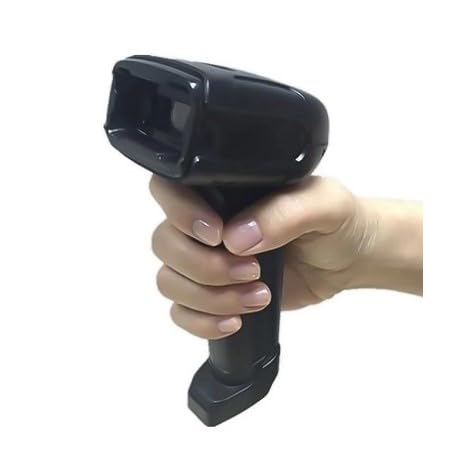
The ALFA-500 is an advanced professional 2D handheld barcode scanner designed for high performance and ease of use. This device is capable of reading both 2D codes and linear (1D) barcodes with high speed and accuracy. It is specifically engineered to meet the demands of commercial stores, offices, warehouses, and point-of-sale (POS) systems.
The scanner features a sleek, durable black design and includes a dedicated stand for convenient, continuous hands-free scanning. Its ergonomic grip ensures comfortable use during extended periods, minimizing user fatigue. The ALFA-500 provides a practical and efficient solution for daily barcode scanning requirements in professional work environments, supporting both manual and automatic scanning modes.
2. สินค้าหมดview
The ALFA-500 barcode scanner is a versatile tool equipped with features for efficient data capture.
- 2D Scanning Technology: Accurately reads all types of 1D and 2D barcodes.
- การออกแบบตามหลักสรีรศาสตร์: Comfortable grip for prolonged use and a lightweight, portable design.
- Stable Desktop Stand: Included for hands-free operation, ideal for retail and office settings.
- ปลั๊กแอนด์เพลย์: Easy to use with no complex setup or additional software required.
- การใช้งานที่หลากหลาย: Suitable for stores, warehouses, and offices, capable of reading barcodes from screens and various surfaces.
3. การตั้งค่า
Follow these steps to set up your ALFA-500 barcode scanner:
- แกะเครื่องสแกนเนอร์: Carefully remove the scanner and its stand from the packaging.
- ประกอบขาตั้ง (ไม่บังคับ): If using the stand for hands-free operation, connect the scanner to the stand base. Ensure it is securely attached.
- เชื่อมต่อกับอุปกรณ์โฮสต์: Plug the USB cable from the scanner into an available USB port on your computer (laptop, desktop, or POS system).
- การติดตั้งไดร์เวอร์: The scanner is plug-and-play. Your operating system should automatically detect and install the necessary drivers. No additional software installation is typically required.
- ทดสอบการเชื่อมต่อ: Open a text editor (e.g., Notepad, Word) or a compatible application on your computer. Scan any barcode to verify that the data appears correctly in the application.

4. คู่มือการใช้งาน
The ALFA-500 scanner supports both manual and automatic scanning modes.
4.1. การสแกนด้วยตนเอง
- Hold the scanner in your hand, ensuring a comfortable grip.
- หันหน้าต่างสแกนเนอร์ไปที่บาร์โค้ดที่คุณต้องการสแกน
- Press and hold the trigger button. A red aiming line or light will appear.
- Align the aiming line across the entire barcode.
- เมื่อสแกนบาร์โค้ดสำเร็จแล้ว เครื่องสแกนจะส่งเสียงบี๊บ และข้อมูลจะถูกส่งไปยังอุปกรณ์ที่เชื่อมต่อของคุณ
4.2. Automatic Scanning (Hands-Free)
- Place the scanner securely in its desktop stand.
- Ensure the scanner is configured for automatic mode (refer to the advanced configuration guide if needed, typically by scanning a specific setup barcode).
- Present the barcode in front of the scanner's window. The scanner will automatically detect and read the barcode without needing to press the trigger.
- A successful scan will be indicated by a beep, and the data will be sent to your device.
4.3. Supported Barcode Types
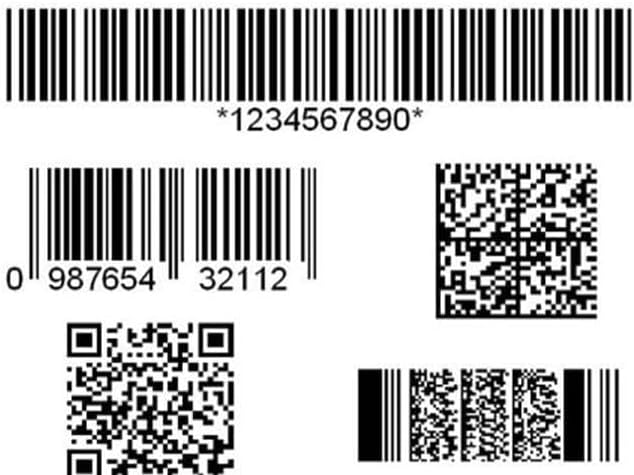
The ALFA-500 can read a wide range of 1D and 2D barcodes, including:
- บาร์โค้ด 1 มิติ: UPC/EAN, Code 128, Code 39, Code 93, Interleaved 2 of 5, Industrial 2 of 5, Matrix 2 of 5, Codabar, MSI เป็นต้น
- บาร์โค้ด 2 มิติ: QR Code, Data Matrix, PDF417, Aztec Code, etc.
5. การบำรุงรักษา
การบำรุงรักษาอย่างถูกต้องจะช่วยให้เครื่องสแกนของคุณมีอายุการใช้งานยาวนานและทำงานได้อย่างมีประสิทธิภาพสูงสุด
- การทำความสะอาด: ใช้ผ้านุ่มไม่เป็นขุยเช็ดเล็กน้อยampened with water or a mild cleaning solution to wipe the scanner's exterior. Do not use abrasive cleaners or solvents.
- การทำความสะอาดหน้าต่างสแกน: Gently wipe the scan window with a clean, dry, soft cloth. Avoid scratching the surface.
- พื้นที่จัดเก็บ: เก็บเครื่องสแกนเนอร์ไว้ในที่แห้งและเย็น หลีกเลี่ยงแสงแดดโดยตรงและอุณหภูมิที่สูงหรือต่ำเกินไป
- การดูแลสายเคเบิล: หลีกเลี่ยงการงอหรือบิดสาย USB มากเกินไปเพื่อป้องกันความเสียหาย
6 การแก้ไขปัญหา
If you encounter issues with your ALFA-500 scanner, try the following solutions:
- สแกนเนอร์ไม่ตอบสนอง:
- ตรวจสอบให้แน่ใจว่าสาย USB เชื่อมต่อกับสแกนเนอร์และอุปกรณ์โฮสต์อย่างแน่นหนา
- ลองเสียบเครื่องสแกนเข้ากับพอร์ต USB อื่นดู
- รีสตาร์ทเครื่องคอมพิวเตอร์ของคุณ
- ไม่มีข้อมูลส่งออกหลังจากสแกนเสร็จ:
- Verify that the application you are using (e.g., text editor, POS software) is active and ready to receive input.
- Check if the scanner emits a beep after a successful scan. If not, ensure proper aiming and lighting conditions.
- Ensure the barcode is not damaged or poorly printed.
- ผลลัพธ์ข้อมูลไม่ถูกต้อง:
- The scanner might be configured for a different keyboard layout. Refer to the advanced configuration guide for setting the correct keyboard language.
- Ensure the barcode symbology is enabled in the scanner's settings (if applicable).
- เครื่องสแกนส่งเสียงบี๊บต่อเนื่อง:
- This may indicate a configuration error or a hardware issue. Disconnect and reconnect the scanner. If the issue persists, consult the advanced configuration guide or contact support.
7. ข้อมูลจำเพาะ
| คุณสมบัติ | รายละเอียด |
|---|---|
| อุปกรณ์ที่รองรับ | Laptop, Desktop, Point of Sale (POS) |
| แหล่งพลังงาน | ยูเอสบี |
| ยี่ห้อ | อัลฟ่า |
| เทคโนโลยีการเชื่อมต่อ | ยูเอสบี |
| แบตเตอรี่ที่จำเป็น | Lithium Ion (internal, not user-replaceable) |
| อัตราการสแกน | 100 สแกน/วินาที |
| ขนาดสินค้า (ลึก x กว้าง x สูง) | 6.6 ซม. x 9.5 ซม. x 17 ซม. |
| อุณหภูมิการจัดเก็บสูงสุด | 50 องศาเซลเซียส (122 องศาฟาเรนไฮต์) |
| ปฏิบัติการฉบับที่tage | 5 โวลต์ |
| ประเภทบาร์โค้ดที่รองรับ | 2D Barcode (QR, Data Matrix, PDF417), Linear Barcode (1D) |
| Optical Scan Rate | 100 สแกน/วินาที |
| จริง View มุม | 60 องศา |
| ผู้ผลิต | อัลฟ่า |
| ประเทศต้นกำเนิด | จีน |
| น้ำหนักสินค้า | 200 กรัม |
8. การรับประกันและการสนับสนุน
The ALFA-500 barcode scanner comes with a รับประกัน 1 ปี นับจากวันที่ซื้อสินค้า ครอบคลุมถึงข้อบกพร่องจากการผลิตภายใต้การใช้งานปกติ โปรดเก็บหลักฐานการซื้อไว้เพื่อใช้ในการเรียกร้องการรับประกัน
For technical support, troubleshooting assistance, or warranty inquiries, please refer to the contact information provided by your retailer or the official ALFA support channels. Do not attempt to repair the device yourself, as this may void the warranty.


