
1. บทนำและเรื่องอื่นๆview
This manual provides detailed instructions for setting up and using your Rapoo Blade-Series E9310M Wireless Keyboard and M300G Silent Mouse Combo. This combo offers multi-device connectivity and a compact design for enhanced productivity across various operating systems.
คุณสมบัติหลัก:
- Compact Wireless Combo: Features a 99-key layout with number pad and arrow keys, paired with a silent mouse with side buttons. This design optimizes typing and browsing efficiency while occupying 20% less space.
- Multi-Device and Multi-OS Support: Connects to up to 4 devices across Windows, Mac OS, and Linux via Bluetooth 5.0/4.0 and a plug-and-play USB receiver.
- ประสบการณ์การพิมพ์แบบไหลลื่น: Laptop-like profile with incurve rounded keys ensures a fast, fluid, precise, and quiet typing experience.
- 5-DPI Adjustable Silent Mouse: The M300G mouse offers good portability and ergonomics, with 5 preset DPI levels (800/1000/1200/1600/2400) for smooth tracking.
- คีย์มัลติมีเดีย: Supports Windows and Mac OS dual system shortcuts for 12 common functions like play/pause and volume control.
- Aesthetic and Durable Design: Constructed with an aluminum alloy frame and a matte antioxidant finish for a delicate texture and enhanced durability.
- Refined Details: Includes device and capitalization indicator lights for improved user awareness and an upgraded Bluetooth 5.0/4.0 for extended battery life.
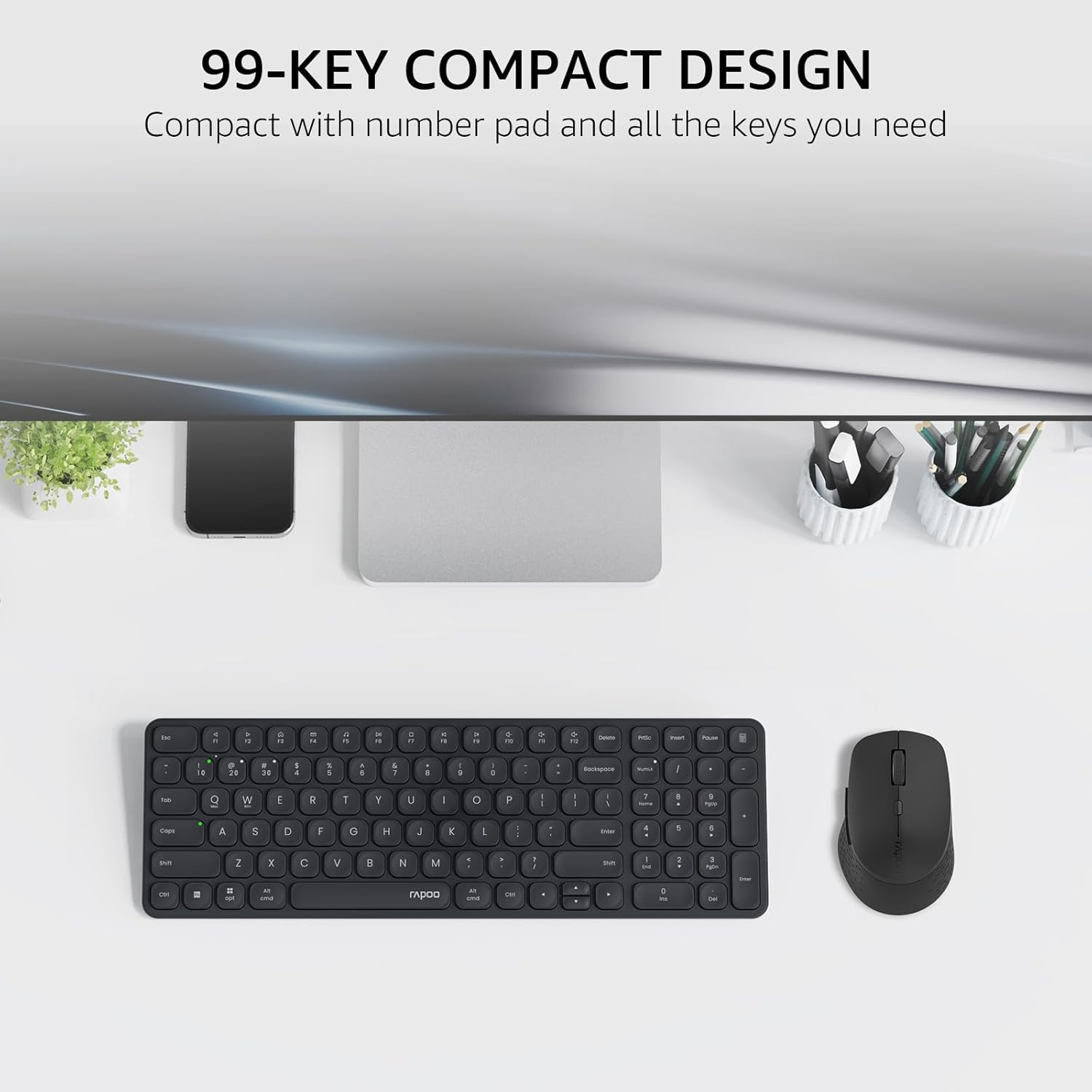
Image: The Rapoo E9310M keyboard and M300G mouse combo, showcasing its compact design on a desk.
2. คำแนะนำในการตั้งค่า
2.1 การติดตั้งแบตเตอรี่
The keyboard and mouse require AAA batteries. Two AAA batteries are included with the product.
- ค้นหาช่องใส่แบตเตอรี่ที่ด้านล่างของคีย์บอร์ดและเมาส์
- เปิดฝาช่องใส่แบตเตอรี่
- Insert the AAA batteries, ensuring correct polarity (+/-).
- ปิดฝาช่องใส่แบตเตอรี่ให้แน่น
2.2 การเชื่อมต่อกับอุปกรณ์
Your Rapoo combo supports connection via 2.4GHz USB receiver or Bluetooth 5.0/4.0, allowing connection to up to 4 devices (3 via Bluetooth, 1 via 2.4GHz).
2.2.1 2.4GHz USB Receiver Connection
- ค้นหาตัวรับสัญญาณ USB ซึ่งโดยทั่วไปจะเก็บไว้ในช่องใส่แบตเตอรี่ของเมาส์
- เสียบตัวรับสัญญาณ USB เข้ากับพอร์ต USB ที่พร้อมใช้งานบนคอมพิวเตอร์ของคุณ
- เปิดคีย์บอร์ดและเมาส์โดยใช้สวิตช์เปิด/ปิดตามลำดับ
- The devices should automatically connect to your computer. If not, press the 2.4G pairing button on the keyboard/mouse (refer to device for exact button location).
2.2.2 การเชื่อมต่อบลูทูธ (สำหรับอุปกรณ์สูงสุด 3 เครื่อง)
- เปิดแป้นพิมพ์และเมาส์
- On the keyboard, press and hold one of the Bluetooth pairing keys (e.g., Fn + 1, Fn + 2, or Fn + 3) until the indicator light flashes, indicating pairing mode.
- บนอุปกรณ์ของคุณ (พีซี แท็บเล็ต โทรศัพท์) ไปที่การตั้งค่าบลูทูธ แล้วค้นหาอุปกรณ์ใหม่
- Select the Rapoo keyboard from the list and follow any on-screen prompts to complete pairing.
- Repeat steps 2-4 for the mouse, pressing its Bluetooth pairing button (usually on the underside) until its indicator flashes.
- To switch between paired Bluetooth devices, simply press the corresponding Bluetooth key (Fn + 1/2/3) on the keyboard or the Bluetooth switch on the mouse.
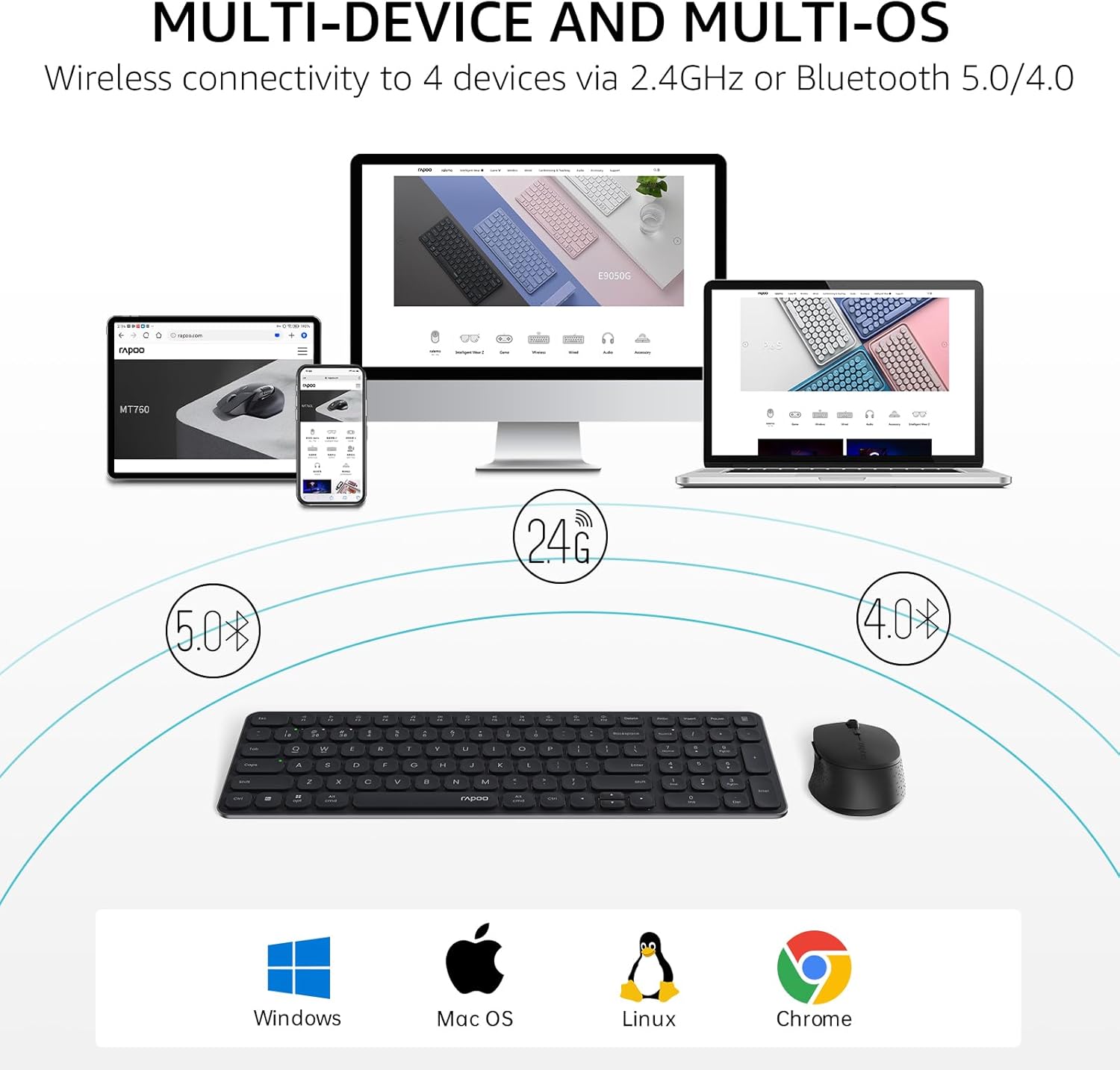
Image: The Rapoo keyboard and mouse combo connected to a desktop, laptop, tablet, and smartphone, illustrating its multi-device capability.
3. คู่มือการใช้งาน
3.1 ฟังก์ชั่นคีย์บอร์ด
The E9310M keyboard features a 99-key layout, including a number pad and dedicated arrow keys, designed for efficient input.
3.1.1 ปุ่มมัลติมีเดีย
Access 12 widely used function keys by pressing the Fn key in combination with the corresponding F-keys (F1-F12). These shortcuts are compatible with both Windows and Mac OS.
- Fn+F1: เล่น/หยุดชั่วคราว
- Fn+F2: หยุด
- Fn+F3: เพลงก่อนหน้า
- Fn+F4: เพลงถัดไป
- Fn+F5: ปิดเสียง
- Fn+F6: ลดระดับเสียง
- Fn+F7: เพิ่มระดับเสียง
- Fn+F8: ค้นหา
- Fn+F9: บ้าน
- Fn+F10: เมล
- Fn+F11: คอมพิวเตอร์ของฉัน
- Fn+F12: รายการโปรด
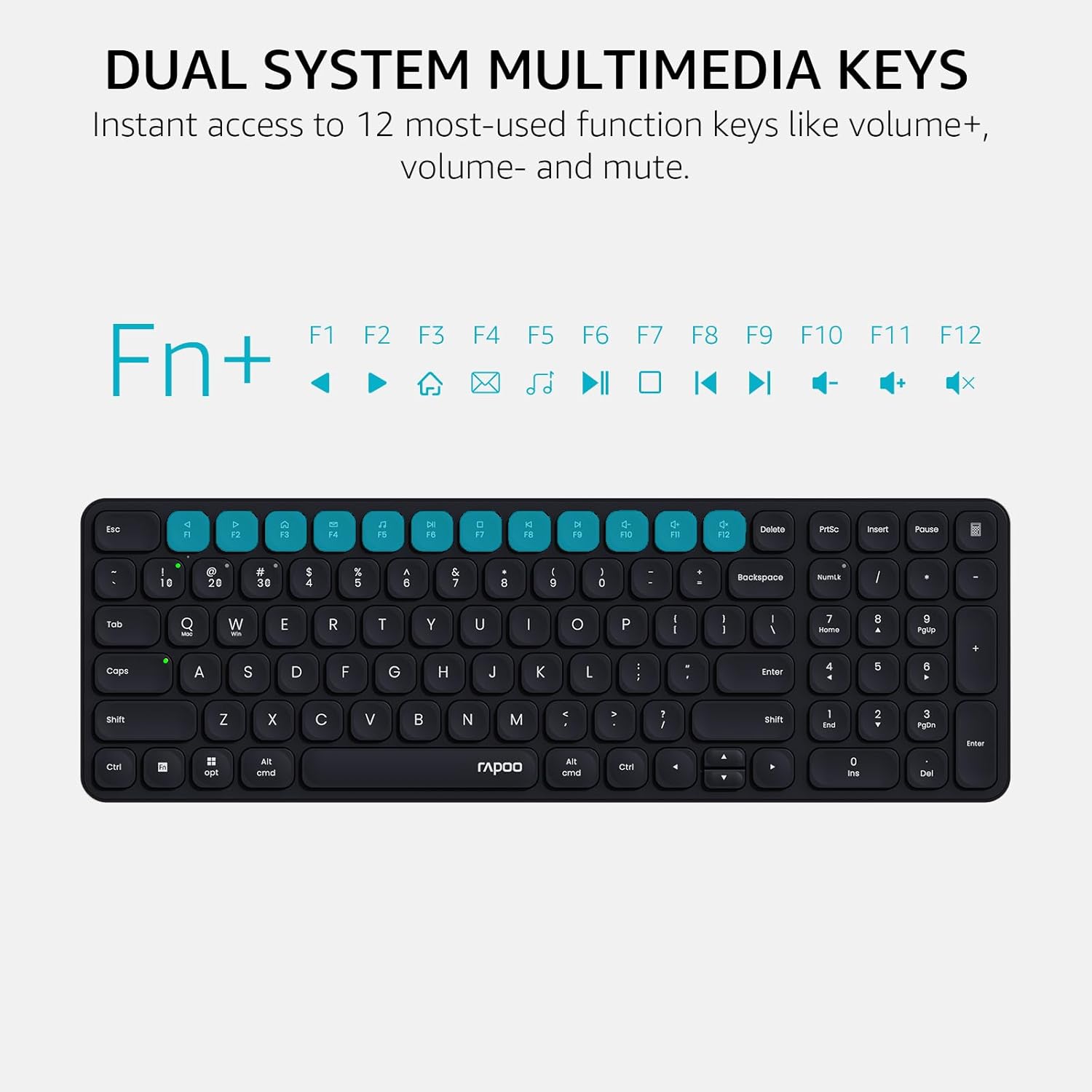
Image: Close-up of the Rapoo E9310M keyboard highlighting the multimedia function keys (F1-F12) and their corresponding icons.
3.1.2 ไฟแสดงสถานะอุปกรณ์และตัวพิมพ์ใหญ่
The keyboard includes indicator lights to show which device is currently active and the status of the Caps Lock key.
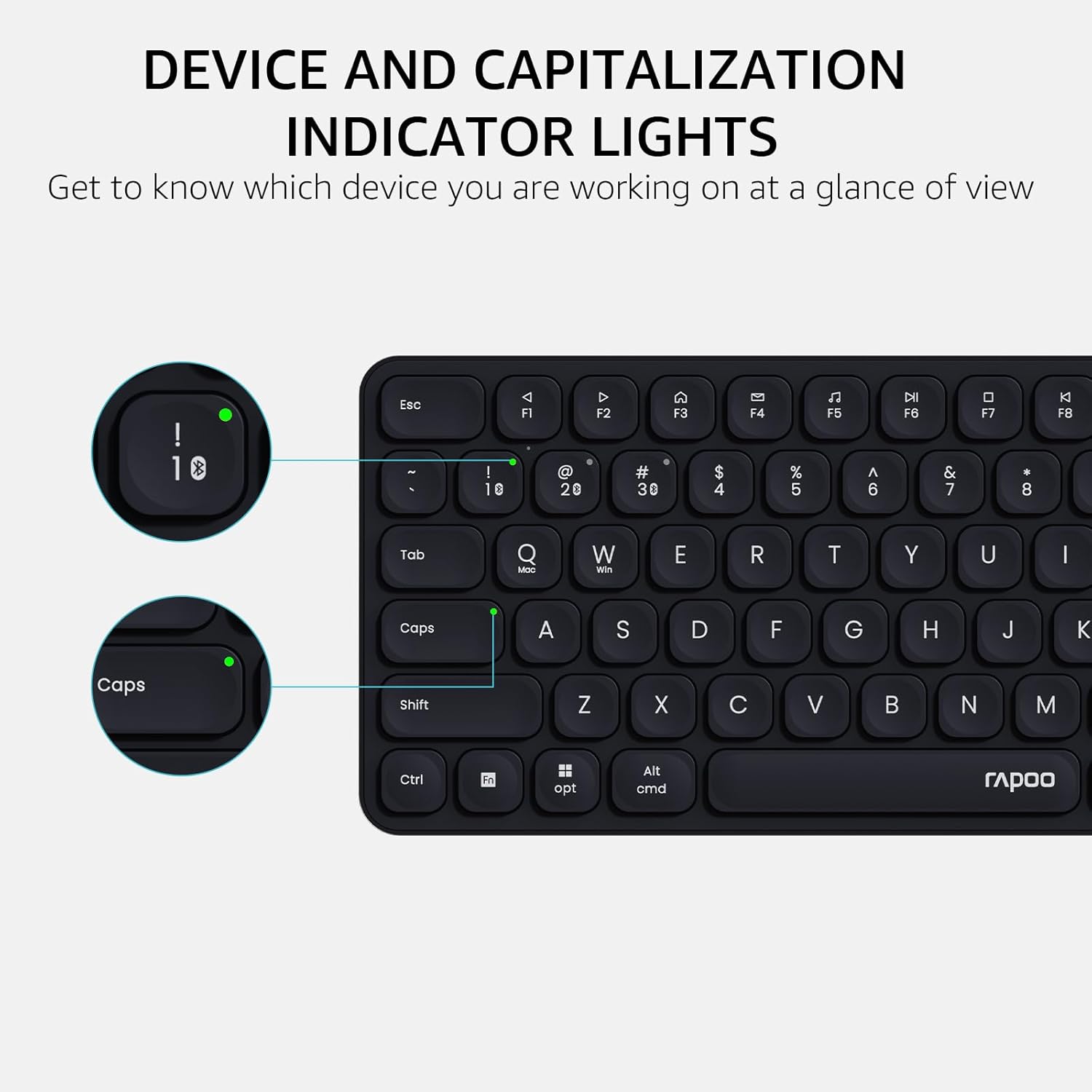
ภาพ: รายละเอียด view of the Rapoo E9310M keyboard, pointing out the indicator lights for device connection and Caps Lock status.
3.2 ฟังก์ชันเมาส์
The M300G Silent Mouse provides precise control with adjustable DPI settings and a quiet click design.
3.2.1 การปรับ DPI
The mouse features 5 adjustable DPI levels (800/1000/1200/1600/2400) to suit different screen resolutions and user preferences. Press the DPI button (usually located near the scroll wheel) to cycle through the settings.
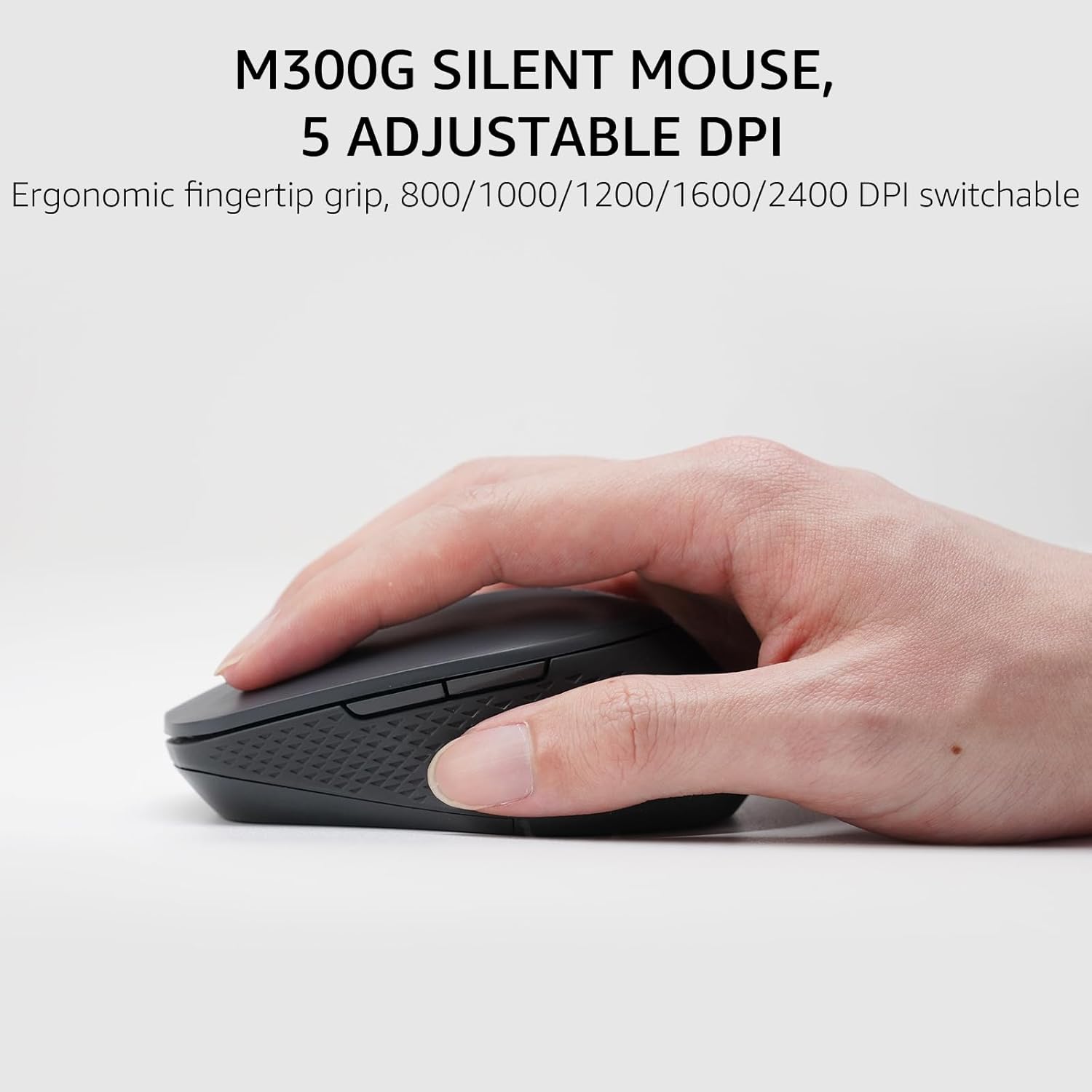
Image: The Rapoo M300G Silent Mouse, highlighting its ergonomic design and the DPI adjustment button.
4. การบำรุงรักษา
4.1 การทำความสะอาด
- ใช้ผ้าแห้งเนื้อนุ่มเช็ดทำความสะอาดพื้นผิวของแป้นพิมพ์และเมาส์
- สำหรับสิ่งสกปรกฝังแน่น ให้เช็ดออกเล็กน้อยampชุบผ้าด้วยน้ำหรือน้ำยาทำความสะอาดอ่อนๆ หลีกเลี่ยงความชื้นที่มากเกินไป
- ห้ามใช้สารทำความสะอาดที่มีฤทธิ์กัดกร่อน ตัวทำละลาย หรือสเปรย์แอโรซอล
4.2 การเปลี่ยนแบตเตอรี่
When the battery indicator light flashes or performance degrades, replace the batteries. The upgraded Bluetooth 5.0/4.0 technology extends battery life up to 12 months.
- ปิดอุปกรณ์
- เปิดช่องใส่แบตเตอรี่
- ถอดแบตเตอรี่เก่าออกและกำจัดทิ้งตามระเบียบข้อบังคับของท้องถิ่น
- ใส่แบตเตอรี่ AAA ใหม่ โดยสังเกตขั้วให้ถูกต้อง
- ปิดช่อง.
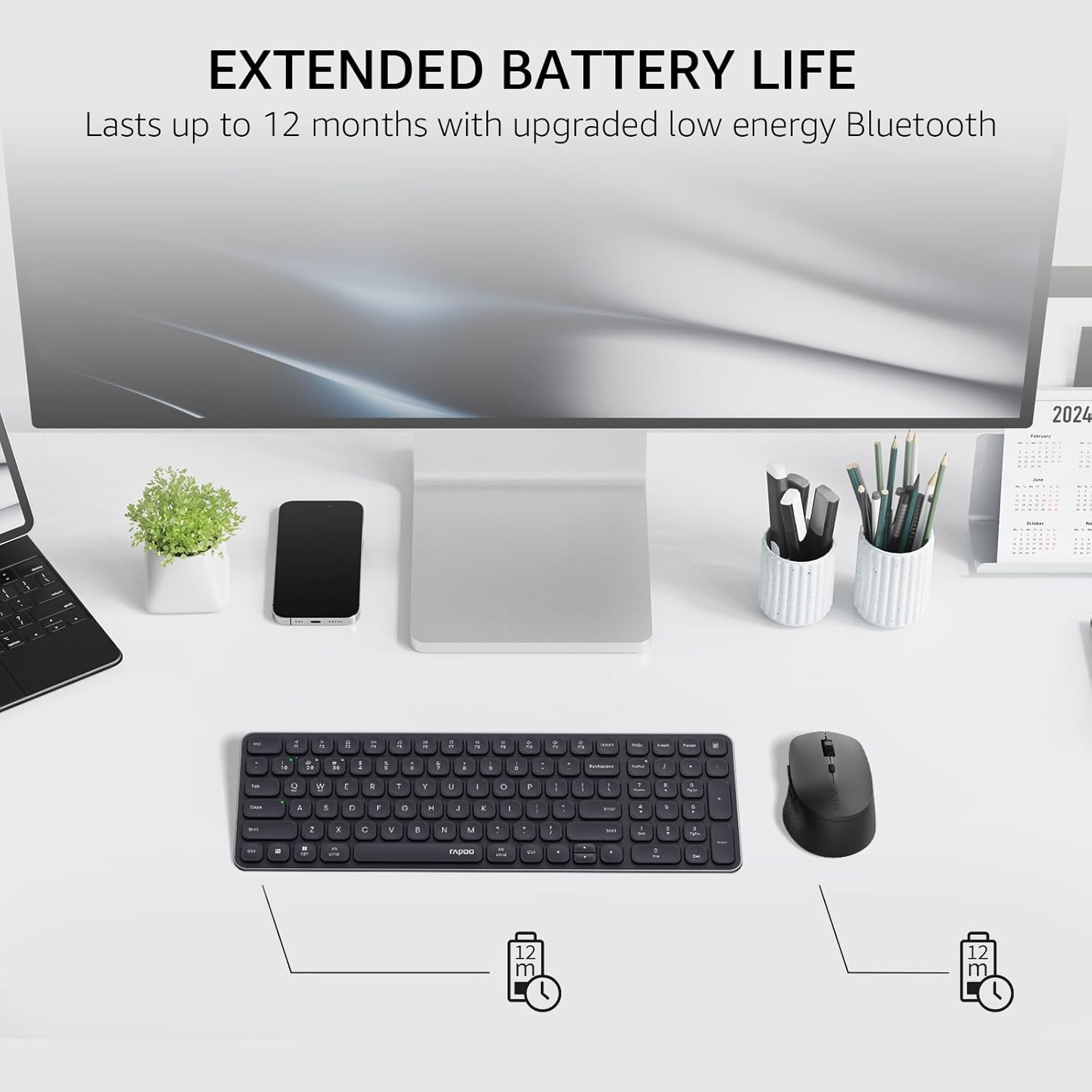
Image: The Rapoo keyboard and mouse on a desk, with an overlay indicating an extended battery life of up to 12 months.
5 การแก้ไขปัญหา
5.1 ปัญหาการเชื่อมต่อ
- อุปกรณ์ไม่ได้เชื่อมต่อ: Ensure the keyboard/mouse is turned on and in pairing mode (indicator light flashing). Check your device's Bluetooth settings to ensure Bluetooth is enabled and the correct Rapoo device is selected.
- การเชื่อมต่อ 2.4GHz ไม่เสถียร: Ensure the USB receiver is securely plugged into a working USB port. Try a different USB port. Ensure no other wireless devices are causing interference.
- Bluetooth connection dropping: Ensure the devices are within the effective range (typically 10 meters/33 feet). Check battery levels. Remove and re-pair the device if issues persist.
5.2 แป้นพิมพ์/เมาส์ไม่ตอบสนอง
- No input: Check battery levels and replace if necessary. Ensure the correct connection mode (2.4GHz or Bluetooth channel) is selected on the keyboard/mouse.
- ปุ่มใช้งานไม่ได้: ทำความสะอาดรอบๆ คีย์ที่ได้รับผลกระทบเพื่อกำจัดเศษสิ่งสกปรกออก
- เคอร์เซอร์เมาส์เคลื่อนที่ผิดปกติ: Clean the mouse sensor. Ensure the mouse is used on a suitable surface. Adjust DPI settings if sensitivity is an issue.
6. ข้อมูลจำเพาะ
| คุณสมบัติ | รายละเอียด |
|---|---|
| ยี่ห้อ | ราปู |
| รุ่น (คีย์บอร์ด) | E9310M |
| แบบจำลอง (เมาส์) | เอ็มทูจี |
| สี | สีดำ |
| เทคโนโลยีการเชื่อมต่อ | Bluetooth (5.0/4.0), Radio Frequency (2.4GHz) |
| อุปกรณ์ที่รองรับ | Laptop, Personal Computer (Windows, macOS, Linux, Chrome OS) |
| เค้าโครงแป้นพิมพ์ | QWERTY, 99-Key with Number Pad |
| DPI ของเมาส์ | 800/1000/1200/1600/2400 (Adjustable) |
| แหล่งพลังงาน | ใช้พลังงานจากแบตเตอรี่ (รวมแบตเตอรี่ AAA 2 ก้อน) |
| น้ำหนักสินค้า | 393.2 กรัม |
| ผู้ผลิต | เซินเจิ้น Rapoo Technology Co., Ltd. |
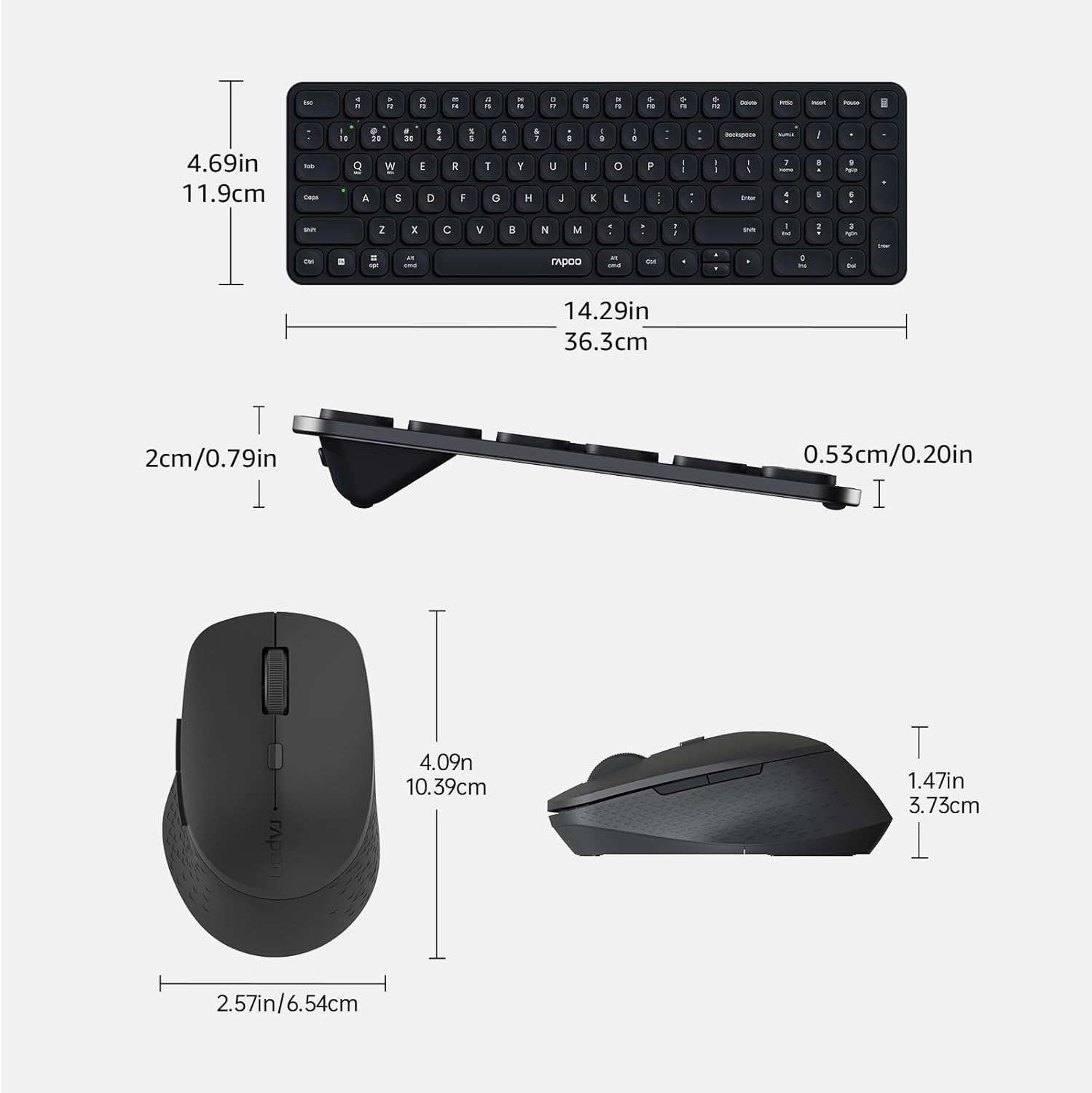
Image: Technical drawing showing the dimensions of the Rapoo E9310M keyboard and M300G mouse in inches and centimeters.
7. การรับประกันและการสนับสนุน
7.1 ข้อมูลการรับประกัน
ผลิตภัณฑ์นี้มาพร้อมกับ รับประกัน 1 ปี นับจากวันที่ซื้อ โปรดเก็บหลักฐานการซื้อไว้เพื่อใช้ในการเคลมประกัน การรับประกันครอบคลุมถึงข้อบกพร่องจากการผลิตและการทำงานผิดปกติภายใต้สภาวะการใช้งานปกติ
7.2 การสนับสนุนลูกค้า
For technical assistance, troubleshooting, or warranty inquiries, please contact Rapoo customer support. Refer to the official Rapoo webโปรดตรวจสอบเว็บไซต์หรือบรรจุภัณฑ์ของผลิตภัณฑ์เพื่อดูข้อมูลติดต่อล่าสุด