
1. บทนำ
Thank you for choosing the GooDee AC321 Video Projector. This manual provides essential information for setting up, operating, and maintaining your device to ensure optimal performance and longevity. Please read this manual thoroughly before using the projector.

Image: The GooDee AC321 Video Projector, a compact device with a lens on the front, resting on its adjustable stand.
2. อะไรอยู่ในกล่อง
ตรวจสอบว่ามีสินค้าทั้งหมดอยู่ในบรรจุภัณฑ์:
- GooDee AC321 Projector
- สายไฟ
- สาย HDMI
- รีโมทคอนโทรล
- คู่มือการใช้งาน (เอกสารนี้)

Image: A visual representation of the items included with the GooDee AC321 projector: the projector unit, remote control, power cable, lens cover, and a 90-degree HDMI cable.
3. การตั้งค่า
3.1 การเชื่อมต่อสายไฟ
- เชื่อมต่อสายไฟเข้ากับพอร์ตอินพุตไฟของโปรเจ็กเตอร์
- เสียบปลายสายไฟอีกด้านหนึ่งเข้ากับเต้ารับไฟฟ้าที่เหมาะสม
- กดปุ่มเปิด/ปิดบนโปรเจ็กเตอร์หรือรีโมทคอนโทรลเพื่อเปิดอุปกรณ์
3.2 การจัดวางและตำแหน่ง
The GooDee AC321 features a flexible hovering stand, allowing for versatile placement options:
- Tabletop Projection: Place the projector on a flat surface and adjust the stand to direct the image onto a wall or screen.
- การยื่นออกมาจากเพดาน: The projector can be tilted upwards to project onto a ceiling, ideal for comfortable viewing while lying down.
- การติดตั้งขาตั้งกล้อง: Utilize the 1/4-inch screw holes at the bottom of the projector to mount it on a tripod for stable and precise positioning.

Image: The GooDee AC321 projector demonstrating its flexible stand, capable of adjusting the projection angle up to 120 degrees for various viewing positions, including ceiling projection.
3.3 Initial Power On and Focus
Upon powering on, the projector will automatically perform autofocus and keystone correction to provide a clear and rectangular image. Further adjustments can be made via the remote control.
Video: A demonstration of the GooDee Mini Projector's initial setup, showing the power-on sequence, automatic focus adjustment, and the main user interface with various streaming apps.
4. คู่มือการใช้งาน
4.1 การนำทางและอินเทอร์เฟซผู้ใช้
The GooDee AC321 runs on Movin 2.0 OS, providing a smart TV experience with pre-installed streaming applications. Use the included remote control to navigate the interface:
- แผ่นทิศทาง: Use the arrow buttons to move between apps and menu options.
- ปุ่มตกลง: เลือกสินค้าหรือยืนยันการดำเนินการ
- ปุ่มโฮม: กลับไปที่หน้าจอหลัก
- ปุ่มย้อนกลับ: กลับไปที่หน้าจอก่อนหน้า
- ปุ่มปรับระดับเสียง: ปรับระดับเอาท์พุตเสียง
- ปุ่มแอปเฉพาะ: Quickly access Netflix, YouTube, and Prime Video.

Image: The GooDee AC321 projector's home screen, showcasing a variety of pre-installed streaming applications like Netflix, YouTube, and Prime Video, ready for selection.
4.2 App Access and Streaming
The projector comes pre-licensed with major streaming platforms. Connect to your Wi-Fi network to access over 10,000 streaming channels and a built-in app store for additional content.
4.3 การมิเรอร์หน้าจอ
The GooDee AC321 supports various casting protocols including DLNA, AirPlay, and Miracast, allowing seamless screen mirroring from iOS, Android, and Windows devices.

Image: The GooDee AC321 projector casting content from a mobile device to a large screen, illustrating its screen mirroring capabilities across different operating systems.
5. การเชื่อมต่อ
โปรเจ็กเตอร์นี้มีตัวเลือกการเชื่อมต่อหลากหลายรูปแบบ:
- ช่องต่อ HDMI: Connect to computers, gaming consoles, TV boxes, or DVD players.
- ยูเอสบี: เล่นสื่อโดยตรงจากอุปกรณ์จัดเก็บข้อมูล USB
- แจ็คเสียงขนาด 3.5 มม.: เชื่อมต่อลำโพงภายนอกหรือหูฟัง
- ไวไฟ 6: For high-speed wireless internet and streaming.
- Bluetooth 5.4: For stable connection to external audio devices like speakers or headphones.
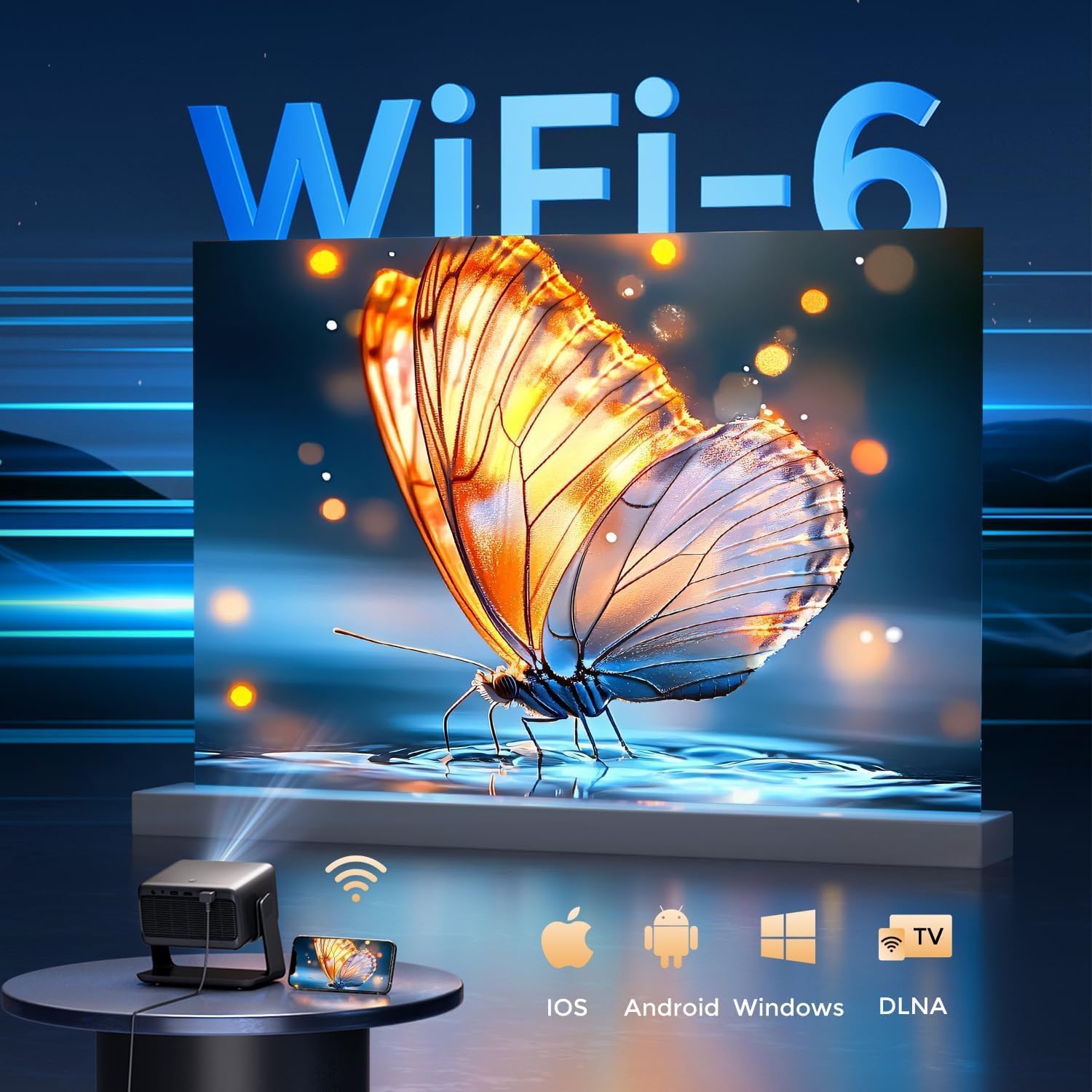
Image: The rear panel of the GooDee AC321 projector, highlighting its connectivity ports including a 3.5mm audio jack, USB port, HDMI input, and power connector.
6. คุณสมบัติการแสดงผลและเสียง
6.1 Visual Performance
Experience an immersive visual feast with the following display capabilities:
- ความละเอียดดั้งเดิม: 1080p (1920 x 1080) for sharp and clear images.
- การถอดรหัสวิดีโอ 4K: Supports 4K video input for smooth playback of high-definition content.
- ความสว่าง: 1200 ANSI lumens ensures clear picture quality even in ambient light conditions.
- AI Image Quality Optimization: Utilizes deep learning algorithms to analyze and optimize picture pixels in real-time, enhancing HDR10+ color and 25000:1 contrast ratio.
- Large Screen Zooming: Project images from 60 to 200 inches, with adjustable zoom from 50-100%.
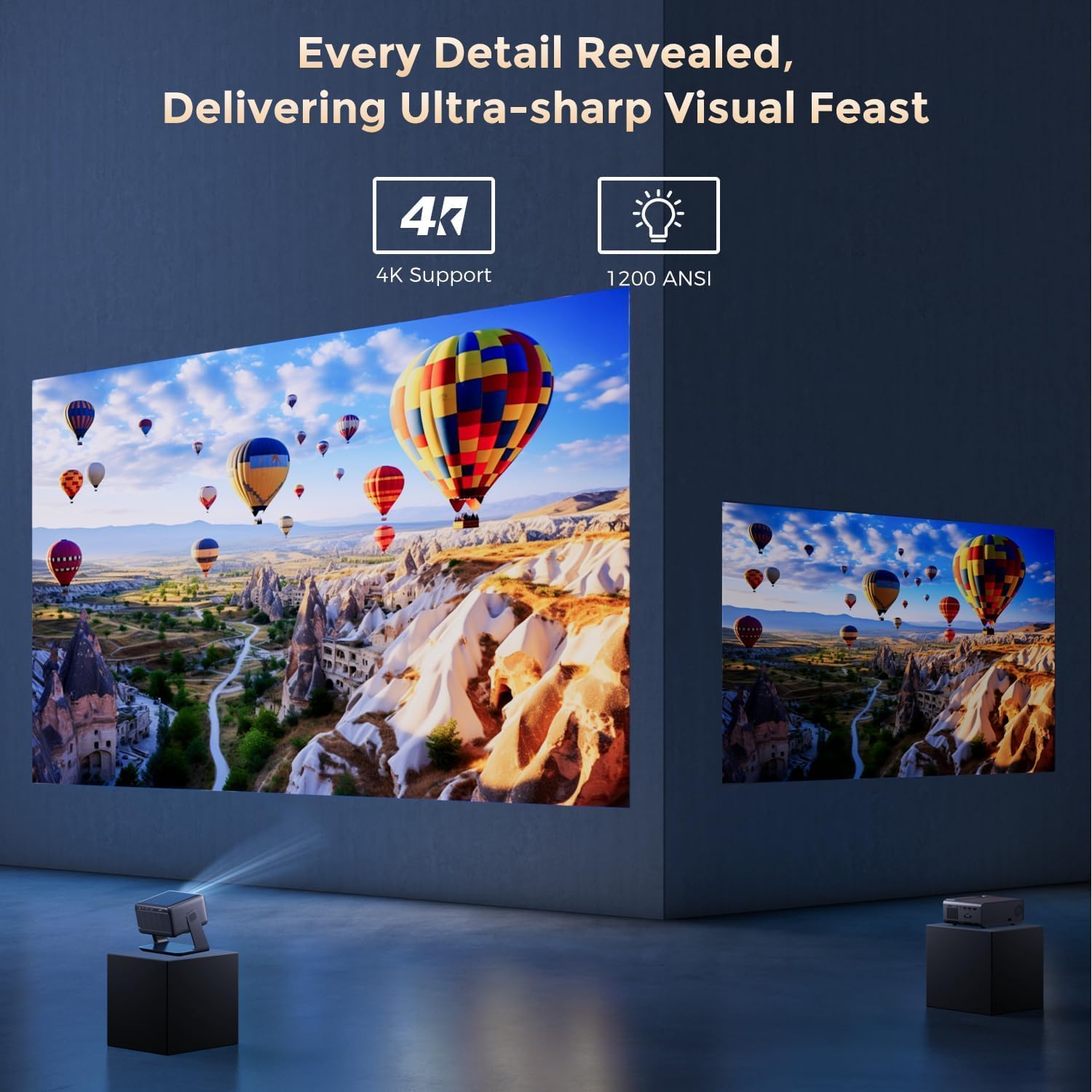
Image: The GooDee AC321 projector showcasing its visual capabilities with a bright, detailed image, emphasizing 4K support and 1200 ANSI lumens for superior clarity.
6.2 ประสบการณ์เสียง
The projector is equipped with built-in features for an immersive audio experience:
- ระบบเสียง Dolby: Integrated Dolby Audio speakers provide rich and immersive sound.
- Bluetooth 5.4: Connect wirelessly to external Bluetooth speakers or soundbars for enhanced audio.
7. คุณสมบัติขั้นสูง
The GooDee AC321 incorporates intelligent features for effortless setup and optimal viewการลง:
- โฟกัสอัตโนมัติ: Automatically adjusts the image clarity in seconds.
- แก้ไขภาพบิดเบี้ยวอัตโนมัติ: Intelligently corrects vertical and horizontal trapezoidal distortion, ensuring a perfectly rectangular image even from an angled projection.
- การจัดแนวหน้าจออัตโนมัติ: Automatically fits the projected image to your screen.
- ระบบหลีกเลี่ยงสิ่งกีดขวางอัตโนมัติ: ตรวจจับและปรับการฉายเพื่อหลีกเลี่ยงสิ่งกีดขวางในเส้นทางการฉาย

ภาพ: โปร่งใส view of the GooDee AC321 projector, illustrating its AI 3D ToF Technology for automatic keystone correction, obstacle avoidance, focus, and screen fitting.
Video: A demonstration of the GooDee Mini Smart Projector's automatic keystone correction and focus features, showing how the image quickly adjusts to a perfect rectangle and sharp clarity.
8. ข้อมูลจำเพาะ
| คุณสมบัติ | คำอธิบาย |
|---|---|
| หมายเลขรุ่น | เอซี321 |
| ยี่ห้อ | กูดี |
| ความละเอียดการแสดงผล | 1920 x 1080 (ดั้งเดิม) |
| การถอดรหัสวิดีโอ | รองรับ 4K |
| ความสว่าง | 1200 ANSI Lumens |
| เทคโนโลยีการเชื่อมต่อ | 3.5mm Jack, Bluetooth 5.4, HDMI, USB, Wi-Fi 6 |
| คุณสมบัติพิเศษ | Auto Focus, Auto Keystone, Auto Screen Alignment, Auto Obstacle Avoidance, Built-In Cooling System, Built-In Speaker, Smart TV OS (Movin 2.0), Dolby Audio |
| น้ำหนักสินค้า | 4.66 ปอนด์ |
| ขนาดสินค้า | 8.1 x 6.1 x 7.1 นิ้ว |
| กำลังไฟที่กำหนด | 65วัตต์ |
9. การบำรุงรักษา
To ensure the longevity and optimal performance of your GooDee AC321 projector, follow these maintenance guidelines:
- การทำความสะอาดเลนส์: ใช้ผ้าเนื้อนุ่ม ปราศจากขน ที่ออกแบบมาสำหรับเลนส์แว่นตาโดยเฉพาะ เช็ดเลนส์เบาๆ เพื่อขจัดฝุ่นหรือคราบสกปรก หลีกเลี่ยงการใช้วัสดุที่มีฤทธิ์กัดกร่อนหรือสารเคมีรุนแรง
- การทำความสะอาดช่องระบายอากาศ: Regularly check and clean the air intake and exhaust vents to prevent dust buildup, which can hinder cooling and affect performance. Use a soft brush or compressed air.
- พื้นที่จัดเก็บ: When not in use for extended periods, store the projector in a cool, dry place, away from direct sunlight and extreme temperatures. Use the provided lens cover to protect the lens.
- ปิดเครื่องอย่างถูกต้อง: ควรปิดโปรเจ็กเตอร์โดยใช้ปุ่มเปิด/ปิดที่กำหนดไว้เสมอ และรอให้กระบวนการปิดเครื่องเสร็จสมบูรณ์ก่อนถอดปลั๊ก
10 การแก้ไขปัญหา
If you encounter any issues with your GooDee AC321 projector, refer to the following common troubleshooting steps:
- ไม่มีรูปภาพ:
- ตรวจสอบให้แน่ใจว่าสายไฟเชื่อมต่ออย่างแน่นหนาและโปรเจ็กเตอร์เปิดอยู่
- ตรวจสอบแหล่งสัญญาณเข้า (HDMI, USB) และตรวจสอบให้แน่ใจว่าได้เลือกถูกต้องแล้ว
- Verify that the connected device (laptop, console) is powered on and outputting a signal.
- ไม่มีเสียง:
- ปรับระดับเสียงทั้งบนโปรเจ็กเตอร์และอุปกรณ์แหล่งสัญญาณที่เชื่อมต่ออยู่
- If using external speakers, ensure they are properly connected via Bluetooth or the 3.5mm audio jack.
- Check the audio output settings on the connected source device.
- ภาพเบลอ:
- Allow the auto-focus function to complete its cycle.
- ตรวจสอบให้แน่ใจว่าเลนส์โปรเจ็กเตอร์สะอาด
- Adjust the projector's distance from the screen/wall.
- ภาพบิดเบี้ยว (รูปทรงสี่เหลี่ยมคางหมู):
- Allow the auto-keystone correction to complete.
- Manually adjust keystone settings via the remote control if needed.
- ปัญหาการเชื่อมต่อ Wi-Fi/Bluetooth:
- ตรวจสอบให้แน่ใจว่าโปรเจ็กเตอร์อยู่ในระยะที่สามารถเชื่อมต่อกับเราเตอร์ Wi-Fi หรืออุปกรณ์บลูทูธของคุณได้
- รีสตาร์ทโปรเจคเตอร์และเราเตอร์/อุปกรณ์บลูทูธของคุณ
- ตรวจสอบรหัสผ่าน Wi-Fi และการตั้งค่าเครือข่าย
11. การรับประกันและการสนับสนุน
The GooDee AC321 Video Projector comes with a รับประกัน 12 เดือน. For any product-related inquiries, technical assistance, or warranty claims, please contact GooDee customer support.
GooDee offers การสนับสนุนทางแชทสดตลอด 24 ชั่วโมงทุกวัน to assist you with any issues. You can also visit the official GooDee website for more information and to register your product for warranty activation.
- Webเว็บไซต์: www.top-goodee.com
- บริการลูกค้า: อ้างอิงข้อมูลติดต่อที่ให้ไว้ในเว็บไซต์อย่างเป็นทางการ webไซต์หรือในบรรจุภัณฑ์ผลิตภัณฑ์ของคุณ