
1. บทนำ
This manual provides instructions for the installation, operation, and maintenance of the EnGenius ECC100 AI 5MP Dome Security Camera. The ECC100 is a cloud-managed AI 5MP dome camera designed for both indoor and outdoor surveillance, offering crystal-clear day and night visuals with a Starvis sensor and 5MP HDR clarity. It features a 132° wide view, 20m IR long-distance coverage, and a durable IP67 weatherproof and IK10 vandal-resistant design. With 256GB of built-in storage, it supports 24/7 continuous event recording. Advanced AI Cloud Analytics provide real-time multimodal analysis for detecting complex behaviors and delivering instant alerts. The system also includes natural language search for efficient footage retrieval and Edge AI with NPU for optimized real-time detection and cloud streaming.
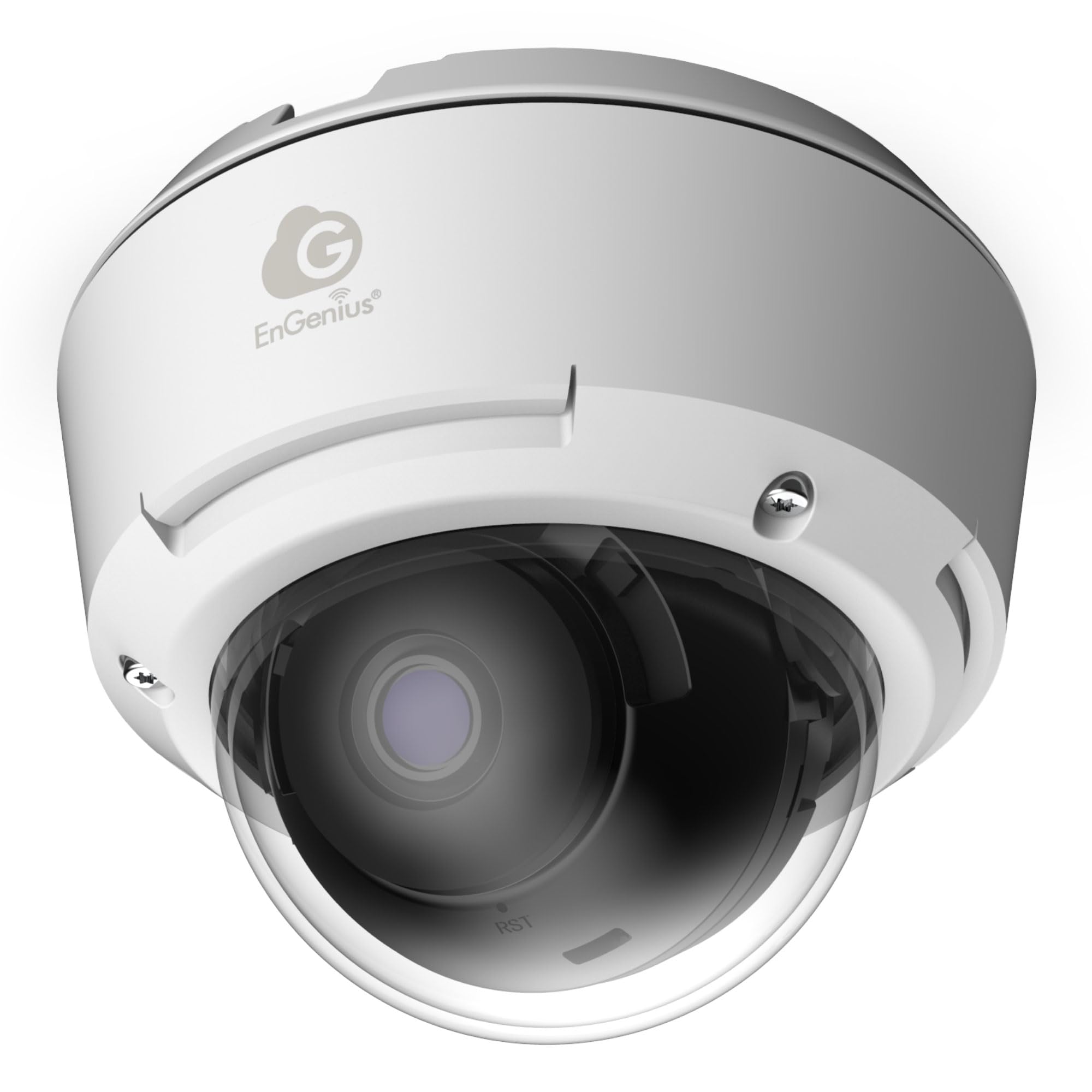
Figure 1: EnGenius ECC100 AI 5MP Dome Security Camera overview.
2. อะไรอยู่ในกล่อง
ตรวจสอบว่ามีสินค้าทั้งหมดที่ระบุไว้ด้านล่างอยู่ในแพ็คเกจของคุณ:
- ECC100 AI Network Camera x 1
- EMT Adaptor x 1
- แผ่นยึด x 1
- Screw Position Identifier x 1
- Waterproof Connection Kit x 1
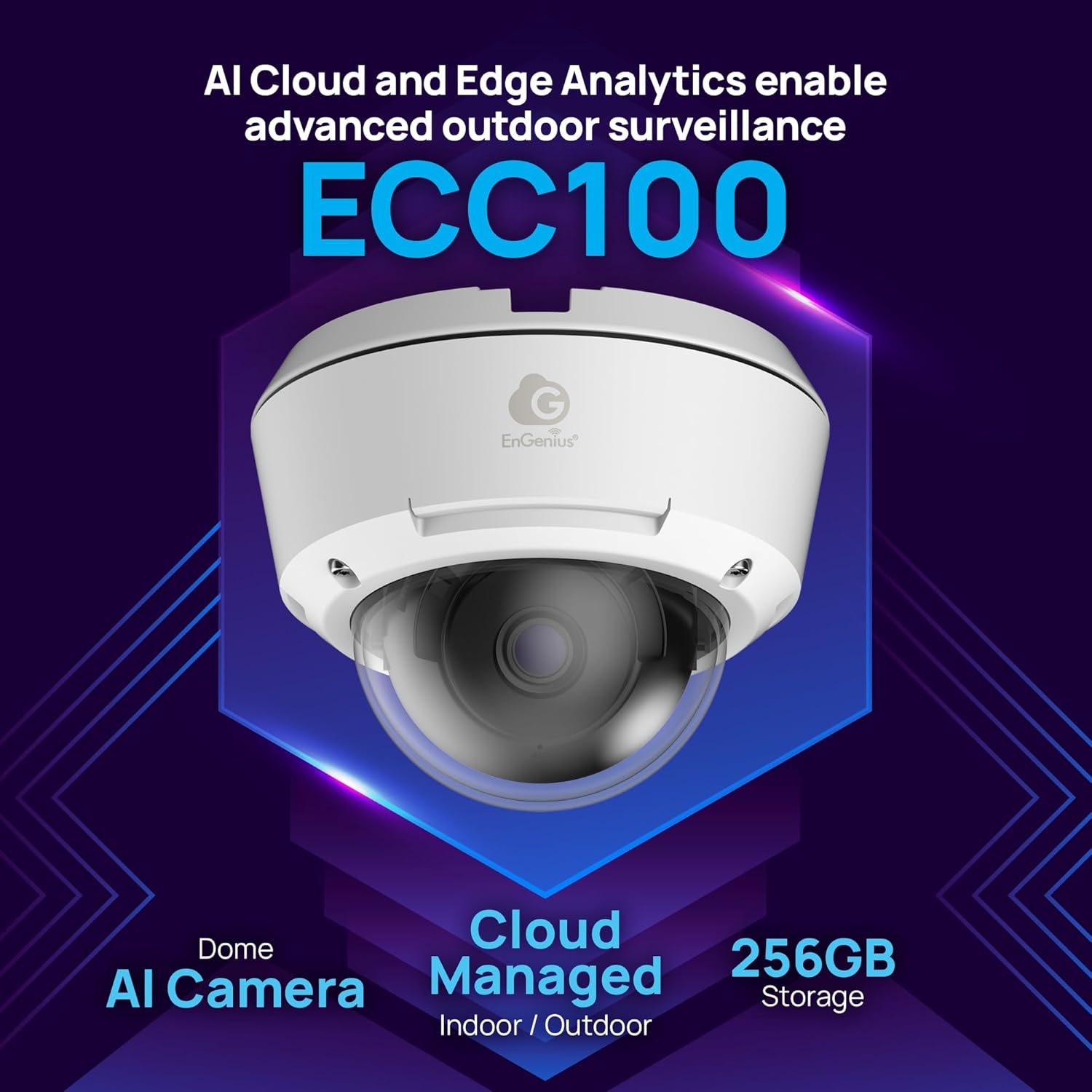
Figure 2: Components included with the ECC100 camera.
3. คำแนะนำในการตั้งค่า
Follow these steps to set up your EnGenius ECC100 AI 5MP Dome Security Camera:
- Planning the Installation Location: เลือกสถานที่ที่ตรงกับความต้องการด้านต่างๆ ที่ต้องการ view (132° ultra-wide) and is within range of your network infrastructure. Consider the IP67 weatherproof and IK10 vandal-resistant ratings for outdoor or high-risk indoor environments.
- การติดตั้งกล้อง:
- Use the provided Screw Position Identifier to mark drilling points on the ceiling or wall.
- เจาะรูนำร่อง.
- Attach the Mounting Plate using appropriate screws (not included, typically).
- Secure the ECC100 camera to the Mounting Plate.
- การเชื่อมต่อเครือข่าย:
- Connect an Ethernet cable to the camera's Ethernet port.
- If installing outdoors, use the Waterproof Connection Kit to ensure a sealed connection.
- Connect the other end of the Ethernet cable to a Power over Ethernet (PoE) switch or a PoE injector to provide both power and network connectivity.
- Initial Configuration (EnGenius Cloud):
- เข้าถึงแพลตฟอร์ม EnGenius Cloud ผ่านทาง web เบราว์เซอร์หรือแอปพลิเคชันมือถือ EnGenius Cloud
- Add your new ECC100 camera to your EnGenius Cloud account by following the on-screen instructions. This typically involves scanning a QR code on the camera or entering its serial number.
- Configure basic network settings, time zone, and initial recording preferences.
- การปรับกล้อง View: Physically adjust the camera's dome and lens to achieve the optimal viewมุมอิง

รูปที่ 3: อดีตample of the ECC100 camera mounted in an outdoor environment, demonstrating its weatherproof design.
4. คู่มือการใช้งาน
The EnGenius ECC100 camera is designed for continuous, intelligent surveillance. Here’s how to operate its key features:
4.1 Remote Monitoring and Access
Access your camera feed anytime, anywhere through the EnGenius Cloud platform. Use the web interface or mobile app to view live streams, review บันทึกเสียงฟูtage, and manage camera settings.
4.2 Continuous Recording and Storage
The camera features 24/7 continuous event recording. With 256GB of built-in storage, video retention is managed internally without requiring an external Network Video Recorder (NVR).
4.3 AI Cloud Analytics and Alerts
The ECC100 utilizes AI Cloud Analytics for real-time multimodal analysis. This system can detect complex behaviors and scenarios such as fights, bullying, accidents, and the presence of weapons. When such events are detected, instant cloud-AI alerts are generated and sent to your configured devices.

Figure 4: Illustration of the ECC100's AI capabilities in detecting and analyzing complex human interactions.
4.4 Natural Language Search
To efficiently retrieve specific footage, use the natural language search function within the EnGenius Cloud platform. Describe what you are looking for (e.g., "person in red shirt walking by at 3 PM") and the AI multimodal LLMs will help locate relevant video clips.
4.5 Edge AI with NPU
The camera's integrated Edge AI with a Neural Processing Unit (NPU) processes footage directly on the device. This optimizes real-time detection and converts video into lightweight metadata, ensuring efficient cloud streaming and reducing network strain.

รูปที่ 5: อดีตamples of critical scenarios for which the ECC100 can generate AI-powered alerts.
5. การบำรุงรักษา
Regular maintenance ensures optimal performance and longevity of your ECC100 camera.
- การทำความสะอาดเลนส์: ทำความสะอาดเลนส์กล้องเป็นระยะด้วยผ้านุ่มๆamp ผ้าสำหรับเช็ดฝุ่น สิ่งสกปรก หรือคราบน้ำที่อาจบดบังทัศนียภาพ viewหลีกเลี่ยงการใช้น้ำยาทำความสะอาดที่มีฤทธิ์กัดกร่อน
- อัพเดตเฟิร์มแวร์: Regularly check for and apply firmware updates through the EnGenius Cloud platform. Updates often include performance improvements, new features, and security enhancements.
- การตรวจร่างกาย: Inspect the camera's mounting and cabling for any signs of wear, damage, or loosening, especially for outdoor installations. Ensure the waterproof connections remain sealed.
- การจัดการพื้นที่เก็บข้อมูล: While the camera has 256GB of built-in storage, monitor its usage through the EnGenius Cloud to ensure sufficient space for continuous recording.
6 การแก้ไขปัญหา
This section addresses common issues you might encounter with your ECC100 camera.
| ปัญหา | สาเหตุที่เป็นไปได้ | สารละลาย |
|---|---|---|
| ไม่มีไฟ/กล้องไม่เปิด | No power from PoE switch/injector, faulty cable. | Verify the PoE switch/injector is powered on and functioning. Check the Ethernet cable for damage and ensure it's securely connected. Try a different PoE port or cable. |
| No Video Feed in EnGenius Cloud | Network connectivity issue, camera not properly added to cloud, incorrect network settings. | Check network cable connection. Ensure the camera has an active internet connection. Verify the camera is correctly registered in your EnGenius Cloud account. Check firewall settings if applicable. |
| คุณภาพของภาพไม่ดี | Dirty lens, low light conditions, incorrect camera settings. | Clean the camera lens. Ensure sufficient lighting for optimal performance, especially at night (IR range is 20m). Adjust image settings (brightness, contrast, HDR) in the EnGenius Cloud interface. |
| AI Alerts Not Triggering | Incorrect AI analytics configuration, sensitivity settings too low, camera view ถูกขัดขวาง | Review AI Cloud Analytics settings in the EnGenius Cloud. Adjust detection zones and sensitivity levels. Ensure the camera's field of view ก็ชัดเจนแล้ว. |
| ไม่สามารถเข้าถึงกล้องจากระยะไกลได้ | Internet connection issues, EnGenius Cloud service outage, incorrect login credentials. | Check your internet connection. Verify the EnGenius Cloud service status. Ensure you are using the correct login details for your EnGenius Cloud account. |
7. ข้อมูลจำเพาะ
Detailed technical specifications for the EnGenius ECC100 AI 5MP Dome Security Camera:
| คุณสมบัติ | รายละเอียด |
|---|---|
| ยี่ห้อ | EnGenius |
| ชื่อรุ่น | EnGenius Cloud Managed AI Indoor/Outdoor Dome Camera with 256GB Storage |
| หมายเลขรุ่นสินค้า | อีซีซี100 |
| การใช้งานภายใน/ภายนอกอาคาร | ในร่ม, กลางแจ้ง |
| เทคโนโลยีการเชื่อมต่อ | อีเธอร์เน็ต |
| โปรโตคอลการเชื่อมต่อ | อีเธอร์เน็ต |
| ประเภทตัวควบคุม | เอ็นจีเนียสคลาวด์ |
| คุณสมบัติพิเศษ | Vandal Proof (IK10), Weatherproof (IP67) |
| ความละเอียดในการจับภาพวิดีโอ | Optional 768Kbps, 1Mbps(default), 2.5Mbps (5MP HDR clarity) |
| รูปแบบการจับภาพวิดีโอ | เอช.265, เอช.264 |
| ทุ่งแห่ง View | กว้างพิเศษ 132° View |
| การมองเห็นกลางคืนด้วยอินฟราเรด | 20m long-distance coverage |
| พื้นที่จัดเก็บในตัว | 256GB |
| แหล่งพลังงาน | ไฟฟ้าแบบมีสาย (PoE) |
| ประเภทการติดตั้ง | การติดตั้งบนเพดาน |
| ขนาดรายการ (ยาว x กว้าง x สูง) | 4.79 x 4.79 x 3.73 นิ้ว |
| น้ำหนักสินค้า | 2.25 ปอนด์ |
| ผู้ผลิต | เทคโนโลยี EnGenius |
8. ข้อมูลการรับประกัน
EnGenius products are covered by a limited warranty. For specific warranty terms and conditions applicable to your ECC100 camera, please refer to the official EnGenius webหรือบัตรรับประกันที่ให้มาพร้อมกับผลิตภัณฑ์ของคุณ โปรดเก็บหลักฐานการซื้อไว้เพื่อใช้ในการเรียกร้องการรับประกัน
9. การสนับสนุนด้านเทคนิค
If you encounter issues that cannot be resolved using the troubleshooting guide, or require further assistance, please contact EnGenius Technical Support. You can find contact information and additional resources on the official EnGenius webเว็บไซต์:
Webเว็บไซต์: www.engeniustech.com/support
Please have your product model (ECC100) and serial number ready when contacting support.