
1. บทนำ
This manual provides essential information for the proper setup, operation, and maintenance of your Eyoyo EYH2 Handheld USB 2D Barcode Scanner and Eyoyo EY-F1 Wireless Android Barcode Scanner. Please read this manual thoroughly before using the devices to ensure optimal performance and longevity.

Image 1.1: The Eyoyo EYH2 Handheld USB 2D Barcode Scanner (left) and the Eyoyo EY-F1 Wireless Android Barcode Scanner (right). The EYH2 is a wired scanner designed for direct USB connection, while the EY-F1 is a mobile computer with integrated scanning capabilities and a full keypad.
2. การตั้งค่า
2.1 Eyoyo EYH2 Handheld USB 2D Barcode Scanner
The Eyoyo EYH2 scanner is designed for plug-and-play operation. No additional drivers or software are typically required for basic functionality.
- Connect the USB cable from the EYH2 scanner to an available USB port on your computer or Point-of-Sale (POS) system.
- The scanner will be recognized by the operating system (Windows, macOS, Linux) as a standard HID keyboard device.
- Open a text editor or any application where you want to input scanned data.
- Scan a barcode to test the connection. The scanned data should appear as if typed by a keyboard.

Image 2.1: The Eyoyo EYH2 USB Barcode Scanner connected to a laptop, demonstrating its plug-and-play compatibility with Windows, macOS, Linux, and POS systems. The USB cable length is 1.8 meters (5.9 feet).
2.2 Eyoyo EY-F1 Wireless Android Barcode Scanner
The Eyoyo EY-F1 is a mobile computer with integrated scanning capabilities. Initial setup involves charging and basic configuration.
- การชาร์จแบตเตอรี่: Before first use, fully charge the device using the provided power adapter and USB cable. The 5050mAh battery provides extended operation.
- เปิดเครื่อง: Press and hold the power button until the device vibrates and the screen illuminates.
- การกำหนดค่าเริ่มต้น: Follow the on-screen prompts to set up the Android 15 operating system, including language, Wi-Fi connection, and Google account setup.
- การเชื่อมต่อเครือข่าย: Configure Wi-Fi, cellular (2G/3G/4G), or Bluetooth settings as needed for your operational environment.
3. คู่มือการใช้งาน
3.1 Scanning Performance and Capabilities
Both Eyoyo scanners offer superior 1D and 2D barcode scanning performance, capable of reading various barcode types, including those that are damaged, worn, or displayed on screens.

Image 3.1: Comparison illustrating the superior scanning capabilities of the Eyoyo 2D Barcode Scanner (top) over a typical Laser Barcode Scanner (bottom). The Eyoyo scanner successfully reads various 1D and 2D barcodes, including those that are partially obscured or complex, such as 6987845153853, 1234567890417, 123456789039, 300 bytes, 1234567890128, and 1234567890 (9 group), while the laser scanner fails on several complex or damaged codes.

Image 3.2: The Eyoyo EYH2 scanner demonstrating its ability to easily read barcodes displayed on various mobile devices and computer screens, such as the GS1 DataBar barcode 0155123456789012.
3.2 Eyoyo EYH2 Scanning Modes
The EYH2 scanner supports two primary scanning modes:
- Auto-sensing Scan Mode: เครื่องสแกนจะตรวจจับบาร์โค้ดภายในขอบเขตการตรวจจับโดยอัตโนมัติ view and scans it without requiring a trigger press. This is ideal for hands-free operation.
- โหมดทริกเกอร์ที่สำคัญ: The user must press the trigger button on the scanner to initiate a scan. This mode provides precise control over when a barcode is read.

Image 3.3: Illustration of the two scanning modes for the Eyoyo EYH2: Auto-sensing Scan Mode (top) where the scanner automatically reads barcodes, and Key Trigger Mode (bottom) where a manual button press is required.
3.3 Eyoyo EY-F1 Operating System and Applications
The EY-F1 runs on the latest Android 15 operating system, offering compatibility with a wide range of applications.
- การสนับสนุนแอปพลิเคชัน: Easily supports over 1000 applications, including popular inventory and asset management software such as inFlow, Zoho, Sortly, Odoo, and Orcascan.
- Future Compatibility: The Android 15 OS ensures long-term performance and upgradeability, supporting future Android versions.
3.4 Eyoyo EY-F1 Input Methods
The EY-F1 offers flexible input options for user convenience and efficiency.
- หน้าจอสัมผัส: Navigate the Android interface and input data using the responsive touchscreen display.
- ปุ่มกด: Utilize the physical keypad for rapid data entry, especially useful in environments requiring frequent numerical or specific character input.

Image 3.4: The Eyoyo EY-F1 demonstrating both touchscreen (left) and physical keypad (right) operation, providing flexibility for data input and navigation.
3.5 Eyoyo EY-F1 Connectivity
The EY-F1 provides multiple connectivity options to ensure reliable communication in various environments.
- ไวไฟ : Connect to local wireless networks for data transfer and internet access.
- Cellular (2G/3G/4G): Supports mobile networks, making it suitable for large outdoor areas or locations with limited Wi-Fi coverage.
- Bluetooth 5.0: Pair with compatible headsets, portable printers, and other wireless peripherals.
- Optional NFC: For near-field communication applications.

Image 3.5: Diagram illustrating the multiple connection methods available on the Eyoyo EY-F1, including Wi-Fi, Cellular (2G, 3G, 4G), Bluetooth 5.0, and Optional NFC, enabling dependable connectivity for various work environments.
4. การบำรุงรักษา
4.1 Durability and Environmental Resistance (EY-F1)
The Eyoyo EY-F1 is engineered for industrial-grade durability, making it suitable for harsh environments.
- ป้องกันการตก: Designed to withstand accidental drops.
- กันน้ำ IP66: Provides protection against strong jets of water.
- กันฝุ่น: Resistant to dust ingress.
- Reinforced Display and Scanner Window: Equipped with specially treated durable glass for enhanced protection.
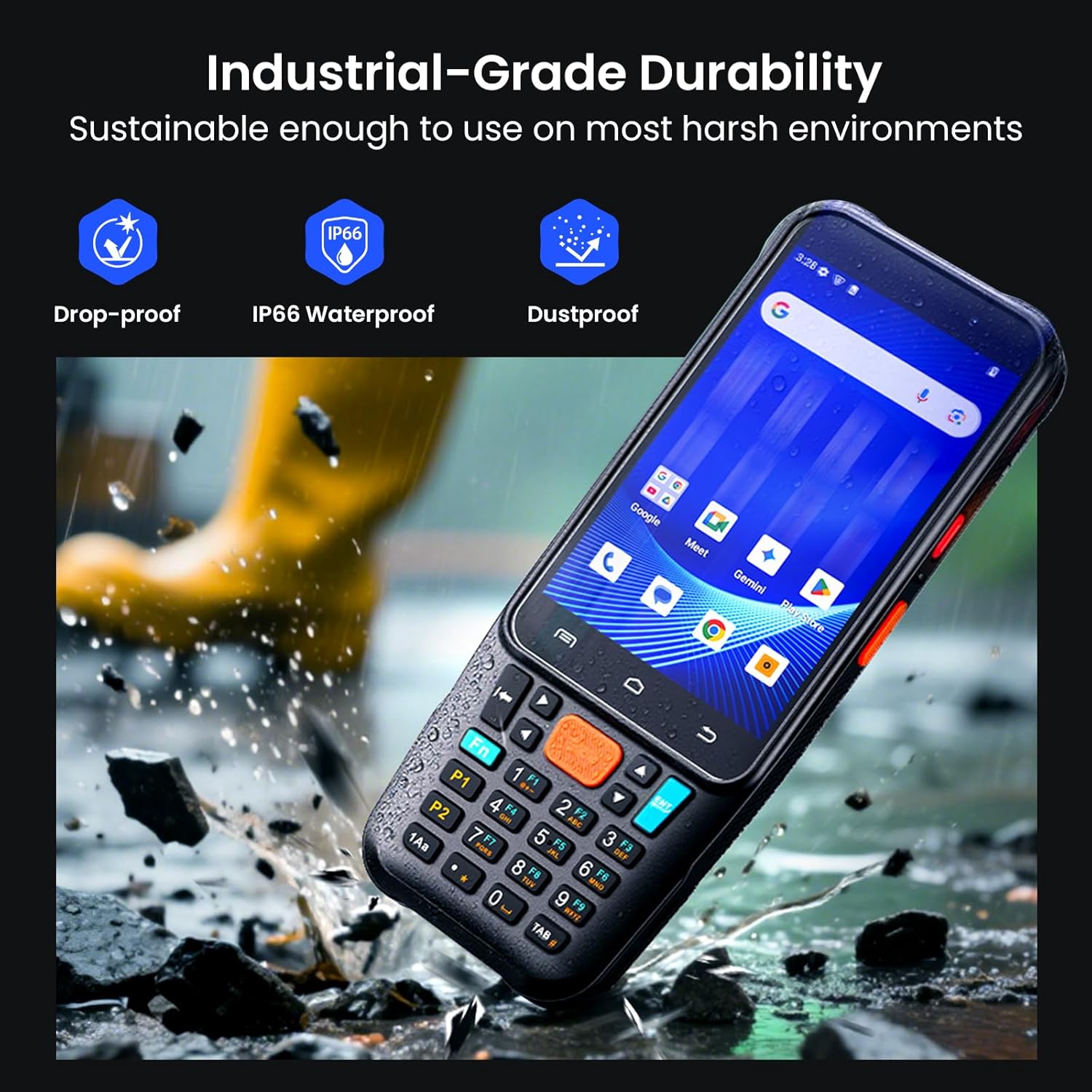
Image 4.1: The Eyoyo EY-F1 demonstrating its industrial-grade durability features, including drop-proof, IP66 waterproof, and dustproof capabilities, suitable for harsh working conditions.
4.2 คำแนะนำในการทำความสะอาด
เพื่อรักษาประสิทธิภาพและสุขอนามัยที่เหมาะสมที่สุด:
- ใช้ผ้านุ่มไม่เป็นขุยค่อยๆ งampเช็ดทำความสะอาดภายนอกเครื่องสแกนเนอร์ด้วยน้ำหรือน้ำยาทำความสะอาดอ่อนๆ ที่ไม่ทำให้เกิดรอยขีดข่วน
- For the scanner window, use a lens cleaning cloth or a soft cloth with a small amount of isopropyl alcohol. Avoid harsh chemicals that may damage the lens.
- โปรดตรวจสอบให้แน่ใจว่าอุปกรณ์ปิดเครื่องและถอดปลั๊กออกจากแหล่งจ่ายไฟก่อนทำความสะอาด
- Do not immerse the devices in water or spray cleaning solutions directly onto them.
4.3 Battery Care (EY-F1)
The EY-F1 features a 5050mAh battery designed for full-shift power.
- Charge the battery regularly to maintain its health. Avoid completely draining the battery frequently.
- ใช้เฉพาะอุปกรณ์ชาร์จไฟที่เป็นของแท้หรือได้รับการรับรองว่าใช้งานร่วมกันได้เท่านั้น
- เก็บอุปกรณ์ไว้ในที่แห้งและเย็นเมื่อไม่ได้ใช้งานเป็นเวลานาน
5 การแก้ไขปัญหา
5.1 General Scanning Issues
- เครื่องสแกนไม่สามารถอ่านบาร์โค้ดได้:
- ตรวจสอบให้แน่ใจว่าบาร์โค้ดสะอาด ไม่เสียหาย และอยู่ในระยะการอ่านที่เหมาะสมของเครื่องสแกน
- Check if the scanner's light is active (for EYH2, ensure it's connected; for EY-F1, ensure the scanning application is open).
- ตรวจสอบว่าเครื่องสแกนรองรับบาร์โค้ดประเภทดังกล่าวหรือไม่
- ข้อมูลที่แสดงผลไม่ถูกต้อง:
- Ensure the correct keyboard layout is selected on the host device (for EYH2).
- Check scanner configuration settings for data formatting.
5.2 Connectivity Issues (EY-F1)
- Wi-Fi/Cellular connection unstable:
- ตรวจสอบความแรงของสัญญาณเครือข่าย
- Restart the device and attempt to reconnect.
- Verify network settings and credentials.
- การจับคู่บลูทูธล้มเหลว:
- ตรวจสอบให้แน่ใจว่าอุปกรณ์ทั้งสองอยู่ในโหมดจับคู่และอยู่ในระยะที่อุปกรณ์สามารถเชื่อมต่อได้
- Restart Bluetooth on both devices.
5.3 Device Not Responding (EY-F1)
- If the device becomes unresponsive, press and hold the power button for approximately 10-15 seconds to force a restart.
- ตรวจสอบให้แน่ใจว่าแบตเตอรี่มีประจุเพียงพอ
6. ข้อมูลจำเพาะ
| คุณสมบัติ | Eyoyo EYH2 USB Scanner | Eyoyo EY-F1 Android Scanner |
|---|---|---|
| แบบอย่าง | EYH2 | EY-F1 |
| ความสามารถในการสแกน | 1D & 2D Barcodes (damaged, worn, screen-displayed) | 1D & 2D Barcodes (damaged, worn, screen-displayed) |
| ประเภทการเชื่อมต่อ | USB Wired (1.8m / 5.9ft cable) | Wi-Fi, Cellular (2G/3G/4G), Bluetooth 5.0, Optional NFC |
| ระบบปฏิบัติการ | Host OS dependent (Windows, macOS, Linux, POS) | แอนดรอยด์ 15 |
| แบตเตอรี่ | ไม่มีข้อมูล (ใช้พลังงานจาก USB) | 5050mAh (12 hours continuous scanning) |
| ความทนทาน | Standard handheld durability | Drop-proof, IP66 Waterproof, Dustproof, Reinforced Glass |
| วิธีการป้อนข้อมูล | Scanning trigger | Touchscreen, Physical Keypad, Scanning trigger |
| ผู้ผลิต | เอโยโย | |
| วันที่พร้อมใช้งานครั้งแรก | 14 กรกฎาคม 2025 | |
7. การรับประกันและการสนับสนุน
For warranty information and technical support, please refer to the documentation included with your purchase or visit the official Eyoyo webไซต์ โปรดเก็บใบเสร็จรับเงินไว้เป็นหลักฐานการซื้อสำหรับการเรียกร้องการรับประกัน
- แหล่งข้อมูลออนไลน์: Check the Eyoyo official website for FAQs, driver downloads, and additional support materials.
- ติดต่อฝ่ายสนับสนุน: If you encounter issues not covered in this manual, please contact Eyoyo customer service for assistance.