
1. บทนำ
The Carpuride W702S PRO is a 7-inch waterproof motorcycle display designed to integrate wireless Apple CarPlay and Android Auto functionality into your riding experience. It provides navigation, communication, and entertainment features directly on your motorcycle's handlebars, enhancing safety and convenience.

Figure 1.1: Carpuride W702S PRO display mounted on a motorcycle.
2. อะไรอยู่ในกล่อง
ตรวจสอบว่ามีส่วนประกอบทั้งหมดอยู่ในแพ็คเกจ:
- 1x Carpuride W702S PRO Motorcycle Stereo (7-inch display)
- 1x BM05 Mount & Metal Key
- 1x Wire Controller
- สายไฟ 1 เส้น
- สาย USB 1x
- ประแจ 1x
- 1x คู่มือผู้ใช้
- 1x Square Bracket
- 1x Extension Rod Bracket
- Various Silicone Gaskets (12mm, 22mm, 25.4mm, 28mm)

Figure 2.1: Included components of the Carpuride W702S PRO.
3. คุณสมบัติของผลิตภัณฑ์
3.1 CarPlay ไร้สายและ Android Auto
The W702S PRO supports wireless connection to your smartphone for Apple CarPlay and Android Auto. This allows access to navigation, phone calls, music, and messaging via voice commands (Siri or Google Assistant) or the touchscreen. Note: Incompatible with Huawei phones and phones running HarmonyOS.
3.2 Single & Dual Bluetooth Connection Modes
The device offers flexible Bluetooth connectivity:
- BT Trans Mode: Supports both single and dual connections for Bluetooth headsets or helmets. This allows solo use or sharing audio with a passenger.
- CarPlay/Android Auto Mode: Supports single connection only, transmitting audio from your smartphone to a helmet or headset for hands-free communication and music.

Figure 3.1: Bluetooth connection modes.
3.3 BM05 Universal Motorcycle Mount
The BM05 mount, constructed with a metal key, ensures secure and easy installation on all motorcycle models. Its quick-release mechanism allows for convenient removal of the screen when not in use.
3.4 Music Sharing & Intercom
Utilizing upgraded dual Bluetooth technology, the W702S PRO allows two Bluetooth helmets to connect simultaneously via its BT Trans function. This enables rider and passenger to share music and use the intercom feature without interruption.

Figure 3.2: Music sharing and intercom functionality.
3.5 Sensor Light & EQ Effect
The integrated sensor light automatically adjusts screen brightness based on ambient light conditions, reducing eye strain and improving visibility. The device also includes a built-in EQ function with various music styles and sound effects.
3.6 Compass & Barometer
For outdoor riding, the W702S PRO features a compass for directional guidance and a barometer to monitor real-time altitude changes, aiding in navigation and environmental awareness.

Figure 3.3: Sensor light, local playback, compass, and barometer features.
3.7 7-inch HD IPS Touch Screen
The device features a 7-inch high-definition IPS touch screen with a 1024x600 resolution, 65K colors, and up to 1000nit peak brightness for clear visibility in various lighting conditions, including direct sunlight. It is compatible with iOS 6+ and Android 11+ systems.
3.8 คอนโทรลเลอร์แบบมีสาย
A wired controller is included for convenient operation, allowing you to answer calls, turn the screen on/off, and switch between the home page and current interface when using CarPlay. Note: Android phone connections do not support the cycle button for incoming calls.

Figure 3.4: Wired controller in use.
3.9 การออกแบบกันน้ำระดับ IP67
The W702S PRO features a rugged IP67 waterproof design, ensuring reliable performance in various weather conditions, from heavy rain to scorching sun. It operates flawlessly in temperatures ranging from -20°C to 80°C (-4°F to 176°F).
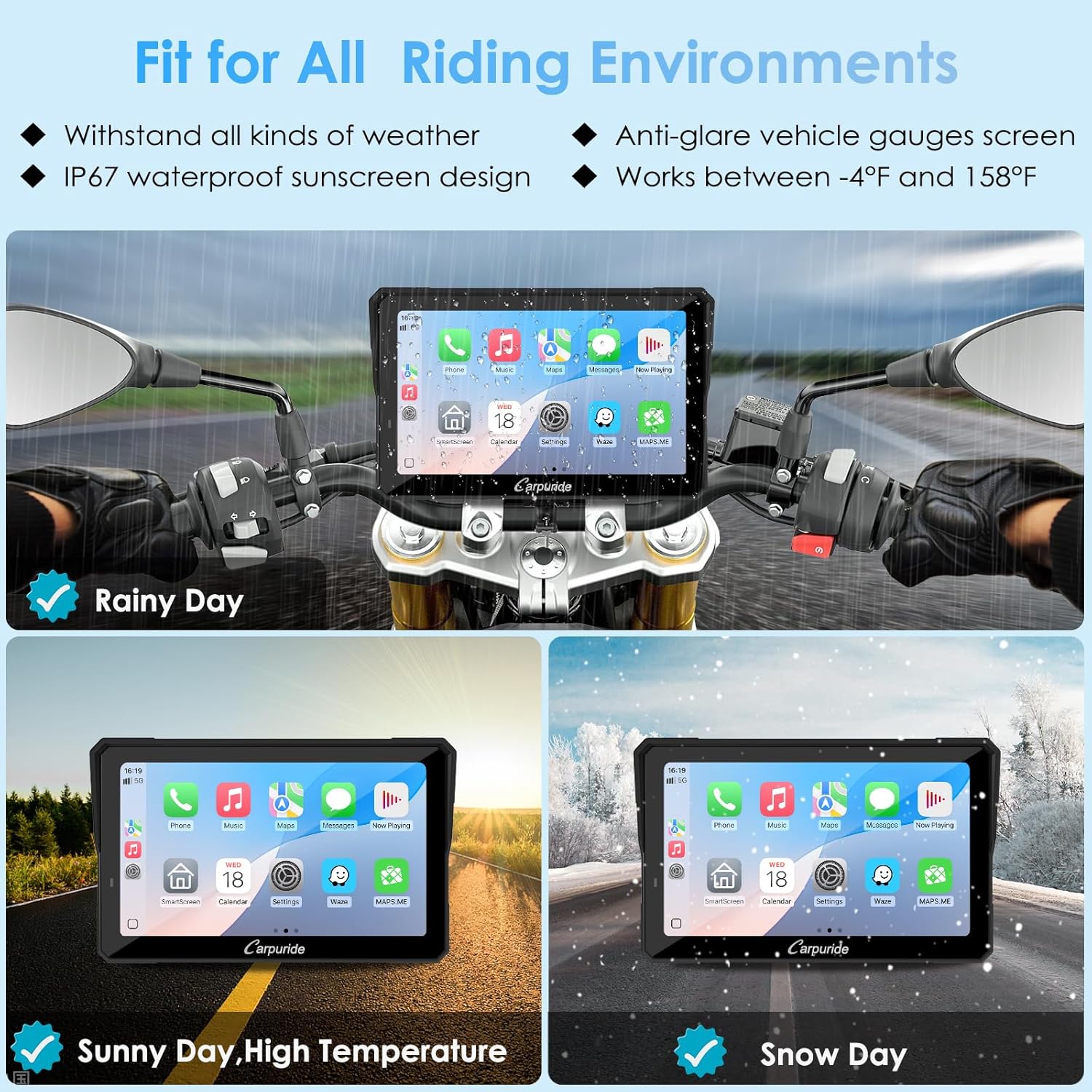
Figure 3.5: Weather resistance of the W702S PRO.
4. คำแนะนำในการตั้งค่า
4.1 การติดตั้งอุปกรณ์
The BM05 mount offers two installation modes. Choose the appropriate silicone pads (12mm, 22mm, 25.4mm, or 28mm) to match your motorcycle handlebar diameter.
Installation Mode 1: Handlebar Clamp ภูเขา
- Select the correct silicone pad thickness for your handlebar.
- ใช้ไขควงปากแฉกยึดตัวยึดโลหะเข้ากับแฮนด์จักรยาน
- Clamp the connecting rod onto the metal mount at the desired angle and secure the screws.
- Snap the BM05 bracket onto the connecting rod clamp วงเล็บโลหะ
- Insert the metal key into the slot, push it to the deepest position until it locks, then rotate it left and push firmly.
- The slot will pop up.
- Snap the CarPlay screen into the BM05 bracket.
- Remove the metal key, let the slot retract, and fasten tightly.

Figure 4.1: Installation Mode 1 for handlebar mounting.
Installation Mode 2: Mirror Stem Mount
- Remove the ball head from the end of the bracket.
- Install the ring bracket onto the BM05 bracket.
- Choose the appropriate silicone pad thickness for your motorcycle handlebar (12mm, 22mm, 25.4mm, or 28mm).
- Attach the metal mount to the handlebar with a Phillips screwdriver.
- Insert the metal key into the slot, push it to the deepest position until it locks, then rotate it left and push firmly.
- The slot will pop up.
- Snap the CarPlay screen into the BM05 bracket.
- Remove the metal key, let the slot retract, and fasten tightly.

Figure 4.2: Installation Mode 2 for mirror stem mounting.
4.2 การเชื่อมต่อสายไฟ
Connect the power cable to your motorcycle's battery. The red wire connects to the positive terminal, and the black wire connects to the negative terminal. Alternatively, use the USB cable to connect to a motorcycle USB port for power.

Figure 4.3: Power connection diagram.
4.3 Bluetooth Headset Pairing (BT Trans Mode)
- Ensure your Bluetooth headset or helmet is turned on and in an active pairing state.
- On the W702S PRO, navigate to the Bluetooth settings and search for available devices.
- Select your headset/helmet from the list to pair.
- For dual connection, repeat the process for a second headset/helmet.
สำคัญ: Do not connect your mobile phone directly to the Bluetooth helmet or earphone, as this may interfere with the pairing process with the Carpuride screen.
4.4 การเชื่อมต่อ CarPlay ไร้สาย
- On the W702S PRO, open the 'i-Play' application.
- On your iPhone, search for the Carpuride Bluetooth device (e.g., 'carpuride-xxxx') and pair.
- Confirm the connection on your iPhone by clicking 'Allow' and 'Use CarPlay'.
- The connection will be successful, and CarPlay will launch on the W702S PRO screen.

Figure 4.4: Apple CarPlay connection steps.
4.5 การเชื่อมต่อ Android Auto แบบไร้สาย
- On the W702S PRO, open the 'A-Auto' application.
- On your Android phone, go to Bluetooth settings and find connected devices.
- Add a new device, select 'carpuride-xxxx', and click 'Pair'.
- The connection will be successful, and Android Auto will launch on the W702S PRO screen.

Figure 4.5: Android Auto connection steps.
4.6 CarPlay & Android Auto Requirements
To use wireless CarPlay, your iPhone must be running iOS 6 or above, have the CarPlay system enabled, and Siri activated.
To use wireless Android Auto, your phone must support 5GHz Wi-Fi, be running Android 11 or above, and have the Android Auto app installed and updated to the latest version.
Incompatible Android Phone Models: OnePlus Nord 2T, OnePlus Nord CE2 5G, Oppo CPH2161, Oppo A16S, Oppo Reno 2, Oppo Reno2 Z, Samsung S23, Samsung Note 20, Samsung S20, Samsung m22, Samsung S23 Ultra, Galaxy A20 (model SM-A205g), Huawei p30, Huawei p30 pro, Huawei P40 Pro, Huawei P20 Pro, Huawei P20, Huawei P30 lite MAR-LX1A, Huawei Mate 20, Huawei Mate 20 pro, Huawei P smart 2019 - POT-LX1, Huawei nova 5t, HUAWEI MATE LITE 10, Honor 90, Xiaomi 11 lite, Xiaomi 12 pro, Redmi 9, Xiaomi 9.

Figure 4.6: Compatibility requirements and incompatible devices.
5. คู่มือการใช้งาน
5.1 การทำงานพื้นฐาน
The W702S PRO is operated via its 7-inch IPS touchscreen or the included wired controller.
5.2 ฟังก์ชันของตัวควบคุมแบบมีสาย
- ปุ่มวงจร: Short press to answer incoming calls. Press and hold for more than 5 seconds to power on/off the device.
- ปุ่มรูปภาพ: Short press to hang up incoming calls.
- ปุ่มโฮม:
- When connected to Apple CarPlay, a short press toggles between the main screen and the current CarPlay interface.
- Press and hold for more than 5 seconds to lock the screen (touch function disabled). Long press again for 5 seconds to unlock. This feature is useful in heavy rain to prevent unintended screen changes.

Figure 5.1: Wired controller button functions.
5.3 การนำทาง
Access map applications (e.g., Apple Maps, Google Maps, Waze) through CarPlay or Android Auto for turn-by-turn navigation. Voice commands can be used to initiate navigation.

Figure 5.2: GPS Navigation and voice control.
5.4 Music Playback & EQ Settings
Play music from your smartphone via CarPlay/Android Auto or directly from a TF card (up to 64GB, not included). The built-in EQ function allows customization of sound effects with preset styles and a user-customized 16-band HD EQ with 12 adjustable frequency sections.

Figure 5.3: EQ settings and music playback interface.
5.5 การโทรศัพท์
Make and receive phone calls through the connected smartphone via CarPlay or Android Auto. Use voice commands or the wired controller for call management.

Figure 5.4: Phone call and other integrated functions.
5.6 Light Sensing Design
The light sensor automatically adjusts screen brightness to optimize visibility and reduce eye strain in varying light conditions (daytime, night, tunnels).

Figure 5.5: Light sensing design for eye protection.
6. การบำรุงรักษา
The W702S PRO is designed for durability with an IP67 waterproof rating. To maintain optimal performance:
- Regularly clean the screen with a soft, damp ผ้า. หลีกเลี่ยงน้ำยาทำความสะอาดที่มีฤทธิ์กัดกร่อน
- ตรวจสอบให้แน่ใจว่าการเชื่อมต่อทั้งหมดแน่นหนาและไม่มีเศษขยะ
- Operate the device within its specified temperature range of -20°C to 80°C (-4°F to 176°F).
- When not in use, especially in areas prone to theft, utilize the quick-release mechanism to remove the screen.
7 การแก้ไขปัญหา
7.1 ปัญหาการเชื่อมต่อ
- Cannot connect to CarPlay/Android Auto: Ensure your smartphone meets the minimum OS requirements (iOS 6+ for CarPlay, Android 11+ for Android Auto) and has 5GHz Wi-Fi support for Android Auto. Verify Siri is enabled for CarPlay. Check the list of incompatible Android phones.
- Bluetooth headset pairing issues: Make sure the headset is in pairing mode and not already connected to your phone. Do not connect your phone directly to the headset when using BT Trans mode.
7.2 ปัญหาเกี่ยวกับหน้าจอ
- หน้าจอไม่ตอบสนอง: Try restarting the device by pressing and holding the wired controller's cycle button for more than 5 seconds. Check power connections.
- Screen too bright/dim: The sensor light automatically adjusts brightness. Ensure the sensor is not obstructed.
7.3 การเล่นไฟล์จากการ์ด TF
The 64GB TF card slot supports storing music and videos for local playback. It does not support software upgrades. For software updates, use a smaller capacity card (32GB, 16GB, 8GB, or 4GB).

Figure 7.1: TF card usage guidelines.
8. ข้อมูลจำเพาะ
| คุณสมบัติ | ข้อมูลจำเพาะ |
|---|---|
| ชื่อรุ่น | W702SPRO |
| ขนาดหน้าจอ | 7 นิ้ว |
| ประเภทจอภาพ | หน้าจอสัมผัสแบบ Capacitive แบบ IPS |
| ปณิธาน | ขนาด 1024x600 |
| ความสว่าง | ความสว่างสูงสุด 1000 นิต |
| เทคโนโลยีการเชื่อมต่อ | บลูทู ธ Wi-Fi |
| ระดับการกันน้ำ | IP67 |
| อุณหภูมิในการทำงาน | -20°C ถึง 80°C (-4°F ถึง 176°F) |
| ความจุของหน่วยความจำ | 64 GB (TF Card, not included) |
| รองรับระบบนำทางผ่านดาวเทียม | จีพีเอส |
| วิธีการควบคุม | App, Touch, Voice, Wired Controller |
| ประเภทการติดตั้ง | ที่ยึดแฮนด์บาร์ |
9. การรับประกันและการสนับสนุน
Carpuride offers a 12-month warranty and technical support for the W702S PRO GPS navigator. For any questions or concerns, please contact Carpuride customer support. They aim to provide a satisfactory solution within 24 hours.
10. วิดีโอผลิตภัณฑ์
Video 10.1: Carpuride Moto Carplay Cycling Trip. This video demonstrates the Carpuride W702S PRO in action during a motorcycle trip, showcasing its interface and functionality while riding.