
การแนะนำ
Thank you for choosing the UPERFECT 4K QLED 15.6 inch Portable Monitor. This manual provides essential information for setting up, operating, maintaining, and troubleshooting your new monitor. Please read it thoroughly to ensure optimal performance and longevity of your device.
คุณสมบัติผลิตภัณฑ์
- จอแสดงผล 4K UHD: Experience stunning visuals with a 3840 x 2160 UHD resolution, delivering exceptional clarity and detail, four times that of Full HD.
- 100% Adobe RGB Color Accuracy: The monitor features 100% Adobe RGB color space, providing a wider and more accurate color gamut compared to sRGB. This ensures realistic color reproduction, a 1200:1 contrast ratio, and support for 16.7 million display colors for a cinematic visual experience.
- ประสบการณ์การเล่นเกมที่ได้รับการปรับปรุง: Integrated Game Mode optimizes screen contrast for gaming. HDR (High Dynamic Range) provides significant differences in brightness details, while FreeSync technology synchronizes the graphics card's refresh rate to minimize screen tearing and image distortion. A rapid 3ms response time ensures smooth motion without blur or ghosting.
- การเชื่อมต่อที่หลากหลาย: Equipped with two USB Type-C ports and one Mini HDMI port. The Type-C ports support both video signal transmission and power delivery, allowing for single-cable connection to compatible laptops and smartphones. Connect to various devices including PCs, Raspberry Pi, PS5, Xbox, and more.
- VESA Mount & Protective Cover: Standard 75x75mm VESA mounting holes (M3 x 4mm) enable flexible installation on a desk mount or wall in either landscape or portrait orientation. The included magnetic PU protective cover safeguards the screen from scratches and functions as a convenient portable stand.
คำแนะนำการตั้งค่า
- การแกะกล่อง: Carefully remove the monitor and all accessories from the packaging. Ensure all components are present: monitor, protective cover, USB-C cables, HDMI cable, and power adapter.
- Connecting to a Device (USB-C):
For devices with a full-featured USB Type-C port (supporting DisplayPort Alternate Mode and power delivery), connect one end of the provided USB-C to USB-C cable to the monitor's Type-C port and the other end to your device's USB-C port. This single cable can provide both video and power.

คำอธิบาย: This image shows the portable monitor connected to a smartphone via a single USB-C cable, demonstrating the ease of mirroring or extending the smartphone's display.
- Connecting to a Device (HDMI):
For devices using HDMI output, connect one end of the provided Mini HDMI to HDMI cable to the monitor's Mini HDMI port and the other end to your device's HDMI port. In this setup, the monitor will require external power. Connect the provided power adapter to one of the monitor's USB Type-C ports and to a power outlet.
คำอธิบาย: This image illustrates the portable monitor connected to a laptop using an HDMI cable for video, and a separate USB-C cable for power, a common setup for devices without full-featured USB-C ports.
- Using the Protective Cover as a Stand:
The magnetic protective cover can be folded into various positions to serve as a stand, allowing you to prop up the monitor at different viewing angles. Ensure the monitor is stable before use.

คำอธิบาย: This image demonstrates how the included magnetic protective cover can be folded and used as a stable stand for the portable monitor, offering adjustable viewมุมการเอียง
- การติดตั้ง VESA:
The monitor features 75x75mm VESA mounting holes on the back. Use M3 x 4mm screws to attach the monitor to a compatible VESA desk mount or wall mount. This allows for flexible positioning and frees up desk space.

คำอธิบาย: This image shows the portable monitor mounted on a VESA-compatible arm, illustrating how it can be integrated into a multi-monitor setup or used to optimize desk space.
คำแนะนำการใช้งาน
- เปิด/ปิดเครื่อง: Press the power button located on the side or back of the monitor to turn it on or off.
- การนำทางเมนู OSD: Use the joystick or buttons (refer to the physical layout on your monitor) to navigate the On-Screen Display (OSD) menu. This menu allows you to adjust various settings.
- การเลือกแหล่งสัญญาณเข้า: From the OSD menu, select the appropriate input source (e.g., USB-C, HDMI) corresponding to your connected device.
- การปรับการตั้งค่าการแสดงผล:
- ความสว่าง/คอนทราสต์: ปรับการตั้งค่าเหล่านี้ในเมนู OSD ให้เหมาะสมกับความต้องการของคุณ viewing environment. The monitor offers 500 Nits brightness for vibrant visuals.
- การตั้งค่าสี: Fine-tune color temperature, hue, and saturation for optimal color accuracy, leveraging the 100% Adobe RGB support.
- โหมด HDR: Enable HDR in the OSD menu for enhanced contrast and color depth with HDR-compatible content.
- โหมดเกม: Activate Game Mode for optimized visual settings during gaming, improving visibility in dark scenes and overall responsiveness.
- ฟรีซิงค์: If your connected device supports AMD FreeSync, ensure it is enabled in both your device's graphics settings and the monitor's OSD menu to prevent screen tearing.
การซ่อมบำรุง
- การทำความสะอาดหน้าจอ: เช็ดหน้าจอเบาๆ ด้วยผ้านุ่มที่ไม่เป็นขุย สำหรับรอยฝังแน่น ให้เช็ดเบาๆampen the cloth with water or a screen-cleaning solution. Avoid harsh chemicals, abrasive materials, or spraying liquid directly onto the screen.
- ทำความสะอาดร่างกาย: ใช้ผ้าแห้งนุ่มๆ เช็ดทำความสะอาดตัวเครื่องมอนิเตอร์
- พื้นที่จัดเก็บ: When not in use for extended periods, store the monitor in a cool, dry place, preferably in its original packaging or protective cover, away from direct sunlight and extreme temperatures.
- การจัดการ: จับจอภาพโดยจับที่ขอบเสมอ หลีกเลี่ยงการกดหน้าจอแรงๆ
การแก้ไขปัญหา
| ปัญหา | สาเหตุที่เป็นไปได้ | สารละลาย |
|---|---|---|
| No image/No signal | Incorrect input source selected; loose cable connection; device not outputting signal. | Ensure correct input source is selected in OSD. Check all cable connections (USB-C, HDMI) are secure. Verify the source device is powered on and configured to output to the monitor. |
| จอภาพไม่เปิดใช้งาน | No power supply; faulty power adapter/cable. | Ensure the power adapter is securely connected to the monitor and a working power outlet. If using USB-C for power, ensure the source device provides sufficient power. Try a different power outlet or adapter if available. |
| ภาพสั่นไหวหรือบิดเบี้ยว | Faulty cable; incompatible resolution/refresh rate; electromagnetic interference. | Replace the connecting cable. Adjust the resolution and refresh rate on your source device to match the monitor's specifications (3840x2160, 60Hz). Move away from other electronic devices that may cause interference. |
| สีที่ปรากฏไม่ถูกต้อง | Incorrect color settings; faulty cable. | Reset color settings in the OSD menu to default. Adjust color temperature, hue, and saturation. Ensure the cable is fully functional. |
| ไม่มีเสียงจากจอภาพ (ถ้ามี) | Volume too low; incorrect audio output selected on source device; monitor's audio settings. | Increase monitor volume via OSD. Check audio output settings on your connected device to ensure sound is directed to the monitor. |
ข้อมูลจำเพาะ
| คุณสมบัติ | รายละเอียด |
|---|---|
| ยี่ห้อ | สุดยอด U |
| หมายเลขรุ่น | ccf5c598-9977-4620-9699-ed83e5597279 |
| ขนาดหน้าจอ | 15.6 นิ้ว |
| ปณิธาน | 3840 x 2160 UHD |
| อัตราส่วนภาพ | 16:9 น. |
| คำอธิบายพื้นผิวหน้าจอ | แมทต์ |
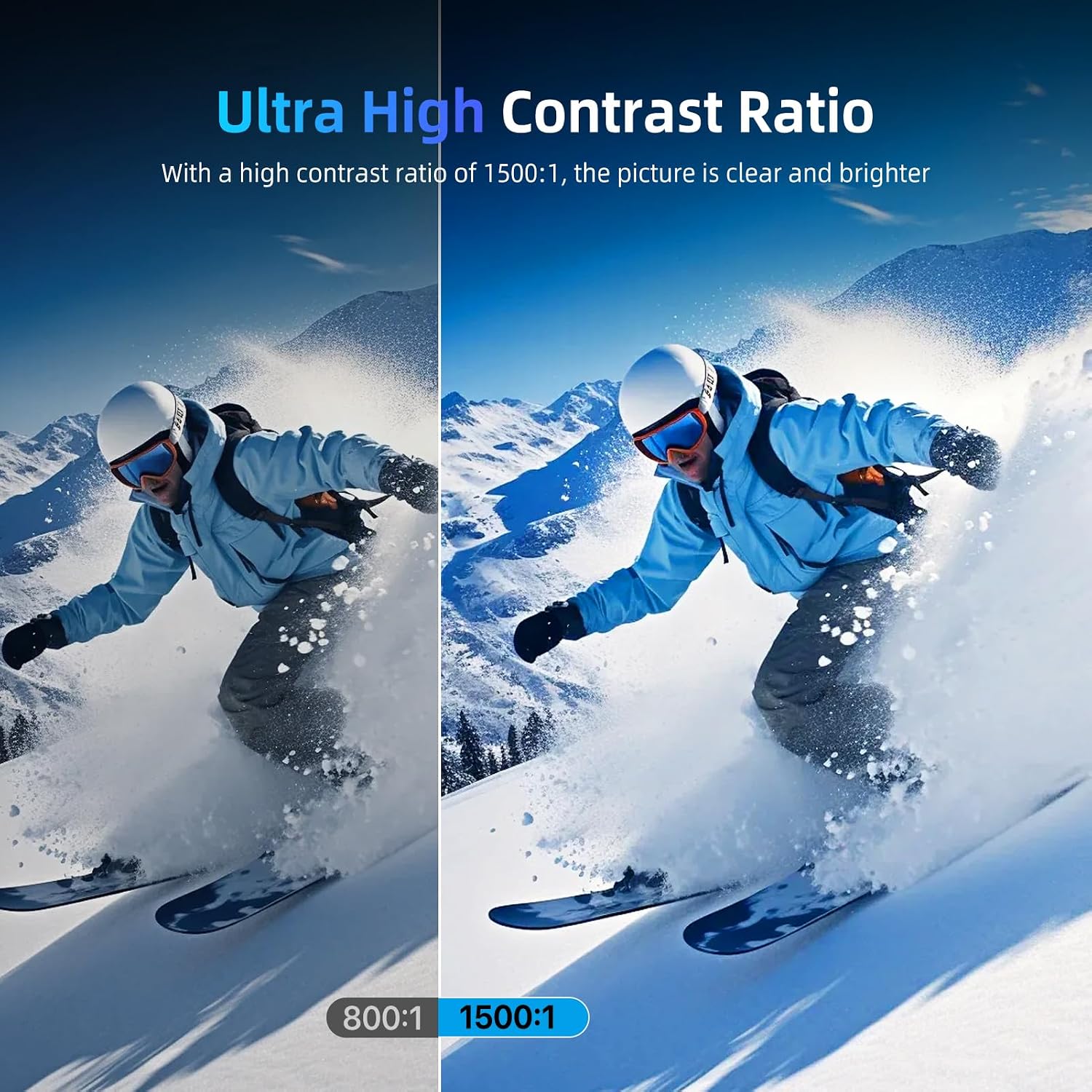
| อัตราส่วนคอนทราสต์ | 1500:1 น. |
| เวลาตอบสนอง | 3 มิลลิวินาที |
| ความละเอียดการแสดงผลสูงสุด | 3840 x 2160 |
| คุณสมบัติพิเศษ | Game Mode, HDR, FreeSync, Fast Response Time, 2 Type-C Ports, VESA Mount |
| เทคโนโลยีการเชื่อมต่อ | สาย HDMI, สาย USB Type C |
| ประเภทจอภาพ | คิวแอลอีดี |
| ความสว่าง | 500 นิต |
| จอแสดงผลสี | ใช่ |
| ขนาดสินค้า (ลึก x กว้าง x สูง) | 24 x 36 x 1 เซนติเมตร |
| พอร์ต HDMI ทั้งหมด | 1 |
| พอร์ต USB รวม | 2 (ยูเอสบี 3.0) |
| เทคโนโลยี Adaptive Sync | ฟรีซิงค์ |
| ระดับประสิทธิภาพพลังงาน (SDR) | A |
| การใช้พลังงาน (SDR) | 6.0 วัตต์ / 1000 ชั่วโมง |
สำหรับข้อมูลด้านพลังงานโดยละเอียด โปรดดูฐานข้อมูล EU EPREL: https://eprel.ec.europa.eu/qr/1803782
ข้อมูลการรับประกัน
Specific warranty details for this product are not explicitly provided in the available product data. For information regarding warranty coverage and terms, please refer to the documentation included with your purchase or contact the seller directly. Please note that a 30-day return policy may apply, as indicated by the seller.
Information regarding spare parts availability and guaranteed software updates is not available in the provided product data.
สนับสนุน
If you encounter any issues not covered in this manual or require further assistance, please contact UPERFECT customer support or the retailer from whom you purchased the product. Please have your model number and purchase details ready when contacting support.