
การแนะนำ
This manual provides essential information for the safe and efficient use of your Google Pixel 9 Pro 5G smartphone. Please read these instructions carefully before operating your device.

รูปที่ 1 : ด้านหน้า view of the Google Pixel 9 Pro 5G.
มีอะไรอยู่ในกล่อง
ตรวจสอบว่ามีสินค้าทั้งหมดอยู่ในบรรจุภัณฑ์:
- สมาร์ทโฟน Google Pixel 9 Pro
- สาย USB-C ถึง USB-C (1 เมตร, USB 2.0)
- เครื่องมือถอดถาดซิม
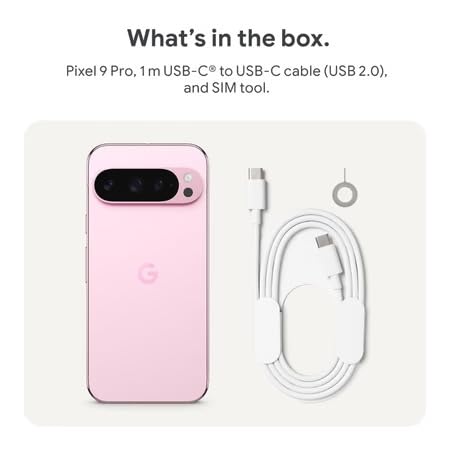
Figure 2: Included items in the Pixel 9 Pro packaging.
การตั้งค่า
1. การใส่ซิมการ์ด
- Locate the SIM tray on the side of your Pixel 9 Pro.
- เสียบเครื่องมือถอดซิมที่ให้มาลงในรูเล็กๆ บนถาดซิม แล้วกดเบาๆ จนกว่าถาดจะหลุดออกมา
- ใส่การ์ดนาโนซิมลงในถาดโดยให้หน้าสัมผัสสีทองคว่ำลง ตรวจสอบให้แน่ใจว่าใส่การ์ดถูกต้อง
- ค่อยๆ ดันถาดใส่ซิมการ์ดกลับเข้าไปในตัวเครื่องจนแนบสนิท
2. การชาร์จครั้งแรก
ก่อนใช้งานครั้งแรก ขอแนะนำให้ชาร์จอุปกรณ์ของคุณจนเต็ม
- เสียบสาย USB-C เข้ากับพอร์ตชาร์จที่ด้านล่างของโทรศัพท์ของคุณ
- Connect the other end of the cable to a compatible USB power adapter (sold separately) and plug it into a power outlet.
- ไอคอนแบตเตอรี่บนหน้าจอจะแสดงสถานะการชาร์จ
3. การเปิด/ปิดเครื่อง
- การเปิดเครื่อง: กดปุ่มเปิด/ปิด (อยู่ด้านขวา) ค้างไว้จนกว่าโลโก้ Google จะปรากฏบนหน้าจอ
- วิธีปิดเครื่อง: กดปุ่มเปิด/ปิดค้างไว้ จากนั้นแตะ 'ปิดเครื่อง' บนหน้าจอ
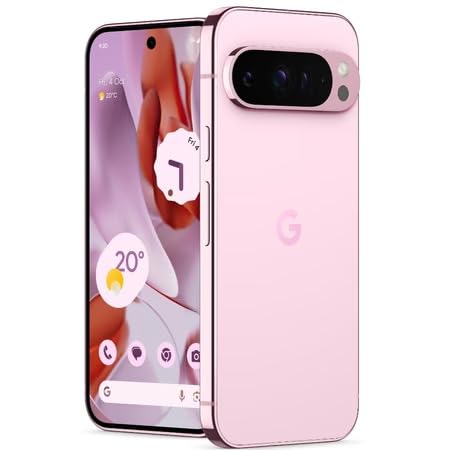
Figure 3: Power and volume buttons on the side of the device.
4. ตัวช่วยการตั้งค่าครั้งแรก
Upon powering on for the first time, follow the on-screen instructions to:
- เลือกภาษาและภูมิภาคของคุณ
- เชื่อมต่อกับเครือข่าย Wi-Fi
- ลงชื่อเข้าใช้ด้วยบัญชี Google ของคุณหรือสร้างบัญชีใหม่
- Set up security features such as fingerprint unlock, face unlock, PIN, pattern, or password.
- ถ่ายโอนข้อมูลจากอุปกรณ์เก่า (ทางเลือก)
คำแนะนำการใช้งาน
การนำทางพื้นฐาน
- ท่าทางการสัมผัสหน้าจอ: Interact with the device using taps, swipes, pinches (for zoom), and long presses.
- หน้าจอหลัก: Access your applications, widgets, and customize your layout.
- การแจ้งเตือน: ปัดลงจากด้านบนของหน้าจอไปที่ view การแจ้งเตือน
- การตั้งค่าด่วน: Swipe down twice from the top of the screen to access quick settings toggles (Wi-Fi, Bluetooth, etc.).
การทำงานของกล้อง
The Pixel 9 Pro features a powerful triple rear camera system.
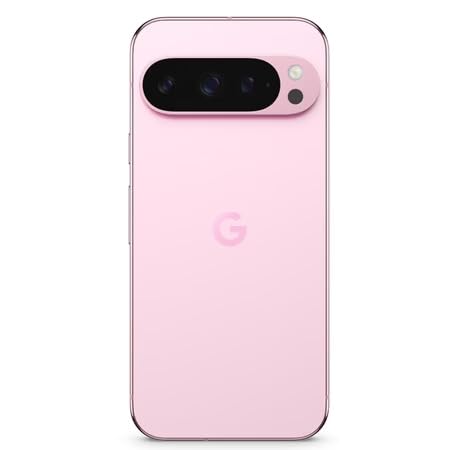
Figure 4: Rear camera system of the Pixel 9 Pro.
- การเปิดกล้อง: แตะไอคอนแอปกล้องบนหน้าจอหลักหรือหน้าจอล็อกของคุณ
- การเปลี่ยนเลนส์: Tap the icons on the viewfinder to switch between wide, ultrawide, and 5x telephoto lenses.
- โหมดการถ่ายภาพ: Select from various modes such as Night Sight for low-light conditions, การถ่ายภาพดาราศาสตร์ for capturing stars, มาโคร for close-up shots, การเปิดรับแสงเป็นเวลานาน for creative effects, and ภาพเหมือน for depth-of-field effects.
- ซูมความละเอียดสูง: Pinch the screen to digitally zoom up to 30x. For video, Super Res Zoom supports up to 20x.
- การควบคุมระดับโปร: Access advanced camera settings like shutter speed and manual focus for greater creative control.
การจัดการแบตเตอรี่
- การตรวจสอบระดับแบตเตอรี่: View เปอร์เซ็นต์แบตเตอรี่tage in the status bar or in Settings > Battery.
- ประหยัดแบตเตอรี่ขั้นสุด: Enable this mode in Settings > Battery > Extreme Battery Saver to significantly extend battery life.
- การชาร์จ: Use the provided USB-C cable and a compatible power adapter for optimal charging speed.
คุณสมบัติด้านความปลอดภัย
Your Pixel 9 Pro incorporates multiple hardware security layers to protect your data.
- ปลดล็อคลายนิ้วมือ: ลงทะเบียนลายนิ้วมือของคุณใน การตั้งค่า > ความปลอดภัยและความเป็นส่วนตัว > ปลดล็อกอุปกรณ์
- ปลดล็อคด้วยใบหน้า: ตั้งค่าระบบจดจำใบหน้าเพื่อความสะดวกในการปลดล็อก
- PIN/รูปแบบ/รหัสผ่าน: Always set a strong screen lock method.
- การอัปเดตซอฟต์แวร์: Regularly install system updates to ensure your device has the latest security patches.
เซ็นเซอร์วัดอุณหภูมิ
The Pixel 9 Pro includes a thermometer for measuring temperature.
- Open the dedicated Thermometer app.
- Follow the on-screen instructions to measure body temperature or the temperature of objects.
- Temperature data can be saved and tracked within the Fitbit application.
การซ่อมบำรุง
ทำความสะอาดอุปกรณ์ของคุณ
- ใช้ผ้าเนื้อนุ่มที่ไม่เป็นขุยเช็ดทำความสะอาดหน้าจอและตัวเครื่องโทรศัพท์ของคุณ
- หลีกเลี่ยงการใช้วัสดุที่มีฤทธิ์กัดกร่อน สารเคมีรุนแรง หรือสเปรย์กระป๋อง
- Do not submerge the device in water, despite its water-resistant rating.
การอัพเดตซอฟต์แวร์
Google regularly releases software updates to improve performance, add features, and enhance security.
- To check for updates, go to Settings > System > System update.
- Ensure your device is connected to Wi-Fi and has sufficient battery charge before installing updates.
การดูแลด้านร่างกาย
The Pixel 9 Pro is built with Corning Gorilla Glass Victus 2 and is water-resistant, offering durability against everyday drops and spills.
- While durable, avoid excessive impacts or drops to prevent damage.
- Consider using a screen protector and a protective case for additional safeguarding.
การแก้ไขปัญหา
อุปกรณ์ไม่ตอบสนอง
If your phone becomes unresponsive, perform a force restart:
- กดปุ่มเปิด/ปิดค้างไว้ประมาณ 10-15 วินาที จนกว่าอุปกรณ์จะรีสตาร์ท
แอปขัดข้องหรือหยุดทำงาน
- ปิดแอปที่มีปัญหาแล้วเปิดใหม่อีกครั้ง
- Clear the app's cache: Go to Settings > Apps > See all apps > [App Name] > Storage & cache > Clear cache.
- ตรวจสอบให้แน่ใจว่าแอปได้รับการอัปเดตเป็นเวอร์ชันล่าสุดจาก Google Play Store
- รีสตาร์ทโทรศัพท์ของคุณ
Network Connectivity Issues (Wi-Fi/Cellular)
- Toggle Wi-Fi or cellular data off and then back on.
- รีสตาร์ทโทรศัพท์ของคุณ
- ตรวจสอบว่าคุณได้ใส่ซิมการ์ดอย่างถูกต้อง
- Reset network settings: Go to Settings > System > Reset options > Reset Wi-Fi, mobile & Bluetooth.
แบตเตอรี่หมดเร็ว
- Check battery usage in Settings > Battery to identify power-consuming apps.
- ลดความสว่างหน้าจอและระยะเวลาการหมดเวลาของหน้าจอ
- Disable unnecessary features like GPS, Bluetooth, and Wi-Fi when not in use.
- Enable Extreme Battery Saver mode.
รีเซ็ตเป็นค่าเริ่มต้นจากโรงงาน (วิธีสุดท้าย)
Warning: A factory reset will erase all data from your phone. Back up all important data before proceeding.
- ไปที่ การตั้งค่า > ระบบ > ตัวเลือกการรีเซ็ต > ลบข้อมูลทั้งหมด (รีเซ็ตเป็นค่าจากโรงงาน)
- Confirm your decision when prompted.
ข้อมูลจำเพาะ
| คุณสมบัติ | รายละเอียด |
|---|---|
| ยี่ห้อ | |
| แบบอย่าง | พิกเซล 9 โปร |
| ระบบปฏิบัติการ | แอนดรอยด์ 15 |
| โปรเซสเซอร์ | Google Tensor G4 (3.1 GHz) |
| แรม | 16GB |
| การจัดเก็บข้อมูลภายใน | 256GB |
| แสดง | 6.3 Inches LTPO OLED (Actua), 1280 x 2856 Pixels, 120 Hz Refresh Rate |
| กล้องหลัง | 50 MP wide + 48 MP ultrawide (Macro) + 48 MP 5x telephoto |
| กล้องหน้า | 42 MP |
| ความจุของแบตเตอรี่ | 4700 มิลลิวินาทีamp Hours (up to 24 hours average life) |
| การเชื่อมต่อ | 5G, Wi-Fi 7, Bluetooth 5.3, NFC, UWB, USB-C |
| ซิมการ์ด | Single Nano SIM |
| ความต้านทานต่อน้ำ | ทนน้ำ |
| ขนาด | 8 x 72 x 153 มิลลิเมตร |
| น้ำหนัก | 198 กรัม |
การรับประกันและการสนับสนุน
ข้อมูลการรับประกัน
Your Google Pixel 9 Pro 5G comes with a การรับประกันจากผู้ผลิต 1 ปี นับจากวันที่ซื้อ การรับประกันนี้ครอบคลุมข้อบกพร่องจากการผลิตภายใต้การใช้งานปกติ โปรดเก็บหลักฐานการซื้อไว้เพื่อขอรับสิทธิ์การรับประกัน
การสนับสนุนลูกค้า
For technical assistance, warranty claims, or other support inquiries, please contact Google customer service:
- ผู้ผลิต: กูเกิล แอลแอลซี, 1600 Amphitheatre Parkway ภูเขา View, แคลิฟอร์เนีย 94043 สหรัฐอเมริกา
- Phone Support (India): +91 7718892303
- ติดต่อผู้นำเข้า (อินเดีย): Nexora Axis Private Limited (+91 7718892303)
For the most up-to-date support information, please visit the official Google Pixel support webเว็บไซต์.