
1. บทนำ
This manual provides essential information for setting up, operating, maintaining, and troubleshooting your GIGABYTE AORUS Prime 5 AP5A7N7T-5000 Gaming Desktop PC. Please read this manual thoroughly before using your new system to ensure proper functionality and longevity.
The AORUS Prime 5 is a high-performance gaming desktop featuring an AMD Ryzen 7 9700X Processor, NVIDIA GeForce RTX 5070 Ti Graphics Card, 32GB DDR5 RAM, and a 2TB PCIe Gen4 NVMe M.2 SSD. It operates on Windows 11 and includes a 360mm liquid cooler for optimal thermal management.
Figure 1: GIGABYTE AORUS Prime 5 Gaming Desktop PC overview.
2. อะไรอยู่ในกล่อง
ตรวจสอบว่ามีสินค้าทั้งหมดอยู่ในบรรจุภัณฑ์:
- GIGABYTE AORUS Prime 5 Gaming Desktop PC
- สายไฟ
- คู่มือการใช้งาน (เอกสารนี้)
- บัตรรับประกัน
- Accessory Kit (may include SATA cables, screws, etc.)
3. การตั้งค่า
Follow these steps to set up your GIGABYTE AORUS Prime 5 Gaming Desktop PC.
3.1 การแกะกล่องและการจัดวาง
- Carefully remove the PC from its packaging. Retain all packaging materials for future transport or service.
- Place the PC on a stable, flat surface with adequate ventilation. Ensure there is clear space around the air intakes and exhausts.
- Remove any protective films or internal packaging materials from the PC, especially from the tempered glass side panel.

รูปที่ 2 : ด้านหน้า view of the AORUS Prime 5 PC.
3.2 การเชื่อมต่ออุปกรณ์ต่อพ่วง
เชื่อมต่อจอภาพ คีย์บอร์ด เมาส์ และอุปกรณ์ต่อพ่วงอื่นๆ เข้ากับพอร์ตที่เหมาะสมทั้งด้านหลังและด้านหน้าของพีซี
- เฝ้าสังเกต: Connect your monitor(s) to the graphics card's DisplayPort or HDMI outputs. Ensure the cable is securely fastened.
- คีย์บอร์ดและเมาส์: Connect your keyboard and mouse to any available USB ports. For optimal performance, use USB 3.0 or higher ports.
- เครือข่าย: Connect an Ethernet cable to the LAN port for a wired internet connection, or ensure your Wi-Fi antenna is connected for wireless connectivity.
- เสียง: เชื่อมต่อลำโพงหรือหูฟังเข้ากับช่องเสียบเสียง
- พลัง: Connect the power cable to the PC's power supply unit (PSU) and then to a wall outlet.

Figure 3: Rear I/O and Front Panel Ports.
3.3 การบูตครั้งแรกและการตั้งค่า Windows
- กดปุ่มเปิด/ปิดที่อยู่ด้านหน้าของคอมพิวเตอร์
- Follow the on-screen instructions to complete the Windows 11 setup process. This typically involves selecting your region, language, creating a user account, and accepting the license agreement.
- After Windows is set up, it is recommended to install the GIGABYTE Control Center (GCC) software. This application helps manage drivers, BIOS updates, and RGB lighting.
- Ensure all drivers are up-to-date. While GCC assists, also check Windows Update and the official GIGABYTE webเว็บไซต์นี้รวบรวมไดร์เวอร์เวอร์ชั่นล่าสุดสำหรับรุ่นรถของคุณ
4. ปฏิบัติการ
This section covers general operation and key features of your AORUS Prime 5 PC.
4.1 ประสิทธิภาพของระบบ
Your AORUS Prime 5 is equipped with an AMD Ryzen 7 9700X processor and an NVIDIA GeForce RTX 5070 Ti graphics card, providing robust performance for gaming, content creation, and demanding applications.

Figure 4: AMD Ryzen 7 9700X Processor.
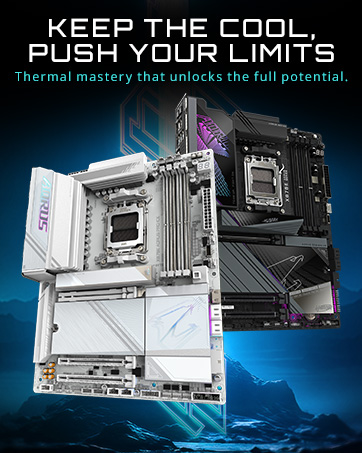
Figure 5: NVIDIA GeForce RTX 5070 Ti Graphics Card.
4.2 ระบบทำความเย็น
The system features a 360mm liquid cooler and WINDFORCE cooling technology with Hawk Fans to maintain optimal temperatures during intensive use. This design ensures efficient heat dissipation and sustained performance.

Figure 6: All-Round Cooling Airflow.
4.3 RGB Fusion 2.0
Customize the 16.7 million ARGB lighting effects using the GIGABYTE Control Center (GCC) software. You can synchronize lighting across compatible components to personalize your system's aesthetic.
5. การบำรุงรักษา
การบำรุงรักษาอย่างสม่ำเสมอจะช่วยให้พีซีของคุณมีอายุการใช้งานยาวนานและทำงานได้อย่างมีประสิทธิภาพสูงสุด
5.1 การทำความสะอาดทั่วไป
- ภายนอก: ใช้แบบนุ่มๆamp ใช้ผ้าเช็ดทำความสะอาดพื้นผิวภายนอก หลีกเลี่ยงสารเคมีรุนแรง
- ตัวกรองฝุ่น: Periodically clean the dust filters (if present) to maintain optimal airflow.
- ภายใน: Every 6-12 months, carefully open the side panel and use compressed air to remove dust from internal components, especially fans and heatsinks. Ensure the PC is powered off and unplugged before opening.
5.2 การอัปเดตซอฟต์แวร์
- การอัปเดต Windows: ตรวจสอบและติดตั้งการอัปเดต Windows เป็นประจำเพื่อให้มั่นใจถึงความเสถียรและความปลอดภัยของระบบ
- การอัปเดตไดรเวอร์: Use the GIGABYTE Control Center (GCC) or visit the official GIGABYTE website to download and install the latest drivers for your motherboard, graphics card, and other components.
ระบบระบายความร้อนด้วยของเหลว 5.3 ระบบ
The 360mm liquid cooler is a closed-loop system and generally requires minimal maintenance. However, ensure the radiator fins are free of dust and the fans are spinning correctly. Do not attempt to open or refill the liquid cooler.
6 การแก้ไขปัญหา
หัวข้อนี้จะกล่าวถึงปัญหาทั่วไปที่คุณอาจพบเจอ
6.1 ไม่มีไฟฟ้า / ระบบไม่เริ่มทำงาน
- ตรวจสอบให้แน่ใจว่าสายไฟเชื่อมต่อกับคอมพิวเตอร์และเต้ารับที่ผนังอย่างแน่นหนาแล้ว
- Check the power switch on the back of the power supply unit (PSU) is in the 'ON' position.
- ลองใช้ปลั๊กไฟหรือสายไฟอื่นดู
6.2 ไม่มีการแสดงผลบนจอภาพ
- Verify that the monitor is powered on and the video cable is securely connected to the graphics card's output ports (DisplayPort or HDMI), not the motherboard's integrated video ports.
- ลองใช้สายวิดีโอหรือจอภาพอื่นหากมี
6.3 ความเร็วอินเทอร์เน็ตช้า
- If experiencing slow internet speeds, particularly with a wired connection, check for pre-installed network optimization software such as cFosSpeed (sometimes bundled with GIGABYTE software). Uninstalling this program has resolved network performance issues for some users.
- Ensure your network drivers are up-to-date.
- Verify your router and internet service provider connection.
6.4 High CPU Temperatures / System Instability
- Ensure the PC has adequate airflow and is not placed in an enclosed space.
- Check that the liquid cooler's pump and fans are operating correctly. You should hear the pump running and see the fans spinning.
- If temperatures remain high, it may indicate an issue with the liquid cooler's contact with the CPU. This typically requires professional inspection.
6.5 GPU Fan Noise / System Lock-ups
- Excessive GPU fan noise or system lock-ups during heavy load can indicate thermal issues or driver problems.
- โปรดตรวจสอบให้แน่ใจว่าไดรเวอร์การ์ดจอได้รับการอัปเดตเป็นเวอร์ชันล่าสุดแล้ว
- Monitor GPU temperatures using monitoring software. If temperatures are consistently high, ensure the PC has good airflow.
- If issues persist, contact GIGABYTE support.
7. ข้อมูลจำเพาะ
Detailed technical specifications for the GIGABYTE AORUS Prime 5 AP5A7N7T-5000 Gaming Desktop PC.
| คุณสมบัติ | ข้อมูลจำเพาะ |
|---|---|
| ยี่ห้อ | กิกะไบต์ |
| ชื่อรุ่น | AORUS PRIME 5 AP5A7N7T-5000 |
| ระบบปฏิบัติการ | วินโดวส์ 11 โฮม |
| รุ่นซีพียู | เอเอ็มดี ไรเซ่นส์ 7 9700X |
| ความเร็วซีพียู | 3.8 กิกะเฮิรตซ์ |
| โคโปรเซสเซอร์กราฟิก | GeForce RTX™ 5070Ti WINDFORCE OC |
| แรมการ์ดจอ | แรม 16GB GDDR7 |
| ขนาดหน่วยความจำ RAM ที่ติดตั้ง | แรม 32GB DDR5 |
| ขนาดสูงสุดของหน่วยความจำ RAM | 256GB |
| ความเร็วหน่วยความจำ | 5600 เมกะเฮิรตซ์ |
| คำอธิบายฮาร์ดดิสก์ | 2TB SSD (PCIe Gen4 NVMe M.2) |
| การใช้พลังงาน | 850 วัตต์ |
| ขนาดรายการ (LxWxH) | 12.6 x 21.5 x 23.8 นิ้ว |
| เทคโนโลยีการเชื่อมต่อ | Bluetooth, Ethernet, Wi-Fi (Wi-Fi 6) |
| เอาท์พุตวิดีโอ | พอร์ตแสดงผล, HDMI |
| พอร์ต USB รวม | 9 |
| คุณสมบัติเพิ่มเติม | DLSS 4.0 Technology, Liquid Cooling System, RGB Lighting, Tempered Glass |
8. การรับประกันและการสนับสนุน
Your GIGABYTE AORUS Prime 5 AP5A7N7T-5000 Gaming Desktop PC comes with a การรับประกันจากผู้ผลิต 1 ปี.
For technical support, warranty claims, or further assistance, please visit the official GIGABYTE support webหรือติดต่อฝ่ายบริการลูกค้า โปรดเก็บใบเสร็จรับเงินและหมายเลขซีเรียลของผลิตภัณฑ์ไว้ใกล้มือเมื่อติดต่อฝ่ายสนับสนุน
- การสนับสนุนของ GIGABYTE Webเว็บไซต์: www.gigabyte.com/support