
1. บทนำ
This manual provides essential information for setting up, operating, and maintaining your KTC H34S5 34-inch UWQHD Curved Gaming Monitor. Please read this manual thoroughly before using the product to ensure proper function and longevity.

รูปที่ 1 : ด้านหน้า view of the KTC H34S5 34-inch UWQHD Curved Gaming Monitor.
2. เนื้อหาบรรจุภัณฑ์
ตรวจสอบว่ารายการทั้งหมดที่ระบุไว้ด้านล่างนี้รวมอยู่ในแพ็คเกจของคุณ:
- 34 Inch Curved Monitor (x1)
- ฐานวางจอภาพ (1 ชิ้น)
- คู่มือเริ่มต้นใช้งานฉบับย่อ (QSG) (x1)
- สาย DisplayPort (DP) (x1)
- อะแดปเตอร์ไฟ (x1)
- 3-Pin Power Cord (x1)

Figure 2: Illustration of monitor dimensions and included accessories.
3. การตั้งค่า
3.1 การประกอบจอภาพ
- Carefully remove the monitor and its base from the packaging.
- Attach the monitor base to the stand column. Ensure it clicks securely into place.
- Attach the assembled stand to the back of the monitor. Align the mounting points and press firmly until it locks.
3.2 การเชื่อมต่อกับอุปกรณ์
จอภาพนี้มีตัวเลือกการเชื่อมต่อหลากหลายรูปแบบ:
- พอร์ตแสดงผล (DP 1.4): Use the provided DP cable for resolutions up to 3440x1440 at 180Hz. Connect one end to the monitor's DP input and the other to your computer's DP output.
- สาย HDMI (HDMI 2.0): Use an HDMI cable (not included) for resolutions up to 3440x1440 at 100Hz. Connect one end to the monitor's HDMI input and the other to your device's HDMI output.
- ยูเอสบี 2.0: This port is for firmware upgrades only.
- เสียงออก: Connect external speakers or headphones to this port.
After connecting, power on your monitor and connected device. Select the correct input source using the monitor's On-Screen Display (OSD) menu.

Figure 3: Monitor rear panel with input ports labeled.
4. คู่มือการใช้งาน
4.1 เมนูการแสดงผลบนหน้าจอ (OSD)
The OSD menu allows you to adjust various monitor settings. Refer to the Quick Start Guide for detailed instructions on navigating the OSD using the monitor's control buttons.
4.2 Picture-in-Picture (PIP) and Picture-by-Picture (PBP) Modes
The monitor supports PIP and PBP modes, allowing you to display content from multiple input sources simultaneously. These modes enhance multitasking efficiency.
- การแสดงภาพซ้อนภาพ (PIP): Displays a smaller window from a secondary input source over the main display.
- ภาพต่อภาพ (PBP): Divides the screen into multiple sections, each displaying content from a different input source.
Access these settings through the OSD menu to configure and activate them according to your needs.

Figure 4: Monitor demonstrating Picture-in-Picture and Picture-by-Picture modes.
5. คุณสมบัติ
5.1 Display Performance
- 34-Inch UWQHD Curved Display: The 3440 x 1440 resolution with a 21:9 aspect ratio and 1500R curvature provides an expansive and immersive viewการสร้างประสบการณ์
- สีสันสดใส: Enjoy accurate and vivid colors with 125% sRGB color gamut area, 1.07 billion colors, and 300cd/m² brightness. The HVA panel with a 4000:1 contrast ratio and HDR support delivers detailed visuals.
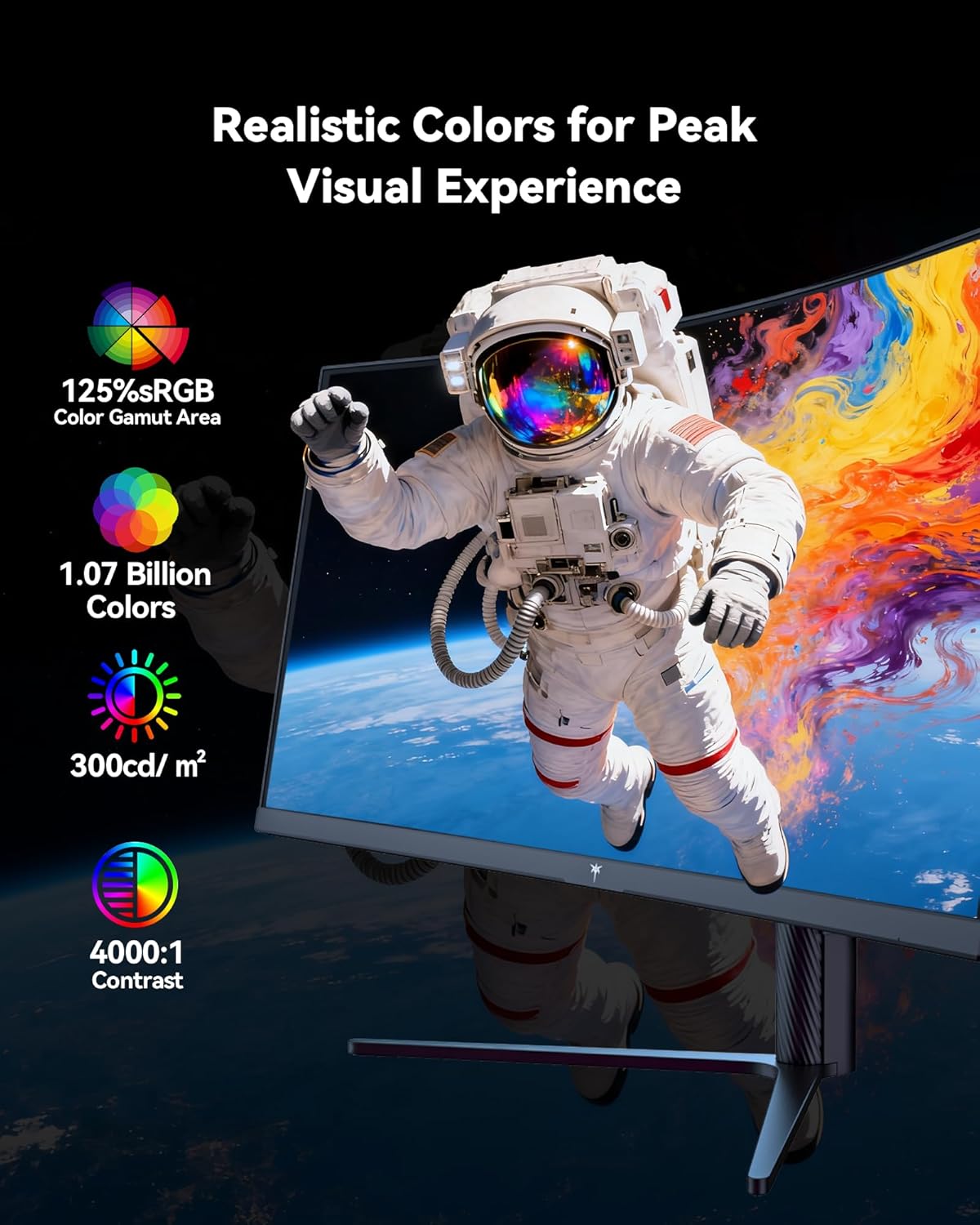
Figure 5: Visual representation of the monitor's color and contrast capabilities.
5.2 คุณสมบัติการเล่นเกม
- อัตราการรีเฟรชสูงและเวลาตอบสนองรวดเร็ว: A 180Hz refresh rate and 1ms MPRT (Moving Picture Response Time) ensure smooth, fluid motion and minimize ghosting during fast-paced gaming.
- เทคโนโลยี Adaptive Sync: This feature synchronizes the monitor's refresh rate with your graphics card's frame rate, eliminating screen tearing and stuttering for a seamless gaming experience.

Figure 6: Comparison of display with Adaptive Sync ON versus OFF.
5.3 การออกแบบตามหลักสรีรศาสตร์
ขาตั้งจอภาพสามารถปรับแต่งได้หลากหลายเพื่อเพิ่มประสิทธิภาพการใช้งาน viewความสะดวกสบาย:
- เอียง: -5° ถึง 20°
- หมุน: ±45°
- หมุน: ±5°
- การปรับความสูง: Up to 110mm (±5mm)
The monitor is also VESA compatible (100mm x 100mm) for alternative mounting solutions.

Figure 7: Ergonomic adjustment capabilities and physical dimensions.
6. ข้อมูลจำเพาะ
| คุณสมบัติ | ข้อมูลจำเพาะ |
|---|---|
| ขนาดสินค้า | 6.22 x 27.99 x 20.4 นิ้ว |
| น้ำหนักสินค้า | 16.75 ปอนด์ |
| หมายเลขรุ่น | H34S5 |
| ขนาดหน้าจอ | 34 นิ้ว |
| อัตราส่วนภาพ | 21:9 น. |
| ปณิธาน | 3440 x 1440 Pixels (UWQHD) |
| อัตราการรีเฟรช | 180Hz (DP 1.4), 100Hz (HDMI 2.0) |
| เวลาตอบสนอง | MPRT 1 มิลลิวินาที |
| ความโค้ง | 1500อาร์ |
| ความสว่างของภาพ | 300 แคนเดลาต่อตารางเมตร |
| อัตราส่วนคอนทราสต์ | 4000:1 น. |
| พื้นผิวหน้าจอ | แมทต์ |
| ความเข้ากันได้ของ VESA | 100มม. x 100มม. |
| การเชื่อมต่อ | HDMI 2.0 x 2, DP 1.4 x 2, USB 2.0 (for upgrade), Audio Out |
7. การบำรุงรักษา
To ensure optimal performance and longevity of your monitor, follow these maintenance guidelines:
- การทำความสะอาด: เช็ดหน้าจอเบาๆ ด้วยผ้านุ่มๆ ที่ไม่เป็นขุย สำหรับคราบฝังแน่น ให้ใช้น้ำยาทำความสะอาดเฉพาะสำหรับจอภาพเช็ดลงบนผ้า อย่าเช็ดลงบนหน้าจอโดยตรง
- การระบายอากาศ : ให้แน่ใจว่ามีการไหลเวียนของอากาศเพียงพอรอบๆ จอภาพโดยเว้นช่องระบายอากาศจากสิ่งกีดขวาง
- พื้นที่จัดเก็บ: เมื่อไม่ได้ใช้งานเป็นเวลานาน ควรเก็บจอภาพไว้ในที่แห้งและเย็น โดยควรเก็บไว้ในบรรจุภัณฑ์เดิม
- พลัง: Use only the provided power adapter and cord. Disconnect power during electrical storms or when leaving the monitor unattended for long periods.
8 การแก้ไขปัญหา
หากคุณพบปัญหาเกี่ยวกับจอภาพของคุณ โปรดดูขั้นตอนการแก้ไขปัญหาทั่วไปต่อไปนี้:
- ไม่มีไฟฟ้า: ตรวจสอบให้แน่ใจว่าสายไฟเชื่อมต่อกับจอภาพและเต้ารับไฟฟ้าที่ใช้งานได้แน่นหนาแล้ว ตรวจสอบการเชื่อมต่ออะแดปเตอร์แปลงไฟด้วย
- ไม่มีสัญญาณ: Verify that the video cable (DP or HDMI) is correctly connected to both the monitor and your computer. Ensure the correct input source is selected in the OSD menu. Try a different video cable or port if available.
- ปัญหาการแสดงผล (ภาพกระพริบ, ภาพบิดเบี้ยว): Check your computer's display settings to ensure the resolution and refresh rate are compatible with the monitor's specifications. Update your graphics card drivers. If Adaptive Sync is enabled, try disabling it to see if the issue persists.
- พิกเซลที่ตายแล้ว: While rare, a small number of dead pixels may be present on LCD panels. If you notice a significant number or they interfere with your viewing experience, contact customer support.
สำหรับความช่วยเหลือเพิ่มเติม โปรดดูส่วนการรับประกันและการสนับสนุน
9. การรับประกันและการสนับสนุน
KTC provides a three-year warranty for this monitor. For any issues or technical support, please contact KTC customer service. They aim to respond within 12 hours.
You can typically find contact information on the KTC official webเว็บไซต์หรือผ่านแพลตฟอร์มการซื้อของคุณ
10. วิดีโอผลิตภัณฑ์
ชมวิดีโอผลิตภัณฑ์อย่างเป็นทางการเพื่อดูภาพรวมview of the KTC H34S5 34-Inch Curved Gaming Monitor's features and design.
วิดีโอ 1: จบอย่างเป็นทางการแล้วview of the KTC 34-Inch Curved Gaming Monitor (H34S5).