
การแนะนำ
The EDJO Ergonomic Wireless Keyboard and Mouse Combo is designed to provide a comfortable and efficient computing experience. This combo features an ergonomic keyboard with a soft foam wrist rest and a wavy key design, alongside a responsive wireless mouse with adjustable DPI settings. It supports dual-mode wireless connectivity (Bluetooth and 2.4G) for versatile use across various devices and operating systems.
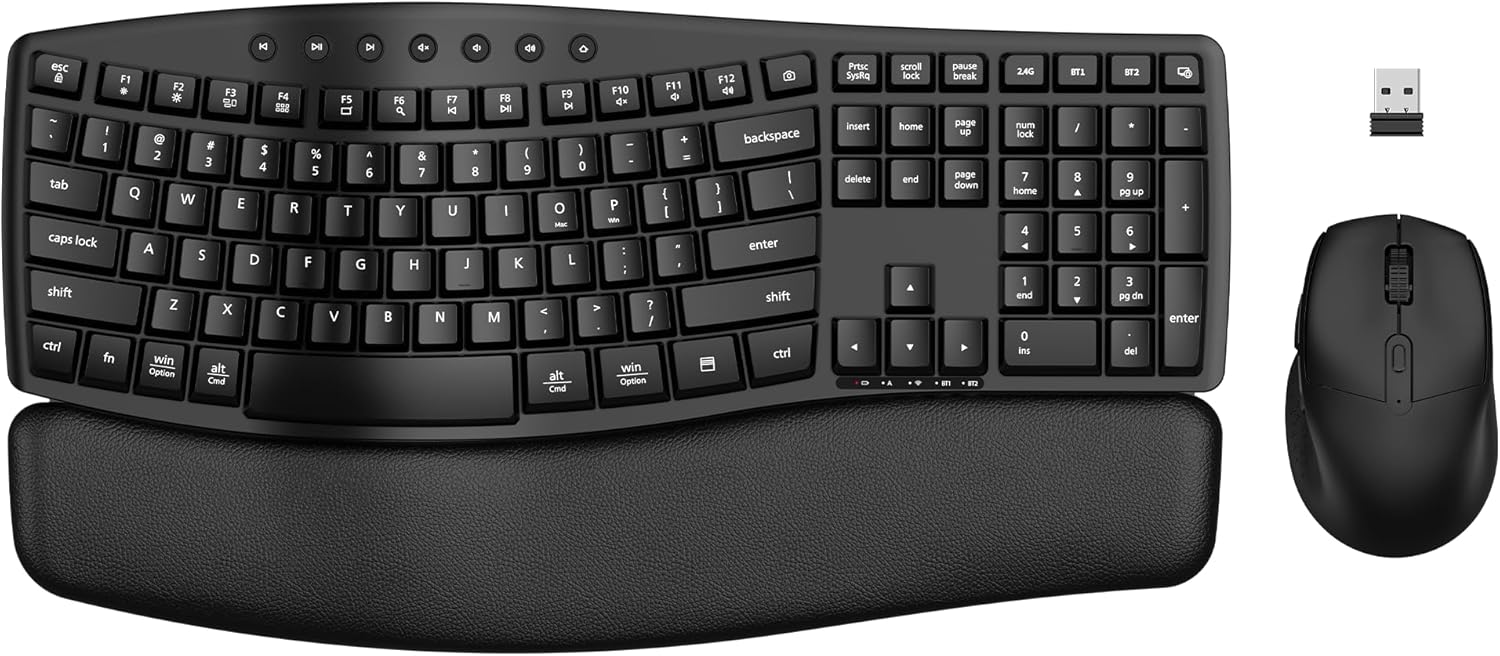
Image: The EDJO Ergonomic Wireless Keyboard and Mouse Combo, showcasing the keyboard with its integrated wrist rest and the accompanying wireless mouse.
คุณสมบัติหลัก:
- การออกแบบตามหลักสรีรศาสตร์: Wavy key layout and integrated soft foam wrist rest for enhanced comfort and reduced strain during extended use.
- การเชื่อมต่อไร้สายแบบคู่: Seamlessly switch between Bluetooth and 2.4G USB receiver connections.
- การพิมพ์แบบเงียบ: Quiet keys on both keyboard and mouse minimize disturbance in shared environments.
- เมาส์ DPI ที่ปรับได้: Three adjustable DPI levels (1000/1600/2400) for precise cursor control, with convenient forward and backward side buttons.
- การประหยัดพลังงานอัจฉริยะ: Automatic sleep mode after 30 minutes of inactivity to conserve battery life.
- ปุ่มลัดมัลติมีเดีย: 19 shortcut key combinations for quick access to media controls and common functions.
- ความเข้ากันได้กว้าง: Supports Windows 7 and above, Mac OS, and other operating systems.
คำแนะนำการตั้งค่า
- ติดตั้งแบตเตอรี่:
- For the keyboard: Open the battery compartment on the underside and insert 2 AAA batteries (not included).
- For the mouse: Open the battery compartment on the underside and insert 1 AA battery (not included). The USB receiver is stored inside this compartment.

Image: Diagram illustrating battery installation for both the keyboard (2 AAA) and mouse (1 AA), along with details on the smart power-saving feature.
- Connect via 2.4G Wireless (USB Receiver):
- ถอดตัวรับสัญญาณ USB ออกจากช่องใส่แบตเตอรี่ของเมาส์
- เสียบตัวรับสัญญาณ USB เข้ากับพอร์ต USB ที่พร้อมใช้งานบนคอมพิวเตอร์ของคุณ
- On the keyboard, press the '2.4G' key. On the mouse, ensure the switch on the bottom is set to the 2.4G mode. The devices should connect automatically.

Image: Instructions for connecting the keyboard and mouse via 2.4G wireless using the USB receiver, showing the receiver and connection indicator.
- เชื่อมต่อผ่านบลูทูธ:
- On the keyboard, press and hold either the 'BT1' or 'BT2' key for 5 seconds until the indicator light flashes, indicating pairing mode.
- On the mouse, switch the mode selector on the bottom to 'BT1' or 'BT2' and press the pairing button.
- On your device (computer, laptop, tablet), go to Bluetooth settings and search for 'K213T BT5.0' (for keyboard) and 'Wireless Mouse' (for mouse). Select the device to pair.
- You can pair up to two Bluetooth devices (BT1 and BT2) for both the keyboard and mouse, allowing quick switching between them.

Image: A visual guide demonstrating how to connect the keyboard and mouse to various devices (Windows, Mac, Android) using both 2.4G and Bluetooth (BT1, BT2) modes.
- ปรับขาตั้งคีย์บอร์ด:
- Flip out the adjustable stands on the underside of the keyboard to achieve your preferred typing angle.

Image: The keyboard with its adjustable foldable stand extended, providing a comfortable typing angle.
คำแนะนำการใช้งาน
ฟังก์ชั่นคีย์บอร์ด:
- อุปกรณ์สวิตชิ่ง: Use the '2.4G', 'BT1', and 'BT2' keys located on the top right of the keyboard to quickly switch between connected devices.
- ปุ่มลัดมัลติมีเดีย: The keyboard features 12 multimedia keys and 7 independent shortcut buttons (total 19 combinations) for functions like volume control, play/pause, track navigation, and web browsing. These are located above the main key area.
- Operating System Layout Switching: For optimal compatibility, press and hold 'Fn + O' for Mac OS layout or 'Fn + P' for Windows layout.

Image: The keyboard demonstrating the dual-system layout, highlighting the 'Fn + O' (Mac) and 'Fn + P' (Windows) keys for switching operating system compatibility.

ภาพ: โอเวอร์view of the keyboard's multimedia keys and independent shortcut buttons, detailing their functions such as track control, volume adjustment, and browser access.
ฟังก์ชั่นเมาส์:
- การปรับ DPI: Press the DPI button (usually located near the scroll wheel) to cycle through three sensitivity levels: 1000, 1600, and 2400 DPI.
- ปุ่มนำทาง: Use the forward and backward buttons on the side of the mouse for quick web การนำทางหน้า
- อุปกรณ์สวิตชิ่ง: Use the BT1/BT2/2.4G switch on the bottom of the mouse to select the desired connection mode.

ภาพ: รายละเอียด view of the wireless optical mouse, highlighting its ergonomic design, 3-level adjustable DPI, scroll wheel, left/right buttons, and forward/backward side buttons. The USB receiver storage is also shown.
การซ่อมบำรุง
- การทำความสะอาด: ใช้ผ้านุ่มและแห้งเช็ดทำความสะอาดพื้นผิวของแป้นพิมพ์และเมาส์ สำหรับการทำความสะอาดที่ล้ำลึกยิ่งขึ้น ให้เช็ดเบาๆamp สามารถใช้ผ้าชุบสบู่เหลวอ่อนๆ เช็ดได้ โดยระวังอย่าให้ของเหลวเข้าไปในตัวเครื่อง
- การเปลี่ยนแบตเตอรี่: Replace batteries when performance degrades. The keyboard requires 2 AAA batteries, and the mouse requires 1 AA battery.
- พื้นที่จัดเก็บ: When not in use for extended periods, store the USB receiver inside the mouse battery compartment to prevent loss.
- ประหยัดพลังงาน: The devices automatically enter power-saving mode after 30 minutes of inactivity. Press any key or button to reactivate. This feature helps extend battery life.

Image: Illustration of the smart power-saving feature, showing the keyboard and mouse entering auto-sleep mode after 30 minutes of inactivity to extend battery life.
การแก้ไขปัญหา
- อุปกรณ์ไม่ได้เชื่อมต่อ:
- ตรวจสอบให้แน่ใจว่าติดตั้งแบตเตอรี่อย่างถูกต้องและมีประจุเพียงพอ
- For 2.4G connection, verify the USB receiver is securely plugged into your device and the keyboard/mouse are set to 2.4G mode.
- For Bluetooth connection, ensure Bluetooth is enabled on your device and the keyboard/mouse are in pairing mode (indicator light flashing). Re-pair if necessary.
- Check that the devices are within the 10-meter wireless range.
- การเชื่อมต่อล่าช้าหรือขาดๆ หายๆ:
- เลื่อนอุปกรณ์ให้ใกล้กับตัวรับสัญญาณ/อุปกรณ์ที่เปิดใช้งานบลูทูธมากขึ้น
- Avoid interference from other wireless devices or large metal objects.
- เปลี่ยนแบตเตอรี่หากแบตเตอรี่ใกล้หมด
- เคอร์เซอร์เมาส์กระโดดหรือไม่แม่นยำ:
- Adjust the DPI setting on the mouse to a more suitable level.
- โปรดตรวจสอบให้แน่ใจว่าได้ใช้เมาส์บนพื้นผิวที่สะอาดและไม่สะท้อนแสง
- Keyboard/Mouse Not Waking Up from Sleep Mode:
- Press any key on the keyboard or any button on the mouse to reactivate.
- If it still doesn't respond, check and replace batteries.
ข้อมูลจำเพาะ
| คุณสมบัติ | รายละเอียด |
|---|---|
| ขนาดสินค้า | 17.1 x 9.5 x 13.2 นิ้ว |
| น้ำหนักสินค้า | 2.46 ปอนด์ |
| ยี่ห้อ | เอดโจ |
| แบบอย่าง | MK213T |
| สี | สีดำ |
| เทคโนโลยีการเชื่อมต่อ | บลูทูธ, 2.4G USB ไร้สาย |
| คุณสมบัติพิเศษ | Ergonomic, Wrist Rest, Silent Typing, Adjustable DPI, Multimedia Hotkeys, Dual-Mode Connection, Power Saving |
| อุปกรณ์ที่รองรับ | Desktop Computers, Laptops, PCs, Tablets (Windows 7+, Mac OS, Chrome OS) |
| ระดับ DPI ของเมาส์ | 1000 / 1600 / 2400 |
| แบตเตอรี่คีย์บอร์ด | 2 x AAA (ไม่รวม) |
| แบตเตอรี่เมาส์ | 1 x AA (ไม่รวม) |
| ช่วงสาย | สูงถึง 10 เมตร (33 ฟุต) |
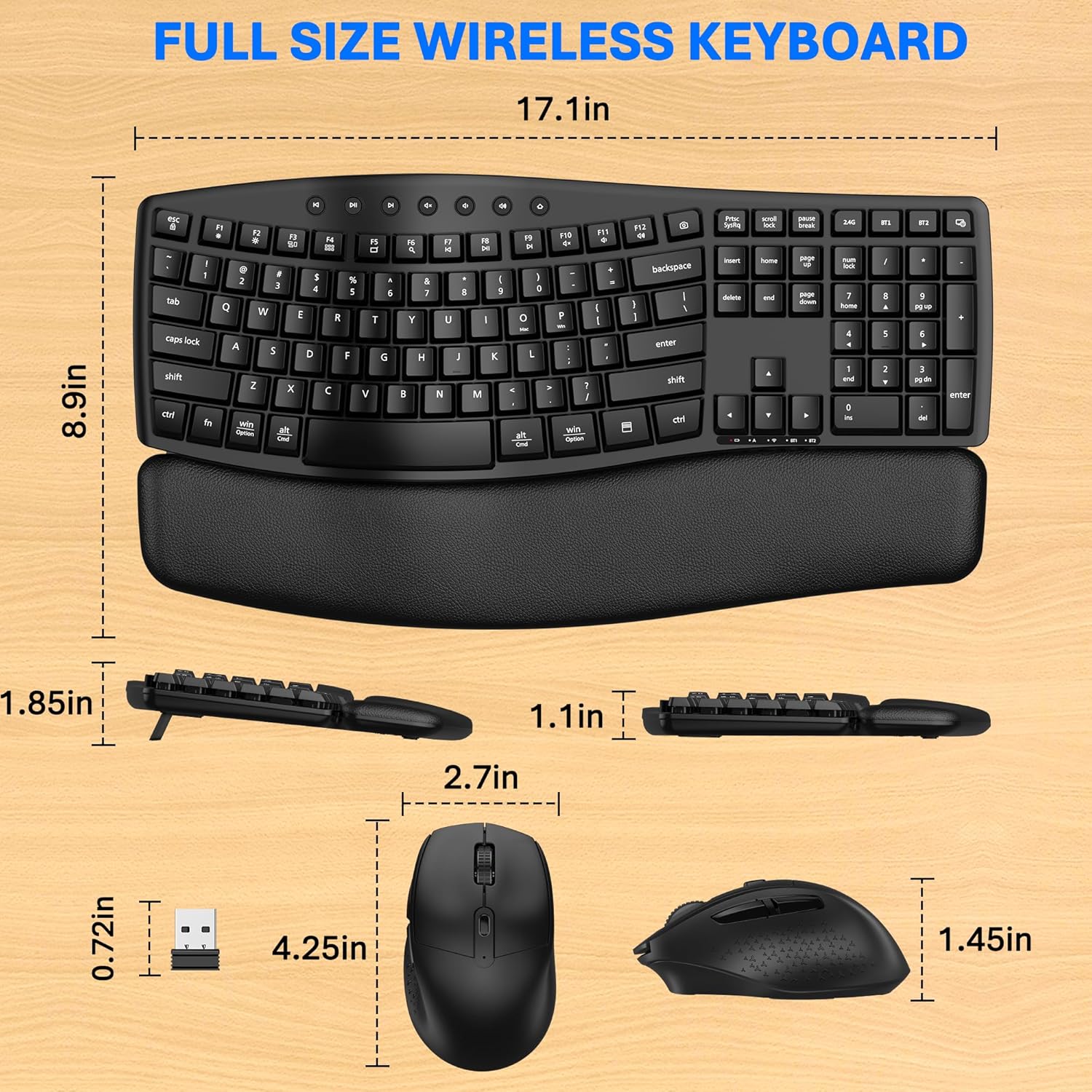
Image: Detailed dimensions of the full-size wireless keyboard and mouse, providing measurements for both components and the USB receiver.
การรับประกันและการสนับสนุน
This EDJO Ergonomic Wireless Keyboard and Mouse Combo comes with a รับประกัน 12 เดือน from the date of purchase. This warranty covers manufacturing defects and ensures satisfactory performance under normal use conditions.
For any product inquiries, technical assistance, or warranty claims, please contact our customer support team via email:
อีเมล: sales@sz-deying.com
Our dedicated after-sales support is committed to providing a satisfactory solution, even beyond the standard Amazon return period.