
CITLLA Wireless Keyboard
คู่มือการใช้งานคีย์บอร์ดไร้สาย CITLLA
Model: Wireless Keyboard
เกินview
The CITLLA Wireless Keyboard is designed for comfortable and durable typing across multiple operating systems. It features a sleek aluminum housing, low-profile keys, and a leather palm rest for enhanced ergonomics. With multi-device pairing capabilities and adjustable backlighting, it adapts to various work and study environments.
- Comfortable & Durable Typing: The CITLLA wireless bluetooth keyboard features a sleek aluminum housing, a low-profile layout, and spherical scissor-switch keys that deliver smooth, precise keystrokes. Designed for comfort and durability, it’s perfect for long hours of work or study.
- With Leather Palm Rest: This ergonomic wireless keyboard includes a soft leather palm rest and adjustable tilt legs to reduce wrist strain—perfect for all-day productivity.
- Multi-Device Bluetooth Keyboard: Seamlessly switch between 3 devices via Bluetooth or 2.4G receiver. This wireless ergonomic keyboard works with Windows, Mac, iOS, Android, and more—perfect for multitasking.
- Backlit Wireless Keyboard: Work comfortably in dim environments with this wireless keyboard's soft white backlighting. Adjust brightness levels using FN + arrow keys for the perfect lighting every time.
- Rechargeable Full Size Wireless Keyboard: This full size wireless keyboard charges via USB-C and lasts up to 60 days (backlight off). Use while charging—no more interruptions during long work or study sessions.
มีอะไรอยู่ในกล่อง
- แป้นพิมพ์
- Leather Palm Rest
- สาย USB
- คู่มือการใช้งาน
การตั้งค่า
การชาร์จคีย์บอร์ด
The keyboard is equipped with a rechargeable battery and charges via a USB-C port located on the top edge. Connect the provided USB-A to USB-C cable to the keyboard and a power source. A red indicator light will illuminate during charging and turn green when fully charged. A full charge can last up to 60 days with backlighting off.
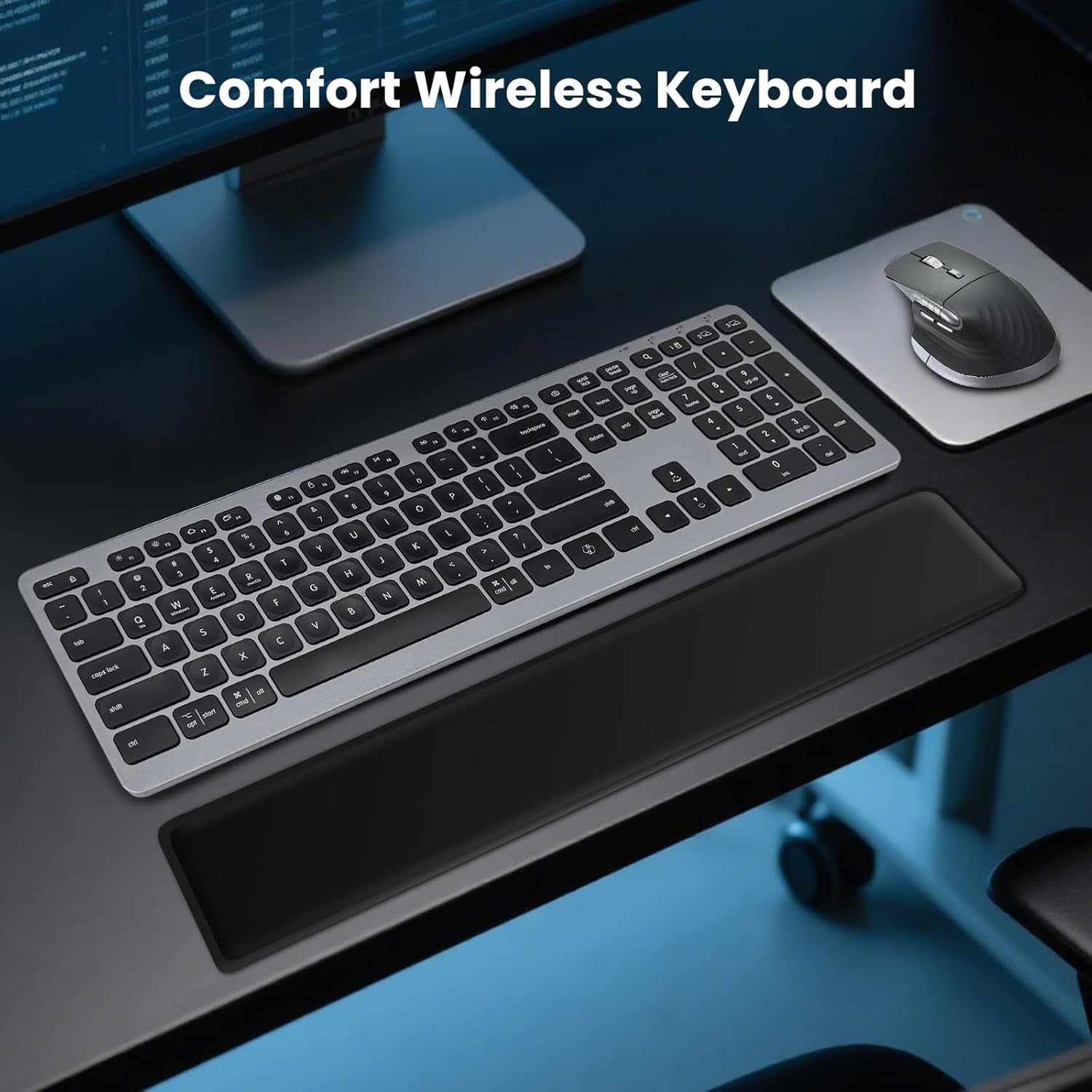
Image: USB-C charging port on the keyboard.
Video: Demonstrates the charging process and multi-device switching for a similar keyboard.
การเชื่อมต่อและการจับคู่
The keyboard supports multi-device pairing via Bluetooth and a 2.4G USB-A receiver, allowing seamless switching between up to three devices.
- 2.4G USB-A Receiver: Locate the USB-A receiver, usually stored in a compartment on the underside of the keyboard. Plug the receiver into an available USB port on your computer. The keyboard should connect automatically.
- การจับคู่บลูทู ธ :
- เปิดแป้นพิมพ์โดยใช้สวิตช์เปิด/ปิด
- Press and hold one of the Bluetooth channel keys (e.g., 'BT1', 'BT2', 'BT3' usually indicated by icons or numbers on the keys) for 3-5 seconds until the corresponding indicator light starts blinking rapidly. This indicates pairing mode.
- บนอุปกรณ์ของคุณ (คอมพิวเตอร์ แท็บเล็ต สมาร์ทโฟน) ไปที่การตั้งค่าบลูทูธ และค้นหาอุปกรณ์ใหม่
- Select "CITLLA Wireless Keyboard" (or similar name) from the list of available devices.
- Follow any on-screen prompts to complete the pairing process. The indicator light on the keyboard will stop blinking and remain solid once connected.
- การสลับระหว่างอุปกรณ์: Once paired, simply press the corresponding channel key (e.g., 'BT1', 'BT2', 'BT3', or the 2.4G key) to switch between your connected devices.

Image: Multi-device wireless keyboard connected to various devices.
Video: Demonstrates connecting a Bluetooth keyboard to a tablet and phone, highlighting multi-device functionality.
Video: Shows the K9100 Wireless Bluetooth Keyboard, demonstrating its multi-device capabilities.
คำแนะนำการใช้งาน
การควบคุมไฟแบ็คไลท์
The keyboard features soft white backlighting for use in dim environments. To adjust the brightness levels, press the FN คีย์พร้อมกันกับ ลูกศรขึ้น or ลูกศรลง กุญแจ

Image: Function keys for backlighting adjustment.
การออกแบบตามหลักสรีรศาสตร์
The keyboard is designed with user comfort in mind, featuring a soft leather palm rest and adjustable tilt legs. The tilt legs can be set to different angles (6°, 10°, 15°) to reduce wrist strain during long typing sessions.
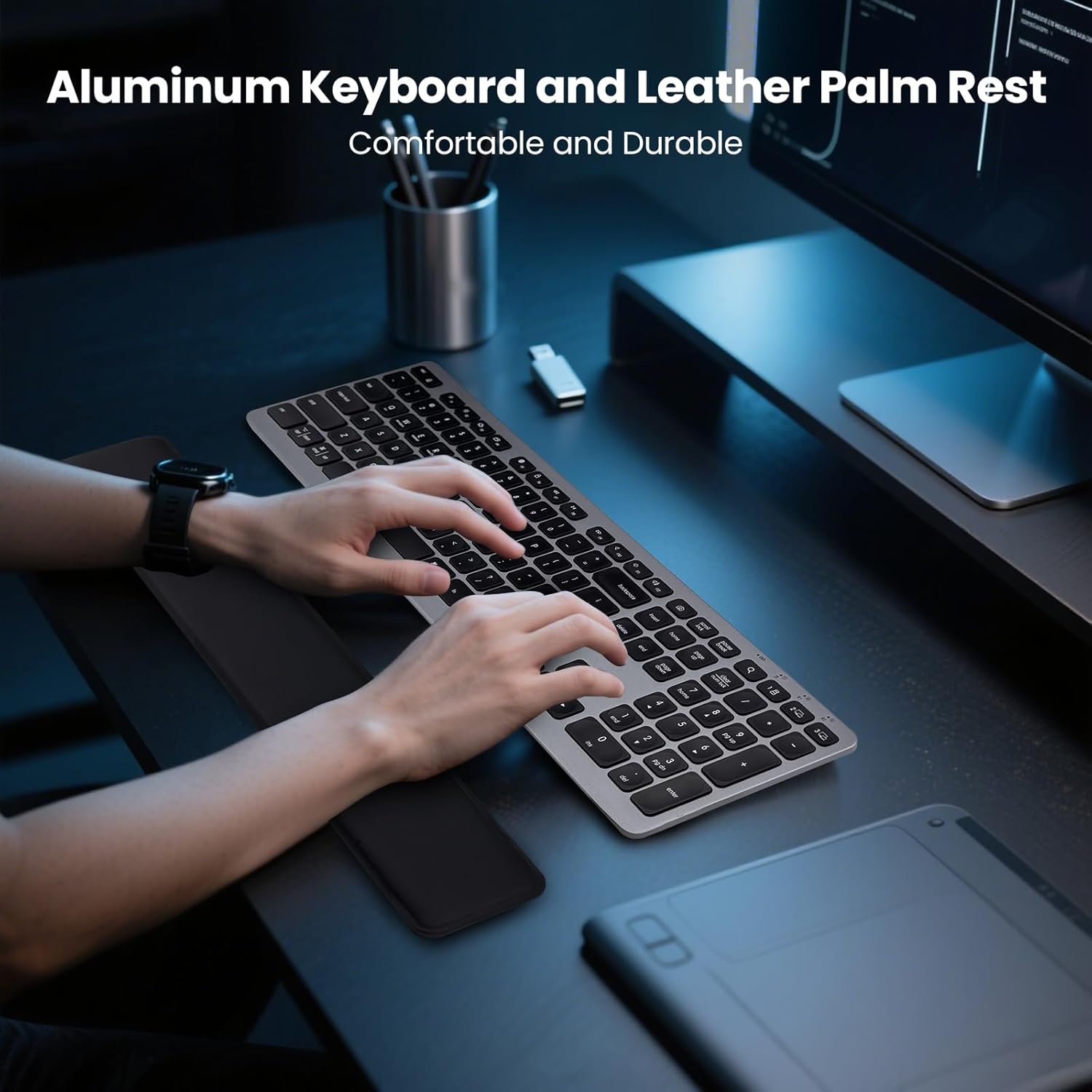
Image: Keyboard with leather palm rest for comfortable typing.

Image: Adjustable tilt angles to reduce wrist fatigue.
ปุ่มมัลติมีเดียและฟังก์ชัน
The keyboard includes 12 multimedia function keys (F1-F12) that can be accessed by pressing the FN key in combination with the desired function key. These keys provide quick access to features like media playback, volume control, and more. You can also switch system layouts (Windows, Mac, iOS, Android) using FN + Q/W/E/R กุญแจ
ภาพ: เหนือview of multimedia and function keys.
โหมดประหยัดพลังงาน
To conserve battery life, the keyboard features a smart power-saving mode. It will automatically enter auto-sleep mode after 15 minutes of inactivity. To wake up the keyboard, simply press any key.
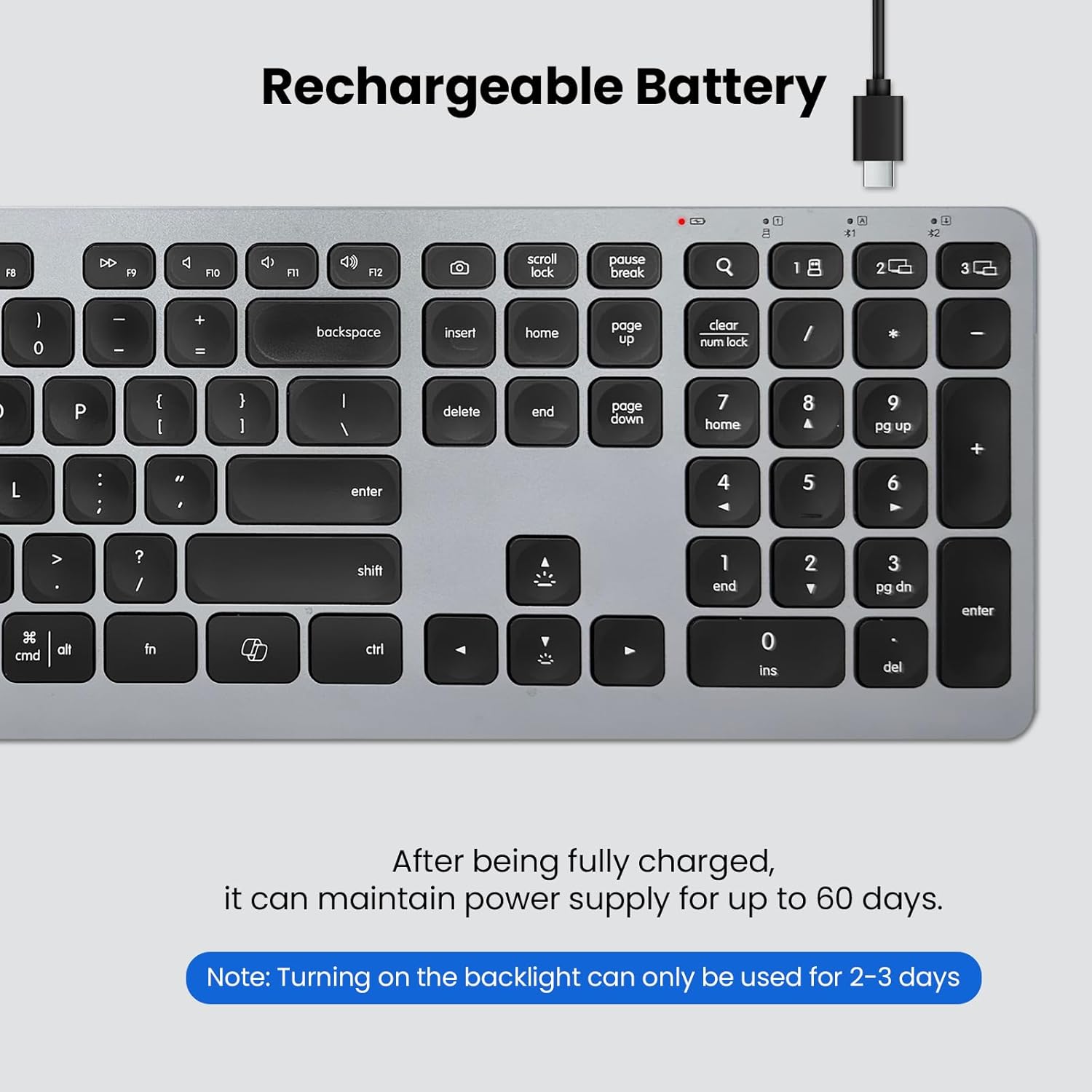
Image: Smart power saving with auto-sleep feature.
ข้อมูลจำเพาะ
| คุณสมบัติ | รายละเอียด |
|---|---|
| ขนาดสินค้า | 17.02 x 4.96 x 0.77 นิ้ว |
| น้ำหนักสินค้า | 1.94 ปอนด์ |
| ผู้ผลิต | ซิตลา |
| แบตเตอรี่ | ต้องใช้แบตเตอรี่ที่ไม่ใช่มาตรฐาน 1 ก้อน (รวมอยู่ด้วย) |
| ยี่ห้อ | ซิตลา |
| อุปกรณ์ที่รองรับ | แล็ปท็อป, พีซี, สมาร์ทโฟน, แท็บเล็ต |
| เทคโนโลยีการเชื่อมต่อ | บลูทูธ, USB-A |
| คำอธิบายแป้นพิมพ์ | มัลติฟังก์ชั่น |
| การใช้งานที่แนะนำสำหรับผลิตภัณฑ์ | Business, Everyday Use, Multimedia, Student |
| คุณสมบัติพิเศษ | Aluminum housing, Backlit, Detachable Palm Rest, Rechargeable, Silent |
| รองรับสีแบ็คไลท์คีย์บอร์ด | สีเดียว |
| สไตล์ | เค้าโครงของสหรัฐอเมริกา |
| วัสดุ | อลูมิเนียม, พลาสติก |
การซ่อมบำรุง
To ensure the longevity and optimal performance of your CITLLA Wireless Keyboard, follow these maintenance guidelines:
- การทำความสะอาด: ใช้ผ้านุ่มไม่เป็นขุยเช็ดเล็กน้อยampเช็ดทำความสะอาดพื้นผิวแป้นพิมพ์ด้วยน้ำหรือน้ำยาทำความสะอาดอ่อนๆ หลีกเลี่ยงสารเคมีรุนแรงหรือวัสดุที่มีฤทธิ์กัดกร่อน
- การกำจัดฝุ่น: Use compressed air to remove dust and debris from between the keys regularly.
- พื้นที่จัดเก็บ: เมื่อไม่ได้ใช้งานเป็นเวลานาน ควรเก็บแป้นพิมพ์ไว้ในที่แห้งและเย็น หลีกเลี่ยงแสงแดดโดยตรงและอุณหภูมิที่สูงหรือต่ำเกินไป
การแก้ไขปัญหา
หากคุณพบปัญหาเกี่ยวกับแป้นพิมพ์ โปรดลองทำตามขั้นตอนต่อไปนี้:
- ปัญหาการเชื่อมต่อ:
- ตรวจสอบให้แน่ใจว่าคีย์บอร์ดเปิดใช้งานอยู่และชาร์จแบตเตอรี่เต็มแล้ว
- For 2.4G connection, verify the USB-A receiver is securely plugged into your device.
- For Bluetooth connection, ensure Bluetooth is enabled on your device and the keyboard is in pairing mode (blinking indicator light). Try unpairing and re-pairing the device.
- Try connecting the keyboard to a different device to rule out device-specific issues.
- คีย์ไม่ตอบสนอง:
- ตรวจสอบระดับแบตเตอรี่และชาร์จคีย์บอร์ดหากจำเป็น
- โปรดตรวจสอบให้แน่ใจว่าแป้นพิมพ์เชื่อมต่อกับอุปกรณ์ของคุณอย่างถูกต้องแล้ว
- รีสตาร์ทอุปกรณ์และคีย์บอร์ดของคุณ
- ไฟแบ็คไลท์ไม่ทำงาน:
- Ensure the backlighting feature is enabled (FN + Up Arrow).
- Check the battery level; backlighting may be disabled at very low battery levels to conserve power.
การรับประกันและการสนับสนุน
For warranty information, technical support, or further assistance, please refer to the official CITLLA website or contact their customer service directly. Details can typically be found in the included User Manual or on the product packaging.
Ask a question about this manual
Ask about setup, troubleshooting, compatibility, parts, safety, or missing instructions. Manuals+ will review the question and use this page’s manual context to help answer it.