
1. บทนำ
This manual provides detailed instructions for the setup, operation, maintenance, and troubleshooting of your NETUM RD-1950 2D QR Industrial Bluetooth Barcode Scanner. Please read this manual thoroughly before using the device to ensure proper functionality and to maximize its lifespan.
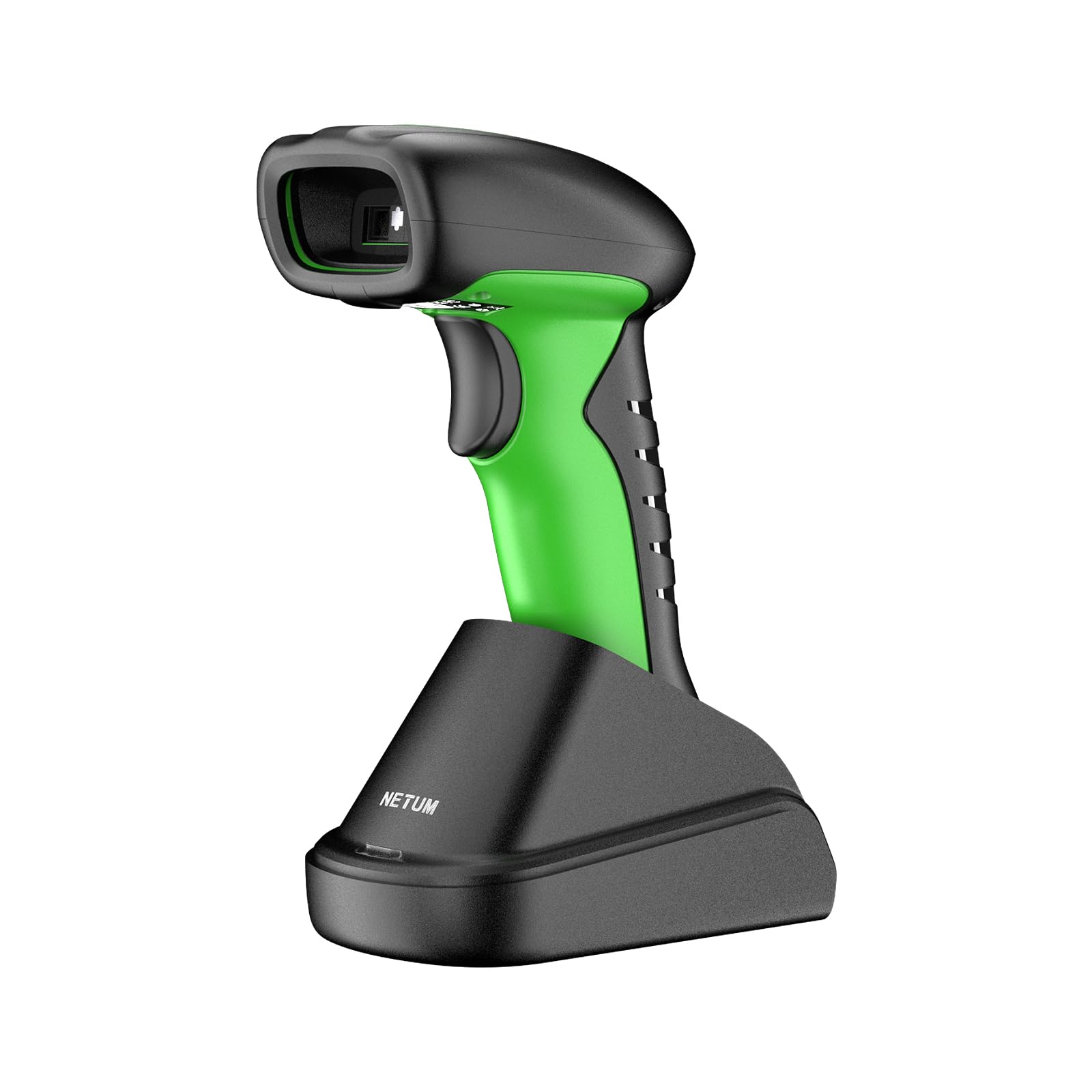
Image: The NETUM RD-1950 barcode scanner with its charging dock, showcasinก. การออกแบบและส่วนประกอบ
2. คุณสมบัติหลัก
- Industrial-Grade Protection: The RD-1950 features an IP67 rating for dust, splash, and waterproof capabilities. Its rugged construction and durable silicone casing provide protection against drops from up to 12 ft (3.65 m), making it suitable for demanding industrial environments.
- การเชื่อมต่อแบบคู่: Supports both 2.4G wireless and Bluetooth connections. The charging dock includes a built-in 2.4G receiver for plug-and-play operation. Bluetooth connectivity supports HID, SPP, and BLE modes for compatibility with various devices including laptops, PCs, smartphones, tablets, iPhones, iPads, and POS systems.
- Automatic Scanning & Storage Mode: Offers three scanning modes: manual trigger, continuous scanning, and auto-sensing for both handheld and hands-free use. A storage mode is available for offline operation, capable of storing up to 100,000 barcodes.
- ความสามารถในการสแกนขั้นสูง: Equipped with a 1280H × 800V (1M) CMOS sensor, providing fast scanning speeds up to 60 FPS. It accurately reads 1D barcodes ≥4 mil and 2D barcodes ≥5 mil (HD).
- อายุการใช้งานแบตเตอรี่ที่ยาวนานขึ้น: Powered by a 2600mAh battery, offering up to 30 days of use (based on 2,000 scans per day) on a full charge. The cradle serves as a charging station.
3. คู่มือการติดตั้ง
3.1 การแกะกล่องและการเรียกเก็บเงินครั้งแรก
Carefully remove all components from the packaging. Before first use, ensure the scanner is fully charged. Place the scanner into the charging dock. Connect the charging dock to a power source using the provided USB cable.

Image: The barcode scanner docked in its charging station, illustrating the charging process and battery indicator.
3.2 2.4G Wireless Connection (via Charging Dock)
- Connect the charging dock's USB cable to your computer's USB port.
- The computer will automatically detect and install the necessary drivers.
- The scanner is now ready for use in 2.4G wireless mode.

Image: Diagram showing the barcode scanner wirelessly connected to a computer via the 2.4G USB receiver in the charging dock.
3.3 การเชื่อมต่อบลูทูธ
The RD-1950 supports HID, SPP, and BLE Bluetooth modes. Refer to the full user manual for specific configuration barcodes to switch between modes if needed. The default mode is typically HID (Human Interface Device).
- ตรวจสอบให้แน่ใจว่าสแกนเนอร์เปิดอยู่
- บนอุปกรณ์หลักของคุณ (สมาร์ทโฟน แท็บเล็ต หรือพีซี) เปิดใช้งานบลูทูธและค้นหาอุปกรณ์ที่ใช้งานได้
- Select "RD Barcode Scanner" from the list of found devices to pair.
- เมื่อจับคู่เสร็จแล้ว เครื่องสแกนก็พร้อมใช้งาน

Image: The barcode scanner demonstrating wide compatibility with various operating systems and devices via Bluetooth connection.
บันทึก: Before using storage mode or specific advanced features, you may need to scan corresponding configuration barcodes found in the comprehensive user manual (not this summary).
4. การดำเนินการ
4.1 โหมดการสแกน
The scanner offers three primary scanning modes:
- โหมดการทำงานแบบแมนนวล: กดปุ่มเพื่อสแกนบาร์โค้ดแต่ละอัน
- โหมดการสแกนต่อเนื่อง: เครื่องสแกนจะปล่อยลำแสงสแกนอย่างต่อเนื่อง เพื่ออ่านบาร์โค้ดขณะที่ผ่านเข้ามาในบริเวณนั้น view โดยไม่ต้องกดไกปืน
- โหมดการตรวจจับอัตโนมัติ: เครื่องสแกนจะตรวจจับบาร์โค้ดภายในขอบเขตการตรวจจับโดยอัตโนมัติ view and scans it without manual trigger activation. This mode is ideal for hands-free operation when placed in the charging dock.

Image: The barcode scanner in its multifunctional cradle, highlighting Auto-Sense and Continuous scanning modes, along with wireless charging and 2.4G wireless transmission capabilities.
4.2 ประเภทบาร์โค้ดที่รองรับ
The RD-1950 is capable of reading a wide range of 1D and 2D barcodes:
- รหัส 2D: Aztec, Data Matrix, Maxicode, PDF417, QR-Code, and more.
- รหัส 1D: EAN, UPC, Code 39, Code 93, Code 128, UCC/EAN 128, Codabar, Interleaved 2 of 5, ITF-6, ITF-14, ISBN, ISSN, MSI-Plessey, GS1 Databar, Code 11, Industrial 25, Standard 25, Plessey, Matrix 2 of 5.

Image: The barcode scanner targeting a QR code on a package, with examples of various 1D and 2D barcode types it can read, including PDF417, Aztec, GS1 Code128, QR (7mils, 8mils), Data Matrix, HanXin, Maxi, Dotcode, Bank Code, Grid Matrix, and Composite codes.
4.3 โหมดการจัดเก็บ
When Bluetooth or 2.4G wireless connections are unavailable, the scanner can store up to 100,000 barcodes internally. To activate and manage storage mode, refer to the specific configuration barcodes in the full user manual.
5. การบำรุงรักษา
5.1 การทำความสะอาดสแกนเนอร์
To maintain optimal performance, keep the scanner's scanning window clean. Use a soft, lint-free cloth lightly dampened with water or a mild, non-abrasive cleaning solution. Do not use harsh chemicals or abrasive materials, as these can damage the scanning window or casing.
5.2 การดูแลแบตเตอรี่
The scanner is equipped with a 2600mAh lithium-polymer battery. For best battery life:
- Charge the scanner fully before its first use.
- ควรหลีกเลี่ยงการปล่อยให้แบตเตอรี่หมดเกลี้ยงเป็นประจำ
- Store the scanner in a cool, dry place if not used for extended periods.
6 การแก้ไขปัญหา
6.1 เครื่องสแกนไม่เชื่อมต่อ
- 2.4G ไร้สาย: Ensure the charging dock's USB receiver is securely plugged into the computer. Verify the scanner is within range.
- บลูทูธ: Check if Bluetooth is enabled on your host device. Ensure the scanner is in pairing mode and visible. Try unpairing and re-pairing the device.
- แบตเตอรี่: Confirm the scanner has sufficient battery charge.
6.2 ปัญหาเกี่ยวกับการสแกน
- No Scan: Ensure the scanner is in the correct scanning mode (manual, continuous, auto-sense). Check if the barcode is damaged or poorly printed.
- การสแกนที่ไม่แม่นยำ: Ensure the scanning window is clean. Position the scanner correctly over the barcode, allowing for proper focus.
- Specific Barcodes (e.g., Driver's Licenses): Some barcodes may require specific configuration settings (e.g., line feed characters). Refer to the full user manual or contact support for advanced configuration barcodes.
6.3 Bluetooth Latency
Some users may experience noticeable latency when using Bluetooth, especially in high-volume scanning environments. For faster, more consistent data transmission, consider using the 2.4G wireless connection via the charging dock.

Image: Illustration of the scanner's Bluetooth transmission range, showing reduced range with obstacles (10m/32ft) and extended range in barrier-free environments (20m/65ft).
7. ข้อมูลจำเพาะทางเทคนิค
7.1 ประสิทธิภาพการสแกน
- เซ็นเซอร์: 1280×800 CMOS (1M)
- การให้แสงสว่าง: ไฟ LED สีขาว
- การเล็ง: ไฟ LED สีแดง
- Reading Precision: ≥4 mil (1D), ≥5 mil (2D, HD)
- Reading Depth of Field:
- EAN-13 (13 mil): 35mm - 420mm
- Code 39 (5 mil, 10 characters): 45mm - 165mm
- QR-Code (20 mil, 16 characters): 25mm - 330mm
- Data Matrix (10 mil, 20 characters): 40mm - 150mm
- PDF417 (6.67 mil, 7 characters): 25mm - 180mm
- ตัดกัน: ≥25%
- Scanning Angles: Rotation 360°, Tilt ± 55°, Skew ± 55°
- ทุ่งแห่ง View: แนวนอน 42°, แนวตั้ง 28°
7.2 คุณสมบัติไร้สาย
- เทคโนโลยีวิทยุ: 2.4GHz, บลูทูธ
- ระยะทางการสื่อสาร: 30-100 ม. (แนวสายตา)
7.3 Electrical & Environmental
- ความจุแบตเตอรี่: 2600mAh ลิเธียมโพลิเมอร์
- อายุการใช้งานแบตเตอรี่: Up to 20 hours of continuous scanning (or 30 days based on 2,000 scans/day)
- เวลาในการชาร์จ: 4 ชั่วโมง
- หน่วยความจำ: 2MB of flash storage (up to 100,000 barcodes)
- อุณหภูมิในการทำงาน: -20°C ถึง +50°C (-4°F ถึง +122°F)
- อุณหภูมิในการจัดเก็บ: -40°C ถึง +70°C (-40°F ถึง +158°F)
- ความชื้นในการทำงาน: 5% ถึง 95% (ไม่ควบแน่น)
- ความต้านทานแสงโดยรอบ: 0 ถึง 100,000 ลักซ์
- ระดับการป้องกัน: IP67 (Dust, Splash, Waterproof)
- ความต้านทานการตก: สูงถึง 12 ฟุต (3.65 ม.)
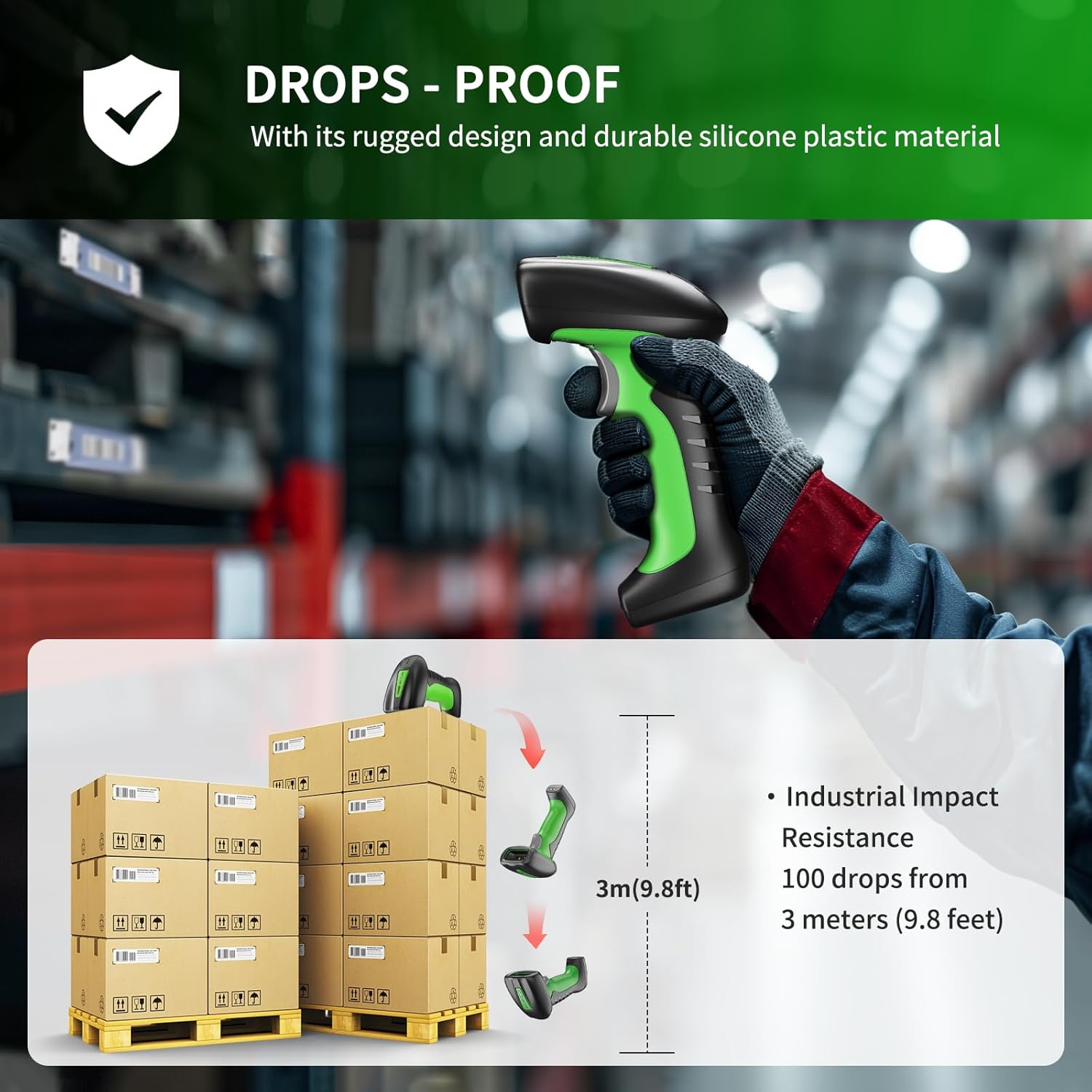
Image: Illustration demonstrating the scanner's drop-proof capability, showing it can withstand drops from 3 meters (9.8 feet).

Image: The barcode scanner partially submerged in water, demonstrating its IP67 waterproof rating and ability to pass a 30-minute waterproof resistance test.
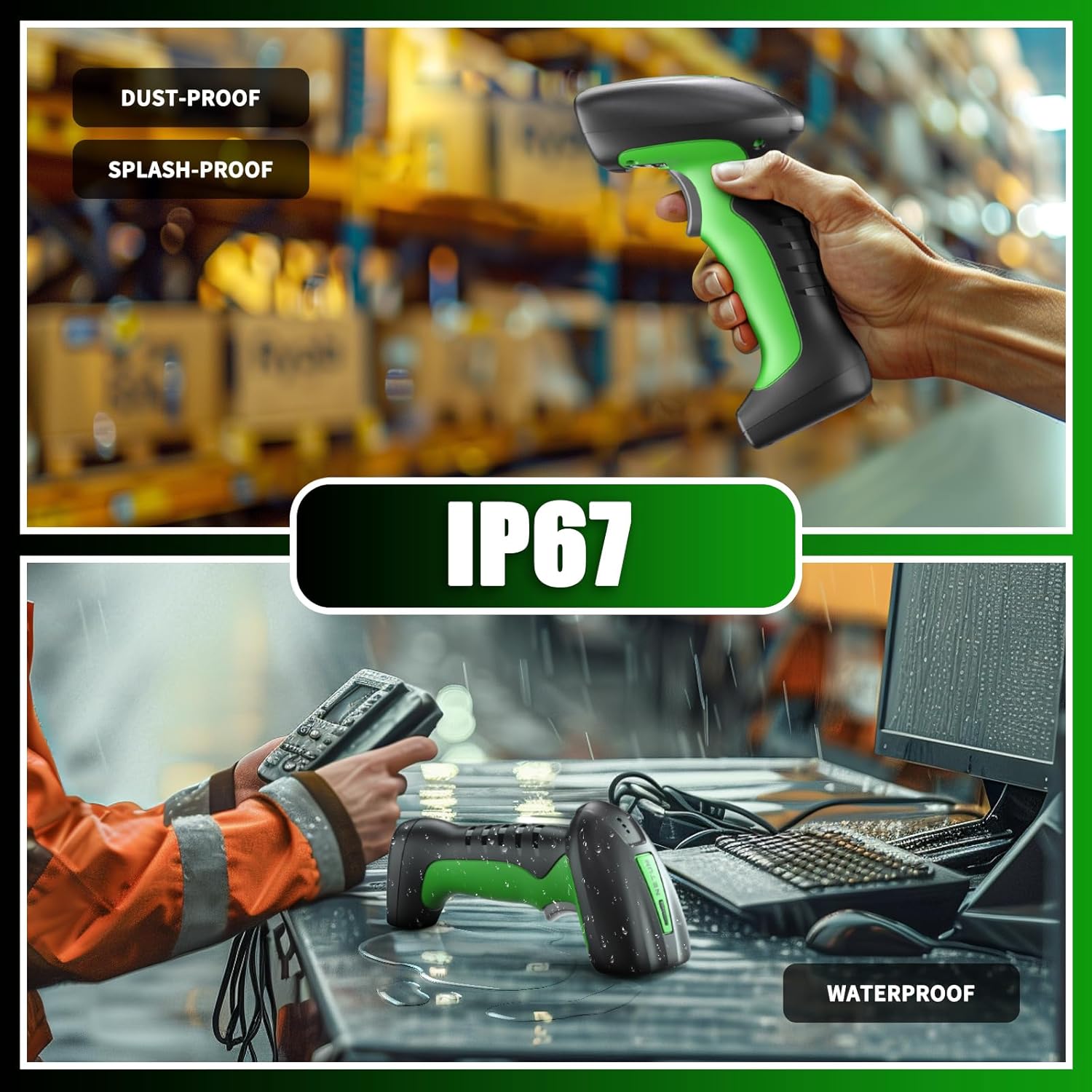
Image: Two scenes illustrating the scanner's IP67 rating, showing it being used in a dusty warehouse and on a wet desk, emphasizing its dust-proof, splash-proof, and waterproof capabilities.
7.4 ความเข้ากันได้
- อุปกรณ์ที่รองรับ: Laptop, PC, Smartphone, Tablet, iPhone, iPad, POS System.
- Incompatible Software: This scanner is not compatible with Square POS, LightSpeed, Clover, or Shopify.
8. การรับประกันและการสนับสนุน
The NETUM RD-1950 Barcode Scanner comes with a รับประกัน 1 ปี นับจากวันที่ซื้อ การรับประกันนี้ครอบคลุมถึงข้อบกพร่องจากการผลิตและรับรองว่าผลิตภัณฑ์มีประสิทธิภาพตามมาตรฐานที่ระบุไว้
For technical assistance, troubleshooting, or warranty claims, please contact NETUM customer support. Refer to the contact information provided with your product packaging or visit the official NETUM webเว็บไซต์สำหรับรายละเอียดการสนับสนุน